
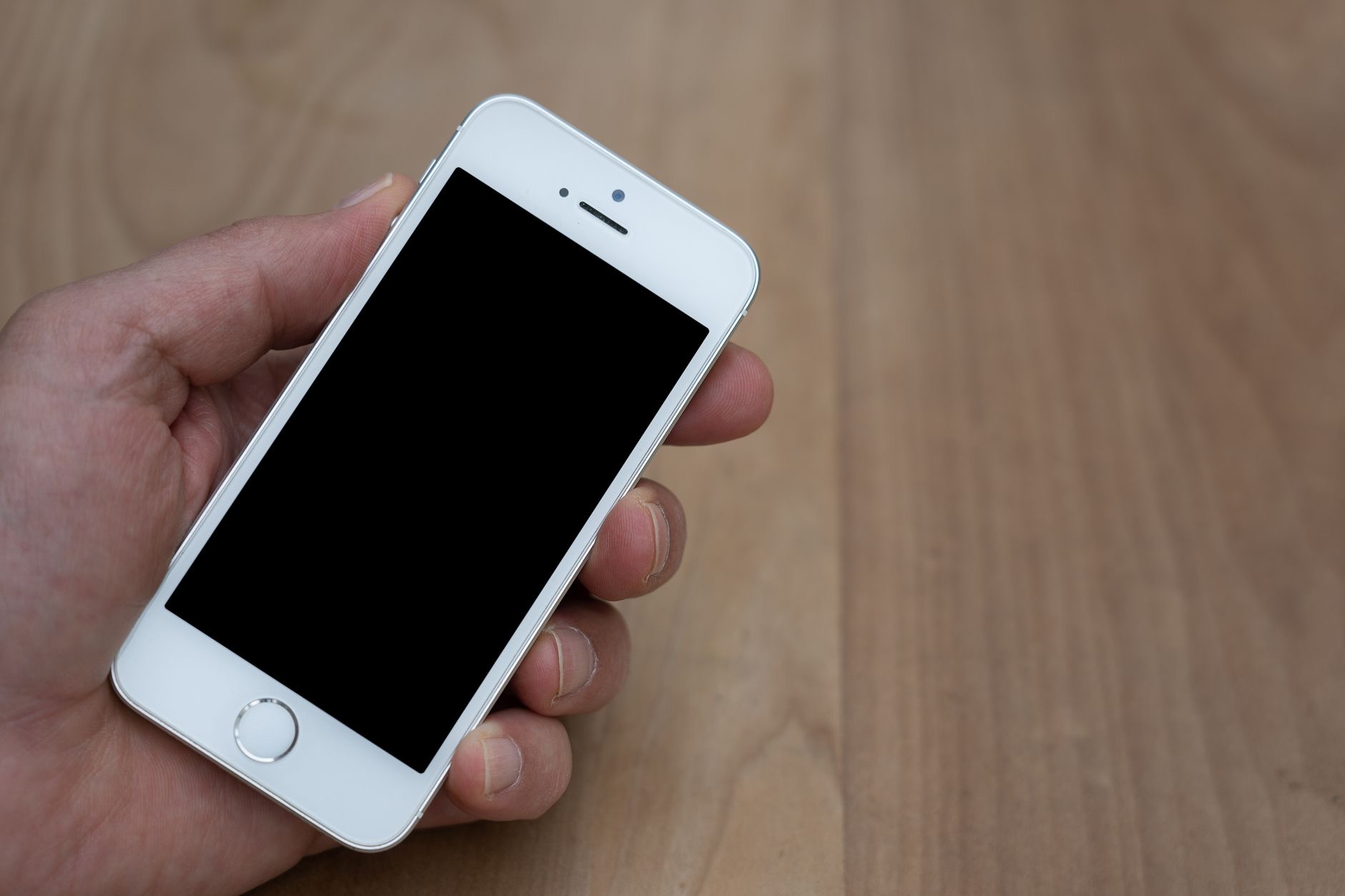
A black, unresponsive iPhone is genuinely alarming, but in most cases it is not dead, it is just stuck or out of power. Based on the most common causes and widely reported fixes, the problem is almost always something you can solve yourself in a few minutes, without a trip to a repair shop. Work through these seven fixes in order, starting with the simplest, and your iPhone will very likely spring back to life.
First, Is It Off or Frozen?
Before anything, work out which problem you actually have. An iPhone that is genuinely powered off shows nothing at all, while a frozen one may have a black screen but still be on underneath. The good news is that the first fixes work for both. Do not panic and assume hardware failure, because a blank screen is usually a drained battery or a software freeze, both of which are quick and free to resolve.
1. Charge It and Wait
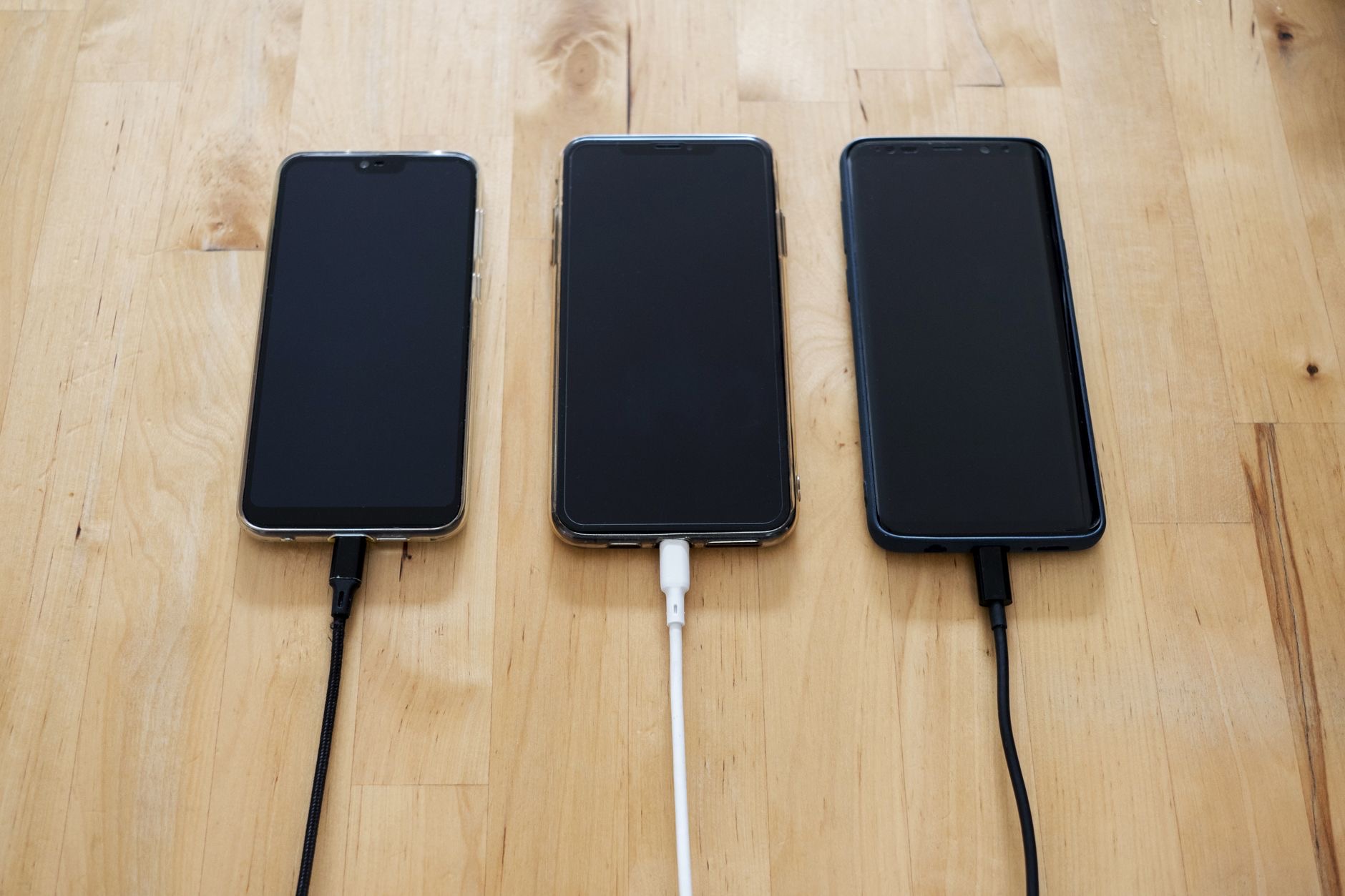
The single most common reason an iPhone will not turn on is simply a fully drained battery. Plug it into a known-good charger and cable, then wait. A deeply drained battery can take ten to fifteen minutes before it shows any sign of life, and even longer before the charging screen appears. Be patient, leave it plugged in for at least half an hour, and watch for the charging symbol before you try anything else.
2. Check the Cable, Charger, and Port
If it will not charge, the problem may be the accessories, not the phone. Try a different cable and a different charger or wall outlet, since cables fail far more often than phones do. Inspect the charging port for lint, dust, or debris, which builds up surprisingly fast and blocks the connection. Gently clean it out with a wooden toothpick or a soft brush. A blocked port or a dead cable mimics a dead phone perfectly.
3. Force Restart Your iPhone
This is the fix that revives most frozen iPhones, and it is the one to learn. A force restart does not erase anything, it simply reboots a stuck device. The exact button sequence varies by model, but on most modern iPhones you quickly press and release Volume Up, quickly press and release Volume Down, then press and hold the Side button until the Apple logo appears. Keep holding past the power-off slider until the logo shows.
4. Let It Charge, Then Force Restart Again
Sometimes the two fixes work best together. If a force restart did nothing, plug the phone in, leave it charging for fifteen to thirty minutes, and then try the force restart again while it is still connected to power. A battery that is too low to boot needs both a charge and a reboot, and doing them in sequence often succeeds where either alone failed. This combination revives a large share of seemingly dead iPhones.
5. Look for the Apple Logo or Other Screens
As you try these steps, watch what the screen shows. An Apple logo that appears and stays, or a logo that loops on and off, points to a software issue rather than a dead phone, and means the device is alive. A red or empty battery icon means it simply needs more charging time. A recovery-mode screen means it needs to reconnect to a computer. Each of these is fixable, and none means your iPhone is beyond saving.
6. Connect It to a Computer
If the phone still will not start, connect it to a computer and look for it to appear there. From a computer you can update or restore the iPhone, which often fixes a device stuck in a boot loop or frozen on the logo. Restoring is a heavier step and can erase data if you have to fully reset, so try updating first. This is also how you put a stubborn iPhone into recovery mode to give it a fresh start.
7. When It Is Time for Help
If you have charged it properly, swapped the cable and charger, cleaned the port, force restarted, and tried a computer, and the iPhone still shows nothing, the cause may be a hardware fault such as a failed battery or damage from a drop or water. At that point, contact Apple support or a trusted repair service. A worn battery, in particular, is a common and affordable fix that can bring an old iPhone back to life, so do not assume the worst.
How to Avoid It Happening Again
A few habits prevent most of these scares. Do not let your iPhone drain to zero repeatedly, since deep discharges are hard on the battery and make the phone harder to wake. Keep your software updated to avoid the bugs that cause freezes, and use good-quality cables and chargers. If your phone is older and these blackouts are becoming frequent, a worn battery is often to blame, and our iPhone battery fixes guide and slow iPhone guide can help you keep it healthy.
| Symptom | Likely fix |
|---|---|
| Totally black, no response | Charge 30 min, then force restart |
| Stuck on Apple logo | Force restart, then update via computer |
| Will not charge at all | New cable, charger, clean the port |
Quick Answers
Why won't my iPhone turn on?Usually a fully drained battery or a software freeze. Charge it for at least 30 minutes, then do a force restart. Most blank iPhones revive with these two steps.
How do I force restart my iPhone?On most modern models, quickly press Volume Up, quickly press Volume Down, then hold the Side button until the Apple logo appears.
My iPhone won't charge, what now?Try a different cable, charger, and outlet, and clean the charging port of lint and debris. Faulty cables and blocked ports are common culprits.
What if it's stuck on the Apple logo?That means it is on but the software is stuck. Force restart it, and if that fails, connect it to a computer to update or restore.
Could it be the battery?Yes. A worn-out battery can stop an iPhone from turning on, especially on older phones. A replacement is an affordable fix that often solves it.
When should I see a professional?If charging, cable swaps, port cleaning, a force restart, and a computer connection all fail, it may be a hardware fault. Contact Apple or a trusted repair shop.
Could a Bad Update Be the Cause?
Occasionally an iPhone goes dark or gets stuck during or right after a software update, which understandably looks like a dead phone. If yours stopped responding while updating, do not panic, because this is usually recoverable rather than fatal. A force restart is the first move, and if the phone is stuck on the logo or a progress bar that never finishes, connecting it to a computer to update or restore almost always brings it back. The key is to be patient and let any genuine update finish before assuming it has failed, since large updates can sit on a progress screen far longer than feels comfortable. An interrupted update is one of the more common reasons a healthy iPhone appears unresponsive, and it is also one of the most fixable, so it is worth ruling in or out before you start to fear the worst about your hardware.
The Honest Bottom Line
An iPhone that will not turn on is rarely as dead as it looks. The vast majority revive with a proper charge followed by a force restart, and most of the rest come back after a quick cable swap, a port clean, or a connection to a computer. Work through the steps in order before you assume the worst.
Only after every fix fails is hardware likely the cause, and even then a simple battery replacement often does the trick. Which step brought yours back? Tell me in the comments and I will help with any stubborn cases.
Leave a Reply