
The iPad's screen is enormous by phone standards, and most owners use every inch of it to show exactly one app at a time, notes OR the article, the email OR the attachment, forever flipping between them like a one-handed juggler. The flipping is optional. iPads run two apps side by side beautifully, and the feature hides in plain sight. Here is how to actually multitask on an iPad.
Split View: The Main Event
Split View puts two apps beside each other, each alive and touchable, the article on the left feeding the notes on the right, the email beside the calendar it is trying to schedule. The doorway lives in the multitasking controls at the top of any app: tap them and choose the split arrangement, then pick the second app from your home screen. The screen divides, both apps run, and the one-handed juggling career ends on the spot.
The Divider Is Adjustable
The bar between the two apps is not decoration, drag it, and the split rebalances: half and half for equal partners, a third for the reference beside the main work, whatever the task wants. Dragging the divider all the way off the edge closes one side and returns to full screen. Learning that the divider moves is the difference between finding Split View rigid and finding it genuinely useful, most workflows want a major and a minor app, not two equal halves.

Slide Over: The Floating Visitor
The second trick suits quick visits: Slide Over floats one app in a narrow panel over whatever you are doing, messages hovering over the recipe, the calculator over the shopping cart. Summoned through the same multitasking controls, the floating panel slides in from the edge, does its business, and swipes away off-screen until the next flick brings it back. Split View is for working with two apps; Slide Over is for glancing at one while living in another, and days use both.
The Drag That Makes It Sing
The payoff move once two apps share the screen: dragging between them. Text, links, and images pick up from one side and drop into the other, the photo from the browser dropped straight into the email, the quote dragged from the article into the notes. This is where side-by-side stops being a viewing arrangement and becomes a workflow, the two apps are not just visible together, they are cooperating. One good drag session converts every Split View skeptic.
The Combinations That Earn It
The pairings that justify the whole feature: notes beside anything you are studying or reading, the email beside the calendar during scheduling, the shopping list beside the recipe, messages beside the video that is too good to pause, the reference document beside the thing being written. Multitasking is not about heroic productivity, it is about the hundred tiny flips per day that stop happening. The iPad had the screen space all along; the split just lets it act like it.
The Desk Upgrade That Completes It
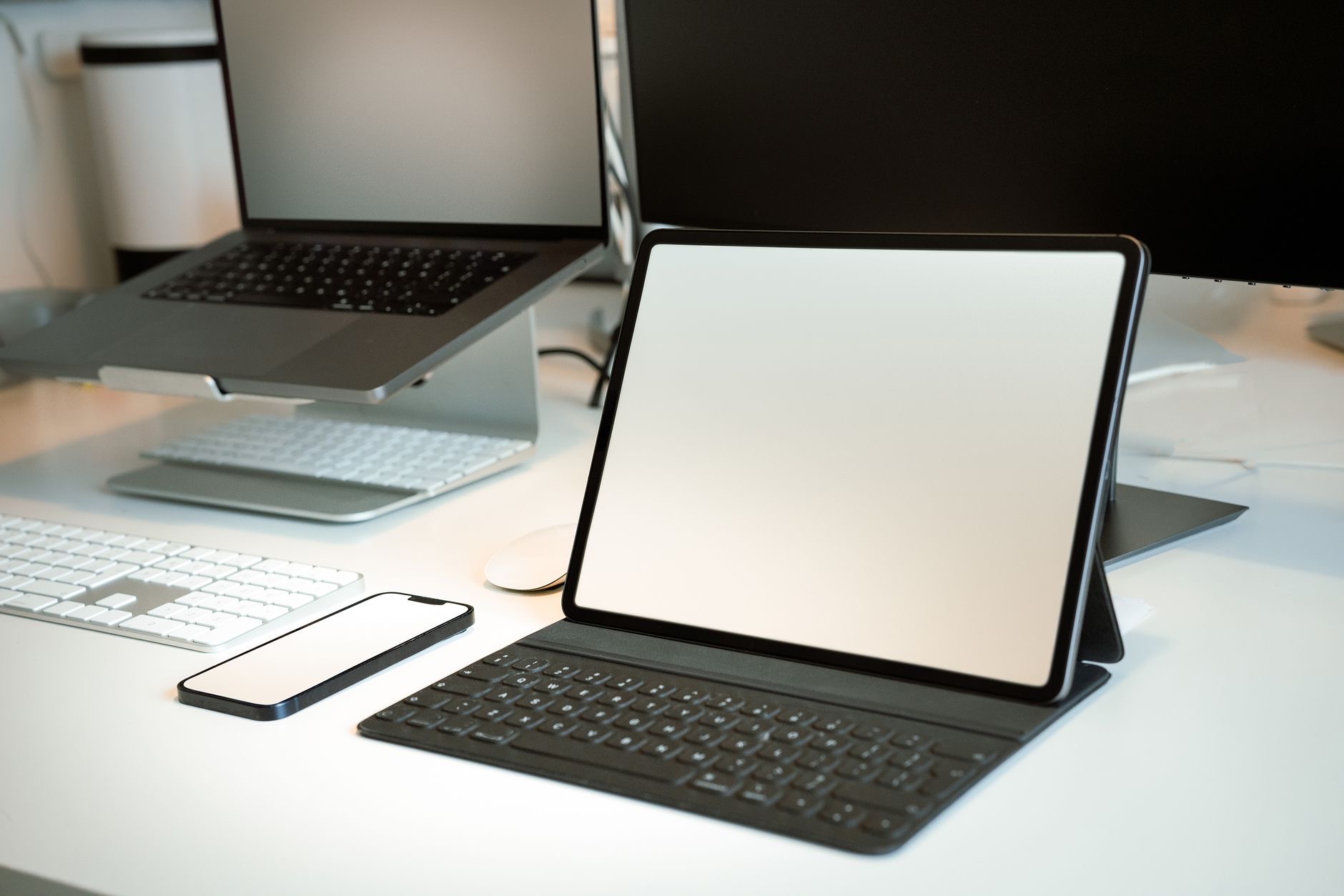
Two apps side by side turn the iPad into something laptop-shaped, and the hardware can follow: a keyboard for the writing half of the split, a stand that holds the screen at working angle, and suddenly the article-beside-notes arrangement is a study station, the email-beside-calendar split is a morning desk. Multitasking is the software half of the iPad-as-workstation story; the keyboard and stand are the other half, and together they retire the laptop question for a lot of days.
★ Editor's Pick · Amazon
iPad Keyboard
The writing half of every good split
★ Editor's Pick · Amazon
Tablet Stand
Working angle for the two-app desk
| The mode | The job |
|---|---|
| Split View | Two apps working side by side |
| Adjustable divider | Major app, minor app, your ratio |
| Slide Over | One floating app for quick glances |
| Drag and drop | Content crossing between the two |
Frequently Asked Questions
How do I use two apps at once on my iPad?
Through Split View: tap the multitasking controls at the top of any app, choose the split arrangement, and pick the second app from your home screen. Both run side by side, live and touchable, with a draggable divider setting the balance. Slide Over adds a floating panel for quick glances.
What is the difference between Split View and Slide Over?
Split View divides the screen between two working apps, the arrangement for genuinely using both. Slide Over floats one app in a narrow panel over another, summoned and dismissed with a swipe, the arrangement for glancing, messages over the recipe, the calculator over the cart.
Can I resize the two apps in Split View?
Yes, drag the divider between them: half and half, or a major-minor arrangement with the reference app narrow beside the main work. Dragging the divider fully off one edge closes that side. The movable divider is what makes the feature fit real workflows instead of forcing equal halves.
Can I drag things between the two apps?
Yes, and it is the payoff: text, links, and images drag from one side and drop into the other, the photo from the browser into the email, the quote from the article into the notes. Side-by-side apps do not just share the screen, they cooperate, which is where the feature earns its keep.
What are the best Split View combinations?
Notes beside anything being studied, email beside calendar while scheduling, the recipe beside the shopping list, the reference document beside the writing. The value is the hundred tiny app-flips per day that stop happening, not heroic productivity, everyday pairs win the feature its place.
Do I need a keyboard for iPad multitasking?
Not to use it, but the combination is where the iPad turns laptop-shaped: a keyboard for the writing half of the split and a stand at working angle turn article-beside-notes into a study station. Multitasking is the software half of the workstation story; the desk hardware is the other.
The Bottom Line
The iPad has been able to run two apps at once the whole time: Split View for genuine side-by-side work with its draggable divider, Slide Over for the floating quick-glance app, and drag and drop making the halves cooperate. Start with one everyday pairing, notes beside reading, email beside calendar, and the hundred daily app-flips quietly vanish. Add a keyboard and stand when the splits turn into work sessions, and the big screen finally acts its size.
Leave a Reply