
Mid-recipe, hands covered in flour, and the screen fades to black. Mid-article, mid-map, mid-anything: the iPhone dims like it has somewhere better to be. The plot twist is that four different dimmers can be responsible, and the fix depends on which one is bothering you. Here is the lineup, and how to calm each one down.
Dimmer One: Auto-Lock, the Sleep Timer
The screen fading then locking after a stretch of no touches is Auto-Lock, the battery guardian with a stopwatch. Its timer lives in the display settings and is fully adjustable: stretch it to several minutes for recipe-and-reading life, or to never if your phone spends supervised time on a desk. The honest trade is battery, a screen that never sleeps drinks steadily, so pick the longest timer you actually need rather than the longest one available.
Dimmer Two: Auto-Brightness, the Mood Reader
The screen that brightens and dims with the room, sometimes wrongly and often at the least convenient moment, is auto-brightness, which reads ambient light and adjusts. It lives, counterintuitively, in the accessibility settings under display, and switching it off hands you the manual slider permanently. Worth knowing: auto-brightness generally serves battery and eye comfort well, so disable it only if its guesses genuinely annoy you, and expect to babysit the slider yourself afterward.
Dimmer Three: Attention, the Watcher
iPhones with Face ID try to notice whether you are looking at them, and attention-aware features keep the screen bright while you read and dim it when your eyes leave. Usually this is the good dimmer, the one that prevents dimming, but sunglasses, odd angles, and phones propped far away can confuse the watcher into dimming mid-read. Its switch also lives in accessibility, under Face ID and attention. If your screen dims while you are actively staring at it, this watcher is your suspect.
Dimmer Four: The Heat and Battery Committees
Two situational dimmers override everything: a genuinely hot iPhone dims itself to cool down, no setting negotiates with thermal protection, shade and a case-off break are the fix. And Low Power Mode dims and shortens the screen's patience as part of its savings plan, so a phone that started dimming aggressively the moment the battery icon changed is just doing austerity. Charge it or toggle the mode, and the screen's mood returns with the percentage.
The Recipe-and-Reading Setup
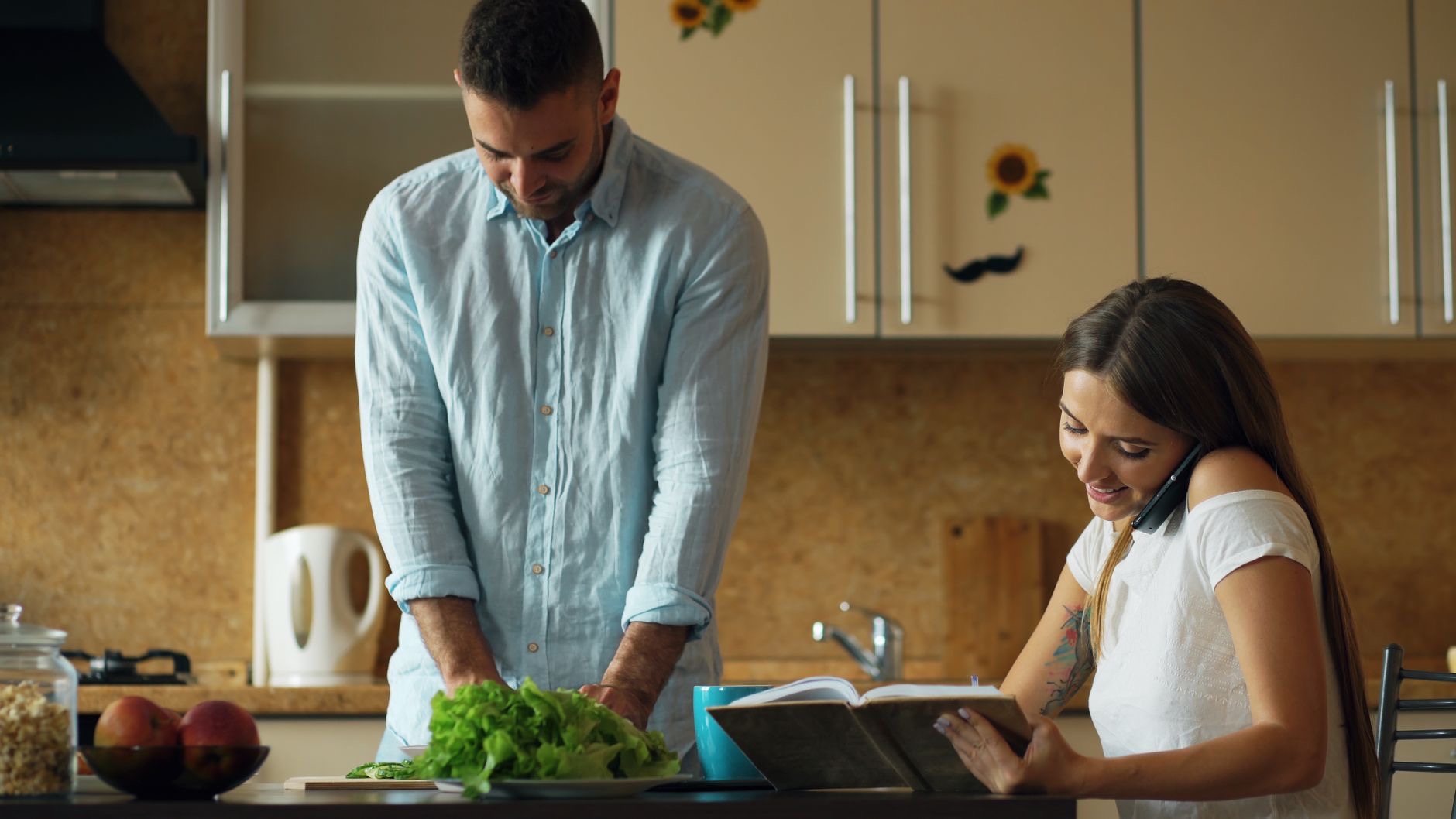
For the hands-busy scenarios where dimming hurts most, the kitchen, the workbench, the sheet music stand, build the right arrangement once: Auto-Lock stretched to a long timer, the phone propped on a stand at reading angle instead of lying flat and far, and plugged in when the session is long, which removes the battery guilt from a patient screen. Attention-aware features work dramatically better when the phone can actually see your face, which the stand accomplishes by itself.
★ Editor's Pick · Amazon
Tablet Stand
A screen that can see you stays awake for you
The Balanced Settings, Honestly
The tempting move is never-lock, full-brightness, all-features-off, and it works, at a battery cost that surprises people by dinnertime. The balanced version: a few minutes of Auto-Lock rather than never, auto-brightness left on unless it truly misbehaves, attention features on for Face ID phones, and the stand-plus-power setup for the long sessions. The screen stays awake when you need it, sleeps when you leave, and the battery survives to evening, which is the actual goal behind all four dimmers.
| The dimmer | The fix |
|---|---|
| Fades then locks | Stretch Auto-Lock in display settings |
| Follows the room light | Auto-brightness, in accessibility |
| Dims while you read | Attention features, check the angle |
| Dims when hot or low | Cool down, or leave Low Power Mode |
Frequently Asked Questions
Why does my iPhone screen keep dimming?
Four possible dimmers: Auto-Lock fading toward sleep after no touches, auto-brightness reacting to room light, attention-aware features deciding you looked away, or the situational pair, thermal protection on a hot phone and Low Power Mode on a low one. The fix depends on which pattern matches yours.
How do I stop my screen turning off so fast?
Stretch the Auto-Lock timer in display settings, from the short default to several minutes, or to never for supervised desk use. The trade is battery drain, so choose the longest timer you actually need, and plug in during long hands-busy sessions like cooking or reading music.
Should I turn off auto-brightness?
Only if its guesses genuinely annoy you: it lives in accessibility under display, and disabling it gives you the manual slider full-time, at some cost to battery and comfort in changing light. For most people the better move is fixing the other dimmers and letting auto-brightness do its usually good job.
Why does the screen dim while I am reading it?
The attention watcher on Face ID phones likely cannot see your eyes, sunglasses, a steep angle, or a phone lying flat and far confuse it into dimming mid-read. Prop the phone on a stand facing you, or toggle attention-aware features in accessibility if the pattern persists.
Why does my iPhone dim in the sun or when hot?
Thermal protection: a genuinely hot iPhone dims to cool itself, and no setting overrides it. Shade, a case-off pause, and a break from heavy use restore brightness with the temperature. If dimming arrived with the low-battery icon instead, that is Low Power Mode economizing, charge or toggle it.
What is the best setup for recipes and hands-free reading?
A long Auto-Lock timer, the phone on a stand at reading angle where the attention watcher can see your face, and power connected for long sessions. That combination keeps the screen patient exactly when your hands are busy, without paying the never-lock battery tax all day.
The Bottom Line
The dimming screen has four suspects: Auto-Lock's stopwatch, auto-brightness's mood reading, the attention watcher missing your eyes, and the heat-and-battery committees overriding everyone. Match your pattern to the dimmer, stretch the timer for hands-busy life, prop the phone where it can see you, and save the never-lock nuclear option for supervised desks. The screen was never moody, it was managed, and now the management reports to you.
Leave a Reply