
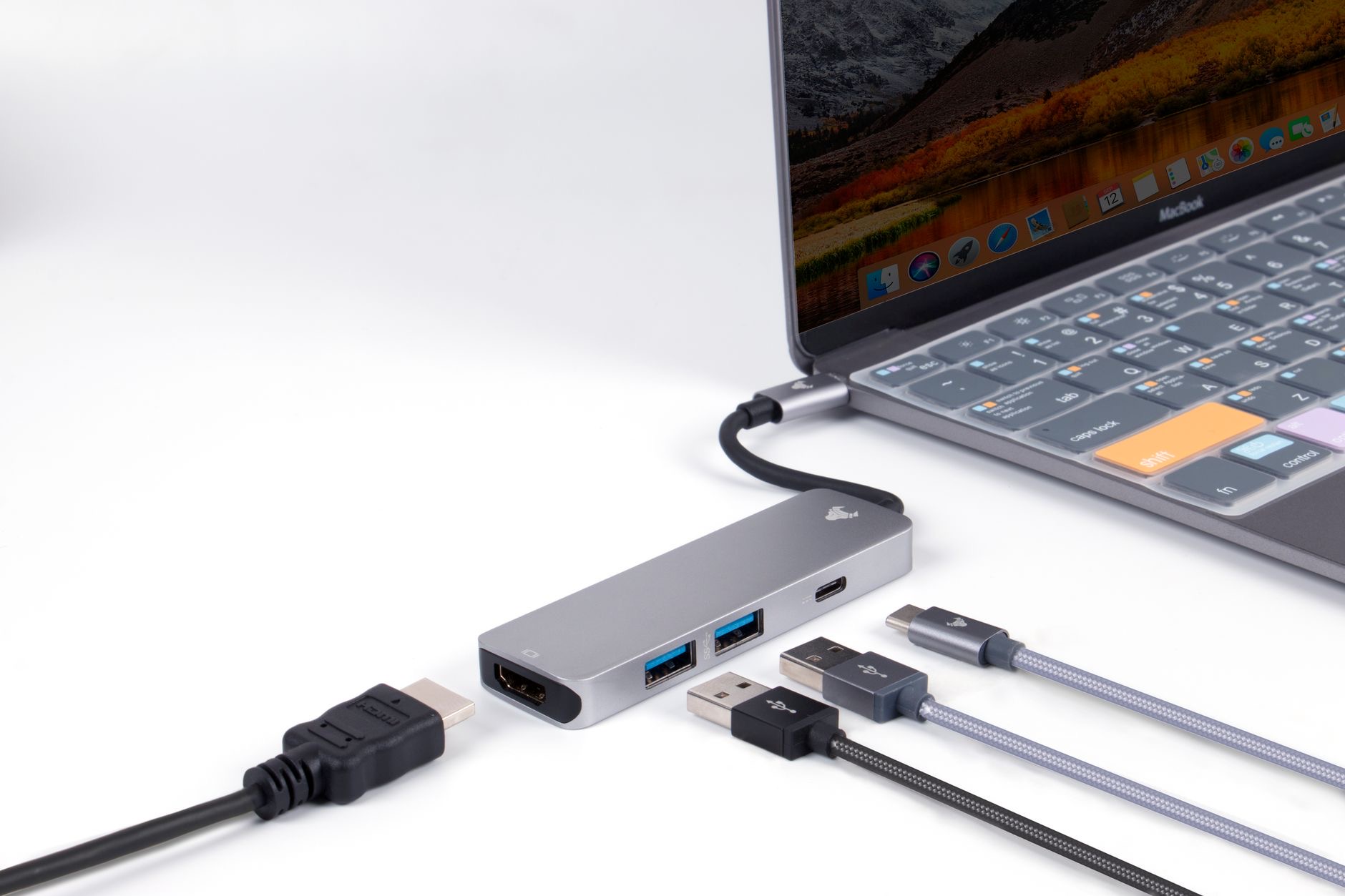
A MacBook that refuses to charge is stressful, especially when the battery is running low and you have work to do. The reassuring news, based on the most common causes and widely reported fixes, is that the problem is usually something simple, a cable, a port, or a setting, rather than a dead battery. Work through these eight fixes in order, and your MacBook will very likely be charging again within minutes.
First, Confirm It Really Is Not Charging
Start by checking the obvious. Look at the battery icon and any charging indicator to confirm the MacBook genuinely is not taking power, rather than charging slowly. Sometimes a low-power charger or a busy workload makes charging so slow it looks stalled. Knowing whether it is charging slowly or not at all points you toward the right fix, so confirm the symptom before you start swapping parts.
1. Check the Wall Outlet and Power Source
It sounds too simple, but a surprising number of charging problems are just a dead outlet, a switched-off power strip, or a tripped socket. Plug something else into the same outlet to confirm it has power, or try a completely different outlet. Eliminating the power source first saves you from chasing imaginary faults in the laptop when the real problem is on the wall.
2. Inspect the Cable and Adapter
Charging cables and adapters take a lot of abuse and fail more often than the laptop itself. Examine the full length of the cable for fraying, kinks, or damage, especially near the connectors, and check the adapter for any signs of wear or overheating. If you have access to another compatible charger, try it. A damaged cable or a failing adapter is one of the most common reasons a MacBook stops charging.
3. Clean the Charging Port
Dust, lint, and debris build up in the charging port and block a solid connection. Look inside the port with a good light, and gently clean out any debris with a wooden toothpick or a soft, dry brush. Never use anything metal. A blocked or dirty port can stop charging entirely while looking perfectly fine at a glance, so this quick clean is always worth doing.
4. Try a Different Port
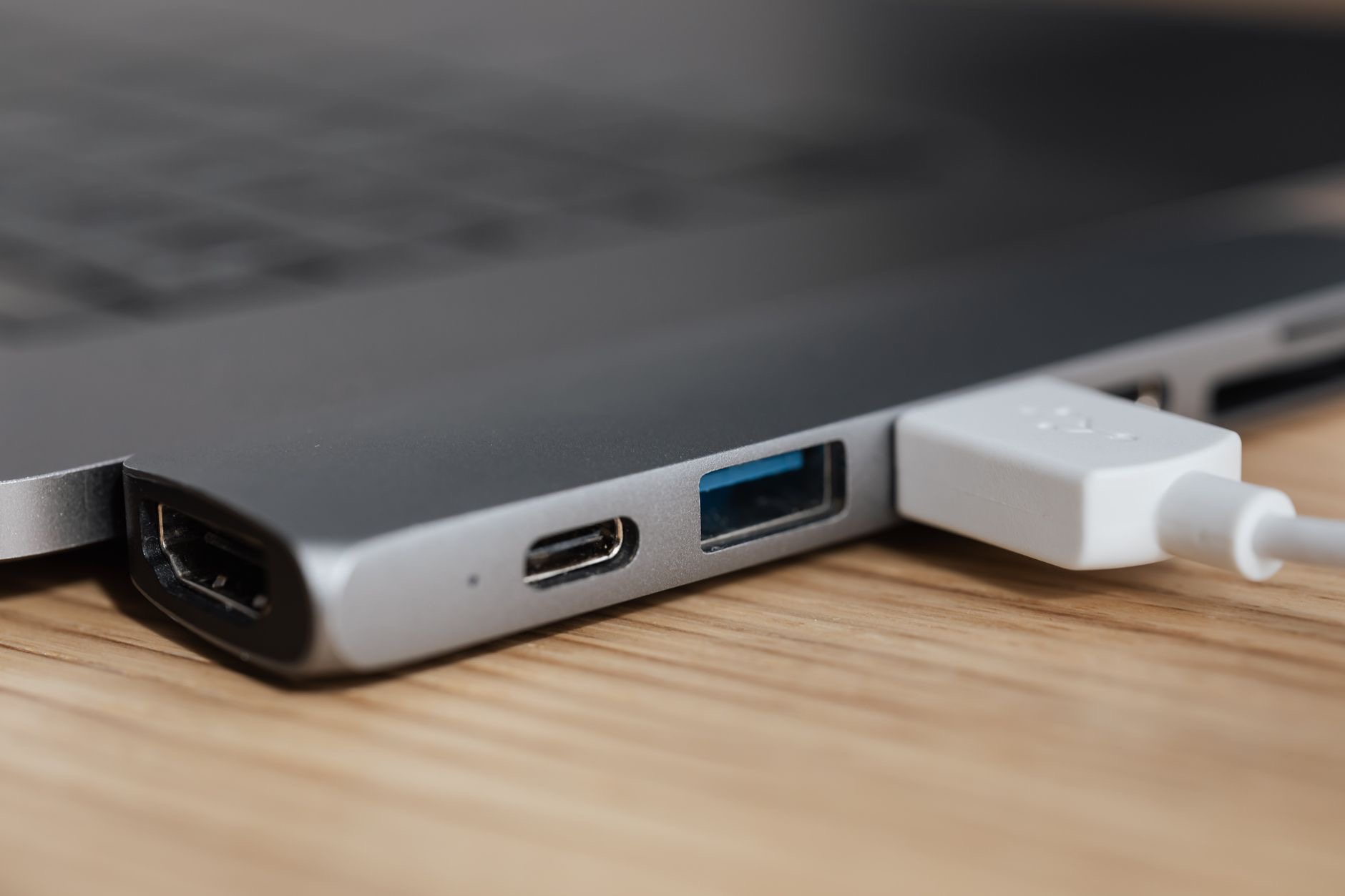
If your MacBook has more than one charging port, try plugging the charger into a different one. Individual ports can fail or get dirty while others work fine, and switching ports instantly tells you whether the problem is the port or something else. If it charges in one port but not another, you have found a hardware issue isolated to that single port, which is useful to know and easy to work around.
5. Let It Cool Down
MacBooks have built-in protections that can pause charging when the battery gets too hot, to keep it safe. If you have been doing heavy work or the laptop has been in a warm place, it may simply be protecting itself. Let it cool down on a hard, open surface for a while, then try charging again. This is normal, protective behavior rather than a fault, and it resolves on its own once temperatures drop.
6. Restart Your MacBook
A simple restart clears temporary software glitches that can interfere with charging. Save your work and restart the laptop, then plug the charger back in. It is a classic fix for a reason, because a stuck process or a confused power-management state often clears with a fresh boot. If a restart gets it charging again, the cause was software, not hardware, and you are back in business.
7. Reset the Power Management Settings
If a restart does not help, resetting the MacBook's power-management settings often resolves stubborn charging issues, since these settings control how the laptop handles power and the battery. The exact method depends on your MacBook model, and on the latest models a normal restart already performs much of this reset. Look up the correct reset steps for your specific model, as it is a well-known fix for charging problems that survive a simple restart.
8. Check Your Battery's Condition
If nothing else works, check the battery's health and condition in your system settings, where any serious problem is usually flagged. A battery that has reached the end of its life, or that the system marks as needing service, may no longer charge reliably. A battery replacement is a known, affordable fix that restores normal charging, and it is far cheaper than a new laptop. If you are weighing a replacement against an upgrade, our MacBook upgrade guide can help.

When to Seek Professional Help
If you have checked the outlet, cable, adapter, and port, tried different ports, let it cool, restarted, reset the power settings, and checked the battery, and the MacBook still will not charge, it is time for professional help. The cause may be a faulty charging port, a power circuit fault, or a failed battery that needs service. Contact Apple support or a trusted repair shop, and keep the laptop on its remaining charge until then. For keeping a healthy MacBook running cool, see our MacBook overheating guide.
| Check this | Why |
|---|---|
| Outlet and power strip | Rules out a dead power source |
| Cable and adapter | The most common point of failure |
| Charging port | Debris blocks the connection |
Quick Answers
Why won't my MacBook charge?Usually a dead outlet, a faulty cable or adapter, or a blocked charging port. Software glitches and overheating protection can also pause charging. Most causes are quick to fix.
How do I clean the charging port?Use a wooden toothpick or a soft, dry brush to gently remove lint and debris. Never use metal objects inside the port.
Could overheating stop charging?Yes. MacBooks pause charging to protect a hot battery. Let the laptop cool on a hard, open surface, then try again.
Will a restart fix charging?Often, yes. A restart clears software glitches and confused power states that can stop charging. It is one of the first things to try.
Could it be the battery?If everything else checks out, a worn or failing battery may be the cause. Check the battery condition in settings; a replacement is an affordable fix.
When should I get it serviced?If the outlet, cable, port, restart, and reset all check out and it still will not charge, contact Apple or a trusted repair service for a hardware diagnosis.
Read the Charging Indicator Carefully
Your MacBook gives you clues if you know where to look. The battery icon in the menu bar shows whether the laptop sees the charger and is actually charging, charging slowly, or not charging at all, and that single detail narrows the problem fast. If it shows it is plugged in but not charging, that points toward the battery, a setting, or a temperature pause rather than a dead cable. If it does not register the charger at all, the issue is more likely the cable, adapter, port, or power source. Reading the indicator before you start swapping parts saves time and stops you chasing the wrong fix. It is the kind of small check that often reveals exactly which of the fixes above you actually need, turning a frustrating guessing game into a quick, targeted diagnosis you can act on with confidence.
The Honest Bottom Line
A MacBook that will not charge is usually fixable for free. Start with the outlet and power source, then the cable and adapter, then clean the port and try a different one. Let it cool, restart, and reset the power settings before you suspect the battery.
Only when all of that fails is hardware likely the cause, and even then a battery or port repair is far cheaper than a new laptop. Which fix worked for you? Tell me in the comments and I will help with stubborn cases.
Leave a Reply