
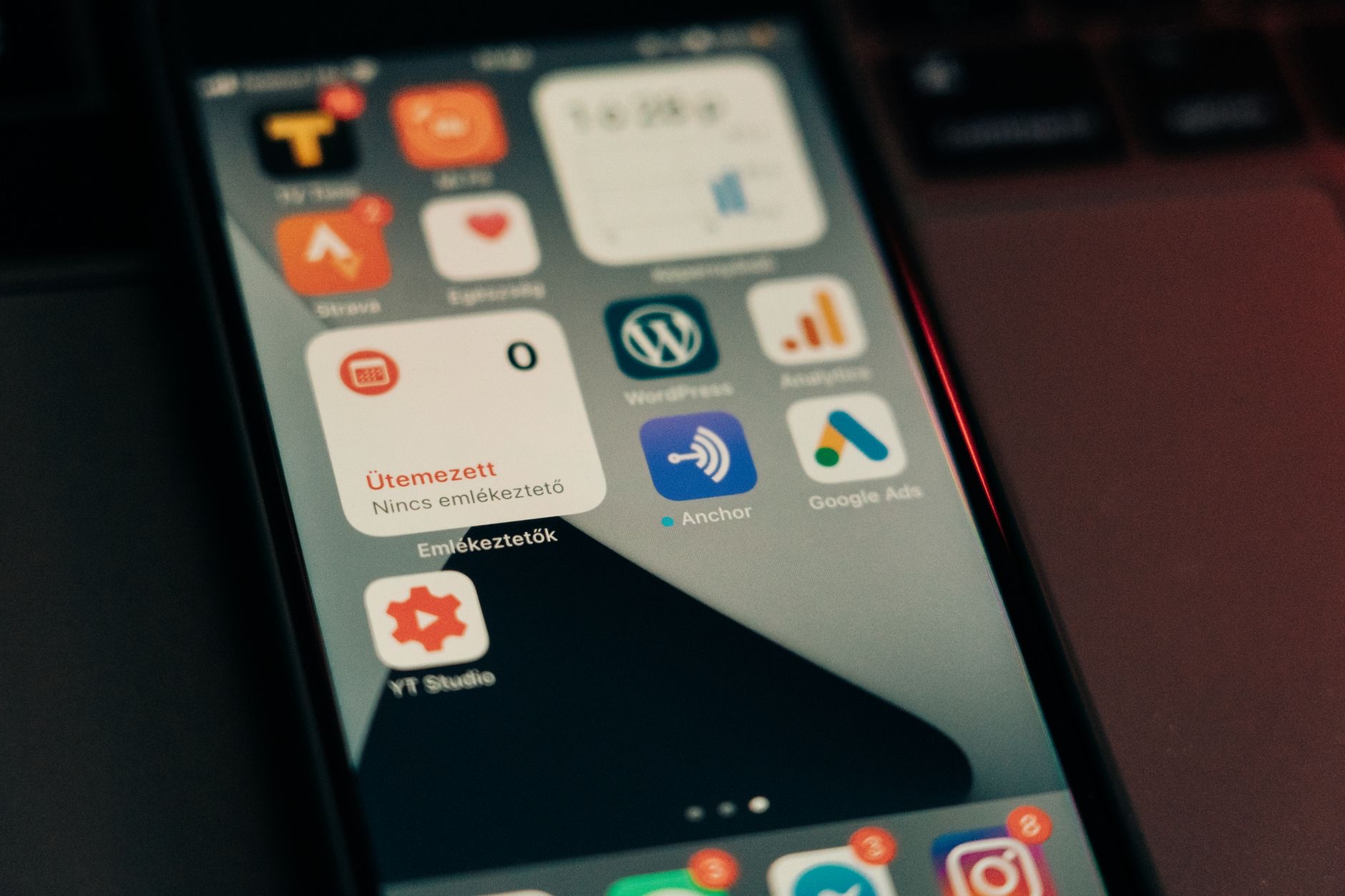
Missing a message, a reminder, or an important alert because your iPhone simply did not tell you, that is the quiet frustration of broken notifications. Maybe one app went silent, maybe nothing comes through at all, maybe alerts arrive but make no sound. Whatever the symptom, the cause is almost always a setting that slipped, not a broken phone. Based on the most common culprits, these straightforward steps will get your notifications flowing properly again. Let us track down what went wrong.
First, Check the Usual Suspect: Focus Modes
Before diving into individual apps, check whether a Focus or Do Not Disturb mode is quietly silencing everything, this is the single most common reason notifications vanish. It is easy to switch one on by accident, or to have one scheduled without realizing. Glance at your control center and settings to confirm no Focus mode is active when you do not want it to be. Turning off a stray Focus mode instantly brings back notifications for a huge number of people, so always start here.
1. Check the App's Notification Settings
If only one app is failing to notify you, its own notification settings are the likely cause. Head into your notification settings, find the app, and make sure notifications are switched on, along with the alert styles you want, banners, sounds, and badges. It is surprisingly easy for an app's notifications to get turned off, sometimes during setup or an update. Switching them back on, with the alert style you prefer, usually fixes a single silent app right away.
2. Make Sure Notifications Will Show and Make Sound
Sometimes notifications are technically on but configured not to grab your attention, no sound, no banner, or hidden from the lock screen. For each app that matters, confirm that alerts are set to appear where you will see them and to play a sound if you want one. Check that the alert volume and ringer are turned up, and that the silent switch is not muting things. Fine-tuning these ensures notifications actually reach you rather than arriving invisibly and silently.
3. Restart Your iPhone
If your settings look correct but notifications still are not coming through, a restart clears the temporary glitches that can break the notification system. Turn your iPhone off, wait a few seconds, and turn it back on. This simple reset often restores notifications that stopped for no obvious reason, because it refreshes the underlying processes that deliver them. It takes a moment and resolves a good share of mysterious notification problems, so it is always worth trying.

4. Check Your Connection
Many notifications, especially for messages and apps that rely on the internet, need a working connection to arrive. If your Wi-Fi or cellular data is down or patchy, alerts can be delayed or fail to appear until you reconnect. Confirm you have a solid internet connection, and if not, sorting that out may bring a flood of delayed notifications through at once. It is an easy thing to overlook when you are focused on settings, but connection problems are a real and common cause.
5. Update Your Software and the App
Outdated software can cause notification bugs, and so can an out-of-date app. Check for and install any available system update, and update the specific app that is misbehaving. If your notification trouble began after you had been delaying updates, getting current often resolves it. Keeping both your iPhone and your apps up to date is a reliable way to fix notification glitches caused by software, and to prevent new ones from cropping up later on.
6. Re-Enable Notifications or Reinstall the App
For a single stubborn app that will not notify you no matter what, a clean reset of its notifications often works. Turn the app's notifications fully off, restart your iPhone, then turn them back on, which refreshes the connection between the app and the system. If that still fails, deleting and reinstalling the app gives it a completely fresh start, which usually restores notifications. Just make sure you will not lose any important data by reinstalling, checking that it is backed up or synced first.
When Specific Notifications Still Go Missing
If messages in particular are not notifying you, the issue may overlap with messaging problems more broadly, which our iMessage fix guide addresses. And remember that a Focus mode can be set to allow some people and apps through while silencing others, so a half-working notification situation often points back to Focus settings rather than the apps themselves. Reviewing exactly which apps and people your active Focus modes permit is the key to fixing notifications that work for some things but not others. For broader slowdowns, see our slow iPhone guide.
| Symptom | Most likely fix |
|---|---|
| No notifications at all | Turn off a stray Focus or Do Not Disturb |
| One app is silent | Re-enable that app's notifications |
| Alerts arrive with no sound | Check alert style, volume, silent switch |
Quick Answers
Why are my iPhone notifications not working?Most often a Focus or Do Not Disturb mode is silencing them, or an app's notifications got switched off. Checking Focus modes and the app's notification settings fixes the majority of cases.
Why is one app not sending notifications?Its notifications are probably turned off in your settings. Find the app in your notification settings and switch notifications on, along with the alert style and sound you want.
Why do notifications arrive with no sound?The alert style may be set to silent, or your volume, ringer, or silent switch is muting them. Check the app's alert settings and make sure sound is enabled and turned up.
Could Do Not Disturb be the problem?Very likely. A Focus or Do Not Disturb mode, especially one switched on by accident or scheduled, is the most common reason notifications go missing. Check it first.
Will restarting fix my notifications?Often, yes. A restart clears glitches in the notification system and restores alerts that stopped for no clear reason. Try it if your settings look correct.
What if one app still won't notify me?Turn its notifications off, restart, and turn them back on. If that fails, reinstall the app for a fresh start, after making sure its data is backed up or synced.
Muted Conversations and Group Chats
If you are missing notifications from one specific conversation rather than a whole app, the culprit is often that the thread itself has been muted. It is easy to accidentally mute a chat, especially a busy group conversation, which then quietly stops alerting you while every other conversation works normally. The fix is simply to open that conversation, check whether it has been muted or has alerts hidden, and switch notifications back on for it. People often spend ages troubleshooting their whole phone when only a single muted thread was the problem all along. So if your notifications work fine everywhere except one chat, do not assume something is broken, just check that the conversation has not been silenced. It is one of the most common and most overlooked reasons for missing messages from a particular person or group, and it takes only a moment to put right once you know to look for it.
The Honest Bottom Line
Broken iPhone notifications are nearly always a settings problem, not a fault. Check first for a stray Focus or Do Not Disturb mode, then confirm the app's notifications are on with the right alert style and sound. Restart the phone, check your connection, and keep your software updated.
For one stubborn app, reset its notifications or reinstall it. Which alert went missing for you? Tell me in the comments and I will help you get it back.
Leave a Reply