

When your iPhone speaker stops working, calls, music, and videos suddenly fall silent or sound muffled, and it is genuinely frustrating. The good news, based on the most common causes and widely reported fixes, is that the problem is usually a setting, a software glitch, or a bit of dirt, rather than a broken speaker. Work through these eight fixes in order, and your sound will very likely be back within a few minutes.
First, Pin Down the Problem
Before fixing anything, narrow down what is actually wrong. Is there no sound at all, sound only through headphones, muffled or crackling audio, or silence only on calls? Each points to a slightly different cause, and testing a few things, playing music, making a call, watching a video, tells you a lot. A speaker that works for music but not calls, for example, suggests a settings or call-audio issue rather than a dead speaker, which changes how you fix it.
1. Check the Volume and Silent Switch
Start with the obvious, because it catches more people than you would think. Make sure the volume is turned up using the side buttons while media is playing, and check that the silent switch on the side of the phone is not flipped to mute. Also confirm Do Not Disturb or a Focus mode is not silencing alerts. A surprising share of no-sound problems are simply a muted phone, so rule this out before anything more involved.
2. Clean the Speaker Grilles
iPhone speakers sit behind tiny grilles that clog with pocket lint, dust, and debris over time, muffling or blocking the sound. Look closely at the speaker openings at the bottom of the phone and the earpiece at the top. Gently clean them with a soft, dry brush or a clean, soft-bristled toothbrush, never anything sharp or wet. Removing built-up gunk often restores full, clear sound instantly, and it is the most common fix for muffled audio.
3. Make Sure It Is Not Stuck in Headphone Mode
Sometimes an iPhone thinks headphones or another audio device are still connected, so it sends sound there instead of the speaker, leaving the speaker silent. Check that no Bluetooth headphones or speakers are connected, and that nothing is plugged into the port. Toggling Bluetooth off, or selecting the iPhone speaker as the output in the audio controls, fixes cases where the sound is simply being routed somewhere else without you realizing.
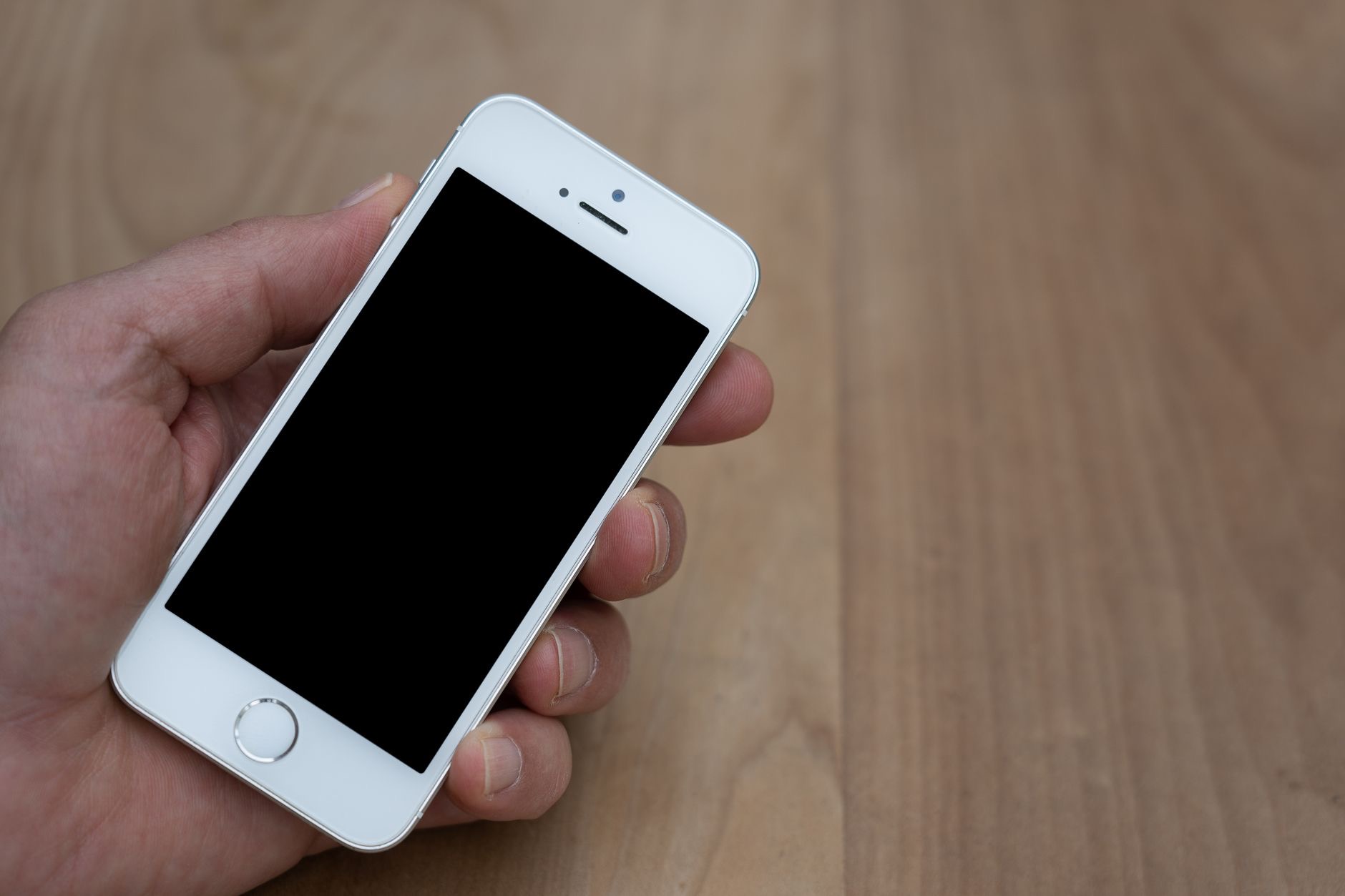
4. Restart Your iPhone
A simple restart clears the temporary software glitches that frequently cause audio problems. Turn your iPhone off, wait a few seconds, and turn it back on, then test the sound. This classic fix resolves a surprising number of speaker issues because it resets the audio system and the processes behind it. If a restart brings your sound back, the cause was a passing glitch, and you are done with no further work needed.
5. Test With a Voice Memo or Speakerphone
To confirm whether the speaker hardware works at all, record a quick voice memo and play it back, or make a call and switch to speakerphone. If you hear sound this way but not in other apps, the problem is app-specific or a settings issue rather than a broken speaker. If you hear nothing even here, the issue is more likely system-wide, which the remaining software fixes, or ultimately a repair, will address.
6. Update Your Software
Outdated software causes bugs, and audio problems are a common symptom. Check for and install any available software update, since Apple regularly fixes glitches that affect sound. Keeping your iPhone current not only resolves existing problems but prevents future ones. If your speaker trouble started after you had been putting off updates, an update is often exactly what it needs to get working properly again.
7. Turn Off Bluetooth and Check Audio Routing
If your iPhone is quietly sending audio to a forgotten Bluetooth device, the speaker will stay silent. Turn Bluetooth off entirely and test the sound, which instantly rules out a stray connection to headphones, a car, or a speaker in another room. While you are at it, open the audio output control during playback and make sure the iPhone itself is selected. Misrouted audio is a sneaky and very common cause of a seemingly dead speaker.
8. When It Is Time for Repair
If you have checked the volume and silent switch, cleaned the grilles, ruled out headphone mode and Bluetooth, restarted, updated, and tested with a voice memo, and the speaker still produces no sound, the speaker hardware may have failed, possibly from water or a drop. At that point, contact Apple support or a trusted repair service. A speaker replacement is a common, affordable repair, so a silent speaker rarely means the whole phone is finished.
How to Prevent Speaker Problems
A few habits keep your sound clear. Clean the speaker grilles occasionally before lint builds up, keep your iPhone away from water, and avoid blasting the volume at maximum for long stretches, which is harder on the speaker over time. Keep your software updated to avoid audio bugs. If your sound issues are tangled up with other glitches, our iPhone troubleshooting guide and our iMessage fix guide cover related problems worth ruling out.
| Symptom | Likely fix |
|---|---|
| No sound at all | Check mute, restart, disable Bluetooth |
| Muffled or quiet sound | Clean the speaker grilles |
| Sound on media but not calls | Check call audio and settings |
Quick Answers
Why is my iPhone speaker not working?Usually a muted phone, a clogged speaker grille, misrouted Bluetooth audio, or a software glitch. Check the volume and silent switch, clean the grilles, and restart, which fixes most cases.
How do I clean my iPhone speaker?Gently brush the speaker grilles with a soft, dry brush or a clean soft toothbrush. Never use anything sharp or wet. This often restores muffled sound instantly.
Why is my iPhone sound muffled?Most often lint and debris clogging the speaker grilles. A gentle clean usually clears it. Water exposure can also muffle sound until the phone fully dries.
My iPhone has no sound after connecting headphones, why?It may be stuck routing audio to a Bluetooth device. Turn Bluetooth off and select the iPhone speaker as the output to bring the sound back.
Will a restart fix my speaker?Often, yes. A restart clears temporary audio glitches and is one of the first things to try when the speaker goes silent.
When should I get my speaker repaired?If cleaning, restarting, updating, and ruling out Bluetooth all fail and there is still no sound, the speaker may have failed. A replacement is an affordable repair.
Could There Be Water in the Speaker?
One cause people forget is moisture trapped in the speaker, which can muffle or silence the sound until it dries out. If your iPhone has been exposed to rain, sweat, a splash, or a humid environment, water lodged in the speaker grille is a likely culprit, and the fix is simply to let it dry rather than to assume the speaker is broken. Place the phone somewhere dry and well ventilated and give it time, and avoid charging it until you are sure it is dry. Some people gently play a sound at a moderate volume to help push lingering droplets out, which can help once the bulk of the moisture has gone. If your sound returns as the phone dries, water was the issue all along. This is exactly why keeping your iPhone away from moisture matters, and why a sudden bout of muffled audio after a wet day is rarely a permanent hardware failure.
The Honest Bottom Line
An iPhone speaker that stops working is usually fixable for free. Check the volume and silent switch, clean the speaker grilles, rule out Bluetooth and headphone mode, and restart the phone. Those steps solve the vast majority of no-sound and muffled-audio problems in minutes.
Only when every fix fails is the speaker hardware likely at fault, and even then a replacement is affordable. Which fix brought your sound back? Tell me in the comments and I will help with any that linger.
Leave a Reply