
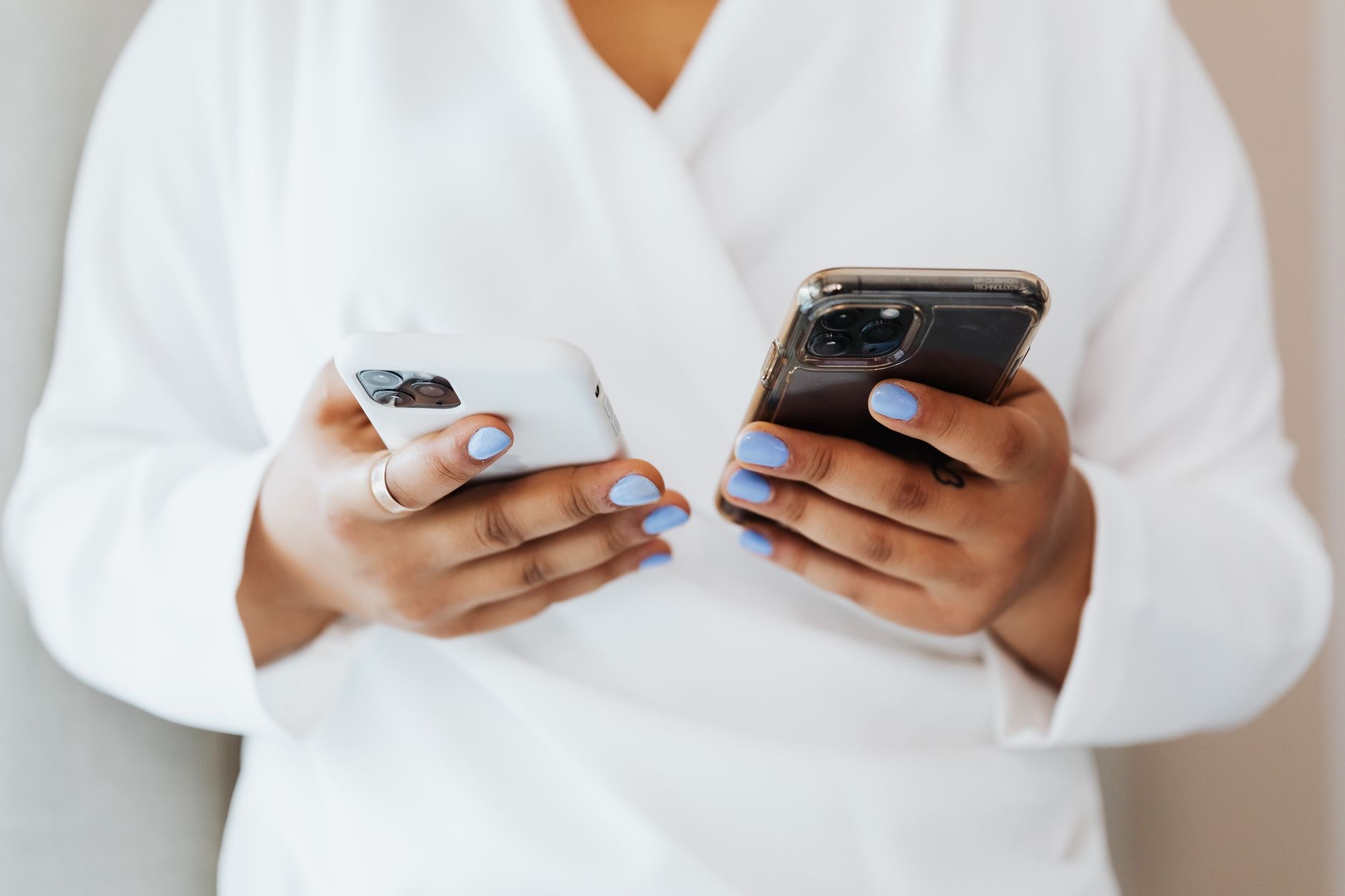
Your iPhone is packed with clever features that most people never stumble across, quietly tucked away in menus you rarely open. Once you know they exist, several of them become part of your daily routine and genuinely change how you use your phone. Here are the hidden iPhone features worth discovering, explained simply so you can start using them today.
1. Back Tap: Turn the Back of Your iPhone Into a Button
One of the most useful hidden tricks is Back Tap, found in the accessibility settings. It lets you double-tap or triple-tap the back of your iPhone to trigger an action, such as taking a screenshot, opening the camera, or running a shortcut. It effectively gives you an extra invisible button on a phone that has very few physical ones. Once you set it up, reaching for a common action becomes as simple as tapping the back of your phone, and it quickly feels indispensable.
2. Live Text: Copy Text Straight From Photos
Your iPhone can recognize text inside photos and even the live camera view, letting you select and copy it like any other text. Point your camera at a phone number, a Wi-Fi password on a sign, or a paragraph in a book, and you can grab that text directly. It saves you from retyping things and is one of those features that feels a little magical the first time you use it. Look for the small text-selection icon when text appears in view.
3. Scan Documents Without an App
You do not need a separate scanning app, because the ability is built right into your iPhone through the Notes app and the Files app. You can scan a document, and your iPhone automatically detects the edges, straightens the image, and produces a clean, shareable scan. It is perfect for receipts, forms, and paperwork, turning your phone into a pocket scanner. Most people pay for apps that do exactly what their iPhone already does for free.
4. Focus Modes: Silence the Right Things at the Right Time
Focus modes go beyond simple Do Not Disturb, letting you create custom modes for work, sleep, personal time, and more. Each mode can allow notifications only from certain people or apps, so you are not interrupted by everything at once. You can even have different home screens appear for different modes. Setting these up takes a few minutes but pays off every day by cutting down on distractions and letting the right things through at the right times.
5. Text Replacement: Type Long Things Instantly
Hidden in the keyboard settings is text replacement, which lets you create shortcuts that expand into longer text. Type a few letters and your iPhone replaces them with a full email address, a common phrase, or anything you set up. It is a genuine time-saver for anything you type repeatedly, and once you build a few shortcuts you will wonder how you managed without them.
6. Silence Unknown Callers
If spam calls drive you mad, your iPhone can automatically silence calls from numbers not in your contacts, sending them straight to voicemail. Real calls from people you know come through normally, while unknown numbers stop interrupting your day. It is a simple toggle that dramatically reduces the annoyance of spam calls, and it is one of the most satisfying settings to switch on.
7. Measure Things With Your Camera
Your iPhone includes a Measure app that uses the camera to estimate distances and dimensions in the real world. It is handy for a quick measurement when you do not have a tape measure nearby, like checking whether furniture will fit. It will not replace precise tools for critical jobs, but for everyday rough measurements it is surprisingly useful and always in your pocket.
8. Customize the Control Center
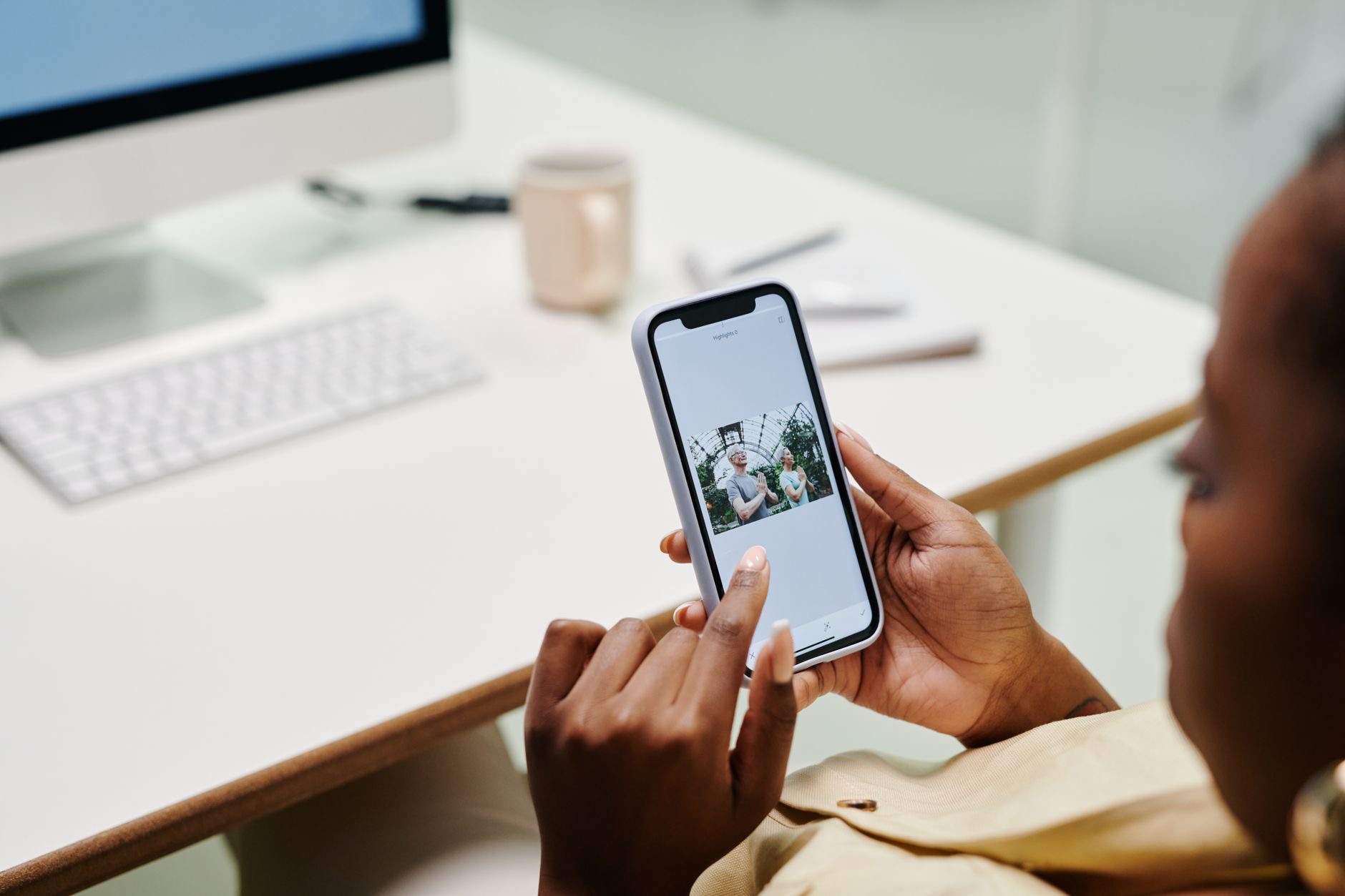
The Control Center, the panel you swipe to reach quick toggles, can be customized with the controls you actually use. Add shortcuts for things like the flashlight, timer, screen recording, or a quick note, and remove ones you never touch. Tailoring it to your habits means your most-used tools are always a swipe away, making your phone faster to operate day to day.
9. Hide and Recover Photos
Your Photos app has a hidden album where you can tuck away images you would rather not have appear in your main library, and it can be locked for privacy. It also keeps recently deleted photos for a period, so if you delete something by accident, you can usually recover it. Knowing both of these exist saves panic and gives you more control over your photo library.
10. Type to Siri
You do not always have to speak to Siri out loud. There is a setting that lets you type your requests instead, which is perfect for quiet places like libraries or meetings, or when you would simply rather not talk. It makes the assistant useful in situations where speaking aloud feels awkward, quietly expanding when and where you can use it.
11-15. More Worth Exploring
A handful of other hidden gems are worth your time. Emergency SOS and Medical ID can share vital information and call for help in an emergency. Optimized battery charging helps your battery age more slowly. The built-in Translate app works across languages, sometimes even offline. Custom vibration patterns let you know who is calling without looking. And Spotlight search, reached by swiping down on the home screen, finds almost anything on your phone and the web in seconds. Each takes moments to discover and can become a small daily convenience.
★ Editor's Pick · Amazon
iPhone 16
The newest iPhone unlocks the latest features and speed
Frequently Asked Questions
What is Back Tap on iPhone?
Back Tap is an accessibility feature that lets you double-tap or triple-tap the back of your iPhone to trigger an action, such as taking a screenshot, opening the camera, or running a shortcut. It effectively adds an extra invisible button and quickly becomes part of your daily routine.
Can my iPhone copy text from a photo?
Yes. The Live Text feature recognizes text inside photos and the live camera view, letting you select and copy it like any other text. You can grab a phone number, a Wi-Fi password on a sign, or a paragraph from a book without retyping it.
How do I stop spam calls on iPhone?
Your iPhone can automatically silence calls from numbers not in your contacts, sending them to voicemail while real calls from people you know come through normally. It is a simple toggle in the phone settings that dramatically reduces spam call interruptions.
Does the iPhone have a built-in scanner?
Yes. The scanning ability is built into the Notes and Files apps. Your iPhone detects the document edges, straightens the image, and produces a clean, shareable scan, so you do not need a separate scanning app for receipts, forms, and paperwork.
Can I type to Siri instead of talking?
Yes. There is a setting that lets you type your requests to Siri instead of speaking, which is ideal for quiet places or when you would rather not talk aloud. It makes the assistant useful in situations where speaking feels awkward.
How do I hide photos on my iPhone?
The Photos app has a hidden album where you can tuck away images you would rather keep out of your main library, and it can be locked for privacy. The app also keeps recently deleted photos for a period, so accidental deletions can usually be recovered.
The Bottom Line
Your iPhone can do far more than most people realize, and these hidden features are the ones genuinely worth adopting. Set up Back Tap, switch on silencing unknown callers, build a few text replacements, and explore Focus modes, and you will get noticeably more from the phone you already own. The best part is that none of it costs anything, so spend a few minutes exploring and make your iPhone work the way you want it to.
Leave a Reply