

There are few things more frustrating than an app that closes on you mid-task, or crashes the moment you open it. When your iPhone apps keep crashing, freezing, or refusing to work properly, it disrupts everything. The good news is that app crashes almost always have a simple cause and a quick fix. Here is how to stop your iPhone apps from crashing and get them running smoothly and reliably again, usually in just a few minutes.
Why Apps Crash
Apps crash for a handful of common reasons: the app itself needs updating, your iPhone software is out of date, storage is running low, or a temporary glitch has crept in. Occasionally a single app has a bug that its developer needs to fix. The encouraging news is that most of these causes are easy to address yourself. By working through a few simple steps, you can usually stop the crashing quickly. It is rarely a sign of a serious problem, just something that needs a little troubleshooting to put right.
Close and Reopen the App
The quickest first step is to fully close the misbehaving app and reopen it. Closing an app completely, rather than just leaving it, clears its current state and gives it a fresh start, which often resolves a temporary glitch causing the crashes. It takes seconds and is always worth trying first. If an app has started acting up, misbehaving, or freezing, closing it fully and opening it again frequently sorts it out. When that alone does not work, move on to the more thorough steps below.

Update Your Apps
Outdated apps are one of the most common reasons for crashes. Developers regularly release updates that fix bugs and improve stability, so an app that keeps crashing may simply need updating to its latest version. Check for and install available app updates, especially for the app giving you trouble. Keeping your apps updated is one of the best ways to keep them running smoothly, since it ensures you have the latest fixes. Very often, updating a crashing app is all it takes to make it stable and reliable again.
Update and Restart Your iPhone
Sometimes the issue is not the app but your iPhone's software. Keeping your iPhone updated to the latest version ensures apps have the stable foundation they need, and updates fix underlying bugs that can cause crashes. A simple restart of your iPhone also clears temporary glitches that might be affecting multiple apps. If several apps are crashing, not just one, updating your iPhone software and restarting the phone is especially likely to help, since the problem may lie with the system rather than any single app.
Free Up Storage
When your iPhone is very low on storage, apps can struggle and crash because they do not have the space they need to run properly. Freeing up storage by removing apps and files you no longer use, clearing out old downloads, and managing your photos can make a real difference. Keeping a healthy amount of free space helps all your apps run more smoothly and reliably. If your crashes coincide with a nearly full iPhone, clearing some space is often the key fix that stops the problem and improves overall performance too.
Reinstall a Stubborn App
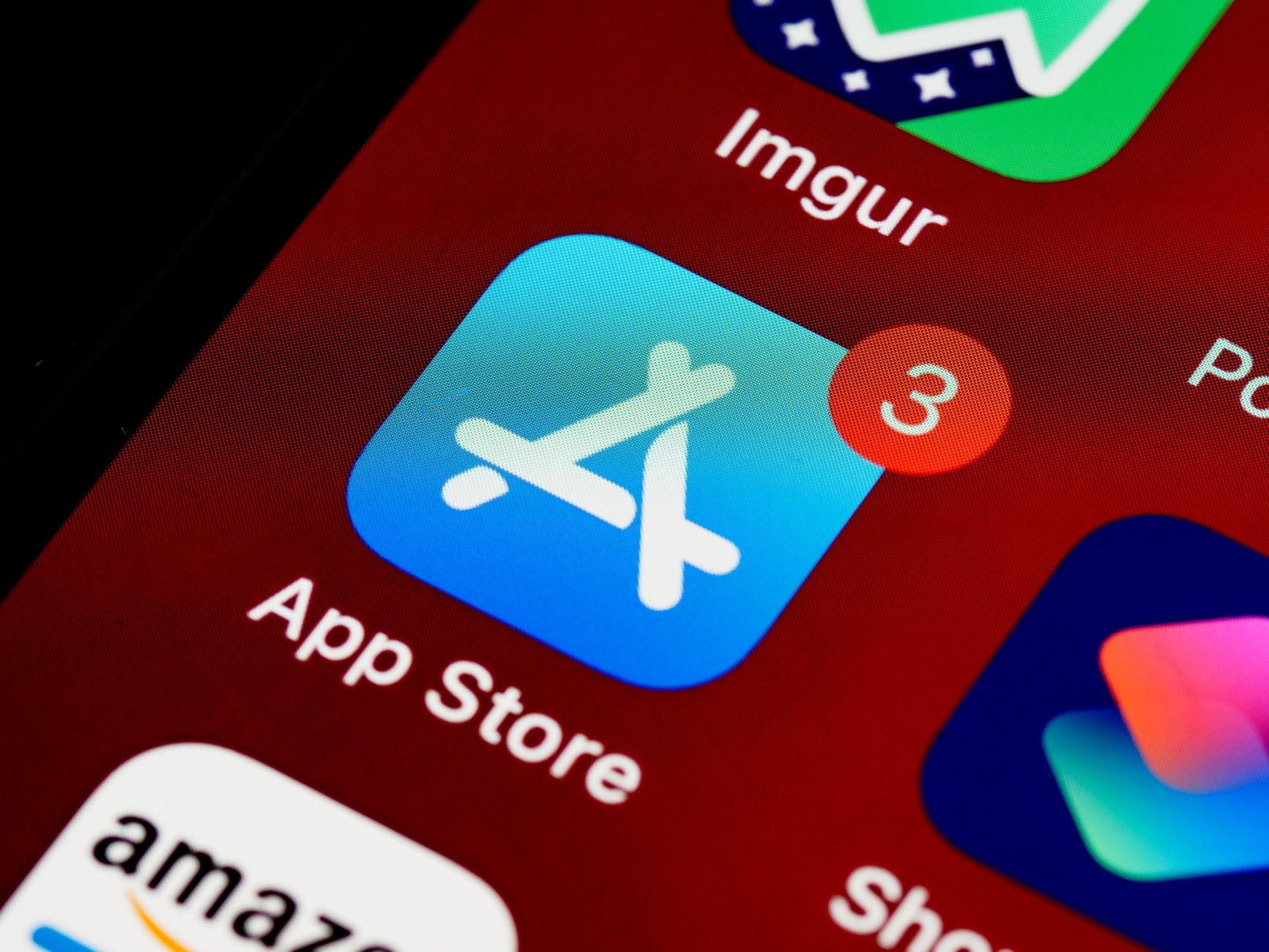
If a particular app keeps crashing despite updating, removing and reinstalling it can give it a completely fresh start. Deleting the app and downloading it again clears out any corrupted data that might be causing the trouble and installs a clean, current version. This often fixes an app that stubbornly refuses to behave. Just be mindful of any data saved only within that app before removing it. For a single problem app that will not settle down with other fixes, a clean reinstall is a reliable way to get it working properly again.
| Cause | Fix |
|---|---|
| Temporary glitch | Close the app fully and reopen it |
| Outdated app | Update the app to its latest version |
| System or multiple apps | Update iPhone software and restart |
| Low storage | Free up space by removing clutter |
Frequently Asked Questions
Why do my iPhone apps keep crashing?
Common causes are an app that needs updating, out-of-date iPhone software, low storage, or a temporary glitch. Occasionally a single app has a bug. Most of these are easy to fix yourself by updating, restarting, freeing storage, or reinstalling the app, so it is rarely a serious problem.
How do I fix an app that keeps crashing?
Start by fully closing and reopening the app to clear a glitch. Then update the app, since outdated apps are a common cause. Update your iPhone software and restart if several apps crash, free up storage, and reinstall a stubborn app for a fresh start. These steps fix most crashes.
Can updating fix crashing apps?
Often, yes. Developers release updates that fix bugs and improve stability, so a crashing app may simply need its latest version. Keeping both your apps and your iPhone software updated ensures you have the latest fixes and a stable foundation, which resolves many crashing problems.
Does low storage cause apps to crash?
It can. When your iPhone is very low on storage, apps may struggle and crash because they lack the space to run properly. Freeing up storage by removing unused apps and files and managing photos helps all your apps run more smoothly, so clearing space often fixes crashes on a full phone.
Should I reinstall an app that keeps crashing?
If a particular app keeps crashing despite updating, removing and reinstalling it gives it a fresh start by clearing corrupted data and installing a clean version. This often fixes a stubborn app. Just be mindful of any data saved only within that app before deleting it.
What if all my apps are crashing, not just one?
That points to a system issue rather than a single app. Update your iPhone to the latest software version to give apps a stable foundation, restart the phone to clear glitches, and free up storage. When multiple apps crash together, these system-level steps are especially likely to resolve it.
The Bottom Line
Crashing apps are annoying but almost always quick to fix. Start by fully closing and reopening the app, then update it, since outdated apps are a top cause. If several apps crash, update your iPhone software and restart it, and free up storage if your phone is nearly full. For a stubborn single app, a clean reinstall usually does the trick. Work through these steps, and your apps will be running smoothly and reliably again in no time.
Leave a Reply