
When your iPhone suddenly has no sound, no ringtone, no audio in videos, silence on calls, it is confusing and worrying. Did something break? Usually not. An iPhone with no sound is almost always caused by a simple setting or a minor issue, and it can be fixed in moments once you know where to look. Here is a step-by-step guide to fixing an iPhone with no sound and getting your audio back quickly.
Start With the Obvious Checks
Before anything else, rule out the simple things, which are the most common culprits. Check that your iPhone is not on silent mode, that the volume is turned up, and that Do Not Disturb or a Focus mode is not silencing your sound. It is genuinely common for a switch to get flipped or the volume turned down without you realizing. Working through these basic checks first solves the problem for many people instantly, so always start here before assuming something is wrong with your phone.
Check the Silent Switch and Volume
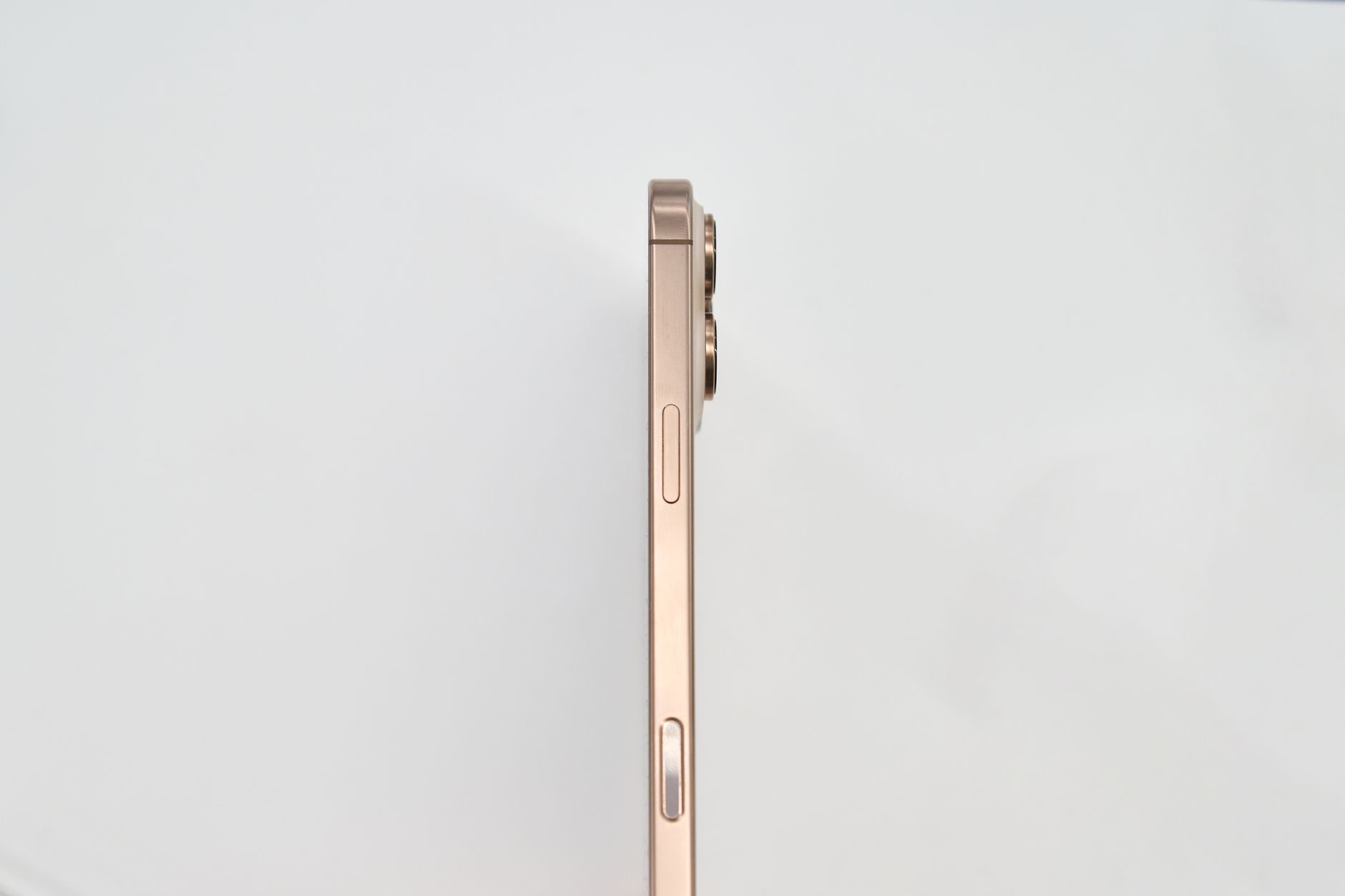
Your iPhone has a way to switch between silent and ring, and a switch or setting in the wrong position is a leading cause of no sound. Make sure it is set to ring, not silent. Then check your volume, pressing the volume up control while playing something or on the relevant screen to make sure it is turned up. Also check the volume within apps and for media, since these can be separate. Confirming both the silent setting and the volume level resolves a huge share of no-sound problems right away.
Disconnect Bluetooth Devices
Here is a sneaky and very common cause: your iPhone is sending its audio to a Bluetooth device you are not using. If your phone is still connected to earbuds, a speaker, a car, or headphones, the sound goes there instead of the iPhone's speaker, making it seem like there is no sound. Check whether your iPhone is connected to any Bluetooth device and disconnect it, or turn Bluetooth off briefly to test. People are often surprised to find their audio was quietly playing through forgotten earbuds or a car system all along.
Restart Your iPhone
If the settings all look correct but you still have no sound, a restart is the next step. Turning your iPhone off and back on clears temporary glitches that can affect audio, and it often restores sound that vanished for no obvious reason. It is quick, easy, and resolves a surprising number of odd issues, including sound problems. Whenever your iPhone behaves strangely and the basic settings check out, a simple restart is always worth trying before moving on to more involved troubleshooting or assuming a hardware fault.
Clean the Speaker and Check for Debris
If the sound is there but muffled, quiet, or crackly rather than completely absent, dirt or debris in the speaker may be the cause. Over time, the speaker openings can gather dust and pocket lint that muffle the sound. Gently and carefully cleaning the speaker area with something soft can help restore clear audio. Also make sure nothing, like a case or screen protector, is covering the speaker. If your sound is blocked or muffled rather than silent, clearing debris from the speaker is often the fix that brings back clear, full volume.
When to Seek Help
If you have checked silent mode and volume, disconnected Bluetooth, restarted your iPhone, and cleaned the speaker, but there is still no sound, it may point to a hardware issue worth having checked by a professional. This is far less common than a simple setting or Bluetooth mix-up, so always work through the easy fixes first. For most people, one of the steps above restores their sound quickly. Only a persistent no-sound problem that survives all the basic checks suggests something that needs professional attention.
| Cause | Fix |
|---|---|
| Silent mode or low volume | Check the switch and turn volume up |
| Connected to Bluetooth | Disconnect earbuds, speaker, or car |
| Temporary glitch | Restart your iPhone |
| Blocked or dirty speaker | Gently clean the speaker area |
Frequently Asked Questions
Why does my iPhone have no sound?
Most often it is a simple setting, silent mode on, volume down, or a Focus mode silencing it, or your audio is going to a connected Bluetooth device. Less commonly, a glitch or a blocked speaker is to blame. Checking these simple things resolves no-sound problems for most people quickly.
How do I fix an iPhone with no sound?
Check that silent mode is off and the volume is up, disconnect any Bluetooth device that might be receiving the audio, and restart your iPhone to clear glitches. If sound is muffled rather than absent, gently clean the speaker. These steps fix the vast majority of no-sound issues.
Why is my iPhone playing sound through something else?
Because it is connected to a Bluetooth device like earbuds, a speaker, or a car, so the audio goes there instead of the iPhone's speaker. This is a very common cause of apparent no sound. Check for and disconnect any Bluetooth connection, or turn Bluetooth off briefly to test.
Can a restart fix sound problems?
Often, yes. Turning your iPhone off and back on clears temporary glitches that can affect audio and frequently restores sound that vanished for no obvious reason. If your settings check out but there is still no sound, a simple restart is quick and worth trying before more involved troubleshooting.
Why is my iPhone sound muffled or quiet?
If sound is present but muffled or quiet rather than absent, dirt or debris in the speaker openings may be muffling it. Gently cleaning the speaker area with something soft can restore clear audio, and make sure no case or screen protector is covering the speaker.
What if there is still no sound after everything?
If you have checked silent mode and volume, disconnected Bluetooth, restarted, and cleaned the speaker but still have no sound, it may be a hardware issue worth having checked professionally. This is uncommon, so try all the easy fixes first, as one of them resolves the problem for most people.
The Bottom Line
An iPhone with no sound is almost always an easy fix. Start with the simple checks: silent mode off, volume up, and no Focus mode silencing you. Then disconnect any Bluetooth device that might be stealing the audio, a very common cause, and restart your iPhone to clear glitches. If sound is muffled, gently clean the speaker. These steps restore audio for the vast majority of people, and only a problem that survives them all suggests a hardware issue worth checking.
Leave a Reply