
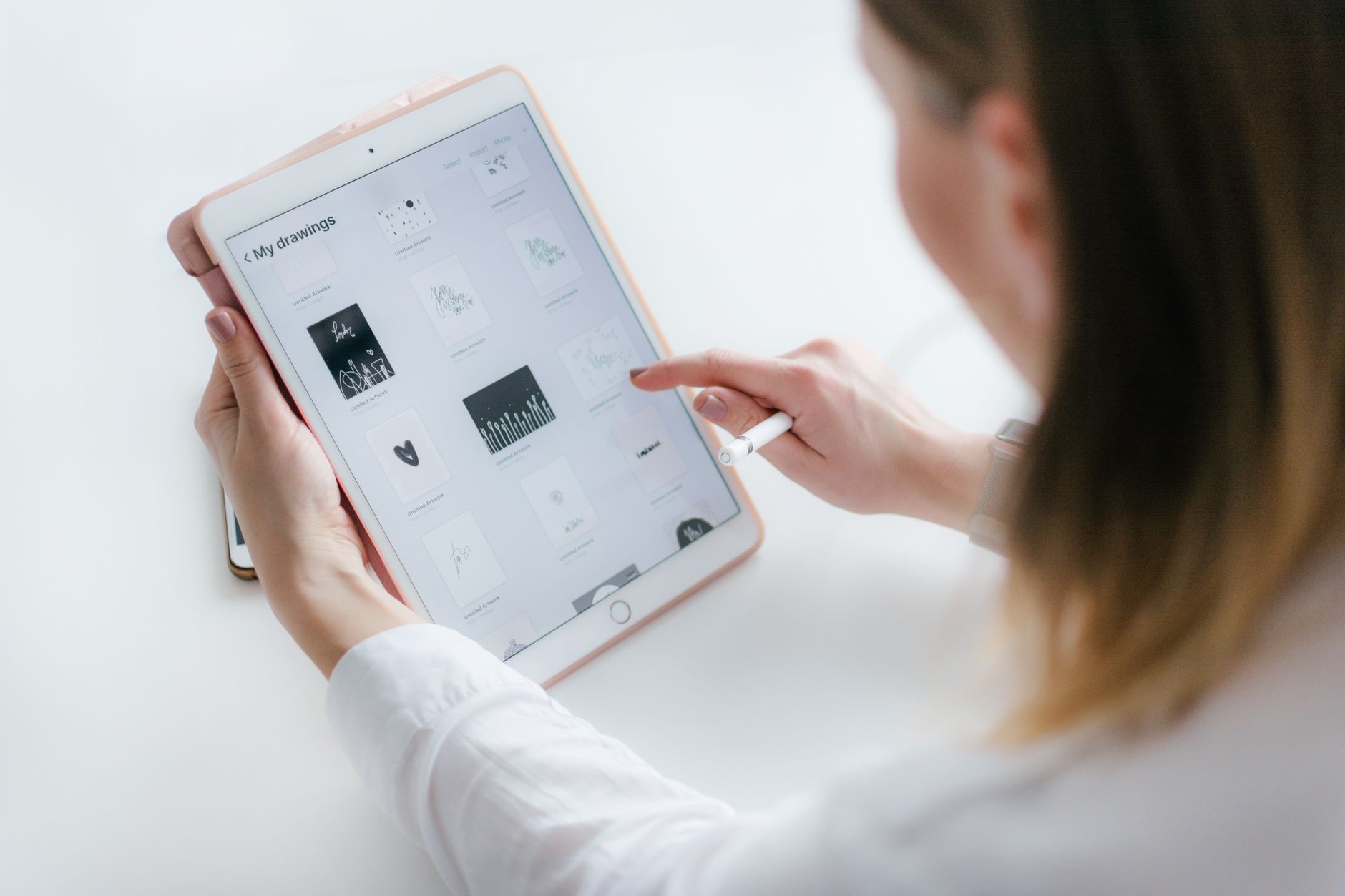
Be honest: your iPad probably spends most of its life as a big screen for videos, browsing, and the occasional game. There is nothing wrong with that, but it means you are ignoring most of what is genuinely a remarkably powerful device. Tucked inside are features that can turn your iPad into a notebook, a second monitor, a creative studio, and a real productivity machine. Here are the iPad features you are completely wasting, and why they are worth discovering.
1. Real Multitasking
Your iPad can run more than one app at the same time, side by side or in a floating window, yet most people use one app at a time as though it were a phone. Learning to multitask lets you take notes while watching a lecture, reference a web page while writing, or chat while working. This single capability transforms the iPad from a media consumption device into something you can genuinely get work done on.
2. The Apple Pencil for More Than Drawing
If you have an Apple Pencil and only use it to doodle, or worse, leave it in a drawer, you are missing enormous value. Beyond art, it is superb for handwriting notes, marking up documents and PDFs, signing paperwork, and navigating with precision. Even if you cannot draw a stick figure, the Pencil makes the iPad dramatically more useful for everyday tasks, turning it into a genuine digital notebook and productivity tool.
3. Turning Handwriting Into Typed Text
On supported iPads with an Apple Pencil, you can handwrite directly into text fields and watch it convert into typed text. It is a genuinely clever feature that lets you fill in forms, search, and jot notes by hand without switching to the keyboard. Most people have no idea it exists, yet it blends the natural feel of writing with digital convenience in a way that feels almost futuristic.
4. Using It as a Second Monitor
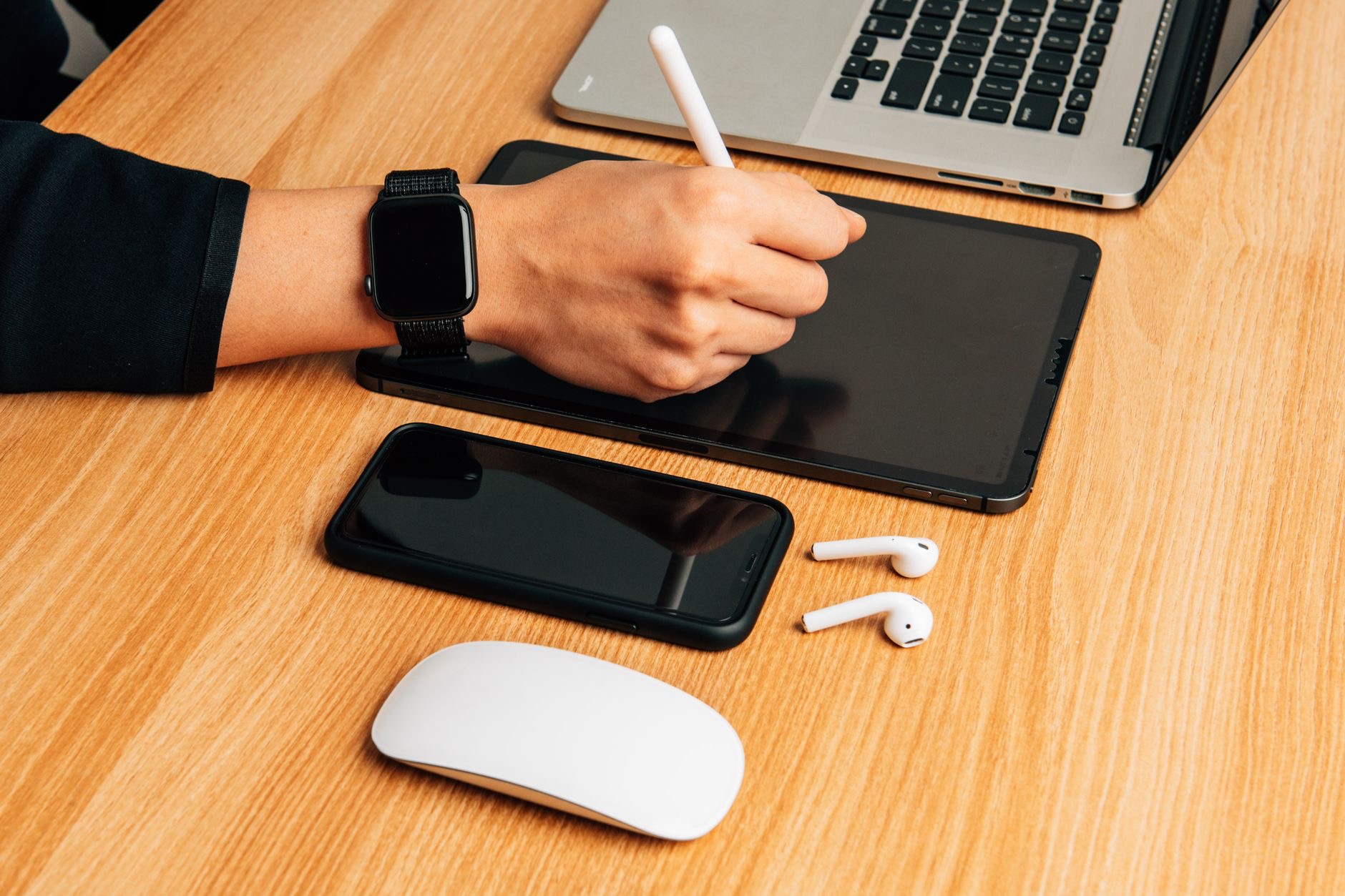
Your iPad can act as an additional display for your Mac, giving you valuable extra screen space or a surface to draw on with the Pencil. For anyone who feels cramped on a single screen, this effectively gives you a second monitor you already own, no extra purchase required. It is one of the most underused features, and it can meaningfully boost your productivity when working alongside a Mac.
5. Scanning and Signing Documents
Your iPad can scan physical documents using its camera and let you sign them digitally, turning the tedious print-sign-scan routine into a few taps. For anyone who deals with forms, contracts, or paperwork, this quietly saves real time and hassle. It is exactly the kind of practical capability that makes the iPad feel like a genuine tool rather than just an entertainment screen, and hardly anyone uses it.
6. Keyboard Shortcuts With an External Keyboard
Pair a keyboard with your iPad and a whole world of keyboard shortcuts opens up, letting you work quickly without touching the screen. Holding the command key in many apps reveals the shortcuts available. Learning even a few common ones makes the iPad feel far more like a computer and dramatically speeds up your work, especially for writing and productivity tasks where your hands stay on the keys.
7. Widgets for Information at a Glance
Your home screen can display widgets that show useful information without opening any app, from your calendar and weather to reminders and more. Setting up widgets turns your home screen into a personal dashboard of what matters to you. It is a small customization that makes your iPad more useful every time you pick it up, yet many people never move beyond a plain grid of app icons.
8. Quick Notes From Anywhere
You can quickly jot down a note from almost anywhere, capturing a thought, a link, or a reminder without hunting for the right app first. For students, professionals, and anyone with fleeting ideas, this instant capture is genuinely valuable, ensuring good thoughts do not slip away. Combined with the Apple Pencil, it turns your iPad into an always-ready notebook that is there the moment inspiration strikes.
9-10. Drag and Drop and Focus Modes
Two final gems. You can drag and drop text, images, and files between apps, moving content around with a natural, direct gesture that makes transfers effortless once you get the hang of it. And Focus modes let you cut distractions while you work or study, silencing the notifications that would otherwise pull your attention away. Together, these help your iPad become a place where you can actually concentrate and get things done, not just scroll.
★ Editor's Pick · Amazon
iPad Air (M3) & Apple Pencil
Unlock the real power of your iPad with the right tools
Options: iPad Air 11" · iPad Air 13" · Apple Pencil Pro
Frequently Asked Questions
Can I really get work done on an iPad?
Yes. With real multitasking, an external keyboard and its shortcuts, the Apple Pencil for notes and markup, and features like document scanning and signing, the iPad becomes a genuine productivity machine. Most people only use it for media and never discover how much real work it can handle.
What can the Apple Pencil do besides drawing?
A great deal. Beyond art, it is superb for handwriting notes, marking up documents and PDFs, signing paperwork, and precise navigation. Some iPads even convert your handwriting into typed text. Even if you cannot draw, the Pencil makes the iPad dramatically more useful as a digital notebook.
Can I use my iPad as a second monitor?
Yes. Your iPad can act as an additional display for your Mac, giving you extra screen space or a surface to draw on with the Pencil. For anyone cramped on one screen, it is effectively a second monitor you already own, and it is one of the most underused features.
How do I turn handwriting into text on iPad?
On supported iPads with an Apple Pencil, you can handwrite directly into text fields and have it convert into typed text. This lets you fill in forms, search, and jot notes by hand without switching to the keyboard, blending natural writing with digital convenience.
Do keyboard shortcuts work on the iPad?
Yes, when you pair an external keyboard. Many apps support shortcuts for quick actions, and holding the command key often reveals what is available. Learning a few common ones makes the iPad feel much more like a computer and speeds up writing and productivity tasks considerably.
What are widgets on the iPad?
Widgets display useful information on your home screen without opening an app, such as your calendar, weather, and reminders. Setting them up turns your home screen into a personal dashboard of what matters to you, making the iPad more useful every time you pick it up.
The Bottom Line
Your iPad is far more capable than the way most people use it, and these wasted features are exactly where its real power lives. Master multitasking, put the Apple Pencil to work, use it as a second monitor, scan and sign documents, and learn a few keyboard shortcuts, and your iPad transforms from a video screen into a genuine productivity and creativity machine. You already own all of this, so spend a little time unlocking it and get far more from your tablet.
Leave a Reply