
Screen recording on an iPhone is incredibly useful, for saving a video call moment, capturing a bug to show support, making a how-to for a relative, or keeping a clip of something on screen. The feature is built right in and completely free, but many people do not realize it exists or how to record sound along with it. Here is exactly how to screen record on your iPhone, with and without audio, and what to do with the video afterward.
First, Add Screen Recording to Control Center
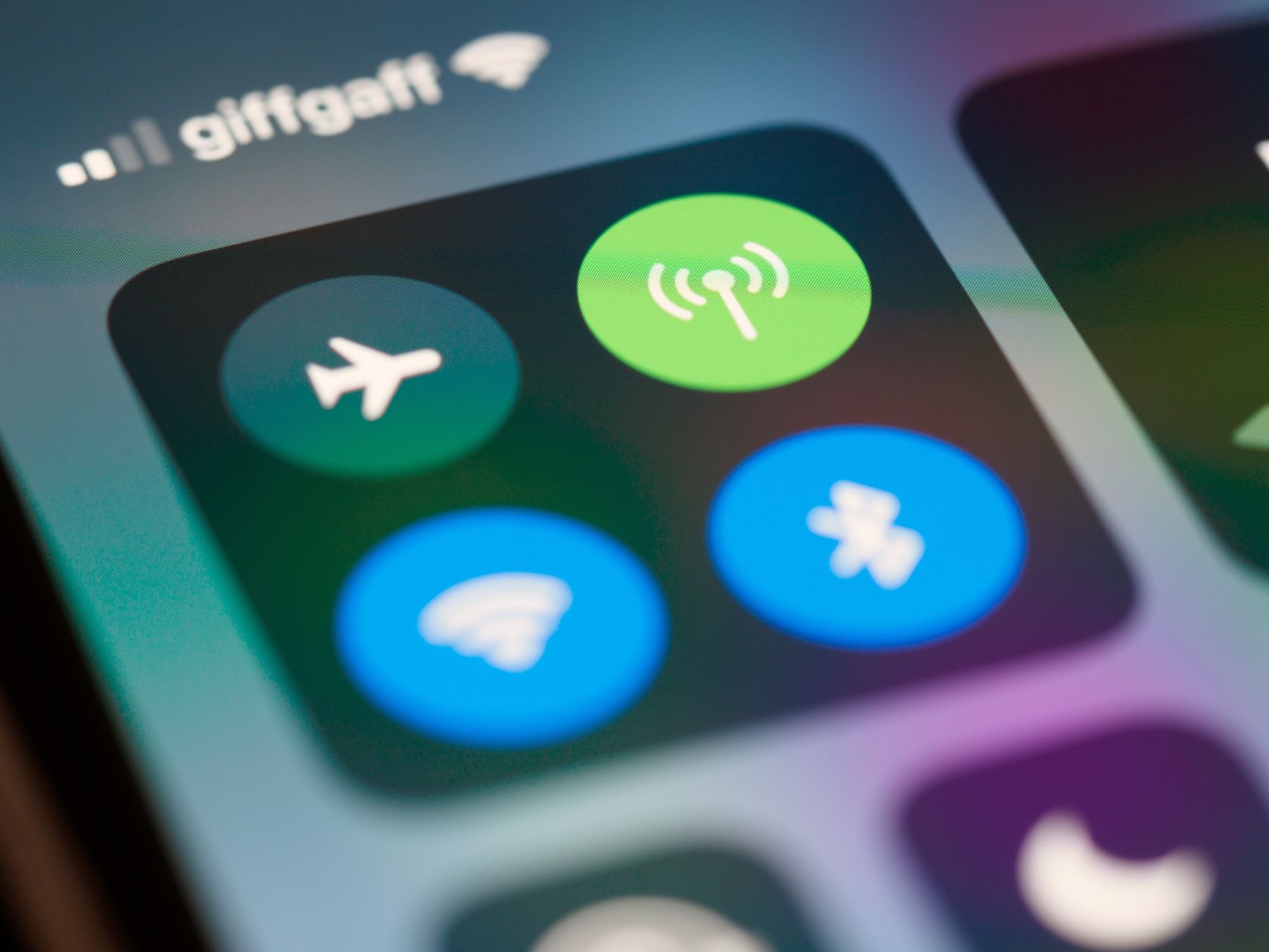
Before you can record, you need the screen recording button in your Control Center, the panel you swipe to open for quick controls. If it is not already there, you can add it through your settings, in the Control Center section, by adding the screen recording control to your list. This is a one-time setup. Once the button is in your Control Center, recording your screen is always just a swipe and a tap away, ready whenever you need it.
How to Start a Screen Recording
Once the button is set up, recording is simple. Open Control Center by swiping from the corner or bottom of your screen, depending on your model, and tap the screen recording button, which looks like a solid circle inside a ring. A short countdown begins, and then your iPhone records everything on screen. A colored indicator at the top of the screen shows that recording is in progress, so you always know when it is capturing. Everything you do is now being recorded.
How to Record With Sound
By default, a screen recording captures the audio playing on your iPhone but not your voice. To narrate the recording with your own voice through the microphone, press and hold the screen recording button instead of just tapping it, which opens an option to turn the microphone on. With the microphone enabled, your iPhone records both the on-screen audio and your voice, which is perfect for making tutorials or explaining what you are showing. Remember to turn it off again later if you do not want your voice recorded next time.
How to Stop Recording
Stopping a recording is just as easy as starting one. You can tap the colored indicator at the top of the screen and confirm that you want to stop, or open Control Center again and tap the screen recording button a second time. The recording ends immediately and saves automatically. There is no complicated export step, the finished video simply appears in your photos, ready to watch, trim, or share, moments after you stop.
Where to Find Your Recording
After you stop recording, the video saves straight to your photos, alongside your other videos and pictures. Open your photo library and your screen recording will be there, usually at the top as the most recent item. From there you can play it back, share it with someone, or edit it. Because it is saved as a normal video, you can do anything with it that you would with a video you filmed, including sending it in a message or saving it elsewhere.
How to Trim Your Screen Recording
Screen recordings often capture a few unwanted seconds at the start and end, while you tap the buttons. You can easily trim these off using the editing tools in your photos. Open the recording, choose to edit it, and drag the handles at each end of the video timeline to cut away the parts you do not want, then save. This quick trim makes your recording look clean and professional, removing the fumbling at the beginning and end so only the useful part remains.
Tips for Better Screen Recordings
A few tips improve your results. Turn on Do Not Disturb before recording so notifications do not pop up and interrupt the video. Make sure you have enough storage, since videos can be large, and clear space first if needed, as our guide to freeing up iPhone storage explains. Decide in advance whether you want your voice included and set the microphone accordingly. And keep recordings short and focused, since shorter clips are easier to share and take up less space than long ones.
What You Can and Cannot Record
Screen recording captures almost everything you see and do on your iPhone, which makes it brilliant for tutorials, saving moments, and showing problems to others. Bear in mind that some apps with copyright protection, such as certain streaming video services, may block recording or capture a black screen for the protected content, which is normal and intended. For everything else, from app demos to game clips to walking someone through a setting, screen recording works beautifully. For capturing on a Mac instead, see our Mac screenshot and recording guide.
| Goal | How |
|---|---|
| Start recording | Tap the screen recording button in Control Center |
| Record your voice too | Press and hold the button, turn on the microphone |
| Stop recording | Tap the indicator or the button again |
Quick Answers
How do I screen record on my iPhone?Add the screen recording control to Control Center in settings, then open Control Center and tap the recording button. The video saves to your photos when you stop.
How do I record my screen with sound?Press and hold the screen recording button instead of tapping it, then turn on the microphone to capture your voice along with the on-screen audio.
Where do screen recordings save?Straight to your photo library, alongside your other videos, usually at the top as the most recent item, ready to watch, trim, or share.
How do I stop a screen recording?Tap the colored indicator at the top of the screen and confirm, or open Control Center and tap the recording button again. It saves automatically.
Can I trim a screen recording?Yes. Open it in your photos, choose to edit, and drag the handles at each end of the timeline to cut off the unwanted start and end, then save.
Why is my screen recording black?Some apps with copyright protection, like certain streaming services, block recording of protected video and show a black screen. This is normal and intended.
Why Your Recording Has No Sound
A very common frustration is finishing a screen recording only to find it has no sound, and the reason is almost always one of two simple things. Either the microphone was switched off, so your voice was not captured, or the app you were recording was not producing audio that the recording could pick up. Remember that by default a screen recording captures the sound playing on the phone but not your voice, and to add narration you must press and hold the record button and turn the microphone on first. If you wanted to record your own commentary and got silence, the microphone was almost certainly off. Conversely, if you expected app audio and got none, check that the app was actually playing sound and that your phone was not muted. Knowing this in advance saves you from re-recording, so decide before you start whether you need your voice, the app's audio, or both, and set the microphone accordingly so your finished video has exactly the sound you intended.
The Honest Bottom Line
Screen recording on an iPhone is built in, free, and easy once you add the button to Control Center. Tap to record, press and hold to include your voice, and the video saves straight to your photos, where you can trim and share it in seconds.
It is perfect for tutorials, saving moments, and showing problems to others. What do you want to record? Tell me in the comments and I will share tips for getting the best result.
Leave a Reply