
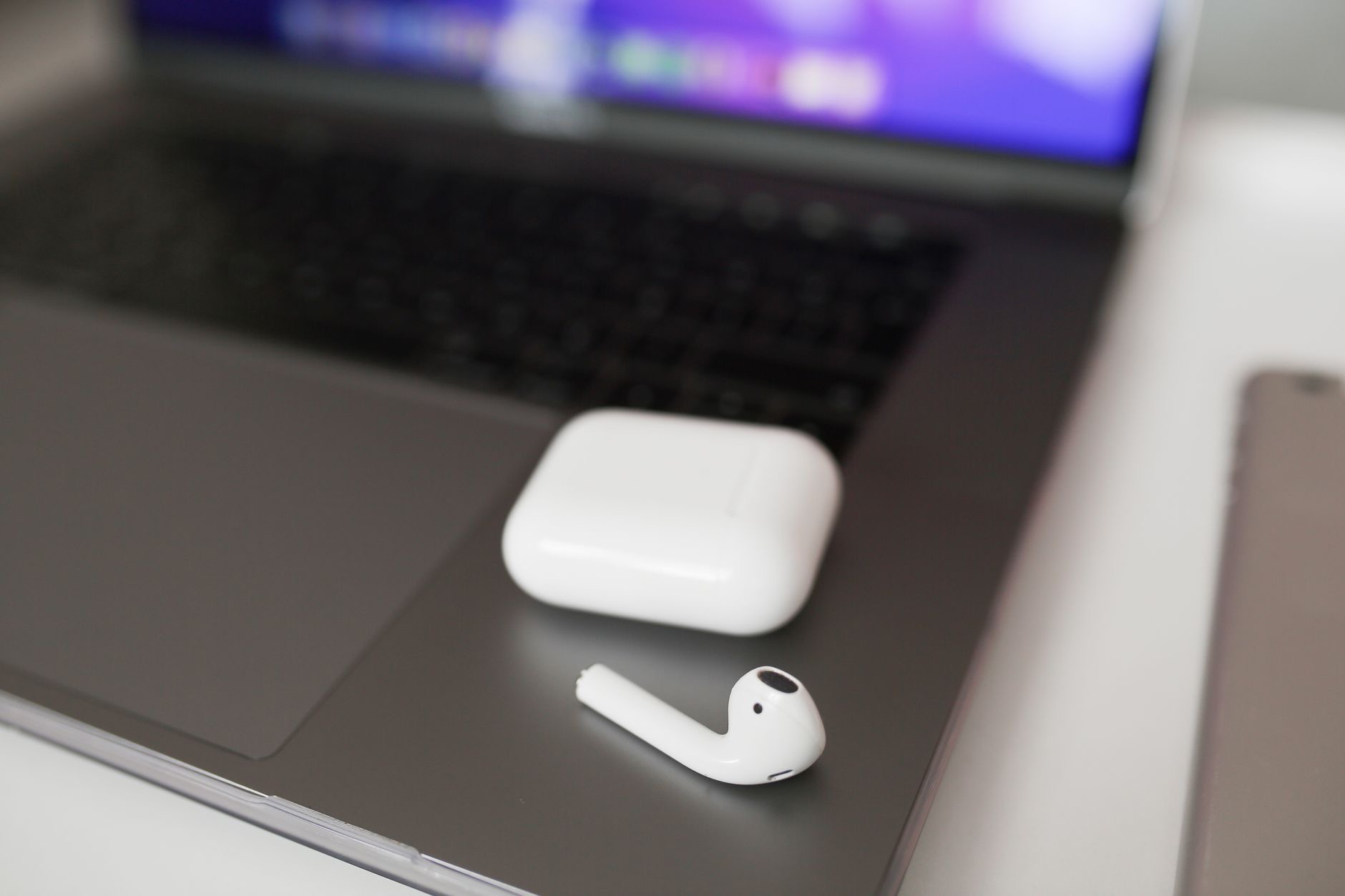
AirPods pair with an iPhone like magic, and then you sit down at your Mac and the magic gets moody. Sometimes they appear instantly, sometimes they cling to the phone, sometimes they connect and route audio to another dimension. The system underneath is actually simple, two connection paths and one switching rule, and once you know it, the moodiness ends. Here is how to connect AirPods to a Mac, and how to fix the days they refuse.
Path One: The Automatic Way
If your Mac and iPhone share the same account, your AirPods are already known to the Mac, no pairing ceremony required. Open the sound or Bluetooth menu in the Mac's menu bar with the AirPods in your ears or case-open nearby, and they appear in the list, one click connects. This is the everyday path: the AirPods belong to your account, and every device signed into that account considers them family. If you have never seen them in the menu, path two fixes that.
Path Two: The Manual Pairing
For a Mac outside your account, a work machine, a family computer, or when the automatic path misbehaves, pair the classic way. Put the AirPods in their case, lid open, and hold the setup button on the case until the front light blinks white: that is pairing mode. On the Mac, open Bluetooth settings, find the AirPods in the nearby list, and connect. One-time ritual, permanent acquaintance. The blinking-white step is the part everyone forgets, and it is the whole trick.
The Switching Rule That Explains Everything
Most AirPods-on-Mac frustration is not connection, it is custody. The AirPods follow your attention between devices, and they sometimes guess wrong, staying loyal to the iPhone in your pocket while you start a call on the Mac. The manual override always wins: click the sound menu in the Mac's menu bar and select the AirPods as the output. Make that one gesture a habit, and the custody battles end. The AirPods do not need re-pairing when this happens; they need telling, once, who has the floor.
When They Refuse: The Fix Ladder
For the stubborn days, climb this ladder. Rung one: put both buds in the case, close the lid ten seconds, reopen, reconnect. Rung two: toggle the Mac's Bluetooth off and on. Rung three: on the Mac, remove or forget the AirPods in Bluetooth settings, then re-pair fresh with the blinking-white ritual. Rung four: restart the Mac, updates pending on the Mac are a quiet cause of Bluetooth sulking. Nearly every refusal surrenders by rung three; the fourth is for full ceremonies.

Sound Quality on Calls: The Honest Note
One expectation worth setting: on Mac video calls, AirPods work brilliantly as a headset, but Bluetooth headsets in general trade some audio richness while the microphone is active, which is normal across platforms, not a defect. For music and video, the quality is full and lovely. For calls, they remain far better than laptop speakers and mic, just do not be alarmed if music mid-call sounds thinner, it returns to full quality when the mic rests.
Making the Mac a First-Class Citizen
If your AirPods live between phone and Mac all day, two settings smooth the road: on the Mac, keep Bluetooth on and the sound menu visible in the menu bar for one-click output switching, and in the AirPods settings, review the automatic switching behavior to match your taste, some people love the following act, others prefer manual control entirely. Tuned once, the AirPods become genuinely multi-device: podcasts on the phone, meetings on the Mac, one pair, zero drama.
| The situation | The move |
|---|---|
| Same account Mac | Sound menu, click, connected |
| New or work Mac | Case open, hold button, blink white, pair |
| Audio on wrong device | Select output in the sound menu |
| Refusing entirely | Case reset, Bluetooth toggle, re-pair |
Frequently Asked Questions
How do I connect AirPods to my Mac?
Two paths: on a Mac signed into your same account, the AirPods already appear in the sound or Bluetooth menu, one click connects. On any other Mac, put the AirPods in the open case, hold the case button until the light blinks white, then pair from the Mac's Bluetooth settings.
Why do my AirPods keep connecting to my iPhone instead?
They follow your attention between devices and sometimes guess wrong. The override is simple and always wins: choose the AirPods as output in the Mac's sound menu. They do not need re-pairing when custody goes wrong, just one click telling them which device has the floor.
What is pairing mode on AirPods?
Buds in the case, lid open, hold the setup button on the case until the front light blinks white. That broadcast state lets any new device, including a Mac outside your account, find and pair with them. It is the step everyone forgets and the whole manual trick.
My AirPods will not connect to the Mac at all, what now?
Climb the ladder: close the lid ten seconds and retry, toggle the Mac's Bluetooth, then forget the AirPods in Bluetooth settings and re-pair fresh with the blinking-white ritual, and finally restart the Mac. Nearly every refusal gives up by the re-pair step.
Why does music sound worse during Mac calls?
While the microphone is active, Bluetooth headsets trade some audio richness, which is normal across platforms rather than a fault. Music and video get full quality when the mic rests. For calls, AirPods still comfortably beat laptop speakers and microphone.
Can AirPods work with both my iPhone and Mac daily?
Yes, that is their multi-device life: same account on both, sound menu visible on the Mac for one-click switching, and automatic switching behavior tuned to your taste. Set up once, they hop between podcasts on the phone and meetings on the Mac with no drama.
The Bottom Line
AirPods and Macs get along fine once you know the system: same-account Macs already list them in the sound menu, other Macs need the one-time blinking-white pairing, and the moody days are custody, fixed by one click on the output menu. For refusals, the ladder of case reset, Bluetooth toggle, and fresh re-pair settles it. Tune the switching behavior once, and one pair of AirPods serves the phone, the Mac, and your whole day without further negotiation.
Leave a Reply