
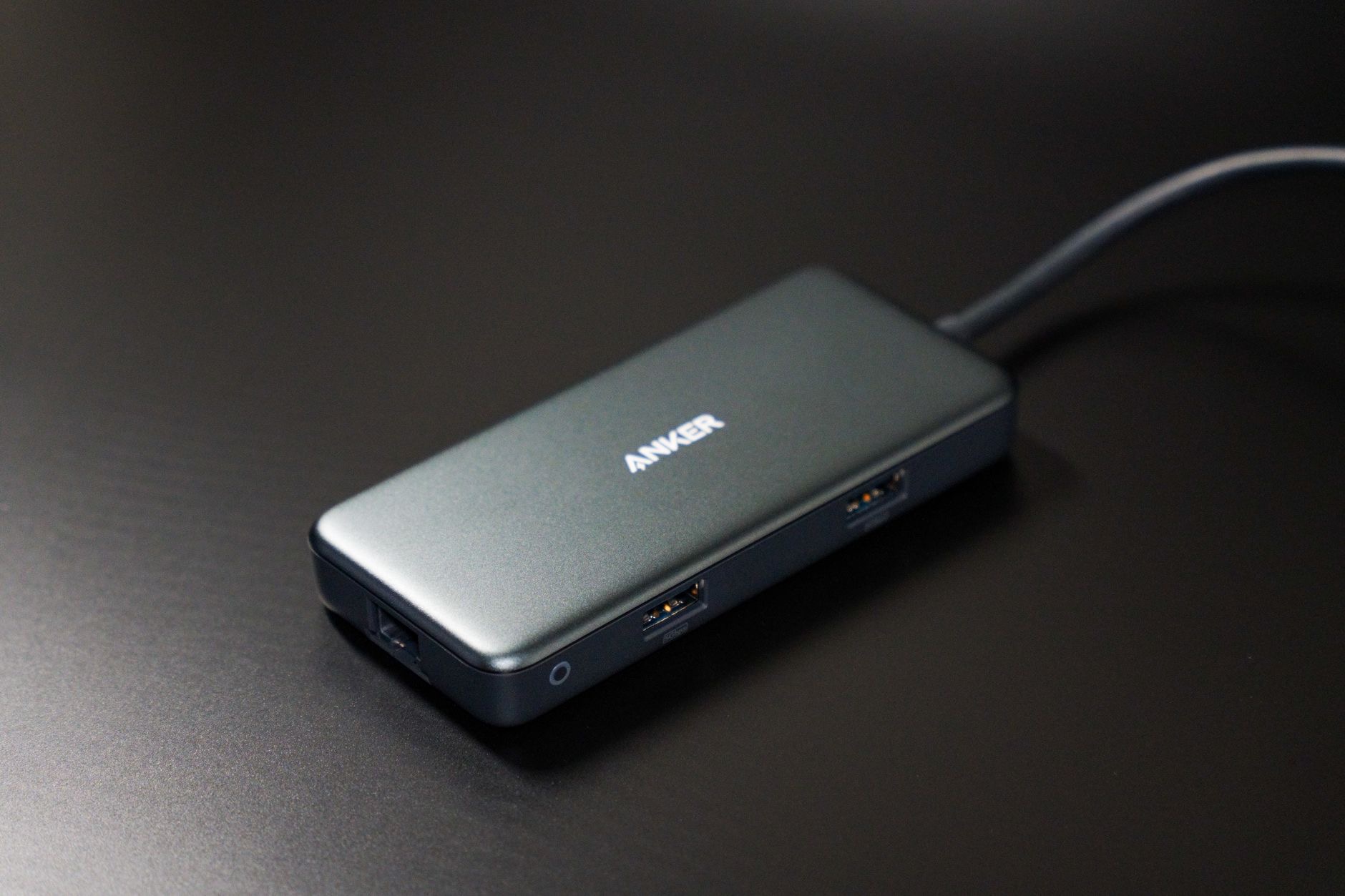
The USB-C hub is one of the most recommended accessories around, but do you actually need one, or is it a gadget you will use twice? There is a simple way to know before spending anything. Here is the honest test, what a hub genuinely solves, and who benefits most, so you buy one because your setup demands it, not because a list told you to.
The One-Question Test
Here it is: in the past month, did you ever want to plug something into your Mac or iPad and could not, or had to unplug one thing to connect another? If yes, you need a hub, and you already know it. If no, you likely do not, and no feature list should convince you otherwise. Hubs solve a real, specific problem, port scarcity, and the test simply asks whether you actually have it. Most laptop users at a desk do; most tablet-on-the-sofa users do not.
What a Hub Actually Solves
A hub takes one USB-C port and turns it into many connections: an HDMI output for a monitor, USB ports for drives and accessories, card readers for cameras, and more, depending on the model. The deeper value is workflow: everything stays plugged into the hub, the hub connects to your laptop with one cable, and docking or undocking your entire desk takes one second. It converts a modern minimal-port laptop into a full workstation without surgery.
★ Editor's Pick · Amazon
USB-C Hub
One port becomes a full workstation
The People Who Genuinely Need One
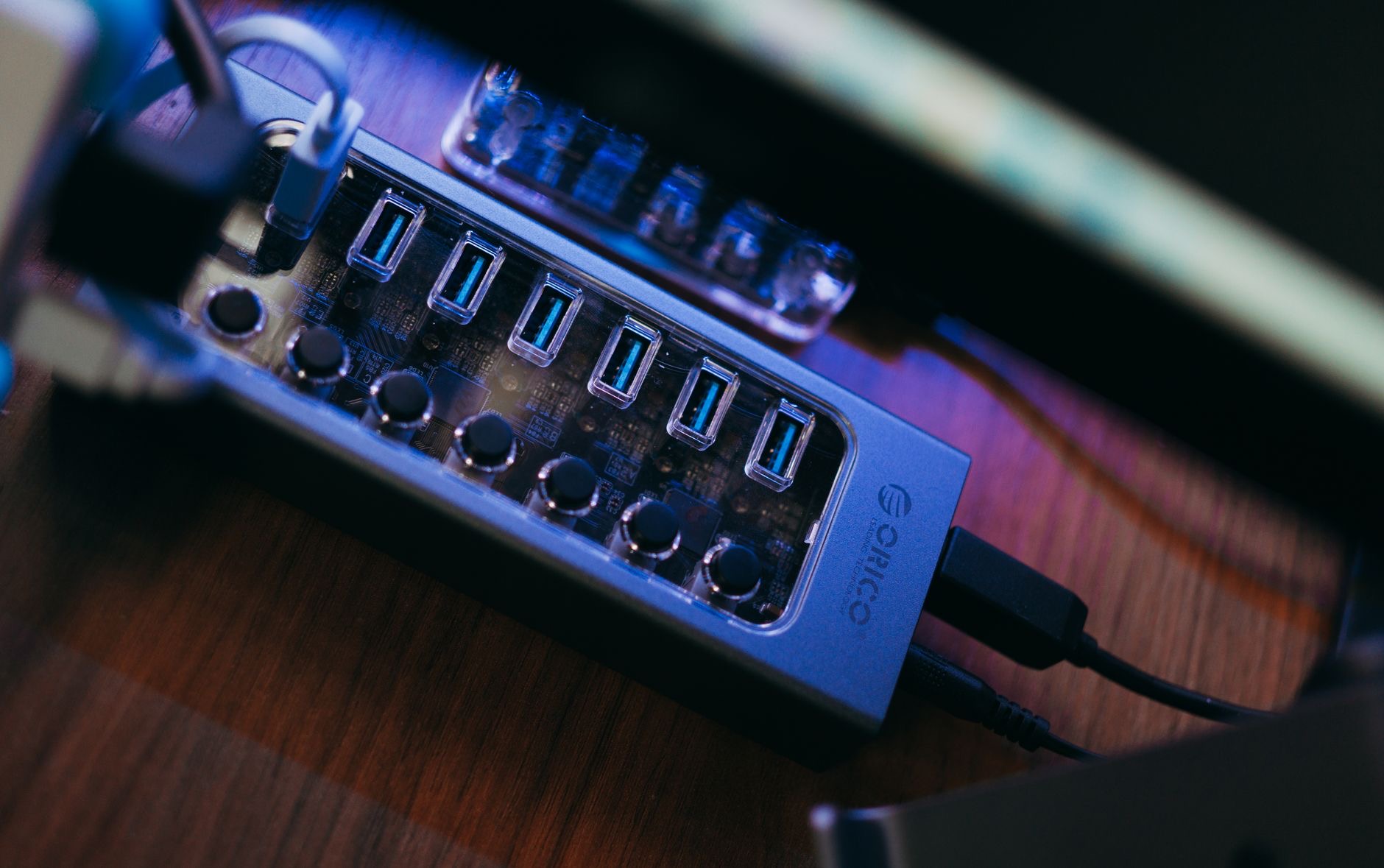
Some setups make the hub essential. Monitor users: connecting an external display is the number one hub trigger. Photographers and creators: card readers and fast drives need ports the laptop does not spare. Desk workers with keyboard, mouse, drive, and display: the one-cable dock lifestyle is transformative. And backup-minded users whose external SSD should connect automatically whenever the laptop docks. If you saw yourself in any of those, the test already said yes.
The People Who Can Skip It
Honesty cuts both ways. If your laptop lives on your lap, your files live in the cloud, you never connect a display, and your accessories are wireless, a hub will sit in a drawer. Modern Macs handle wireless keyboards, mice, and AirPods without any help, and plenty of people genuinely never plug anything in. Skipping the hub is not falling behind, it is knowing your own setup, which is the whole point of this article.
If Yes: What to Connect First
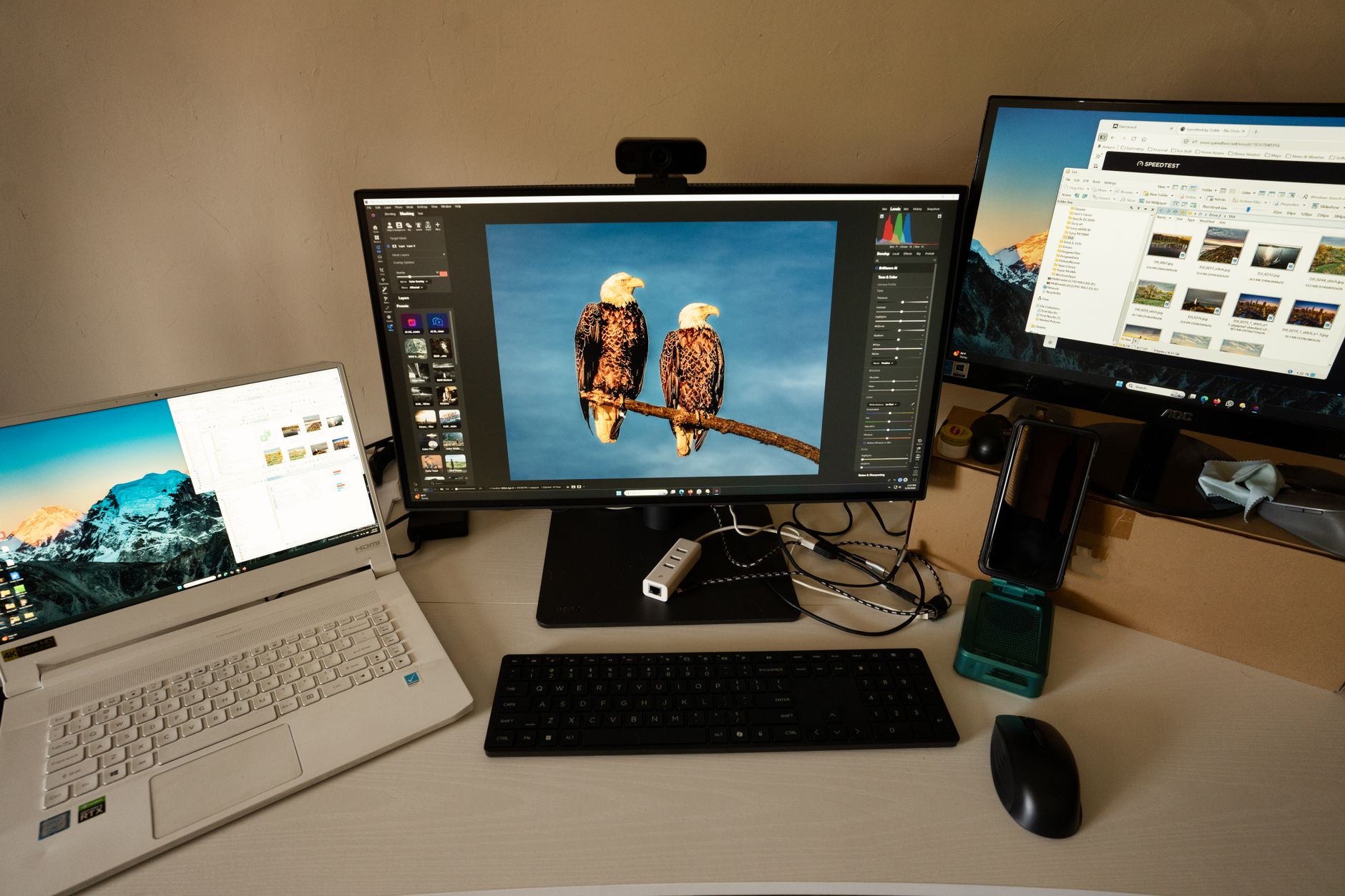
For new hub owners, two connections deliver the most value immediately. First, a monitor via HDMI, which transforms laptop work into comfortable big-screen work. Second, an external SSD that stays plugged into the hub, so your Mac backs up automatically every time you dock, turning data protection into something that happens by itself. Add your camera card, wired accessories, and charging as needed, and the hub quietly becomes the heart of the desk.
★ Editor's Pick · Amazon
HDMI Cable & Portable SSD
The two connections that deliver the most
Options: HDMI Cable · 1TB SSD
Buying the Right Hub
If the test said yes, choose by your actual connections, not the biggest port count. List what you will plug in, monitor, drive, card reader, accessories, and buy a hub that covers that list with a spare port or two of headroom. A hub that matches your real workflow gets used daily and feels indispensable; an over-specified one costs more for ports that never see a cable. Like the purchase itself, the model choice works best when it follows your genuine needs.
| You need a hub if... | You can skip it if... |
|---|---|
| You connect a monitor | You never plug anything in |
| You use drives or card readers | Your files live in the cloud |
| You dock at a desk daily | Your laptop lives on your lap |
| You ran out of ports this month | Your accessories are wireless |
Frequently Asked Questions
Do I need a USB-C hub?
Apply the one-question test: in the past month, did you want to plug something in and could not, or had to unplug one thing for another? If yes, you have the port-scarcity problem hubs solve. If no, you likely do not need one, regardless of how often hubs get recommended.
What does a USB-C hub actually do?
It turns one USB-C port into many connections: HDMI for a monitor, USB ports for drives and accessories, card readers, and more. The deeper value is the one-cable dock: everything stays plugged into the hub, and connecting or disconnecting your whole desk takes one second.
Who benefits most from a hub?
Monitor users, photographers and creators with card readers and drives, desk workers who dock daily with keyboard, mouse, and display, and anyone whose backup SSD should connect automatically when the laptop docks. For these setups a hub quickly feels indispensable.
Who should skip the hub?
People whose laptop lives on their lap, files live in the cloud, accessories are wireless, and no display is ever connected. Modern Macs handle wireless peripherals natively, so if you never physically plug anything in, a hub will simply sit in a drawer.
What should I connect to a hub first?
A monitor via HDMI, which transforms laptop work into comfortable big-screen work, and an external SSD that stays plugged in so backups run automatically whenever you dock. Those two connections deliver most of the hub's value from day one.
How do I choose which hub to buy?
List what you will actually plug in and buy a hub covering that list with a port or two of headroom. Matching your real workflow beats maximizing port count, since over-specified hubs cost more for ports that never see a cable.
The Bottom Line
You need a USB-C hub if you have the problem it solves: wanting to plug things in and running out of ports, especially a monitor, drives, or a daily desk dock. You can skip it if your laptop life is wireless and cloud-based. If the one-question test says yes, connect a monitor and an always-plugged backup SSD first, choose a model that matches your real connections, and the hub becomes the quiet heart of your desk from day one.
Leave a Reply