

You have seen people tap their phone at the register and walk off without ever touching their wallet, and it looks almost suspiciously simple. That is Apple Pay, and once you set it up, you genuinely may stop carrying physical cards for everyday purchases. If the whole idea feels slightly mysterious or you are not sure it is safe, this guide walks you through every part of it in plain language.
What Apple Pay Actually Is
Apple Pay is a way to pay using your iPhone or Apple Watch instead of a physical card. You add your debit or credit cards to the device once, and from then on you can pay by holding the device near a contactless payment terminal. It works in physical stores, in apps, and on websites. The card details live securely on your device, and the experience at checkout is usually faster than fishing out a card, inserting it, and waiting. Think of it as your wallet, digitized and made considerably more convenient, with some genuine security advantages baked in that we will get to.
Setting It Up for the First Time
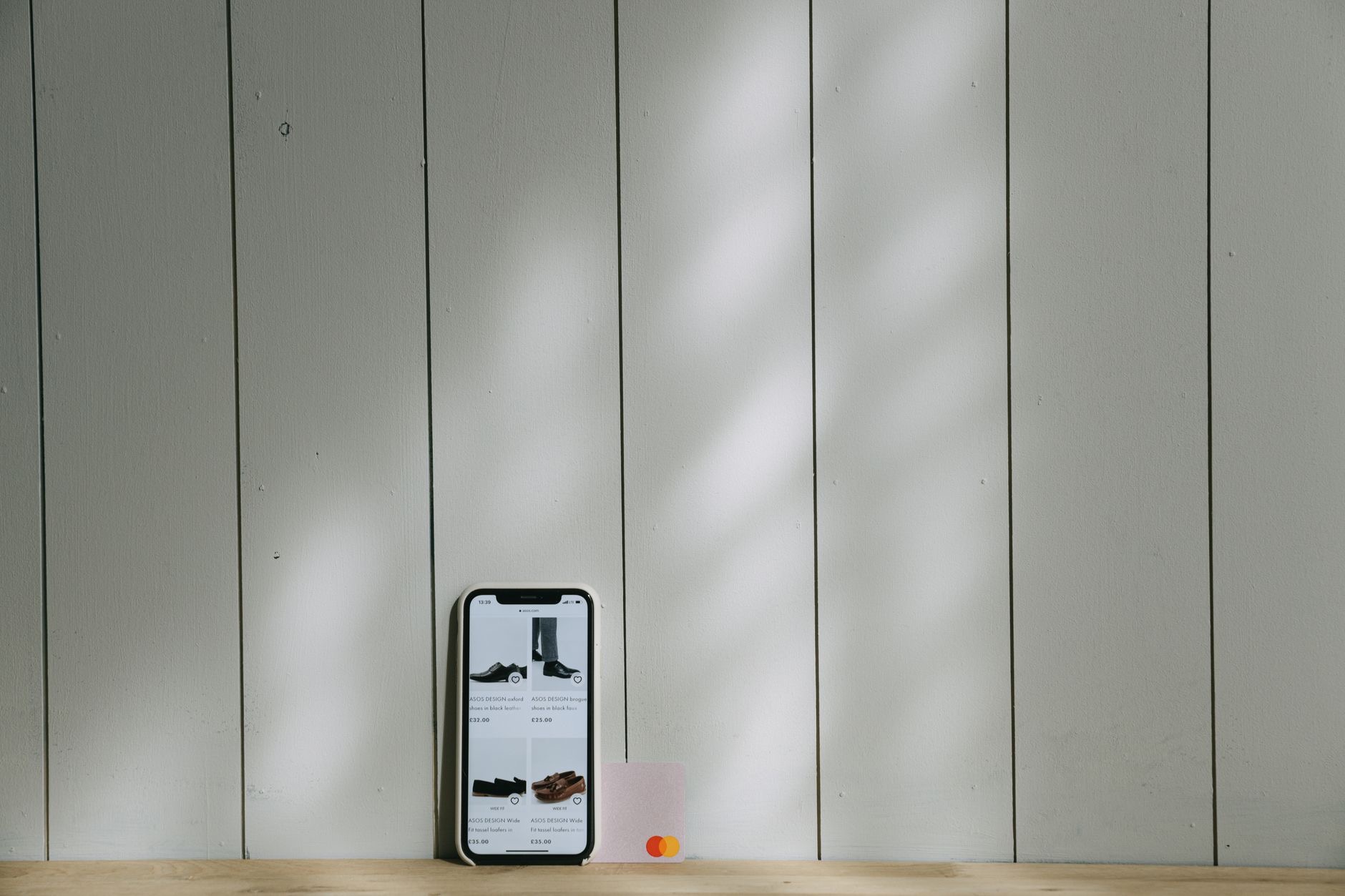
Setup takes a couple of minutes. On the iPhone, open the Wallet app and tap the plus button to add a card. You can position your physical card in the camera frame so the iPhone reads the number automatically, or type the details manually. Your bank then verifies the card, sometimes with a quick confirmation code sent by text or through the bank app. Once verified, the card appears in your Wallet, ready to use. You can add several cards and choose which one is your default. The whole process is guided step by step, so you are never left guessing what to do next.
Paying in a Physical Store
This is where Apple Pay shines for everyday life. When you see a contactless payment symbol at the register, you are good to go. On an iPhone with Face ID, double-click the side button, glance at the phone to authenticate, then hold the top of the phone near the terminal until you feel a vibration and see a checkmark. On an iPhone with Touch ID, rest your finger on the home button and hold the phone near the terminal. The whole thing takes a second or two. You do not need to open any app or wake the screen first, since double-clicking the side button brings up your cards directly.
Paying With an Apple Watch
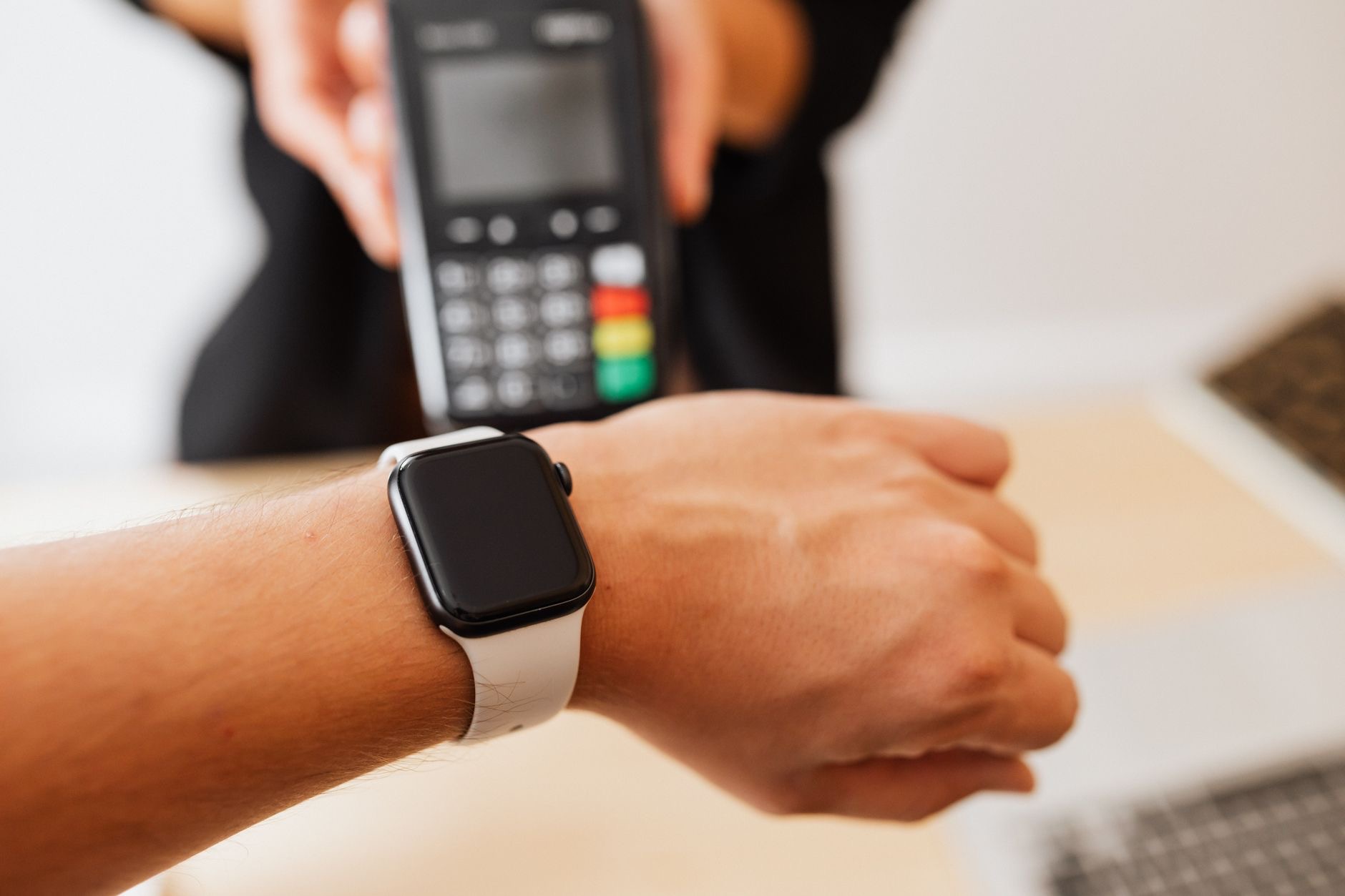
If you own an Apple Watch, paying becomes almost magical because you do not even need your phone in hand. Double-click the side button on the watch, which brings up your cards, then hold the watch face near the terminal until it taps and beeps to confirm. This is especially handy when you are out for a run or a walk without your phone or wallet, since the watch alone can cover a coffee or a quick purchase. The card setup happens through the Watch app on your iPhone, mirroring the cards you have already added, so it takes only moments to enable.
Using Apple Pay in Apps and Online
Apple Pay is not limited to physical stores. Many apps and websites accept it at checkout, shown as an Apple Pay button. Instead of typing your card number, billing address, and shipping details every time, you tap the Apple Pay button and confirm with Face ID or Touch ID. Your saved shipping and contact information fills in automatically. This is faster and arguably safer than entering card details into every random online store, because the merchant never receives your actual card number. For anyone who shops online regularly, this alone is a strong reason to set Apple Pay up.
Why Apple Pay Is Safer Than a Physical Card
This surprises people: paying with your phone is generally more secure than swiping or inserting a physical card. When you pay, Apple Pay does not transmit your real card number. Instead it uses a unique device-specific number and a one-time security code for each transaction, so the merchant never sees or stores your actual card details. Every payment is also authenticated by your face, fingerprint, or passcode, meaning a thief with your phone cannot simply tap it to pay. If your card number is never exposed, it cannot be skimmed or leaked in a store data breach the way a swiped card can.
What Happens if You Lose Your Device
A reasonable worry: what if someone steals my phone with all my cards on it? Apple Pay holds up well here. Because every payment requires your face, fingerprint, or passcode, a thief cannot use your cards without that authentication. On top of that, you can remotely suspend or remove your cards from a lost device through Apple's Find My service, even from another device or a web browser. Your physical cards stay perfectly usable since the digital versions are separate. Losing the phone is a hassle, but it does not hand your money to whoever finds it, which is more than can be said for a lost physical wallet.
Where Apple Pay Works and Where It Does Not
Contactless payment acceptance has spread enormously, and in many places it is now the norm rather than the exception. Look for the contactless symbol or an Apple Pay logo at the register. The vast majority of major retailers, supermarkets, cafes, transit systems, and chains accept it. That said, acceptance is not universal, and you will still encounter the occasional small business or older terminal that does not take contactless payments. For that reason, it is wise to keep a physical card as a backup rather than going entirely cardless, at least until you know the places you frequent all accept it.
Managing Your Cards
Over time you may want to add new cards, remove old ones, or change which card is your default. All of this lives in the Wallet app. Tap a card to see its recent transactions, which is a handy way to keep an eye on your spending. To change the default card used when you double-click, adjust it in Settings under Wallet and Apple Pay. You can also reorder cards so your most-used one sits on top. Keeping your Wallet tidy, with only the cards you actually use, makes paying quicker and the whole experience cleaner.
Common First-Time Hiccups
A few snags trip up newcomers, and all are easily solved. If a payment does not go through, make sure you are holding the device close enough to the terminal and that you authenticated properly with Face ID, Touch ID, or your passcode. If a card will not add, your bank may need to verify it first, so check for a confirmation request in your messages or bank app. If the terminal does not seem to respond, confirm it actually supports contactless payments, since not all do. None of these are signs that something is broken; they are simply the small learning curve of a new habit.
| Where | How to Pay | Authentication |
|---|---|---|
| In store (Face ID iPhone) | Double-click side button, hold near terminal | Face ID |
| In store (Touch ID iPhone) | Hold near terminal, finger on button | Touch ID |
| Apple Watch | Double-click side button, hold near terminal | Watch passcode on wrist |
| Apps and websites | Tap Apple Pay button, confirm | Face ID or Touch ID |
Frequently Asked Questions
Is Apple Pay safe to use?
Yes, and generally safer than a physical card. Your real card number is never shared with merchants, each transaction uses a unique code, and every payment requires your face, fingerprint, or passcode. A stolen phone cannot be used to pay without that authentication.
Does Apple Pay cost anything to use?
No. Apple Pay is free to set up and use. You pay exactly what you would with your physical card. Your bank's normal terms for the underlying card still apply, but Apple does not add a fee for paying this way.
What do I do if a store does not accept Apple Pay?
Use a physical card instead. Acceptance is widespread but not universal, so keeping a backup card is wise. Look for the contactless symbol at the register to know in advance whether Apple Pay will work there.
Can I use Apple Pay without an internet connection?
In-store contactless payments generally work even with a weak or absent connection, since the transaction happens through the terminal. Adding cards and some features need internet, but tapping to pay in a shop is reliable even where signal is poor.
What happens to my cards if I lose my iPhone?
Your cards cannot be used without your authentication, and you can remotely remove them through Find My from another device or a browser. Your physical cards remain fully usable. Losing the phone does not expose your money the way a lost wallet would.
Can I add more than one card to Apple Pay?
Yes. You can add multiple debit and credit cards and choose which is your default. At checkout you can switch to a different card before confirming. Manage all of them in the Wallet app, where you can also reorder and remove cards anytime.
Our Honest Take
Apple Pay is one of those features that sounds like a minor convenience and then quietly becomes the way you pay for almost everything. Set it up once, keep a physical card as a backup for the rare place that does not accept it, and enjoy a checkout experience that is faster and more secure than digging out plastic. If you have been putting it off because it seems complicated, the setup genuinely takes two minutes, and you will wonder why you waited.
Leave a Reply