
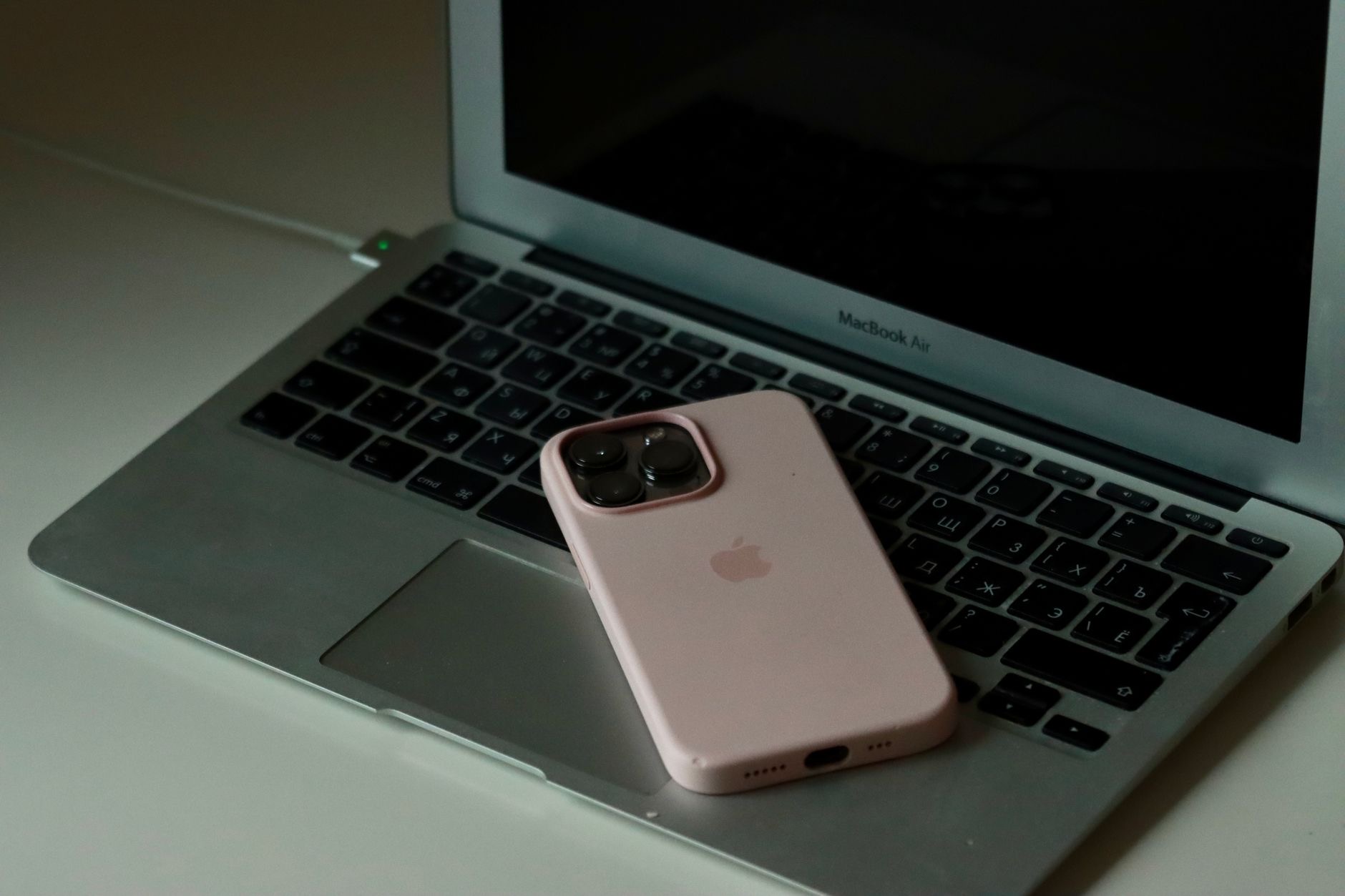
You filled your iPhone with photos, the storage warning popped up, and now you want them safely on your computer. The good news is that moving photos off an iPhone is genuinely easy once you know which method fits your setup. The frustrating part is that there are several ways to do it and most guides bury the one that actually works for you. Let us fix that.
Pick the Method That Matches Your Computer
The single biggest source of confusion here is that the best method depends entirely on whether you use a Mac or a Windows PC, and whether you want a one-time transfer or an automatic ongoing sync. There is no universal answer, and that is fine. On a Mac, the built-in Photos app does the job with no extra software. On Windows, a USB cable and the Photos app or File Explorer works without installing anything. If you want photos to appear everywhere automatically without thinking about it, iCloud is the answer regardless of computer. Choose based on what you actually need, not on whichever method someone shouted loudest about online.
The Fastest Way on a Mac
If you own a Mac, connecting your iPhone with a cable is the most reliable approach. Plug the iPhone into the Mac, unlock the phone, and tap Trust when the prompt asks whether to trust this computer. Open the Photos app on the Mac, and your iPhone appears in the sidebar under Devices. Click it, and you see every photo and video on the phone ready to import. You can import everything at once or select specific shots. There is an option to delete the photos from the iPhone after importing, which is exactly what you want when you are clearing space. This method does not require iCloud, an internet connection, or any subscription.

Transferring to a Windows PC With a Cable
Windows handles iPhone photos more smoothly than its reputation suggests. Connect the iPhone to the PC with a cable, unlock the phone, and tap Trust. Windows recognizes the iPhone as a device, much like a digital camera. Open the Photos app on Windows and use its Import feature, or open File Explorer, find the iPhone under This PC, and browse into the internal storage to copy photos manually. The manual File Explorer route gives you the most direct control and does not depend on any extra software. If the iPhone does not appear, the usual culprit is that the phone is locked or the Trust prompt was dismissed, both of which are easy to fix by reconnecting and unlocking.
Using iCloud Photos for Automatic Syncing
If you would rather never manually transfer photos again, iCloud Photos keeps your entire library synced across every Apple device and accessible from a web browser on any computer. Turn it on in Settings under your name, then Photos, then enable iCloud Photos. Every photo you take uploads automatically and appears on your other devices and at the iCloud website. The catch is storage. Apple includes only a small free tier, and a real photo library outgrows that quickly, so most people using iCloud Photos seriously end up on a paid storage plan. It is the most convenient option by a wide margin, but it is not free for a large library.
Getting Photos Onto Windows Through iCloud
Windows users are not locked out of iCloud. Apple offers an iCloud application for Windows that syncs your iCloud photo library to a folder on your PC. Once installed and signed in, your photos download into a dedicated iCloud Photos folder that behaves like any other folder on the computer. This combines the convenience of automatic syncing with the familiarity of Windows file management. It is a particularly good option for someone who uses an iPhone but a Windows computer and wants their photos available on both without fussing with cables every week.
Wireless Transfer Without iCloud
You do not necessarily need a cable or a cloud subscription. For a Mac, AirDrop sends photos wirelessly from the iPhone to the Mac in seconds. Select the photos on the iPhone, tap the share button, choose AirDrop, and pick your Mac. The photos land in the Downloads folder. For occasional transfers of a handful of images, this is often faster than digging out a cable. The limitation is that AirDrop is best for smaller batches rather than importing thousands of photos at once, where a cable connection is steadier and quicker overall.

What to Do When the iPhone Will Not Show Up
The most common transfer problem is the computer simply not recognizing the iPhone. Work through the obvious causes first, because one of them is almost always the answer. Make sure the iPhone is unlocked when you connect it, since a locked phone stays hidden. Tap Trust on the phone when prompted, and if you never saw the prompt, disconnect and reconnect to summon it again. Try a different cable, because charging-only or damaged cables are a frequent and sneaky cause. Use a different port on the computer. Restart both devices if nothing else works. These steps resolve the overwhelming majority of recognition failures without anything more drastic.
Keeping the Original Quality
One detail people miss is that iPhones can store photos in a space-saving format that some Windows software does not open natively. If you transfer photos and find they will not open on a PC, this format is usually why. You can change a setting on the iPhone so it transfers photos in the widely compatible JPEG format instead. Go to Settings, then Camera, then Formats, and choose Most Compatible. New photos will then transfer in a format any computer opens without trouble. Existing photos already taken in the other format can still be converted, but switching this setting prevents the headache going forward.
Backing Up Before You Delete
Here is the rule worth tattooing somewhere: never delete photos from your iPhone until you have confirmed they actually copied to the computer and you can open them there. It is heartbreakingly easy to clear the phone to free space, only to discover the transfer was incomplete or the files are corrupted. After importing, open the copied photos on the computer and check that they display correctly. Better still, keep a second copy somewhere, whether an external drive or a cloud service, before deleting the originals. Photos are irreplaceable in a way almost nothing else on your phone is, so a moment of caution here is always worth it.
Organizing Once They Are on the Computer
Getting the photos across is half the job. A pile of thousands of unsorted images is only marginally more useful on a computer than crammed onto a phone. Spend a few minutes setting up a simple folder structure, by year or by event, and your future self will thank you when searching for a specific memory. Most photo applications also let you create albums and add basic tags. You do not need an elaborate system. Even a basic by-year arrangement transforms a chaotic dump into something you can actually navigate when you want to find that one photo from a trip three summers ago.
| Your Setup | Best Method | Needs |
|---|---|---|
| iPhone + Mac | Photos app via cable, or AirDrop | Cable or Wi-Fi |
| iPhone + Windows | Photos app or File Explorer via cable | Cable |
| Want auto-sync | iCloud Photos | Storage plan |
| Quick small batch | AirDrop (Mac) | Wi-Fi |
Frequently Asked Questions
Why won't my computer recognize my iPhone?
Almost always because the phone is locked, the Trust prompt was not accepted, or the cable is charge-only or damaged. Unlock the phone, reconnect to bring back the Trust prompt, try a different cable and port, and restart both devices. One of these resolves nearly every case.
Do I need iCloud to transfer photos?
No. A USB cable transfers photos to both Mac and Windows without iCloud or any subscription. iCloud is only necessary if you want automatic syncing across devices. Many people transfer by cable for years without ever using iCloud Photos.
Will transferring photos delete them from my iPhone?
Not unless you choose to. Importing copies the photos; the originals stay on the phone until you actively delete them. Some import tools offer to delete after importing, which is optional. Always confirm the copies opened correctly before deleting anything.
Why won't my photos open on my Windows PC?
The iPhone may have saved them in a space-efficient format that older Windows software does not read. Change the iPhone setting under Camera, then Formats, to Most Compatible so future photos transfer as standard JPEG files that any computer opens.
What is the fastest way to transfer thousands of photos?
A USB cable. For very large libraries, a wired connection is steadier and quicker than wireless methods or waiting on cloud uploads. AirDrop and iCloud are more convenient for smaller or ongoing transfers, but cable wins for a one-time bulk move.
Can I transfer photos without any cable at all?
Yes. On a Mac, AirDrop sends photos wirelessly in seconds. On any computer, iCloud Photos makes your library available through a web browser or the iCloud app. Both avoid cables, though a cable remains the most reliable choice for very large transfers.
Our Honest Take
For most people, the simplest path is the right one: if you have a Mac, plug in and use the Photos app; if you have Windows, plug in and use File Explorer or the Photos app. Reach for iCloud only if you genuinely want automatic syncing and are willing to pay for the storage a real library needs. Whatever method you choose, confirm the photos landed safely before clearing your phone. That one habit prevents the only mistake in this whole process that actually hurts.
Leave a Reply