

Once you have used AirDrop, emailing yourself a photo to move it between your devices feels almost laughably slow. AirDrop lets you fling files, photos, links, and more between Apple devices wirelessly, instantly, and without any cables or accounts. Yet plenty of people have never set it up, or have hit a snag and given up. Let us fix that. Here is exactly how to use AirDrop on your iPhone and Mac, and how to get it working when it refuses to play along.
What AirDrop Actually Is
AirDrop is Apple's built-in way of sharing things directly between nearby Apple devices, iPhones, iPads, and Macs, over a private wireless connection. There is no app to download, no account to log into, and no internet required. You simply pick what you want to share, choose a nearby device, and it lands there almost instantly. It is perfect for sending photos to a friend standing next to you, or moving a file from your iPhone to your Mac, with zero fuss.
Before You Start: Two Quick Requirements
AirDrop relies on two things being switched on: Bluetooth and Wi-Fi. You do not need to be connected to a network, but both radios must be enabled, since AirDrop uses Bluetooth to find nearby devices and Wi-Fi to send the data quickly. Make sure both are on for every device involved, and that the devices are reasonably close together. Get those basics right and AirDrop almost always just works, which is exactly the experience it is designed to deliver.
How to Turn On AirDrop
AirDrop has three settings that control who can send to you: off, contacts only, or everyone for a short while. To choose, open your control center and find the AirDrop control, or look in your settings. For most people, contacts only is the sweet spot, letting people you know reach you while keeping strangers out. If you are receiving from someone not in your contacts, switch to the everyone option temporarily, then switch it back afterward for privacy.
How to AirDrop From Your iPhone
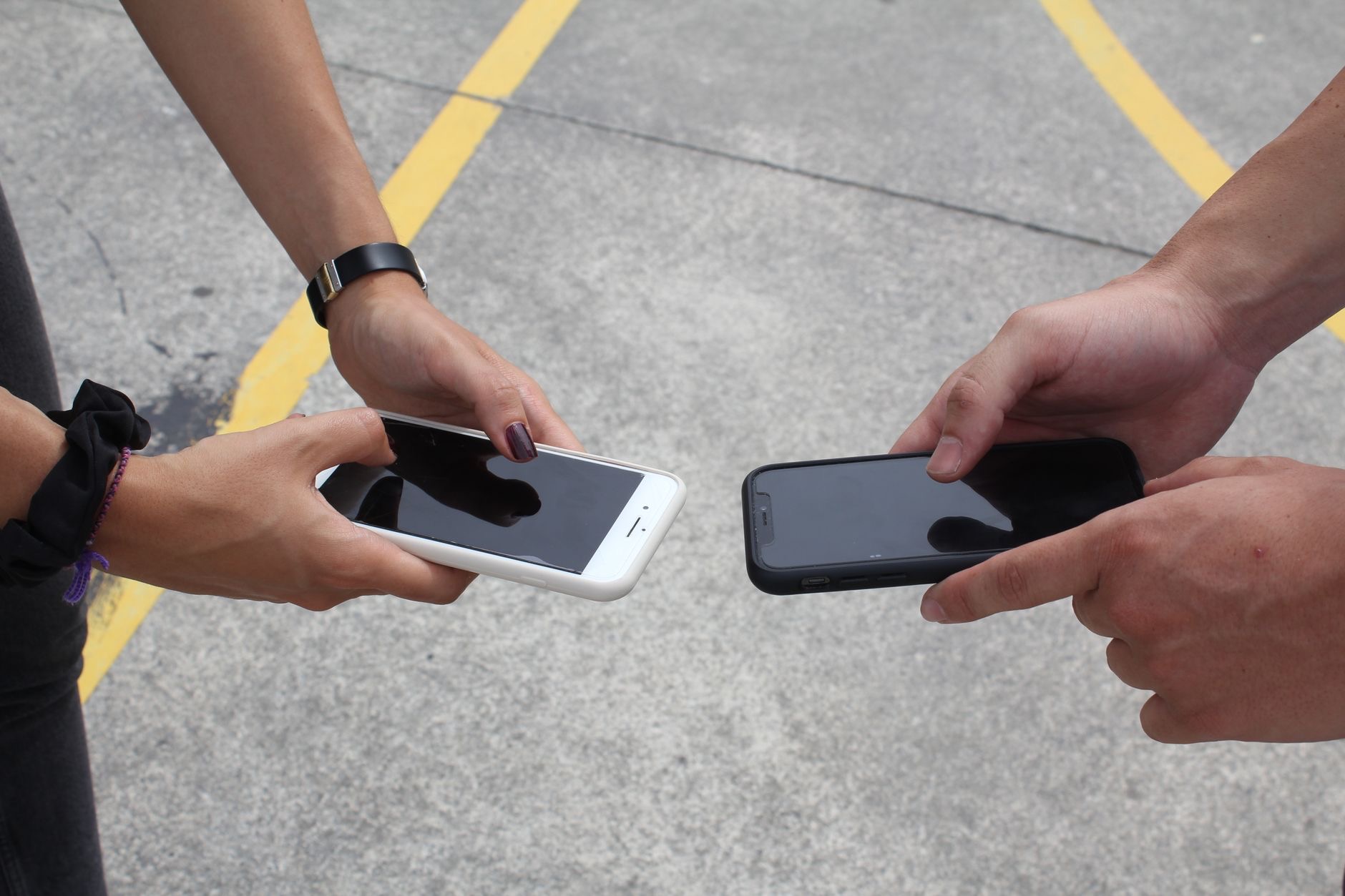
Sending with AirDrop is wonderfully simple. Open whatever you want to share, a photo, a file, a web page, and tap the share button, which looks like a box with an arrow. AirDrop will appear among the sharing options, showing nearby devices and people. Tap the one you want to send to, and that is it, the item zips across to their device. If you are sending to your own Mac or iPad, it arrives automatically without you needing to accept it.
How to AirDrop to and From a Mac
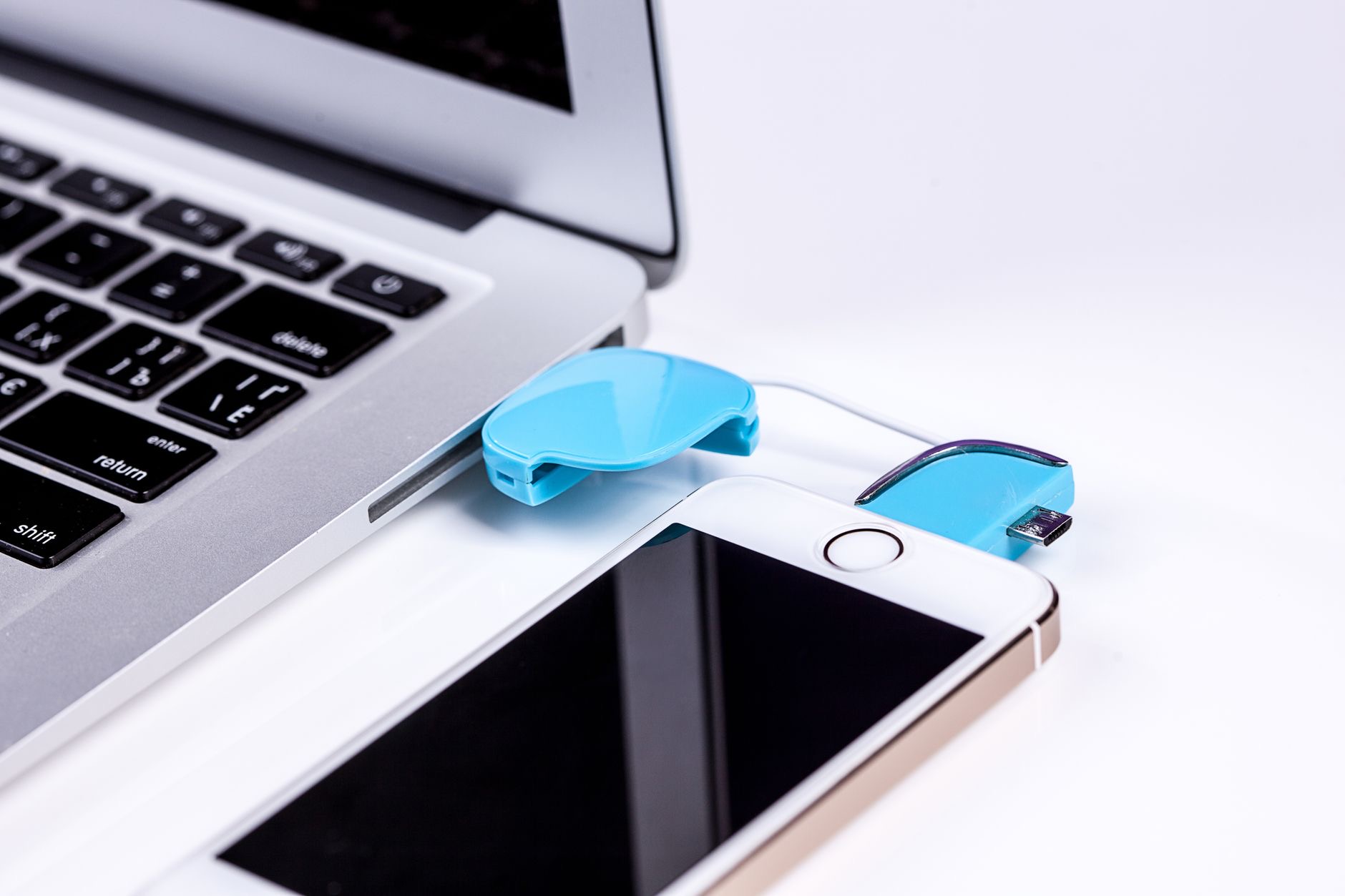
On a Mac, AirDrop works just as smoothly. To send, you can drag a file onto a person in the AirDrop window, or use the share button in an app and choose AirDrop. To receive, make sure AirDrop is set to allow the sender, and the file will appear, usually in your downloads. Moving a photo from your iPhone to your Mac, or a document the other way, takes seconds, which is why AirDrop is such a handy bridge between your Apple devices, as our guide to moving data between devices also touches on.
How to Accept or Decline an AirDrop
When someone AirDrops something to you, a prompt appears asking whether to accept or decline it, along with a preview of what they are sending. If you trust the sender and want the item, accept it, and it saves to the right place automatically, photos to your photos, files to your files. If you do not recognize the sender or the content, simply decline. This accept step is an important safety feature, so only accept AirDrops from people and content you actually expect.
AirDrop Not Working? Quick Fixes
If AirDrop will not cooperate, run through a few quick checks. Make sure Bluetooth and Wi-Fi are on for both devices, that they are close together, and that the receiving device's AirDrop is set to accept from you, contacts only will not work if you are not in each other's contacts, so try the everyone option temporarily. If it still fails, toggling Bluetooth and Wi-Fi off and on, or restarting both devices, clears the glitch, much as it does for general Bluetooth problems. Nine times out of ten, one of these gets it working.
A Few Handy AirDrop Tips
To get the most from AirDrop, keep a couple of things in mind. You can send multiple items at once, several photos together, for example, rather than one at a time. For privacy, leave AirDrop on contacts only or off in public places, switching to everyone only briefly when you need it, then back again. And remember AirDrop works only between Apple devices, so for sharing with other platforms you will need a different method. Used well, it becomes one of those features you reach for constantly without a second thought.
| Task | How |
|---|---|
| Send a photo or file | Tap share, choose AirDrop, pick the device |
| Receive from a non-contact | Set AirDrop to everyone temporarily |
| Fix it not working | Check Bluetooth and Wi-Fi, restart both devices |
Quick Answers
How do I use AirDrop?Turn on Bluetooth and Wi-Fi, open what you want to share, tap the share button, choose AirDrop, and pick a nearby device. The item sends almost instantly, with no cables or internet needed.
Why is AirDrop not working?Usually Bluetooth or Wi-Fi is off, the devices are too far apart, or the receiver's AirDrop is set to contacts only and you are not in their contacts. Check these and restart both devices.
Do I need internet for AirDrop?No. AirDrop uses Bluetooth and a direct wireless connection, not your internet, so it works even with no network, as long as both radios are switched on.
Is AirDrop safe?Yes, especially set to contacts only or off, switching to everyone briefly only when needed. You also choose whether to accept each incoming item, so only accept from senders you trust.
Can I AirDrop between iPhone and Mac?Yes. AirDrop works between iPhones, iPads, and Macs, making it easy to move photos and files between your own Apple devices in seconds.
Why can't the other person see me on AirDrop?Your AirDrop may be off or set to contacts only when you are not in their contacts. Set it to everyone temporarily, and make sure Bluetooth and Wi-Fi are on.
The Many Things You Can AirDrop
Most people first use AirDrop for photos, but it quietly handles far more, and discovering that makes it even more useful. You can AirDrop web pages to pick up reading on another device, locations from your maps so someone knows exactly where to meet, contact cards to share someone's details instantly, notes, documents, voice memos, and links of all kinds. Almost anything with a share button can be sent. This makes AirDrop a brilliant little tool for everyday life, sending a recipe to your partner's phone, a map pin to a friend, a document from your iPhone to your Mac to keep working. Once you realize it is not just for pictures, you start reaching for it constantly. So next time you have something on screen you want on another device, or in someone else's hands, look for that share button and AirDrop, because the odds are good it will move across in a couple of taps, whatever it happens to be.
The Honest Bottom Line
AirDrop is one of the most useful features Apple offers, and it is genuinely simple once set up. Turn on Bluetooth and Wi-Fi, tap share, choose AirDrop, and pick a device, your files, photos, and links land almost instantly. Keep it on contacts only for privacy, switching to everyone briefly when you need to.
If it ever balks, a quick check of Bluetooth and Wi-Fi and a restart almost always fixes it. What will you AirDrop first? Tell me in the comments if you hit any snags.
Leave a Reply