
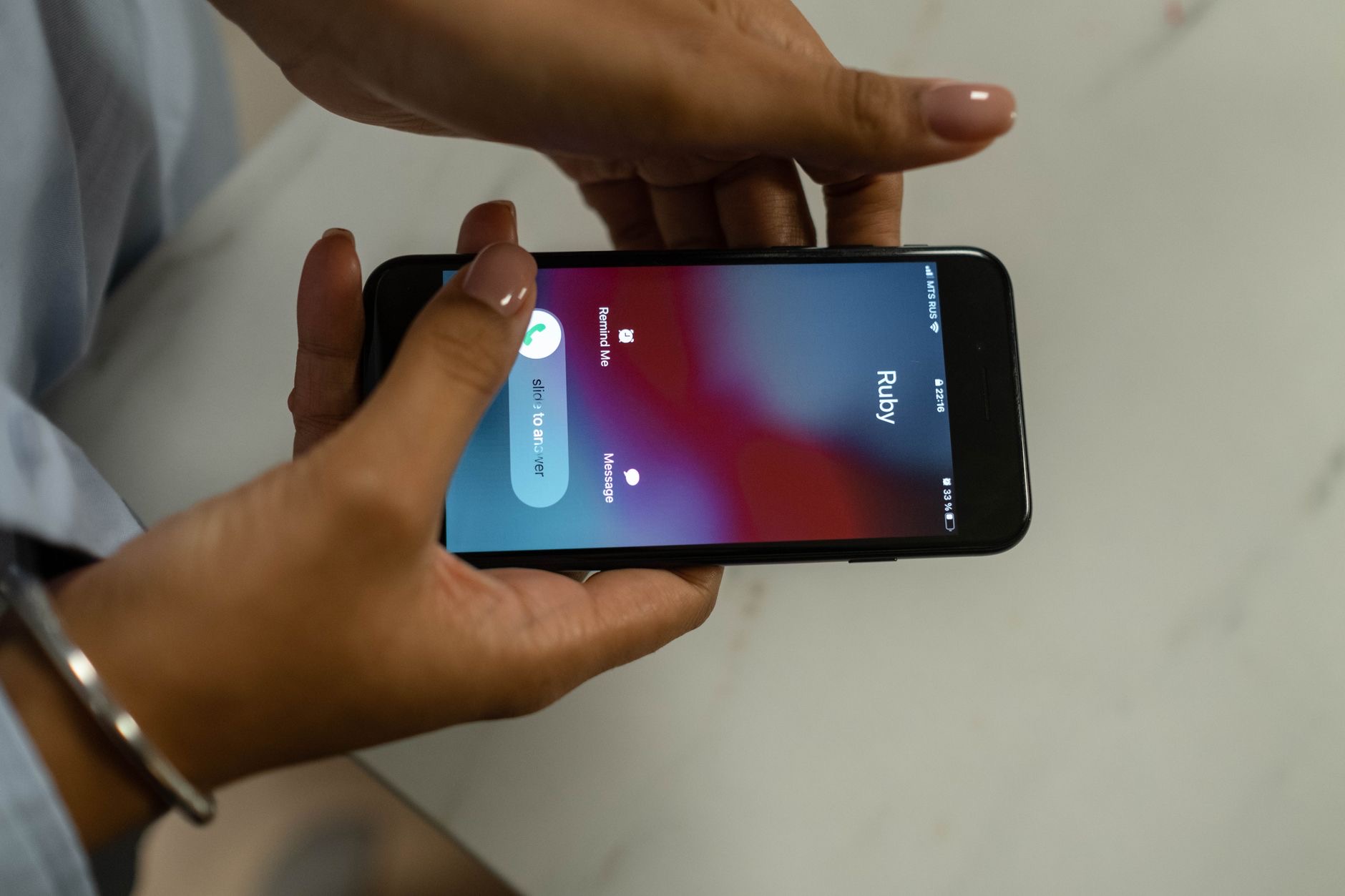
Unwanted calls and texts, whether from a spam number, a persistent salesperson, or someone you would rather not hear from, are one of the most common phone annoyances. The good news is that blocking a number on your iPhone is quick and completely free, and it stops their calls, texts, and FaceTime all at once. Here is exactly how to block a number, how to unblock it later, and how to cut down on spam and unknown callers in general.
What Blocking a Number Actually Does
When you block a number on your iPhone, that contact can no longer reach you by phone call, text message, or FaceTime. Their calls go straight to voicemail without ringing your phone, their texts are silently discarded so you never see them, and their FaceTime attempts simply fail. Importantly, the blocked person is not told that they have been blocked, so it is a discreet way to stop unwanted contact. Blocking is entirely free, instant, and reversible whenever you choose.
How to Block a Number From the Phone App
The quickest way to block a number you have recently dealt with is straight from your call history. Open the phone app, go to your recent calls, and find the number you want to block. Tap the information icon next to it, scroll down, and choose the option to block that caller, then confirm. From that moment on, that number can no longer call, text, or FaceTime you. This is the easiest method for blocking a spam or nuisance caller right after they have bothered you.
How to Block a Number From a Text Message
If the unwanted contact is coming through messages, you can block the sender directly from the conversation. Open the message thread from the number you want to block, tap their name or number at the top, and choose the option to block the contact, then confirm. This stops their texts as well as their calls and FaceTime. It is the perfect method for blocking spam texts and unwanted messages the moment they arrive, without having to dig through your settings.
How to Block From Your Contacts or Settings
You can also block someone who is saved in your contacts, or manage all your blocked numbers in one place, through your settings. In the phone settings, there is a section for blocked contacts where you can add a number to block and see everyone you have already blocked. This is handy when you want to block a saved contact proactively, before they contact you, or simply to review and tidy up your full list of blocked numbers in a single, organized place.
How to Unblock a Number
Changing your mind is easy, and unblocking takes seconds. Go to the blocked contacts section in your phone settings, find the number you want to unblock in the list, and remove it from the blocked list. That number can then contact you normally again. There is no limit on blocking and unblocking, so you can manage your list freely over time as situations change. Unblocking restores calls, texts, and FaceTime from that number exactly as before.
How to Cut Down on Spam Calls
Blocking works well for individual nuisance numbers, but spam callers often use many different numbers, so blocking them one by one is a losing battle. To reduce spam more broadly, you can turn on a setting that silences calls from unknown numbers, sending callers who are not in your contacts straight to voicemail. This dramatically cuts down on spam interruptions, though you should check your voicemail for any genuine calls from people not yet in your contacts, like a new doctor or delivery driver.
Silence Unknown Callers
The silence unknown callers feature is a powerful tool against relentless spam. When enabled, only calls from your contacts, recent outgoing numbers, and suggestions ring through, while everyone else goes quietly to voicemail. For people plagued by spam, this is far more effective than blocking individual numbers. The trade-off is that a genuine call from an unknown number will not ring, so it suits people who rarely expect calls from new numbers, and who are happy to check voicemail occasionally to catch anything important.
A Few Things to Keep in Mind
Blocking is powerful but has limits worth knowing. A determined caller can still reach you from a different number, which is why silencing unknown callers helps against persistent spam. Blocking is also silent, so the other person is not notified, which is usually what you want. And blocked texts are simply discarded, not stored, so you will not see them later. For other messaging issues, such as texts not sending at all, our iMessage fix guide may help, and to manage a misbehaving phone, see our iPhone reset guide.
| To block from... | Do this |
|---|---|
| A recent call | Phone app, info icon, block caller |
| A text message | Open the thread, tap the name, block |
| Settings | Blocked contacts, add a number |
Quick Answers
How do I block a number on my iPhone?Open the phone app or a text thread, tap the info icon or the contact's name, and choose to block the caller. This stops their calls, texts, and FaceTime.
Does the person know they are blocked?No. Blocking is discreet, and the other person is not notified. Their calls go to voicemail and their texts are silently discarded without you seeing them.
How do I unblock a number?Go to the blocked contacts section in your phone settings, find the number in the list, and remove it. That number can then contact you normally again.
Does blocking stop texts too?Yes. Blocking a number stops their calls, text messages, and FaceTime all at once. Blocked texts are discarded, so you never see them.
How do I stop spam calls?Block individual nuisance numbers, and turn on the setting to silence calls from unknown numbers, which sends non-contacts to voicemail and dramatically cuts spam.
Can a blocked person still reach me?From the blocked number, no. But they could call from a different number, which is why silencing unknown callers helps against persistent spam.
What Happens to Their Calls and Messages
It helps to know exactly what becomes of a blocked contact's attempts to reach you, so there are no surprises. When someone you have blocked calls, the call does not ring your phone and goes straight to voicemail, and they can still leave a voicemail, but it is filed separately rather than with your normal voicemails, so it will not disturb you. Their text messages are simply not delivered to you and you receive no notification, so you never see them at all. Their FaceTime attempts fail silently. None of this is announced to the blocked person, so they cannot tell they have been blocked. Knowing this reassures you that blocking genuinely stops the interruptions while quietly keeping any voicemails out of sight in case you ever need them. It is a clean, discreet way to cut off unwanted contact without confrontation, and it puts you fully in control of who actually gets through to you, which is exactly what most people want when they block a number.
The Honest Bottom Line
Blocking a number on your iPhone is quick, free, and discreet, and it stops calls, texts, and FaceTime from that number in one step. You can block from a recent call, a text thread, or your settings, and unblock just as easily whenever you like.
For relentless spam from many numbers, silencing unknown callers is the more powerful tool. Who are you trying to block, a spammer or a specific contact? Tell me in the comments and I will point you to the best approach.
Leave a Reply