

Resetting an iPhone fixes a huge range of problems, but the word reset means several different things, and choosing the wrong one can either fail to help or wipe your phone unnecessarily. Whether you are troubleshooting a glitch or wiping the phone to sell it, this guide explains the three types of reset, exactly what each does, and which one you actually need, so you fix the problem without losing anything you did not mean to.
The Three Types of Reset Explained
People use reset to mean three very different things. A soft reset, or restart, simply turns the phone off and on and erases nothing. A hard reset, or force restart, reboots a frozen phone and also keeps your data. A factory reset, or erase, wipes the phone completely back to how it left the factory. The golden rule is simple: the first two are safe troubleshooting steps, while a factory reset deletes everything, so only do it deliberately and with a backup.
Soft Reset: Just Restart It
The soft reset is the everyday fix for minor glitches, and it changes nothing about your data. You simply turn the iPhone off, wait a few seconds, and turn it back on. This clears temporary software hiccups and is the first thing to try for most small problems, from an app misbehaving to a sluggish phone. Because it is completely safe and erases nothing, you can do it as often as you like whenever your iPhone is acting up, with no risk at all.
How to Do a Soft Reset
The exact buttons vary slightly by model, but the idea is the same. Press and hold the side button, along with a volume button on models without a Home button, until the power-off slider appears, then drag it to turn the phone off. Wait about thirty seconds, then press and hold the side button again until the Apple logo appears. That is it, your iPhone restarts with all your data intact, and many small problems disappear in the process.
Hard Reset: Force Restart a Frozen iPhone
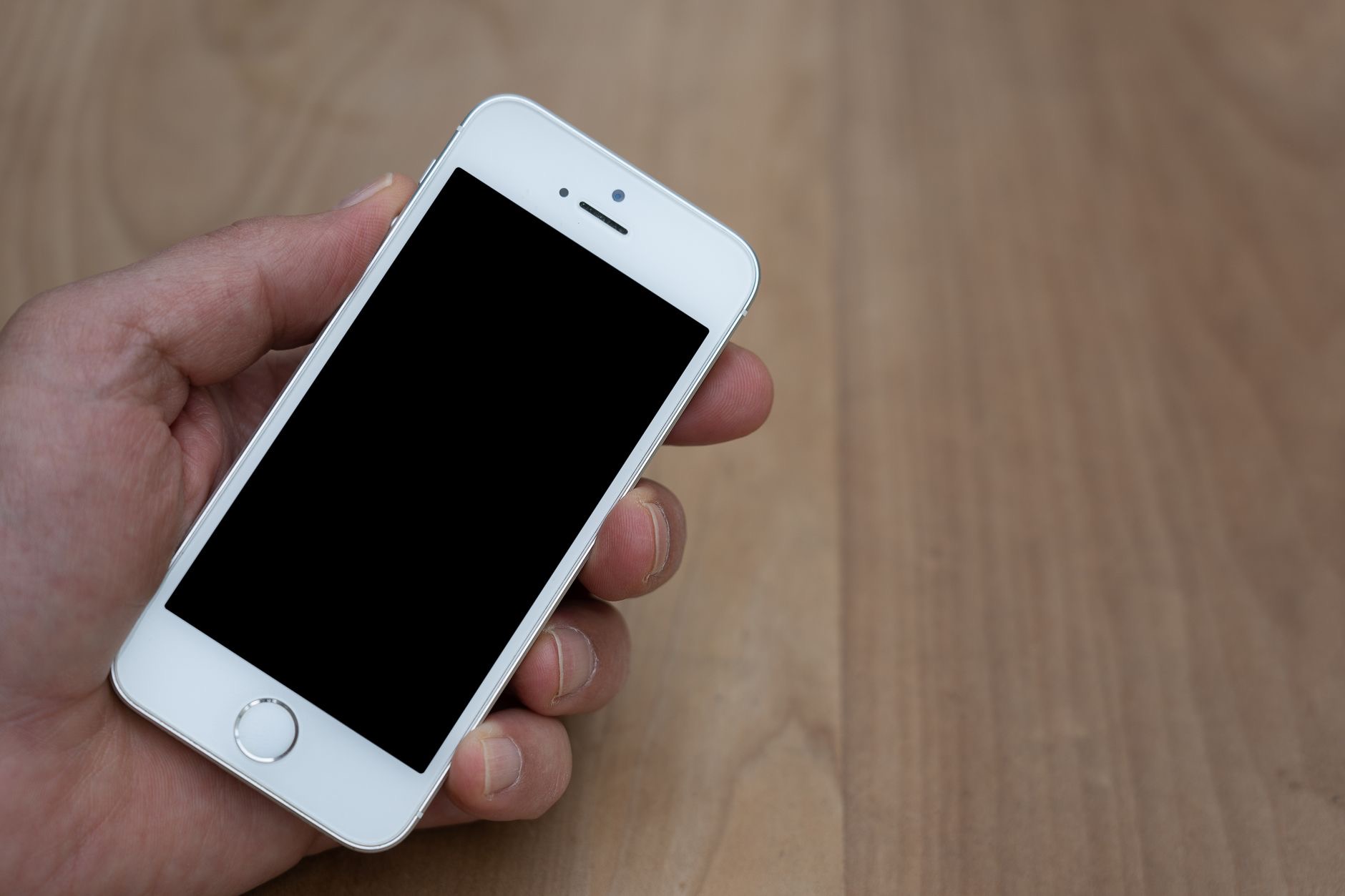
When your iPhone is completely frozen and will not respond to the screen, a hard reset, properly called a force restart, reboots it without erasing anything. On most modern iPhones, you quickly press and release Volume Up, quickly press and release Volume Down, then press and hold the Side button until the Apple logo appears. This is the go-to fix for a frozen or unresponsive iPhone, and despite the alarming name, it keeps all your data safe, just like a normal restart.
When to Use a Hard Reset
Reach for a force restart when the screen is frozen, the phone is unresponsive to touch, or it is stuck on a screen and a normal restart is not possible because nothing responds. It is also the first step for an iPhone stuck on the Apple logo, as we cover in our stuck on Apple logo guide. Because it keeps your data, you can use it freely whenever the phone locks up, and it resolves a large share of freezes and unresponsive-screen problems on its own.
Factory Reset: Erase Everything
A factory reset wipes the iPhone completely, deleting all your photos, apps, messages, and settings and returning it to how it was brand new. You do this from the phone's settings, in the reset or transfer section, by choosing to erase all content and settings. This is the reset to use when you are selling, trading in, or giving away the phone, or as a last resort to fix a serious software problem. Because it deletes everything, never do it without a current backup.
Always Back Up Before a Factory Reset
This cannot be stressed enough: a factory reset erases everything, so back up your iPhone first unless you genuinely want to lose all its data. With a backup, you can restore your photos, apps, and settings onto the phone afterward, or onto a new one, as we explain in our guide to backing up your iPhone. Without a backup, anything not saved elsewhere is gone for good. If you are wiping the phone to sell it, also sign out of your Apple account first so the new owner can use it.
Which Reset Do You Need?
Here is the simple decision. For a minor glitch or a sluggish phone, do a soft reset, just restart it. For a frozen, unresponsive iPhone, do a hard reset, the force restart. To wipe the phone for sale or as a last-ditch fix for a serious problem, do a factory reset, after backing up. Most everyday problems are solved by the first two, which are completely safe, so reserve the factory reset for when you truly mean to erase everything. For a frozen phone that will not start at all, see our iPhone won't turn on guide.
| Reset type | Use it to... | Erases data? |
|---|---|---|
| Soft reset (restart) | Fix minor glitches | No |
| Hard reset (force restart) | Reboot a frozen iPhone | No |
| Factory reset (erase) | Wipe for sale or a serious fix | Yes |
Quick Answers
What is the difference between a soft, hard, and factory reset?A soft reset restarts the phone and keeps data. A hard reset force-restarts a frozen phone and keeps data. A factory reset erases everything back to new.
Does a hard reset delete my data?No. A hard reset, or force restart, simply reboots a frozen iPhone and keeps all your data. Only a factory reset erases everything.
How do I factory reset my iPhone?In Settings, go to the reset or transfer section and choose to erase all content and settings. Back up first and sign out of your Apple account if selling the phone.
Which reset fixes a frozen iPhone?A hard reset, or force restart. Quickly press Volume Up, then Volume Down, then hold the Side button until the Apple logo appears. It keeps your data.
Do I need to back up before resetting?Only before a factory reset, which erases everything. Soft and hard resets keep your data, so no backup is needed for those.
Which reset should I use to fix a problem?Start with a soft reset for minor issues, a hard reset for a frozen phone, and only a factory reset as a last resort after backing up.
Before You Sell, Trade In, or Give It Away
If you are factory resetting your iPhone specifically to pass it on, there are a couple of crucial extra steps beyond the erase itself. First, back up the phone so you keep your data and can move it to your next device. Second, and most importantly, sign out of your Apple account before or during the erase, because if the phone is still tied to your account, the new owner will not be able to set it up and use it, leaving them with a locked device. Also remove the phone from your list of trusted devices and, if it has a SIM, take that out. Doing these steps in the right order ensures the phone is genuinely clean, unlinked from you, and ready for its next owner, while your data stays safe on your backup. Skipping the sign-out step is the single most common mistake people make when wiping a phone to sell, so do not forget it.
The Honest Bottom Line
Resetting an iPhone is simple once you know the three types. A soft reset restarts it for minor glitches, a hard reset reboots a frozen phone, and both keep your data. A factory reset wipes everything for selling or a serious fix, so only do it with a backup.
Match the reset to the problem and you will fix things without losing anything by accident. Which reset do you need? Tell me your situation in the comments and I will point you to the right one.
Leave a Reply