
When iMessage stops working, messages get stuck, turn green when they should be blue, or fail to send entirely, and it is genuinely confusing. The good news, based on the most common causes and widely reported fixes, is that it is almost always a quick settings or connection issue rather than anything serious. Work through these fixes in order, and your iMessage will very likely be back to normal in a few minutes.
First, Understand What iMessage Needs
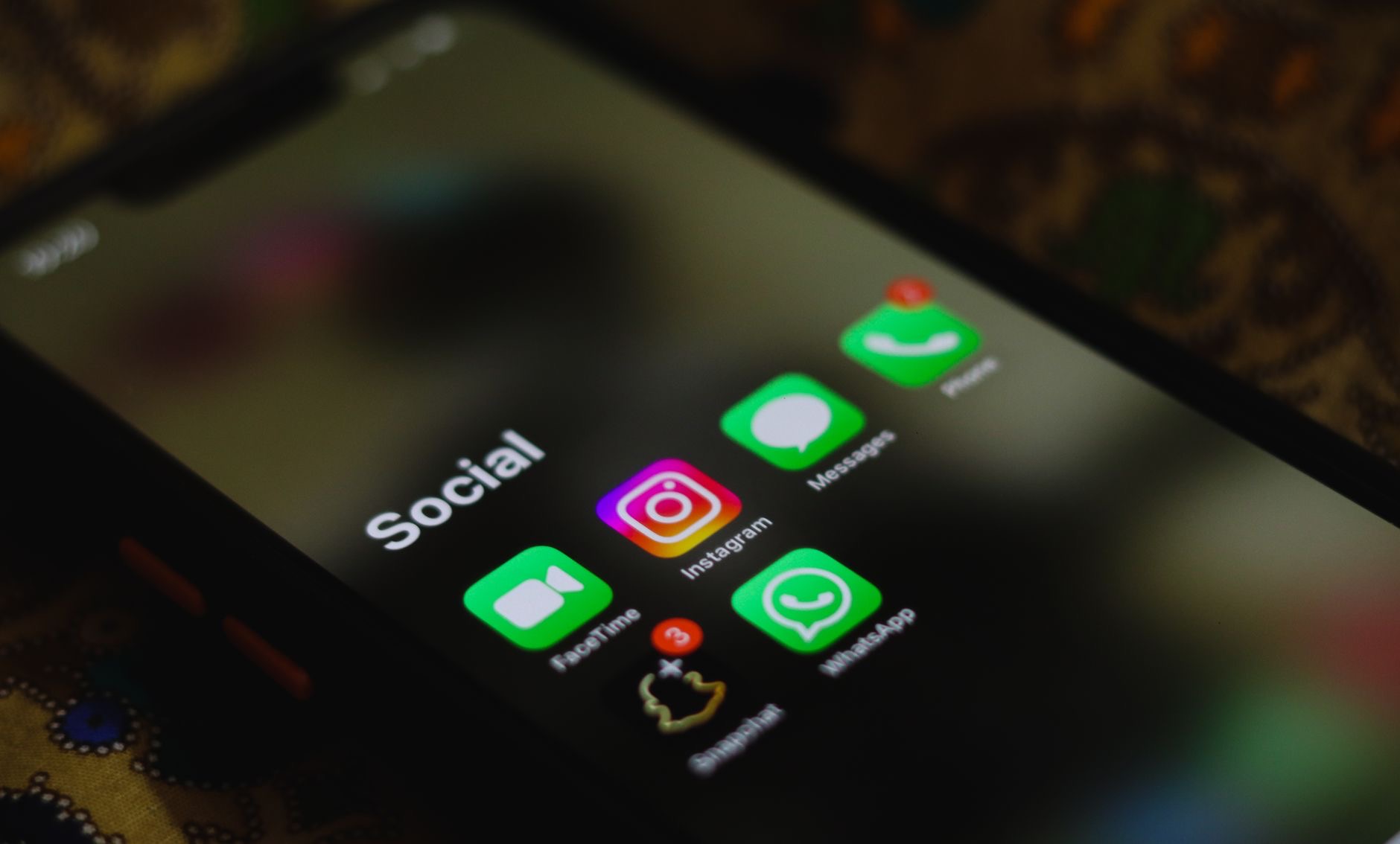
iMessage is Apple's messaging service that sends those blue-bubble texts between Apple devices over the internet, rather than as standard green-bubble text messages over the cellular network. That means it needs a working internet connection and to be correctly signed in and switched on. Knowing this helps, because most iMessage problems come down to either a connection issue or a settings hiccup, both of which are easy to fix.
1. Check Your Internet Connection
Because iMessage works over the internet, a weak or missing connection is the most common cause of failure. Confirm you have a working Wi-Fi or cellular data connection by opening a web page or app. If your connection is down or patchy, that is your answer, and fixing the connection fixes iMessage. Toggling Wi-Fi or cellular data off and on, or moving to an area with better signal, often restores it immediately.
2. Make Sure iMessage Is Turned On
It is easy for iMessage to get switched off by accident or after an update. Open Settings, find the Messages section, and confirm that iMessage is switched on. If it is off, turning it on and waiting a moment for it to activate often solves the problem on its own. If it is already on, switching it off, waiting a few seconds, and switching it back on forces it to reconnect, which clears many glitches.
3. Restart Your iPhone
A simple restart clears the temporary software glitches that frequently trip up iMessage. Turn your iPhone off, wait a few seconds, and turn it back on, then try sending a message. This classic fix resolves a surprising number of messaging problems because it resets the connections and processes iMessage relies on. If a restart gets your blue bubbles flowing again, the cause was a passing glitch, and you are done.
4. Check That iMessage Is Not Down
Occasionally the problem is not on your end at all. Apple's iMessage service can have temporary outages, during which messages fail for everyone regardless of their settings. If you have checked your connection and settings and iMessage still will not work, it is worth checking whether the service is experiencing an outage. If it is, the only fix is to wait, since the problem is on Apple's side and will resolve when the service is restored.
5. Update Your Software
Outdated software causes bugs, and messaging problems are a common symptom. Check for and install any available software update, as Apple regularly fixes glitches that affect iMessage. Keeping your iPhone current not only resolves existing problems but prevents many future ones. If your messaging trouble started after you had been putting off updates for a while, an update is often exactly what it needs.
6. Sign Out and Back Into Your Apple Account
If iMessage still will not cooperate, signing out of your Apple account in the Messages settings and then signing back in forces the service to fully re-authenticate. This clears stubborn problems where iMessage is on and your connection is fine but messages still fail, because it refreshes the link between your account and the service. It is a slightly heavier step, but it resolves many of the cases that the simpler fixes do not.
7. Check the Send and Receive Settings
iMessage can be set to send and receive from your phone number, your email, or both, and a misconfiguration here causes messages to fail or arrive in the wrong place. In the Messages settings, check the send and receive options and make sure your phone number and the correct email are selected and ticked. Fixing a wrong or missing address here resolves cases where some messages work and others do not, or where replies go astray.
When Messages Turn Green Instead of Blue
A blue bubble means iMessage, while a green bubble means a standard text message. If your messages to other Apple users are suddenly green, it usually means iMessage is off, your connection is down, or the recipient cannot receive iMessages at that moment. The fixes above, especially checking your connection and confirming iMessage is on, resolve most green-bubble surprises. If you are messaging someone on Android, green is normal and expected, as we explain in our iPhone vs Android guide. For broader iPhone slowdowns, see our slow iPhone guide.
| Symptom | Likely fix |
|---|---|
| Messages won't send | Check connection, restart, toggle iMessage |
| Blue turned green | Confirm iMessage on and connection works |
| Works on some addresses only | Fix Send and Receive settings |
Quick Answers
Why is iMessage not working?Usually a connection problem or a settings hiccup. Check your internet, confirm iMessage is switched on, and restart your iPhone. These fix most cases quickly.
Why are my messages green instead of blue?Green means a standard text, not iMessage. It usually means iMessage is off, your connection is down, or the recipient cannot receive iMessages right now.
How do I reset iMessage?Turn iMessage off in Messages settings, wait a few seconds, and turn it back on. For stubborn cases, sign out and back into your Apple account.
Could iMessage be down?Yes. Apple's service occasionally has outages that affect everyone. If your settings and connection are fine, the service may be temporarily down, and you just have to wait.
Does updating fix iMessage?Often, yes. Updates fix bugs that cause messaging problems, so installing the latest software is a reliable step when iMessage misbehaves.
Why do only some messages work?Check your Send and Receive settings. If the wrong phone number or email is selected, some messages fail or arrive in the wrong place.
Check Your Date, Time, and Region
Here is a surprisingly common culprit that people rarely suspect: an incorrect date, time, or region setting on your iPhone. iMessage relies on accurate time and date to authenticate and connect, and if these are wrong, perhaps after travel or a manual change, the service can quietly fail to activate. The simple fix is to set your date and time to update automatically in the settings, which keeps them correct based on your location. It takes seconds and resolves a category of iMessage problems that none of the obvious fixes would touch, precisely because the cause is so easy to overlook. If you have tried everything else and iMessage still will not activate, this is well worth checking before you assume something is seriously wrong, because the answer is often this small, hidden setting rather than anything to do with your account or your connection.
The Honest Bottom Line
iMessage problems are almost always quick to fix. Check your internet connection, confirm iMessage is switched on, and restart your iPhone, and most issues clear right there. For stubborn cases, update your software, check the send and receive settings, or sign out and back into your account.
Only a genuine Apple outage is out of your hands, and that resolves on its own. Which fix got your blue bubbles back? Tell me in the comments and I will help with any that linger.
Leave a Reply