
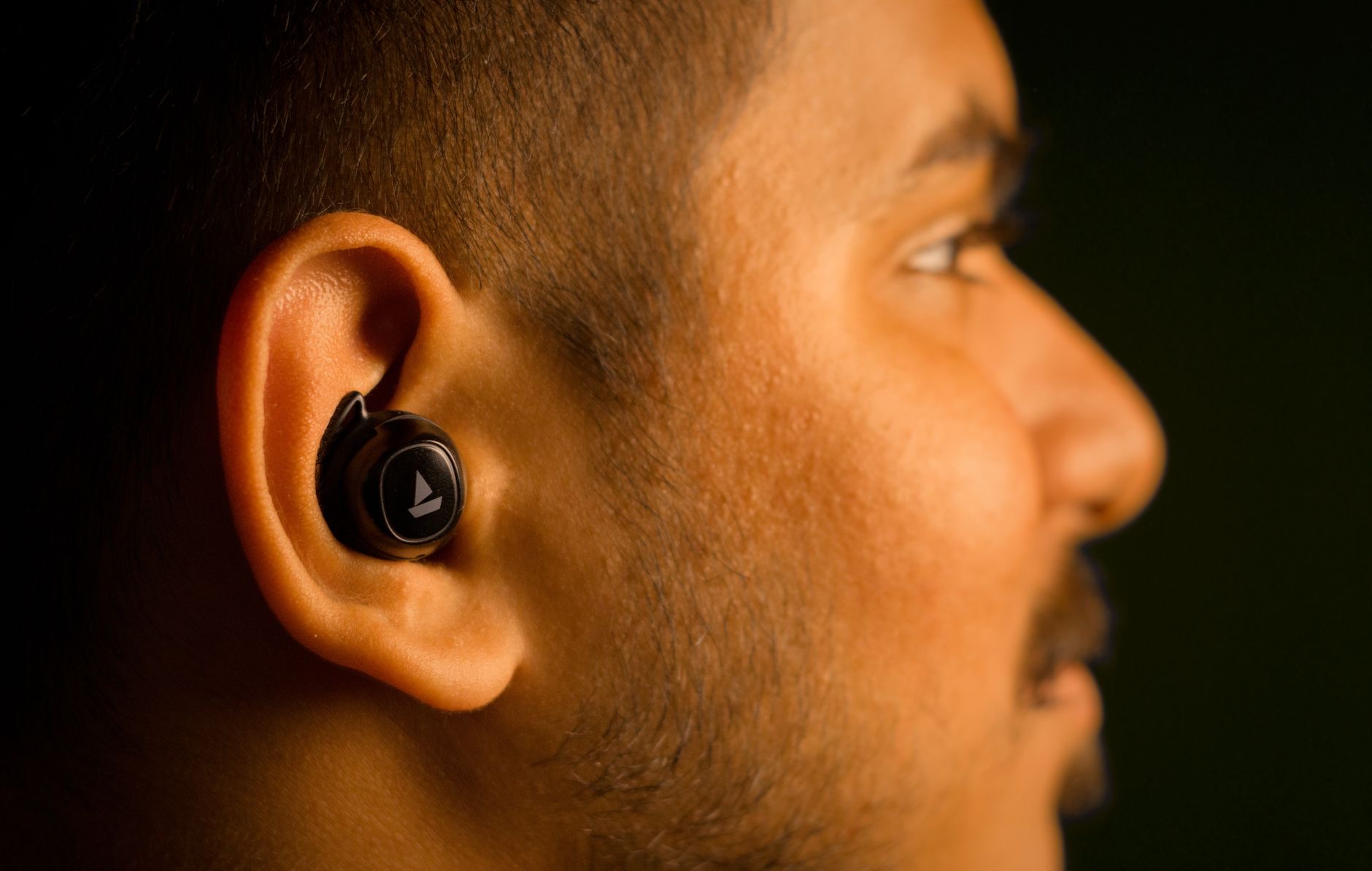
The song stops. You did not touch anything. It starts again, stops again, and now you are more DJ than listener. AirPods that keep pausing are not haunted, they are confused, and the confusion almost always comes from one system: the sensors that decide whether the buds are in your ears. Here is what is actually happening and the fix order that ends the stutter.
The Prime Suspect: Ear Detection
AirPods pause automatically when they think they left your ear, that is the beloved take-one-out-and-the-podcast-waits feature. The random pausing problem is that same feature being lied to: a sensor that cannot see your ear properly reports out when you are very much wearing them, and playback stops. Everything below is about restoring the sensors' eyesight, because in the overwhelming majority of cases, phantom pausing is ear detection misfiring, not a connection dying.
Fix One: Clean the Sensors
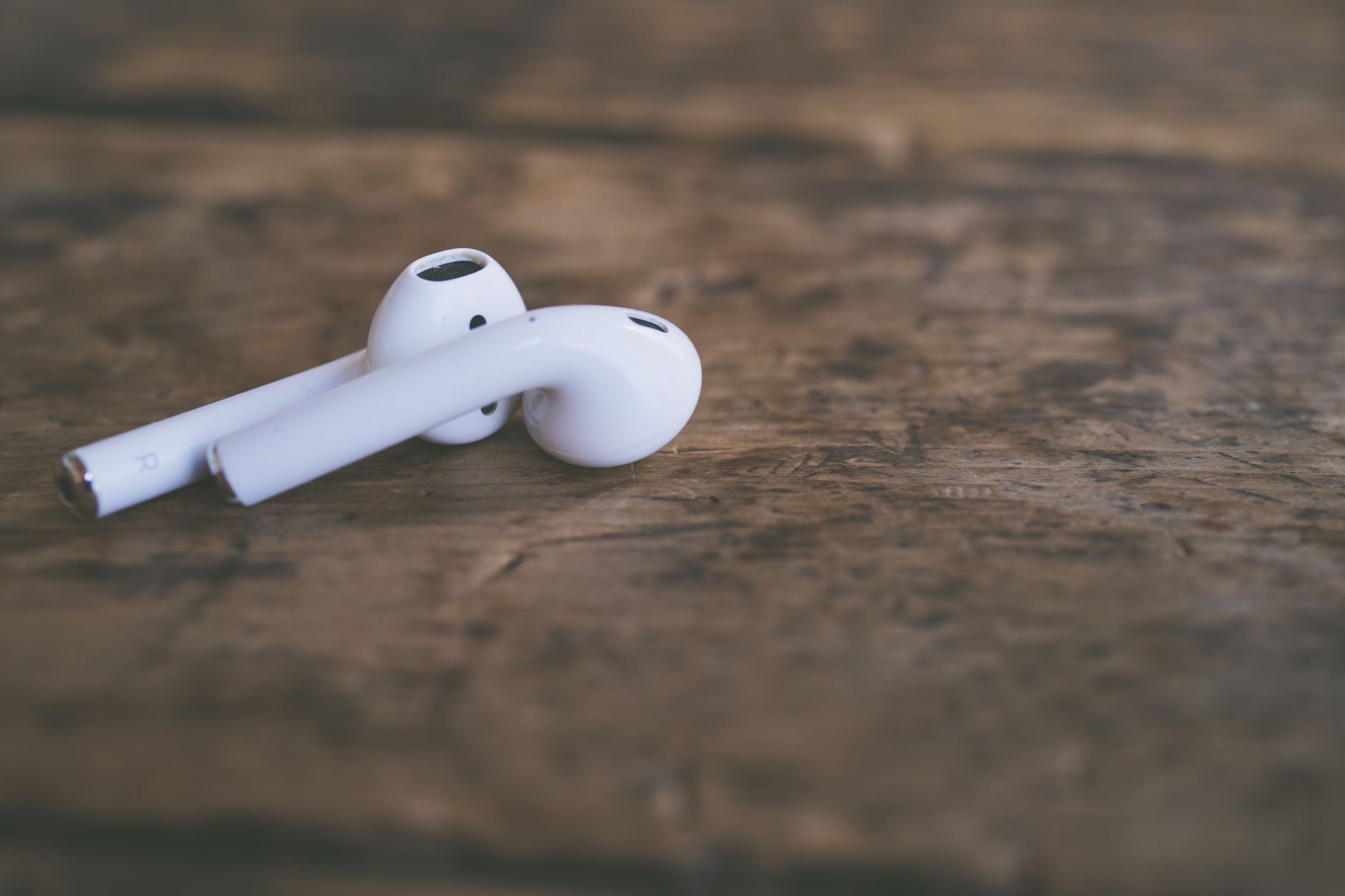
The sensors live on the body of each bud, and a film of earwax, skin oil, and pocket dust over them is the single most common cause of misfires. Clean each AirPod gently with a soft, dry cloth, paying attention to the darker sensor windows on the bud's surface, no liquids, no poking. People who have endured weeks of stutter are routinely cured by ninety seconds of cleaning, because the sensor was squinting through grime the whole time.
Fix Two: The Fit Question
A bud that sits loosely wobbles, and every wobble flickers the sensor's view of your ear: pause, play, pause. If your pausing correlates with walking, running, or chewing, fit is your suspect. On models with swappable tips, try the other sizes, the right seal steadies everything. On open-fit models, reseat the bud more deliberately and test. A stable bud gives the sensor a stable answer, and the phantom DJ retires.
Fix Three: The Reconnect and the Reset
If clean, well-seated AirPods still stutter, refresh the relationship: put both buds in the case, lid closed, ten seconds, then reconnect. Persisting beyond that, do the full reset-and-repair ritual, forget the AirPods in Bluetooth settings, reset via the case button, pair fresh. This clears the software layer's contribution, the stale state that occasionally amplifies sensor noise into constant pausing. Between cleaning, fit, and a fresh pairing, the overwhelming share of cases end here.

The Test That Settles It: Disable Ear Detection
Diagnosis in one move: turn off automatic ear detection in the AirPods settings and listen for a day. If the pausing vanishes, the sensors were your whole story, re-enable the feature after a proper clean and fit check, or leave it off if you prefer manual control and the small battery trade. If pausing continues with detection off, the rarer suspects step up: interference-heavy environments, a distant phone at the edge of range, or buds old enough that a hardware conversation is due.
When the AirPods Are Just Tired
Honesty for the veterans: years-old AirPods with worn batteries and well-loved sensors can develop stutters that no cleaning fully cures, brownouts and misreads that are the hardware aging out loud. If your pair has survived daily service since several birthdays ago and now pauses through every commute, the fix that actually works is retirement with honors. Newer generations also hold connections better, which quietly solves the edge-of-range pauses too.
★ Editor's Pick · Amazon
AirPods 4
When the old pair has earned retirement
Options: AirPods 4 · AirPods Pro
| The pattern | The fix |
|---|---|
| Random pauses anytime | Clean the sensor windows |
| Pauses when moving or chewing | Fix the fit, try other tips |
| Pauses survive cleaning | Reconnect, then reset and re-pair |
| Pauses with detection off | Range, interference, or age |
Frequently Asked Questions
Why do my AirPods keep pausing randomly?
Almost always ear detection misfiring: the sensors that pause playback when a bud leaves your ear are being fooled by grime on the sensor windows or a loose fit that wobbles. Clean the buds gently, fix the fit, and re-pair if needed, that order cures the overwhelming majority of phantom pausing.
How do I clean AirPods sensors?
Gently, with a soft dry cloth, focusing on the darker sensor windows on each bud's body, no liquids, no poking into openings. Earwax, skin oil, and pocket dust form a film that makes the sensor misread your ear, and ninety seconds of cleaning routinely ends weeks of stuttering.
Should I turn off ear detection?
As a test, absolutely: disable it in the AirPods settings for a day, and if the pausing vanishes, the sensors were the whole story. Then either re-enable after a proper clean and fit check, or keep it off permanently if you prefer manual control and accept a small battery trade.
Why do my AirPods pause when I walk or chew?
Movement is wobbling a loosely seated bud, and each wobble flickers the sensor's view of your ear. On models with swappable tips, a different size usually steadies the seal; on open-fit models, reseat more deliberately. A stable bud reports a stable ear, and the pausing stops.
Does resetting AirPods fix pausing?
It clears the software layer's contribution: forget them in Bluetooth settings, reset via the case button, and pair fresh. Combined with cleaning and fit, the reset resolves nearly all remaining cases, especially the ones where stale pairing state amplified sensor noise into constant stutter.
When is pausing a sign I need new AirPods?
When a clean, well-fitted, freshly re-paired veteran pair still stutters, especially with ear detection disabled, aging hardware is speaking: worn batteries and tired sensors misread more with time. Years of daily service is a full career, and newer generations also hold connections notably better.
The Bottom Line
AirPods that keep pausing are almost never broken, they are misinformed: ear detection fooled by grimy sensors or a wobbling fit. Clean the sensor windows, steady the fit, and re-pair fresh, and the phantom DJ retires in the vast majority of cases. Use the detection-off test to settle the diagnosis, and reserve the retirement conversation for veteran pairs that stutter through every fix. The music was never the problem; the sensors just needed their eyesight back.
Leave a Reply