
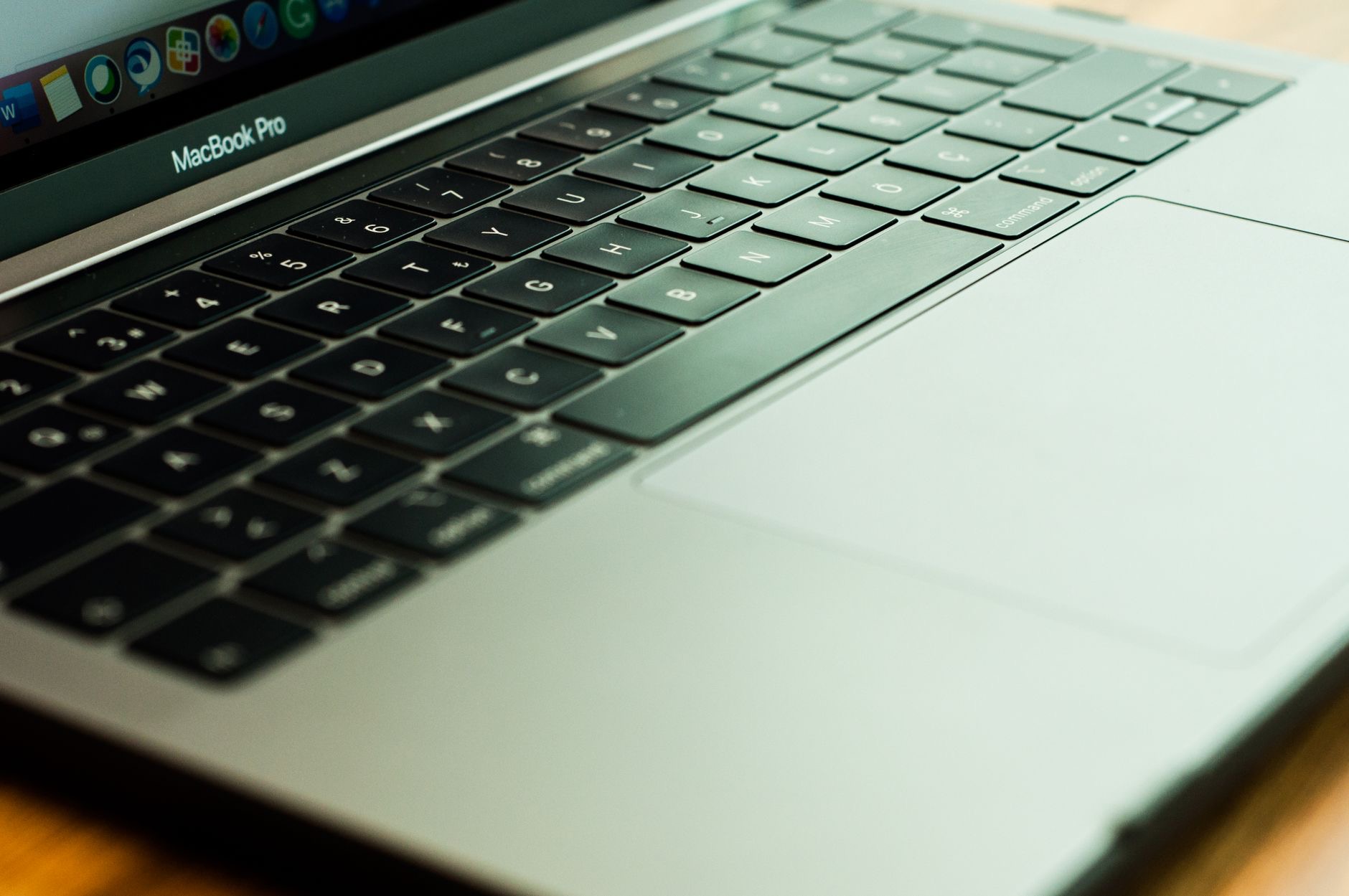
Most people use their Mac's trackpad for exactly two things: moving the cursor and clicking. But that beautiful glass surface is capable of a whole language of gestures that can make navigating your Mac feel effortless and fast. Once these become muscle memory, you will fly around your computer in a way that makes reaching for menus feel painfully slow. Here are the Mac trackpad gestures genuinely worth learning.
1. Two-Finger Scroll
The most fundamental gesture: drag two fingers up or down on the trackpad to scroll through pages, documents, and websites. It feels natural almost immediately and is far smoother than any scroll bar. If you are not already scrolling this way, it is the first gesture to make second nature, since you will use it constantly throughout every single day on your Mac.
2. Pinch to Zoom
Just like on a phone, you can pinch two fingers together or spread them apart to zoom out and in on photos, web pages, and documents. It is an intuitive way to get a closer look at detail or step back for the bigger picture. This simple gesture makes examining images and reading small text far more comfortable, and it works in many apps across your Mac.
3. Swipe Between Desktops
If you use multiple desktops to organize your work, swiping left or right with three or four fingers moves you smoothly between them. It turns switching contexts, from your work desktop to your messaging desktop, into a single satisfying gesture. For anyone who likes to keep their tasks separated across spaces, this is one of the most useful gestures for staying organized and focused.
4. Mission Control: See Everything at Once
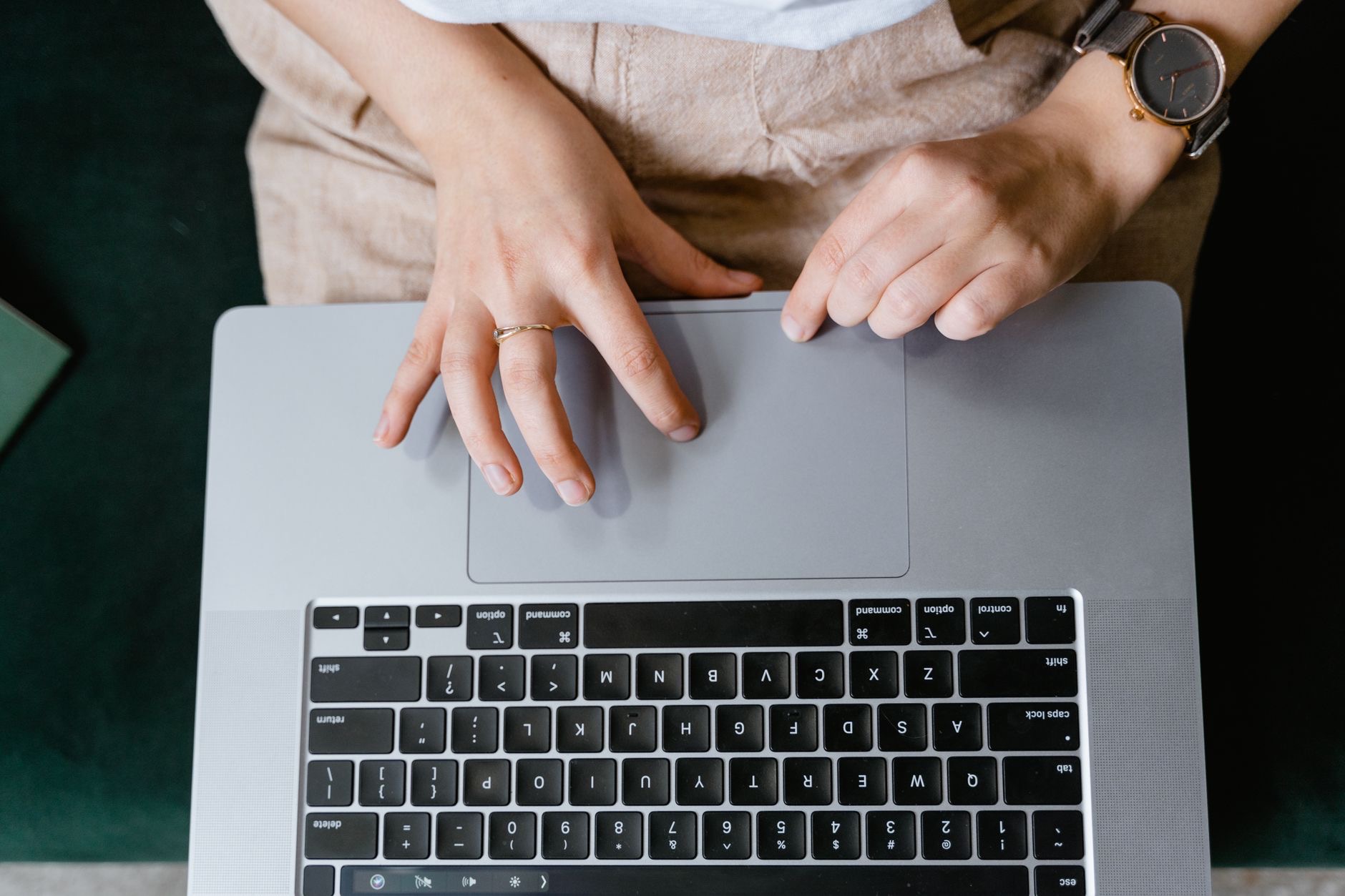
Swipe up with three or four fingers to open Mission Control, which shows all your open windows and desktops at a glance. It is the fastest way to find the window you need when your screen is cluttered, giving you a bird's-eye view of everything you have going on. When you feel lost among too many open apps, this gesture instantly brings order and lets you jump straight where you want.
5. Show the Desktop Instantly
Spread your thumb and three fingers apart on the trackpad to push all your windows aside and reveal your desktop. It is perfect for grabbing a file you saved there or getting a moment of clarity from a busy screen. Reversing the gesture brings your windows back. This quick way to reach your desktop without minimizing everything manually is a small but constant convenience.
6. Look Up a Word Instantly
Tap with three fingers on a word, or use a firm press depending on your settings, to look up its definition and related information without leaving what you are reading. It is a wonderful gesture for writers, readers, and anyone curious, turning your Mac into an instant reference. No copying, no searching, just a quick gesture and the answer appears.
7. Swipe Between Pages and Photos
Swipe left or right with two fingers to move backward and forward through web pages, or to flip through photos and documents. It makes navigating your browsing history and your image library feel fluid and natural, like turning pages in a book. This gesture quickly becomes automatic and saves you constantly reaching for back buttons and arrow keys.
8. Open Launchpad for Your Apps
Pinch with your thumb and three fingers together to open Launchpad, a full-screen view of all your apps, so you can quickly find and open the one you want. It is a fast, visual way to launch apps without digging through folders. For anyone who likes seeing everything laid out, this gesture makes finding and opening apps a breeze.
9-12. More Gestures Worth Mastering
A few final gestures complete your toolkit. Tap with two fingers to perform a right-click, revealing helpful menus without a separate button. Enable tap to click so you do not have to press down fully every time, which is gentler and faster. Use a two-finger double-tap to smart-zoom in and out on content. And explore your trackpad settings, where you can turn gestures on or off and even see helpful animations of each one. Customizing these to your liking makes the trackpad feel truly your own.
★ Editor's Pick · Amazon
Magic Trackpad
Bring the full gesture experience to your desktop Mac
Frequently Asked Questions
How do I switch desktops on a Mac trackpad?
Swipe left or right with three or four fingers to move between your desktops smoothly. It turns switching contexts into a single satisfying gesture, which is especially useful if you keep your work separated across multiple spaces to stay organized and focused.
What is Mission Control and how do I open it?
Mission Control shows all your open windows and desktops at a glance. Open it by swiping up with three or four fingers. It is the fastest way to find a window when your screen is cluttered, giving you a bird's-eye view so you can jump straight to what you need.
How do I right-click on a Mac trackpad?
Tap with two fingers to perform a right-click, revealing helpful context menus without needing a separate button. It is one of the most useful basic gestures, and you can adjust how it works in your trackpad settings if you prefer a different method.
Can I look up a word using the trackpad?
Yes. Tap with three fingers on a word, or use a firm press depending on your settings, to look up its definition and related information without leaving what you are reading. It is wonderful for writers and readers, turning your Mac into an instant reference.
How do I show the desktop quickly?
Spread your thumb and three fingers apart on the trackpad to push all windows aside and reveal your desktop, perfect for grabbing a file saved there. Reversing the gesture brings your windows back, giving you a quick way to reach the desktop without minimizing everything.
Where do I turn trackpad gestures on or off?
In your Mac's trackpad settings, you can turn individual gestures on or off, adjust how they work, and even watch helpful animations showing each one. Customizing these to your preference lets you tailor the trackpad experience to exactly how you like to work.
The Bottom Line
Your Mac's trackpad is one of the best in the world, and using it for only pointing and clicking wastes most of its power. Learn to scroll and zoom with your fingers, swipe between desktops, open Mission Control, reveal your desktop, and look up words with a gesture, and navigating your Mac becomes fast and genuinely enjoyable. Spend a little time making these muscle memory, and you will move around your computer with a speed and fluidity that feels almost effortless.
Leave a Reply