
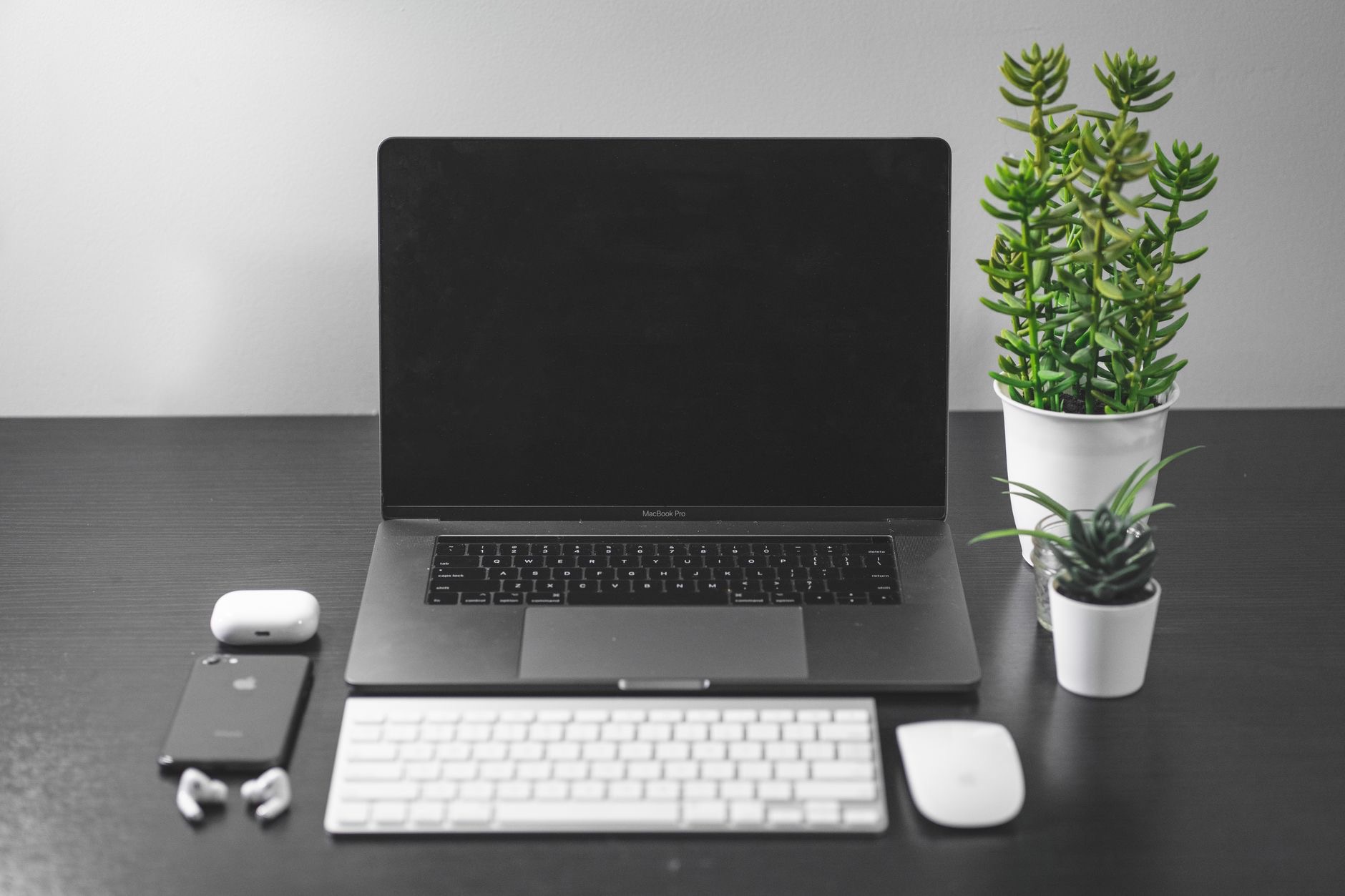
There is nothing quite like a brand-new Mac, that clean, fast, ready-for-anything feeling. But how you set it up in the first hour shapes how well it serves you for years. A little care up front means a machine that is secure, organized, and tailored to you, rather than one you never quite got around to configuring. Here are the first things to do on a new Mac to start off exactly right.
1. Run Through the Initial Setup Carefully
When you first turn on your Mac, it walks you through an initial setup process. Rather than rushing through, take a moment with each step, since choices about your region, account, and preferences set the foundation. Signing in with your account connects your Mac to your wider ecosystem and services. Getting these basics right from the start saves you from reconfiguring things later and ensures everything is properly connected from day one.
2. Transfer Your Data (or Start Fresh)
If you are coming from another Mac, you can transfer your files, apps, and settings so your new machine feels familiar right away. Alternatively, you might choose to start fresh for a clean slate, which some people prefer. Deciding this early matters, since transferring is easiest during setup. Either way, think about what you want to bring over so your new Mac is set up the way that suits you, whether that is picking up where you left off or beginning anew.
3. Install Available Updates
One of the very first things to do is check for and install any available software updates. A new Mac may still have updates waiting that include important improvements and security fixes. Getting these installed straight away ensures your machine is running the latest, most secure software from the start. It is a quick step that is easy to skip in the excitement of a new device, but well worth doing right away.
4. Set Up Your Security
Take a few minutes to get your security in order. Make sure you have a strong password, set up any available login protections your Mac offers, and review your security and privacy settings. Your Mac holds a lot of personal information, so protecting it properly from the outset is genuinely important. A little attention to security now gives you peace of mind and protects everything else you will store on the machine.
5. Turn On a Backup
This is one people skip and later regret. Setting up a backup means that if anything ever goes wrong, your files are safe and recoverable. Your Mac makes it straightforward to back up automatically to an external drive or a cloud service. Doing this early, before you have accumulated important work, builds a safety net from the very beginning. Future you, in the event of a mishap, will be enormously grateful you took this simple step.
6. Learn the Trackpad Gestures
If your new Mac has a trackpad, taking a few minutes to learn its gestures pays off enormously. Swiping between desktops, opening mission control, showing the desktop, and more become effortless once you know them. These gestures make navigating your Mac fast and genuinely enjoyable, and learning them early means you build good habits from the start rather than clicking around the slow way for months before you discover them.

7. Organize Your Dock and Desktop
Take control of your dock, the row of apps at the bottom, by adding the ones you use most and removing the ones you do not. A tidy dock with your favorite apps makes everything faster to reach. Similarly, decide how you want to keep your desktop, since a clean, organized starting point sets a good tone. A little organization now creates a workspace that feels calm and efficient rather than cluttered.
8. Install the Apps You Actually Need
Rather than loading up on everything at once, think about the apps you genuinely use and install those. A new Mac is a chance to be intentional, keeping your machine lean and clean rather than cluttered with software you never open. You can always add more later as needs arise. Starting with just the essentials keeps your Mac fast and your workspace focused on what actually matters to you.
9-12. Final Touches
A few last steps complete your setup. Adjust your display and appearance settings, such as brightness and light or dark mode, to your liking. Set up your notifications thoughtfully so you are not bombarded from day one. Learn a few keyboard shortcuts to work faster. And explore the system settings to tailor your Mac to how you like to work. These finishing touches turn a generic new machine into one that feels genuinely, comfortably yours, ready to serve you well for years.
★ Editor's Pick · Amazon
MacBook Air (M4)
Start fresh with a fast, capable everyday Mac
Colors: Midnight · Starlight · Sky Blue · Space Gray
Frequently Asked Questions
What should I do first with a new Mac?
Run through the initial setup carefully, decide whether to transfer your data or start fresh, and install any available software updates right away. Then set up your security and a backup. These foundational steps ensure your Mac is secure, current, and set up the way that suits you.
Should I transfer data from my old Mac?
If you are coming from another Mac, you can transfer files, apps, and settings so the new machine feels familiar right away, which is easiest during setup. Alternatively, some people prefer starting fresh for a clean slate. Decide early based on whether you want continuity or a new start.
Do I need to update a brand-new Mac?
Yes, it is worth checking. A new Mac may still have software updates waiting that include important improvements and security fixes. Installing them straight away ensures your machine runs the latest, most secure software from the start, and it only takes a few minutes.
Should I set up a backup right away?
Definitely. Setting up a backup early, before you accumulate important work, means your files are safe and recoverable if anything ever goes wrong. Your Mac makes it straightforward to back up to an external drive or cloud service, building a safety net from the very beginning.
How do I make my new Mac feel like mine?
Organize your dock with your favorite apps, tidy your desktop, adjust display and appearance settings, set up notifications thoughtfully, learn trackpad gestures and a few keyboard shortcuts, and install just the apps you need. These touches turn a generic machine into one that feels comfortably yours.
Should I install lots of apps on a new Mac?
It is better to be intentional and install just the apps you genuinely use, keeping your Mac lean and fast rather than cluttered with software you never open. You can always add more later as needs arise, so starting with the essentials keeps your workspace focused.
The Bottom Line
How you set up a new Mac in the first hour shapes how well it serves you for years, so it is worth doing right. Move through the setup carefully, transfer or start fresh, update and secure your machine, turn on a backup, and then tailor the dock, gestures, and settings to you. A little care up front gives you a Mac that is secure, organized, and genuinely yours, ready to be a reliable companion for a long time to come.
Leave a Reply