
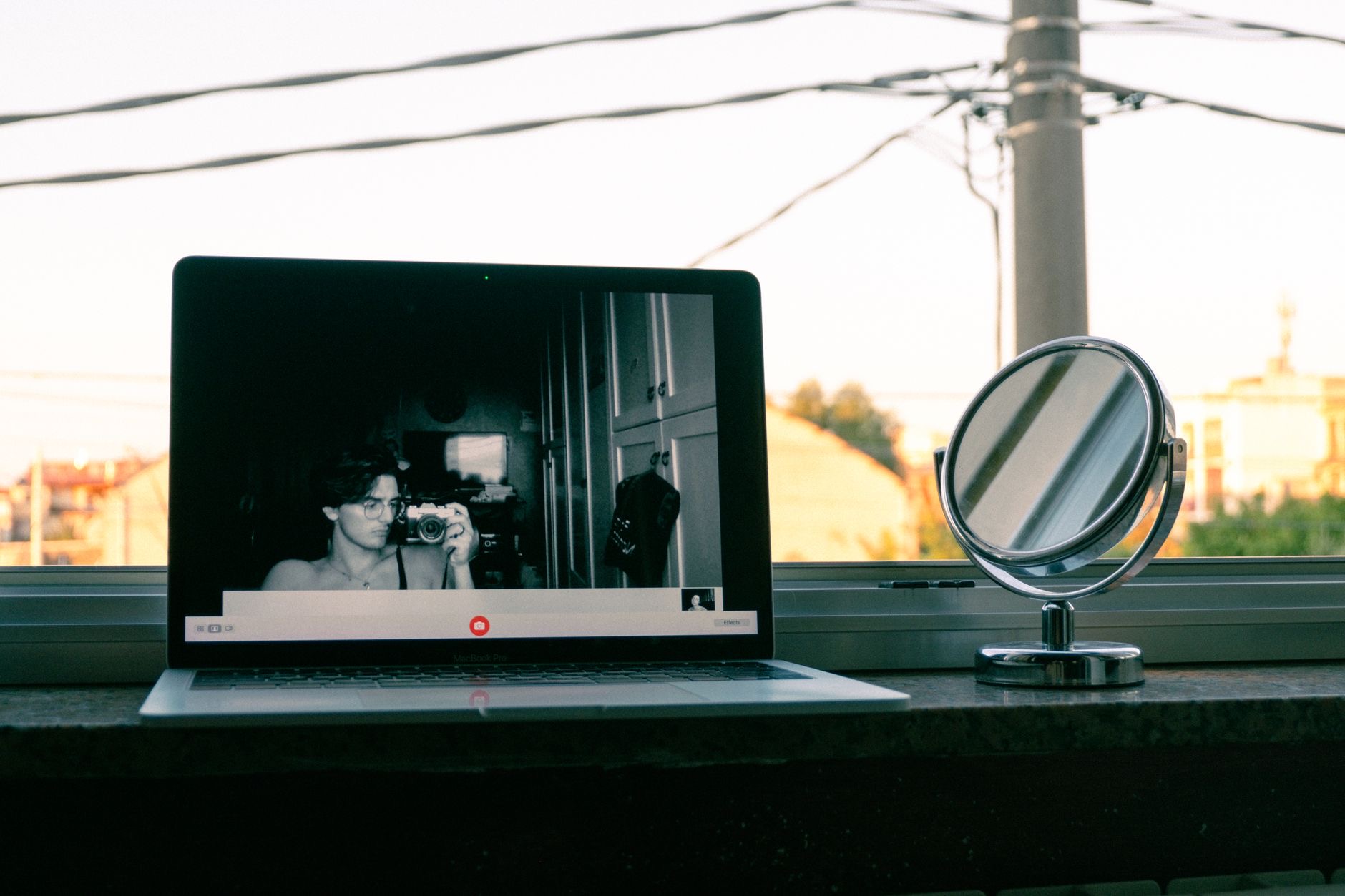
Three minutes to the meeting, and the video window shows a black rectangle where your face should be. A MacBook camera that stops working is a special kind of urgent, and the good news fits in one line: it is almost always software, almost always one of four things, and almost always fixable before the call starts. Here is the fix order, fastest first.
Fix One: The App Never Had Permission
The number one cause, especially for new apps or after updates: the app simply is not allowed to use the camera. The Mac's privacy settings hold a camera section listing every app and a switch for each, and the app showing you blackness is very often sitting there, switched off, waiting. Flip it on, restart the app, face restored. New video tools fail here so reliably that permissions should be your reflex first stop, before any deeper theory.
Fix Two: Another App Is Hogging It
The camera serves one master at a time, and a browser tab from this morning's call, a conferencing app minimized since Tuesday, or any camera-touching tool still running can hold it hostage while your current app stares at nothing. Quit the other candidates fully, actually quit, not just close windows, then retry. The camera-in-use light with no visible app is this exact story, and the stale browser tab is its most decorated recurring villain.
Fix Three: The Restart That Fixes the Middle Layer
When permissions are right and no hostage-taker is found, the camera's software plumbing itself may have hiccuped, and the honest, boring fix is a restart. Reboot the Mac, open only your video app, and test. This clears the invisible middle layer where camera processes occasionally wedge, and it resolves the majority of cases that survive fixes one and two. Yes, it is turn-it-off-and-on-again; it also works, which is why it never leaves the list.
Fix Four: Test Where the Camera Cannot Hide
Diagnose with the built-in apps: open the Mac's own camera-using app, the one for photos and video snapshots, and see if your face appears there. Working in the built-in but not in your meeting app? The problem is that app, reinstall it, check its own settings, update it. Black in the built-in app too, after a restart? Now the conversation turns hardware: check for any pending system update first, then consider the professional look, because genuine camera hardware failures, while rare, exist.

The Externals: Cover, Angle, and the Forgotten Sticker
Before deep grief, the physical checklist: camera covers and privacy stickers have a documented history of surviving into meetings unnoticed, check the tiny lens at the screen's top edge for anything covering it. If you use an external webcam, its cable, its permissions, and its selection inside the app's video settings are three separate failure points, confirm the app is even looking at the camera you think it is. The dropdown pointed at the wrong camera has embarrassed more presenters than any hardware fault.
The Backup Plan That Outclasses the Original
And if the built-in camera has genuinely retired mid-week, your best replacement is already in your pocket: the iPhone works as a Mac webcam through Continuity Camera, wirelessly, and its image quality embarrasses the laptop lens it is replacing. A small tripod at eye level makes it permanent. Many people who set this up during a camera emergency never switch back, which says everything about laptop cameras and even more about the backup plan.
★ Editor's Pick · Amazon
iPhone Tripod
The emergency webcam that outshoots the original
★ Editor's Pick · Amazon
External Webcam
The dedicated fallback for permanent setups
| The check | The time |
|---|---|
| Camera permission for the app | 30 seconds |
| Quit the hostage-takers | 1 minute |
| Restart the Mac | 2 minutes |
| Test in the built-in app | The verdict |
Frequently Asked Questions
Why is my MacBook camera not working?
Four usual causes, in order: the app lacks camera permission in the Mac's privacy settings, another app or browser tab is holding the camera hostage, the camera's software layer needs a restart, or, rarest, actual hardware. The first three fix in under five minutes, fastest first.
How do I give an app camera permission on Mac?
In the privacy section of system settings, the camera list shows every app with a switch. New apps and freshly updated ones fail here constantly, flip the switch, restart the app, and the black rectangle becomes your face. Make permissions the reflex first check.
Why does my Mac say the camera is in use?
Because something is using it: a stale browser tab from an earlier call, a minimized conferencing app, any camera-touching tool still alive. The camera serves one app at a time. Fully quit the candidates, browser included, and the hostage is released.
How do I test if the camera itself is broken?
Open the Mac's built-in camera app: your face there means the hardware is fine and your meeting app is the problem, reinstall or update it. Blackness in the built-in app after a restart and system updates moves the conversation to hardware, which is rare but real.
What do I do if the camera dies before a meeting?
Continuity Camera: the iPhone becomes the Mac's webcam wirelessly, in about a minute, with image quality far beyond the laptop lens. Prop it at eye level, join the call, and solve the built-in camera afterward. Many emergency adopters never switch back.
Could a camera cover be the problem?
It has a proud history: privacy covers and stickers survive into meetings unnoticed more often than anyone admits. Check the lens at the screen's top edge, and if an external webcam is involved, confirm the app's video settings point at the camera you intend, the wrong-dropdown mistake is a classic.
The Bottom Line
A dead MacBook camera is nearly always software wearing a scary costume: permission not granted, another app hogging the lens, or a middle layer that a restart clears. Test in the built-in app for the verdict, glance for the forgotten privacy cover, and reserve hardware grief for the rare case that survives everything. And when the meeting cannot wait, the iPhone-as-webcam backup takes one minute and outshoots the original, which is the most cheerful ending a troubleshooting article can offer.
Leave a Reply