

Tapping and swiping at an iPhone that simply will not respond is deeply frustrating, and a little worrying too. But before you fear the worst, know that an unresponsive touchscreen is usually caused by something simple and fixable. In most cases you can get it working again in minutes. Here are the common reasons an iPhone screen stops responding to touch and the step-by-step fixes to bring it back to life.
Why a Touchscreen Stops Responding
An unresponsive screen usually comes from a temporary software freeze, something on the screen interfering with touch, or occasionally a screen protector or case issue. Less often, it points to a hardware problem. The reassuring part is that the common causes are easy to address, which is why working through a few simple steps fixes it for most people. Rather than assuming your iPhone is broken, treat an unresponsive screen as something to troubleshoot, starting with the easiest fixes, which resolve the great majority of cases quickly and for free.
Try a Force Restart
The most effective fix for a frozen, unresponsive screen is a force restart. This special button sequence reboots your iPhone even when the screen will not respond to your touch, which is exactly what you need when tapping does nothing. It clears the temporary glitch causing the freeze and very often brings the screen straight back to life. Because it works without needing the touchscreen, it is the go-to solution here. Learning the force restart sequence for your iPhone is well worth it, as it resolves unresponsive screens a great deal of the time.
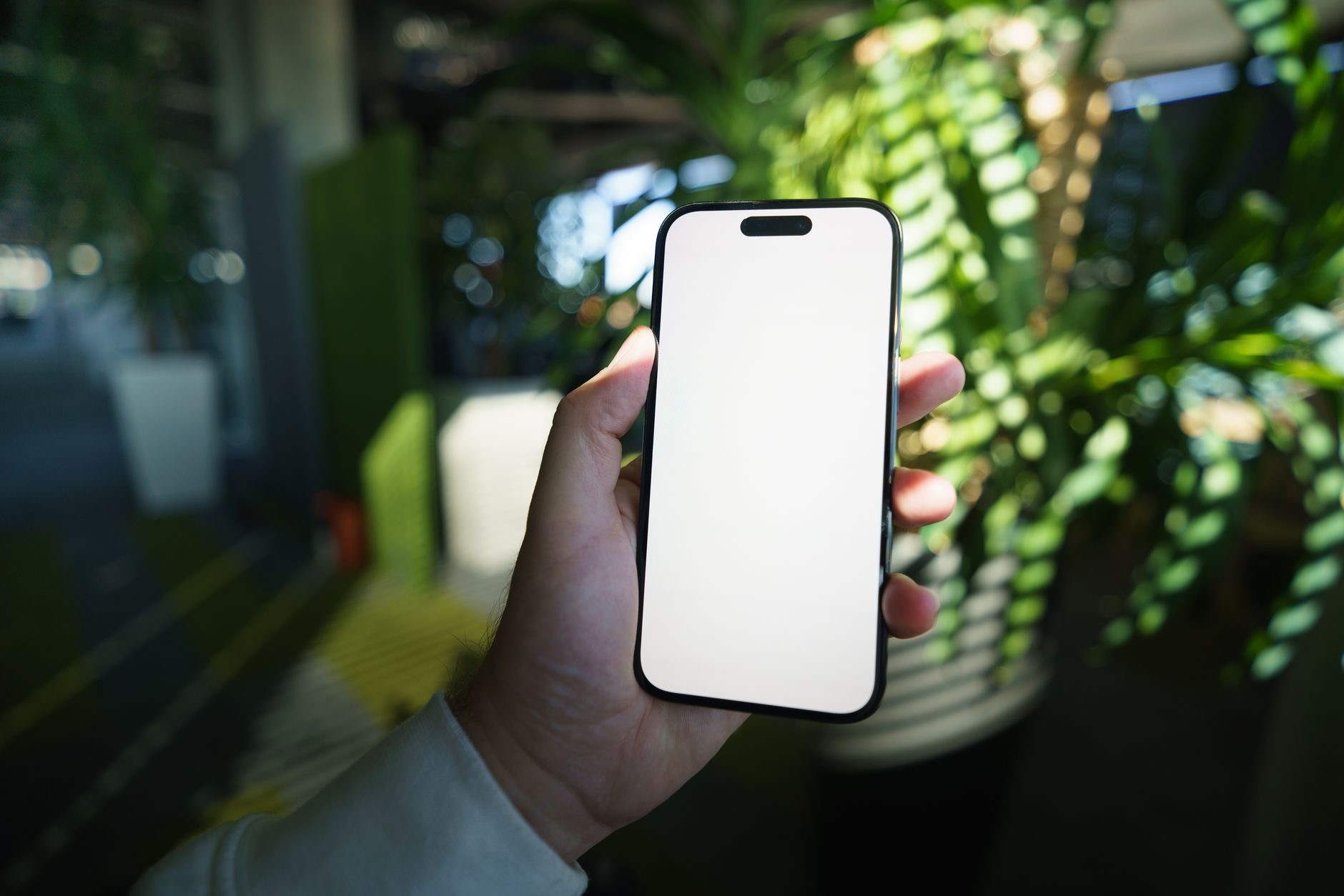
Clean the Screen and Your Hands
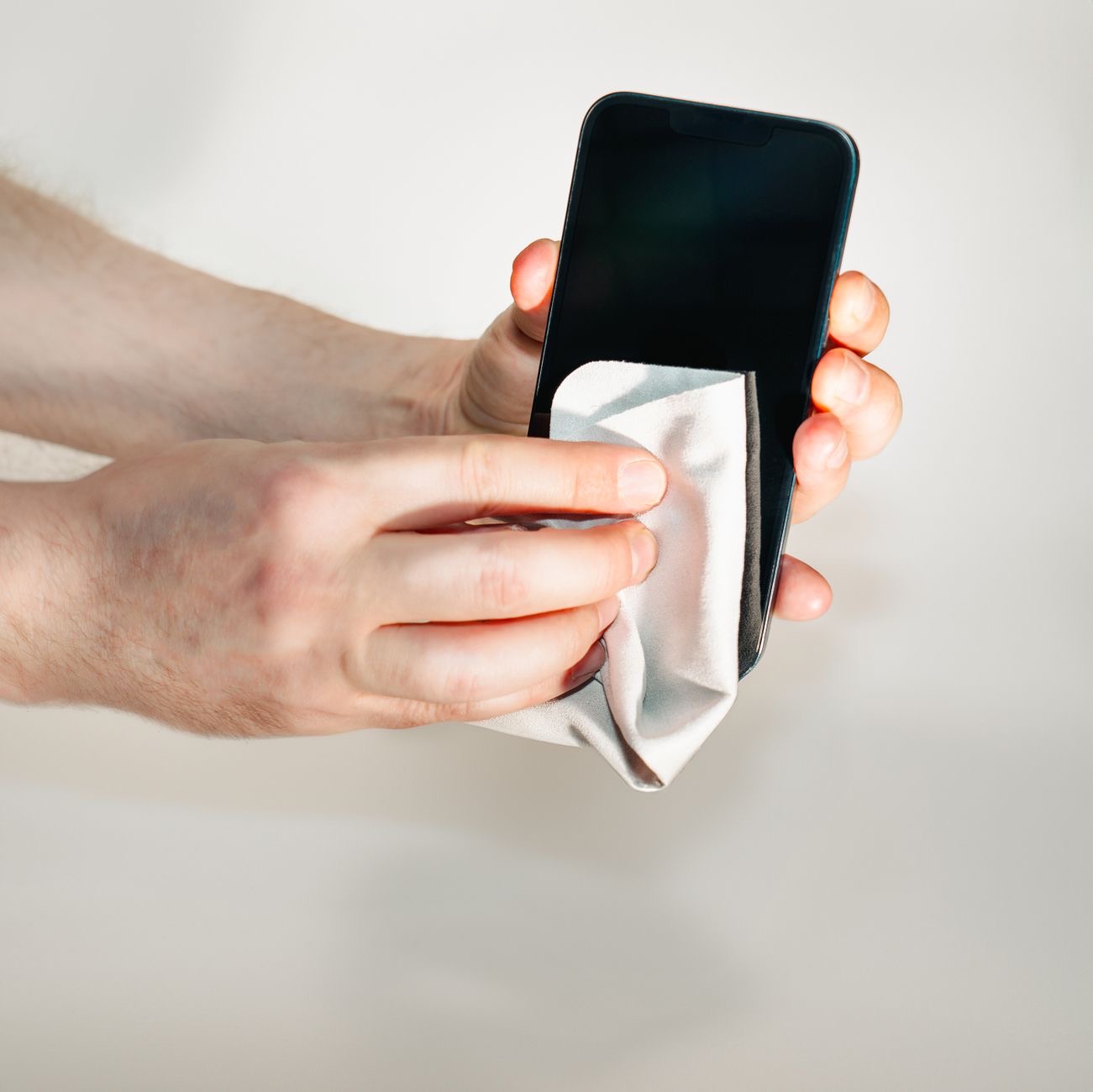
Touchscreens can struggle when the screen or your fingers are dirty, wet, or greasy. Moisture, sweat, lotion, or grime on the screen can interfere with touch and make it unresponsive or erratic. Wipe your screen with a soft, clean, dry cloth, and make sure your hands are clean and dry too. It sounds simple, but a dirty or wet screen is a genuinely common cause of touch problems, and cleaning both the screen and your fingers often restores normal, responsive touch immediately. Always try this easy step before assuming something is broken.
Check Your Case and Screen Protector
Sometimes the culprit is an accessory. A poorly fitting screen protector, one with air bubbles or damage, or a case that overlaps the screen can interfere with touch sensitivity. If your screen trouble started after adding a protector or case, try removing them to see if touch returns to normal. A low-quality or damaged screen protector in particular can make a screen feel unresponsive. Ruling out your accessories is a smart step, since replacing a bad protector or adjusting a case may be all it takes to fix the problem.
Update and Free Up Space
Software issues can affect touch responsiveness, so keeping your iPhone updated helps, since updates fix bugs that might cause glitches. Very low storage can also make your iPhone sluggish and less responsive, so freeing up space by removing things you do not need can help it run smoothly again. These steps address the software side of touch problems. If your screen is generally laggy or unresponsive rather than completely frozen, updating your software and clearing some storage can make a real difference to how well it responds.
When It Might Need Repair
If you have tried a force restart, cleaned the screen, removed accessories, updated, and freed space, but the screen still does not respond, it may point to a hardware issue, especially if it followed a drop or damage. In that case, it is worth having it checked by a professional. This is less common than the simple causes above, so always work through the easy fixes first. For most people, one of those steps restores their touchscreen, and only a persistent problem that survives them all suggests a repair is needed.
| Cause | Fix |
|---|---|
| Frozen screen | Force restart your iPhone |
| Dirty or wet screen | Clean the screen and your hands |
| Bad protector or case | Remove or replace them to test |
| Software or low storage | Update and free up space |
Frequently Asked Questions
Why is my iPhone screen not responding to touch?
Usually a temporary software freeze, something on the screen like moisture or grime interfering with touch, or a poorly fitting screen protector or case. Less often it is a hardware issue. The common causes are easy to fix, so working through simple steps resolves it for most people quickly.
How do I fix an unresponsive iPhone screen?
Start with a force restart, which reboots your iPhone even when touch does not work and often revives a frozen screen. Then clean the screen and your hands, remove any screen protector or case to test, and update your software and free up storage. These steps fix most touch problems.
What is a force restart and why does it help?
A force restart is a special button sequence that reboots your iPhone even when the screen will not respond to touch, unlike a normal restart. It clears the temporary glitch causing a freeze and often brings the screen back to life, making it the go-to fix when tapping does nothing.
Can a screen protector cause touch problems?
Yes. A poorly fitting protector, one with air bubbles or damage, or a case overlapping the screen can interfere with touch sensitivity. If your trouble started after adding one, remove it to test. Replacing a bad protector or adjusting a case may be all it takes to restore normal touch.
Does a dirty screen affect touch?
Yes. Moisture, sweat, lotion, or grime on the screen or your fingers can interfere with touch and make it unresponsive or erratic. Wiping the screen with a soft, dry cloth and making sure your hands are clean and dry often restores normal, responsive touch immediately, so always try this first.
When does an unresponsive screen need repair?
If a force restart, cleaning, removing accessories, updating, and freeing space all fail to restore touch, it may be a hardware issue, especially after a drop or damage. Then it is worth having checked professionally. This is uncommon, so try the easy fixes first, as they resolve most cases.
The Bottom Line
An iPhone screen that will not respond to touch is usually fixable in minutes. Start with a force restart, the most effective fix for a frozen screen, then clean the screen and your hands, and remove any screen protector or case that might be interfering. Update your software and free up storage to rule out software causes. These steps restore touch for the vast majority of people, and only a problem that survives them all, especially after a drop, suggests a repair is needed.
Leave a Reply