
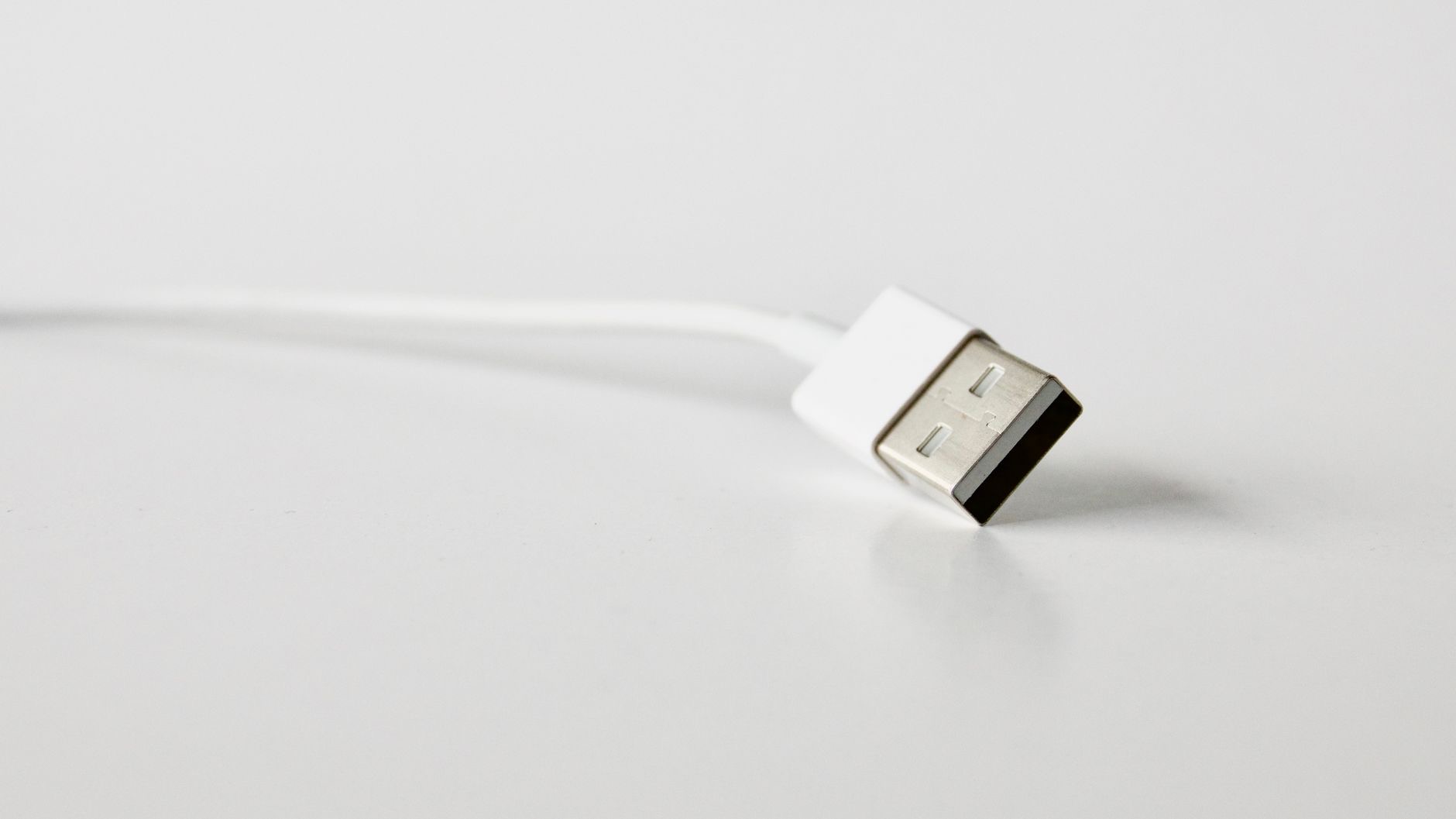
An iPad that refuses to charge is worrying, especially when the battery is nearly empty. The reassuring news, based on the most common causes and widely reported fixes, is that the problem is usually a cable, a dirty port, or a software glitch, not a dead battery. iPads also charge more slowly than phones, so what looks like no charging is sometimes just slow charging. Work through these seven fixes in order to get yours powering up again.
First, Give It Time and Look Closely
iPads need more power than iPhones and charge more slowly, especially from a weak charger. A deeply drained iPad can take many minutes before it even shows a charging icon, so do not assume failure after a couple of minutes. Plug it into a proper charger, leave it for at least fifteen to thirty minutes, and watch closely for any sign of charging before moving on. Patience alone solves a lot of supposed charging problems.
1. Use a Proper Charger and Cable
iPads draw more power than phones, so a weak charger, like a low-power phone adapter or a laptop USB port, may charge very slowly or not at all. Use a charger and cable suited to the iPad, ideally the ones it came with or equivalent. Many no-charge complaints are simply an underpowered charger struggling to keep up. Switching to a proper power source often fixes the problem instantly.
2. Inspect the Cable and Adapter
Cables and adapters fail far more often than the iPad itself. Examine the full length of the cable for fraying, kinks, or damage, especially near the ends, and check the adapter for wear. If you have another compatible cable and charger, try them. A damaged cable or a failing adapter is one of the most common reasons an iPad stops charging, and swapping them is the quickest way to rule them out.
3. Clean the Charging Port
Lint, dust, and pocket debris pack into the charging port over time and block a solid connection, which is a very common cause of charging trouble. Look inside the port with a good light, and gently clean out any debris with a wooden toothpick or a soft, dry brush, never anything metal. A blocked port can stop charging completely while looking fine at a glance, so this simple clean is always worth doing early.
4. Try a Different Outlet and Power Source
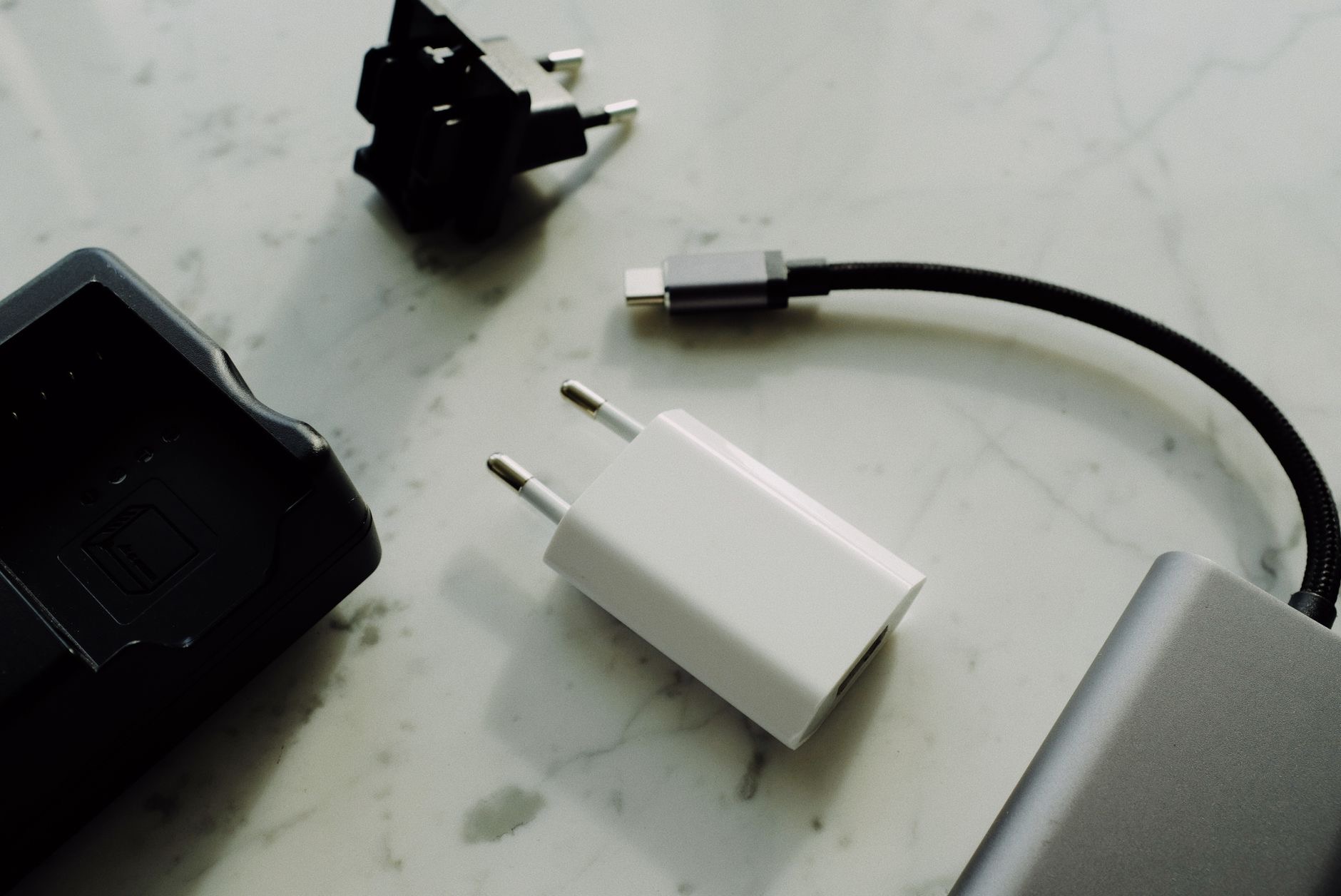
Sometimes the fault is the power source, not the iPad. Plug the charger into a different wall outlet, and avoid charging from low-power sources like some computer USB ports, which may not deliver enough power. Confirm the outlet works by testing another device. Eliminating a dead outlet or a weak power source stops you chasing imaginary faults in the iPad when the real problem is on the wall.
5. Force Restart Your iPad
A software glitch can stop an iPad from charging or registering the charger, and a force restart clears it. The exact button sequence depends on whether your iPad has a Home button, but it involves a specific combination of the volume and top buttons held until the Apple logo appears. A force restart does not erase anything, it simply reboots a stuck device, and it often gets a confused iPad charging again right away.
6. Let It Cool Down
Like other Apple devices, an iPad can pause charging to protect its battery when it gets too hot, for example after heavy use or sitting in the sun. If your iPad is warm and will not charge, move it somewhere cool, let it rest for a while, and try again. This is normal, protective behavior rather than a fault, and charging usually resumes on its own once the temperature drops back to a safe range.
7. Check the Battery and Seek Help
If you have used a proper charger, swapped the cable and adapter, cleaned the port, tried different outlets, force restarted, and let it cool, and the iPad still will not charge, the issue may be the charging port or a worn battery. At that point, contact Apple support or a trusted repair service for a proper diagnosis. A battery or port repair is far cheaper than a new iPad, so a charging fault rarely means the device is finished. For buying advice, see our best iPad guide.

How to Avoid Charging Problems
A few habits keep charging reliable. Use a good-quality charger and cable suited to the iPad, keep the charging port clear of lint, avoid charging in very hot conditions, and try not to run the battery to zero repeatedly. These small steps prevent most everyday charging trouble. If your iPad is also sluggish or misbehaving, many of the same principles in our MacBook charging guide apply to diagnosing power problems across Apple devices.
| Check this | Why |
|---|---|
| Charger and cable | Weak or damaged ones cause slow or no charging |
| Charging port | Lint blocks the connection |
| Temperature | Heat pauses charging to protect the battery |
Quick Answers
Why won't my iPad charge?Usually a weak or damaged charger, a blocked charging port, a software glitch, or overheating. Use a proper charger, clean the port, and force restart, which fixes most cases.
Why is my iPad charging so slowly?iPads need more power than phones. A low-power adapter or a computer USB port charges them very slowly. Use a proper iPad charger for faster charging.
How do I clean the iPad charging port?Gently remove lint and debris with a wooden toothpick or a soft, dry brush. Never use metal objects inside the port.
Will a force restart fix charging?Often, yes. A force restart clears software glitches that can stop the iPad from registering the charger. It does not erase your data.
Could overheating stop my iPad charging?Yes. iPads pause charging to protect a hot battery. Move it somewhere cool, let it rest, and charging usually resumes on its own.
When should I get it repaired?If a proper charger, new cable, port cleaning, restart, and cooling all fail, the port or battery may be faulty. Contact Apple or a trusted repair service.
Wireless and Computer Charging Quirks
If your iPad will not charge from the wall, it is worth knowing how other power sources behave, because they can mislead you. Charging an iPad from a computer's USB port often works, but slowly, and from some low-power ports it may show as connected yet barely gain charge, or even drain while in use. That is not necessarily a fault, it is simply the port not supplying enough power for a hungry iPad. So if your tablet charges fine from the wall but not from a laptop, the laptop port is the limitation, not the iPad. Conversely, if it charges from a computer but not the wall, that points to your wall adapter or cable. Using these different sources as a quick comparison test is a smart way to isolate whether the problem lies with the iPad, the cable, or a specific charger, before you spend money replacing the wrong thing.
The Honest Bottom Line
An iPad that will not charge is usually fixable for free. Use a proper charger, swap the cable and adapter, clean the port, try a different outlet, and force restart. Give it time too, since iPads charge slowly and a drained one takes a while to wake.
Only when every fix fails is the port or battery likely at fault, and even then the repair is far cheaper than a new iPad. Which fix worked for you? Tell me in the comments and I will help with stubborn cases.
Leave a Reply