
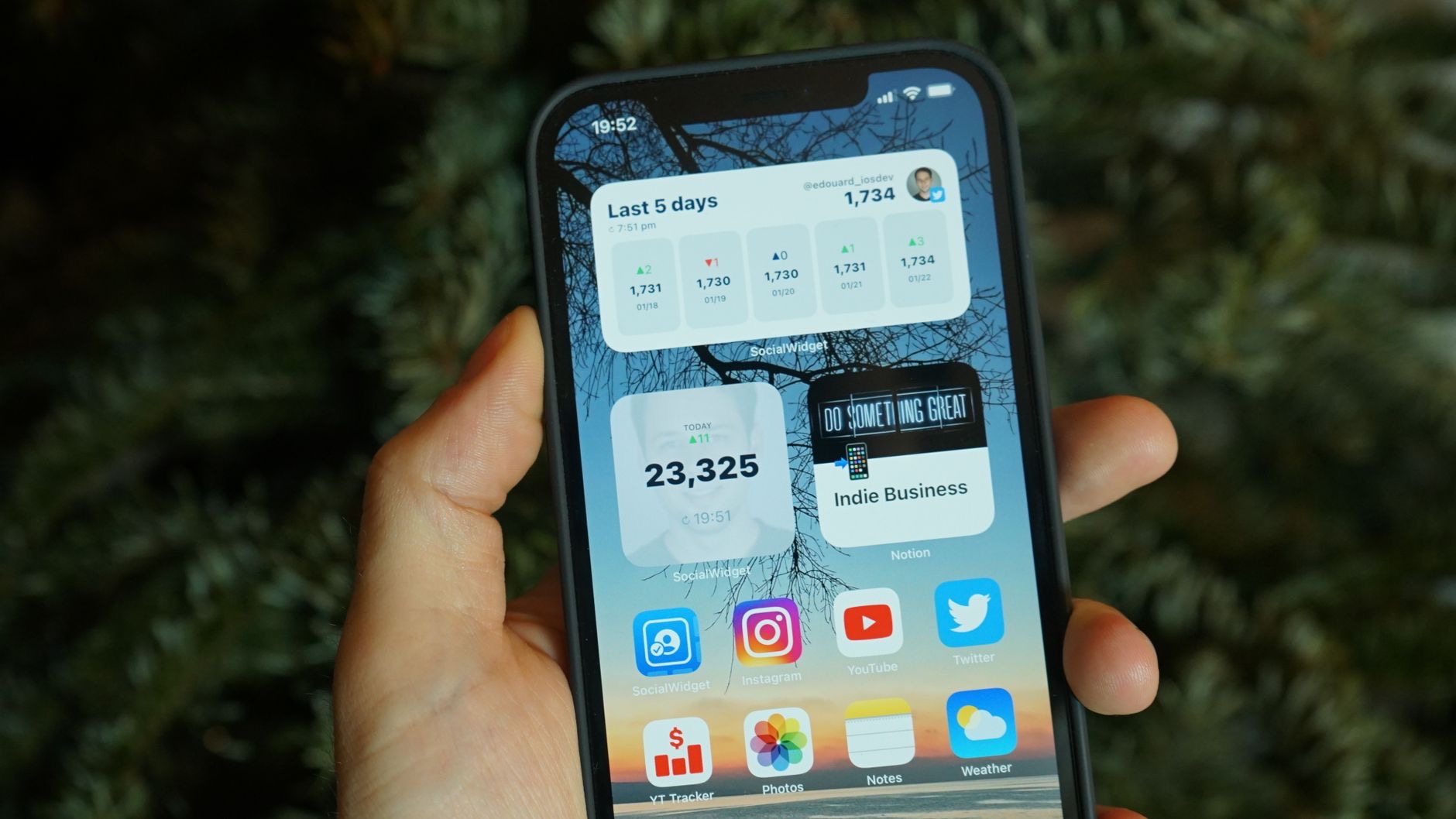
What if your iPhone could show you the weather, your next appointment, your reminders, and more at a single glance, without opening a single app? That is exactly what widgets do. They turn your home screen into a helpful dashboard of the information you care about, saving you taps and keeping you informed. Yet many people never set them up. Here is how to use widgets on your iPhone to see what matters most, right when you glance at your phone.
What Widgets Are
Widgets are small panels that live on your home screen and display information from your apps at a glance, without you having to open anything. Instead of tapping into an app to check the weather or your calendar, a widget shows it right there. They come in different sizes and cover all sorts of information, from the time and weather to your schedule, reminders, and more. Think of widgets as little windows into your apps, surfacing the useful bits directly on your home screen so the information you want is always visible.
Why Widgets Are So Useful
The value of widgets is convenience and awareness. With the right widgets, you see your day's key information the moment you look at your phone, no digging through apps. A glance tells you the weather, your next meeting, or what is on your to-do list. This saves time and keeps you gently informed and organized throughout the day. Widgets turn your home screen from just a grid of app icons into a genuinely useful, personalized dashboard, which is why so many people love them once they start using them.
How to Add a Widget
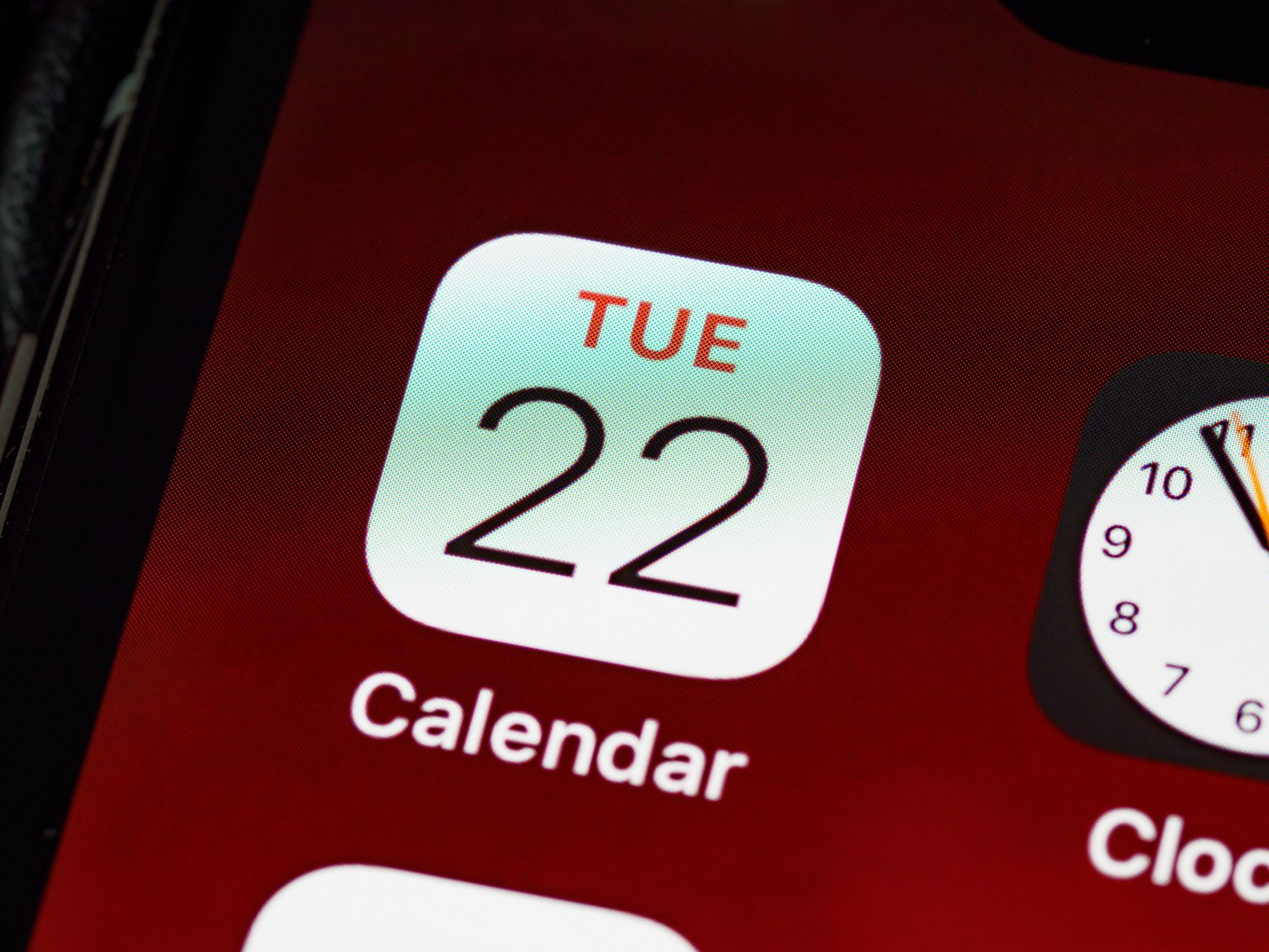
Adding a widget is straightforward. You enter the mode that lets you edit your home screen, then choose to add a widget, browse the available options from your apps, pick the size you want, and place it on your screen. The process is guided and simple, letting you build up the dashboard you want piece by piece. Once you know how, adding and arranging widgets becomes quick and even fun, as you decide exactly what information deserves a spot on your home screen for easy, glanceable access.
Choose the Right Widgets for You
The best widgets are the ones that show information you genuinely want at a glance. Think about what you check often, the weather before heading out, your calendar to see what is next, reminders so you do not forget things, or battery levels. Adding widgets for these means the information is always visible without effort. Choose based on your real needs rather than adding everything, since a focused set of useful widgets serves you far better than a cluttered screen. Tailoring your widgets to your life makes them genuinely valuable.

Keep It Balanced
Widgets are wonderful, but the trick is balance. A few well-chosen widgets make your home screen useful and attractive, while too many recreate the very clutter you are trying to avoid and can crowd out your apps. Aim for a clean, purposeful layout where each widget earns its place by showing something you truly value. You can also stack widgets to save space in some cases. Thoughtful restraint keeps your home screen both informative and tidy, giving you the benefits of widgets without the downside of a cluttered, overwhelming screen.
Build Your Perfect Dashboard
Putting it together, widgets let you craft a home screen that works for you, showing your most-wanted information at a glance while staying clean and organized. Combine them with tidy folders and a thoughtful app layout, and your iPhone becomes a calm, efficient tool tailored to your day. Take a little time to experiment with which widgets and sizes suit you best, and adjust as your needs change. The result is a personalized dashboard that keeps you informed and organized every time you glance at your phone.
| Widget for | What you see at a glance |
|---|---|
| Weather | Conditions before you head out |
| Calendar | Your next appointment or event |
| Reminders | Tasks so you do not forget them |
| Battery | Charge levels of your devices |
Frequently Asked Questions
What are widgets on iPhone?
Widgets are small panels on your home screen that display information from your apps at a glance, without opening anything. They come in different sizes and cover things like the weather, your calendar, reminders, and more, acting as little windows into your apps that surface useful information directly.
How do I add a widget to my home screen?
Enter the mode that lets you edit your home screen, choose to add a widget, browse the available options from your apps, pick the size you want, and place it on your screen. The process is guided and simple, letting you build the dashboard you want piece by piece.
Why should I use widgets?
They offer convenience and awareness, showing your day's key information the moment you look at your phone, no digging through apps. A glance tells you the weather, your next meeting, or your to-do list, saving time and keeping you organized. They turn your home screen into a useful dashboard.
Which widgets are most useful?
The ones showing information you genuinely want at a glance, such as weather, calendar, reminders, or battery levels. Choose based on what you check often and your real needs rather than adding everything, since a focused set of useful widgets serves you better than a cluttered screen.
Can I have too many widgets?
Yes. Too many recreate clutter and crowd out your apps, undoing the benefit. The trick is balance, a few well-chosen widgets that each earn their place by showing something you truly value. Thoughtful restraint keeps your home screen both informative and tidy rather than overwhelming.
Can widgets and folders work together?
Yes. Combining a few useful widgets with tidy folders and a thoughtful app layout creates a home screen that is both informative and organized. Widgets show your key information at a glance while folders keep your apps neat, together making your iPhone a calm, efficient tool tailored to your day.
The Bottom Line
Widgets turn your iPhone home screen into a helpful dashboard, showing the weather, your calendar, reminders, and more at a single glance, without opening any apps. Add the ones that display information you genuinely want, choose sizes that suit you, and keep the layout balanced so it stays clean rather than cluttered. Combined with tidy folders, a thoughtful set of widgets makes your phone more informative, organized, and pleasant to use every single day.
Leave a Reply