

A Mac that has slowed to a crawl is deeply frustrating, especially when it used to feel so fast. The spinning wheel, the lag, the waiting, it all chips away at your day. Before you assume you need a new machine, know that a slow Mac can usually be revived with a few practical fixes, most of them free. Here are nine things that actually work to speed up a slow Mac and make it feel responsive again.
Why Your Mac Slows Down
Macs slow down for understandable reasons: storage filling up, too many apps launching at startup and running in the background, not restarting for long periods, outdated software, and simply asking an older machine to do more than it comfortably can. The encouraging news is that most of these are fixable, often in minutes and at no cost. Working through them methodically usually restores a good deal of your Mac's speed. Only when a machine is genuinely old and outmatched does hardware become the real limit, and even then there are options.
1. Free Up Storage Space
A nearly full drive is one of the biggest causes of a slow Mac, since it needs free space to work smoothly. Clear out what you do not need: remove apps you never use, delete old files and downloads, empty the trash, and clear caches and clutter. Freeing up a meaningful amount of space often brings a noticeable speed improvement. Keeping a healthy chunk of your drive free is one of the most impactful things you can do, and it directly affects how responsive your Mac feels day to day.
2. Manage Startup Programs
If your Mac is slow from the moment it starts, too many apps launching at login are likely to blame. Every program that opens automatically consumes resources and slows your startup and overall performance. Review which apps launch at login and disable the ones you do not need running the moment you turn on your Mac. This is a simple change that can dramatically speed up both startup and everyday responsiveness, since your Mac no longer wastes resources on things you never asked it to run in the first place.
3. Close Unneeded Apps and Tabs
Having many apps and browser tabs open at once eats into your Mac's resources and slows everything down. Web browsers with dozens of tabs are especially demanding. Get in the habit of closing apps you are not using and keeping your open tabs under control. Freeing up those resources lets your Mac focus on what you are actually doing, making it feel faster and more responsive. It is a small, ongoing habit that makes a real difference, particularly if you tend to leave lots of things open all day.
4. Restart Regularly
If you rarely shut down or restart your Mac, it can gradually slow as things accumulate over long periods of uptime. A simple restart clears temporary clutter and refreshes the system, often resolving sluggishness instantly. If your Mac has been running for a very long time, giving it a restart is a quick, free fix worth trying. Making a habit of restarting now and then keeps your Mac running smoothly and prevents the gradual slowdown that comes from never letting it have a fresh start.
5. Update Your Software
Keeping your Mac's software up to date matters for performance and security alike. Updates often include improvements and fixes that help your Mac run better, so an out-of-date system may be missing optimizations. Check for and install available updates to make sure you are current. It is an easy step that can genuinely help with sluggishness while keeping your Mac secure. Combined with the other fixes here, staying updated covers the software side of keeping your machine running its best.
6. Add External Storage to Free Your Drive
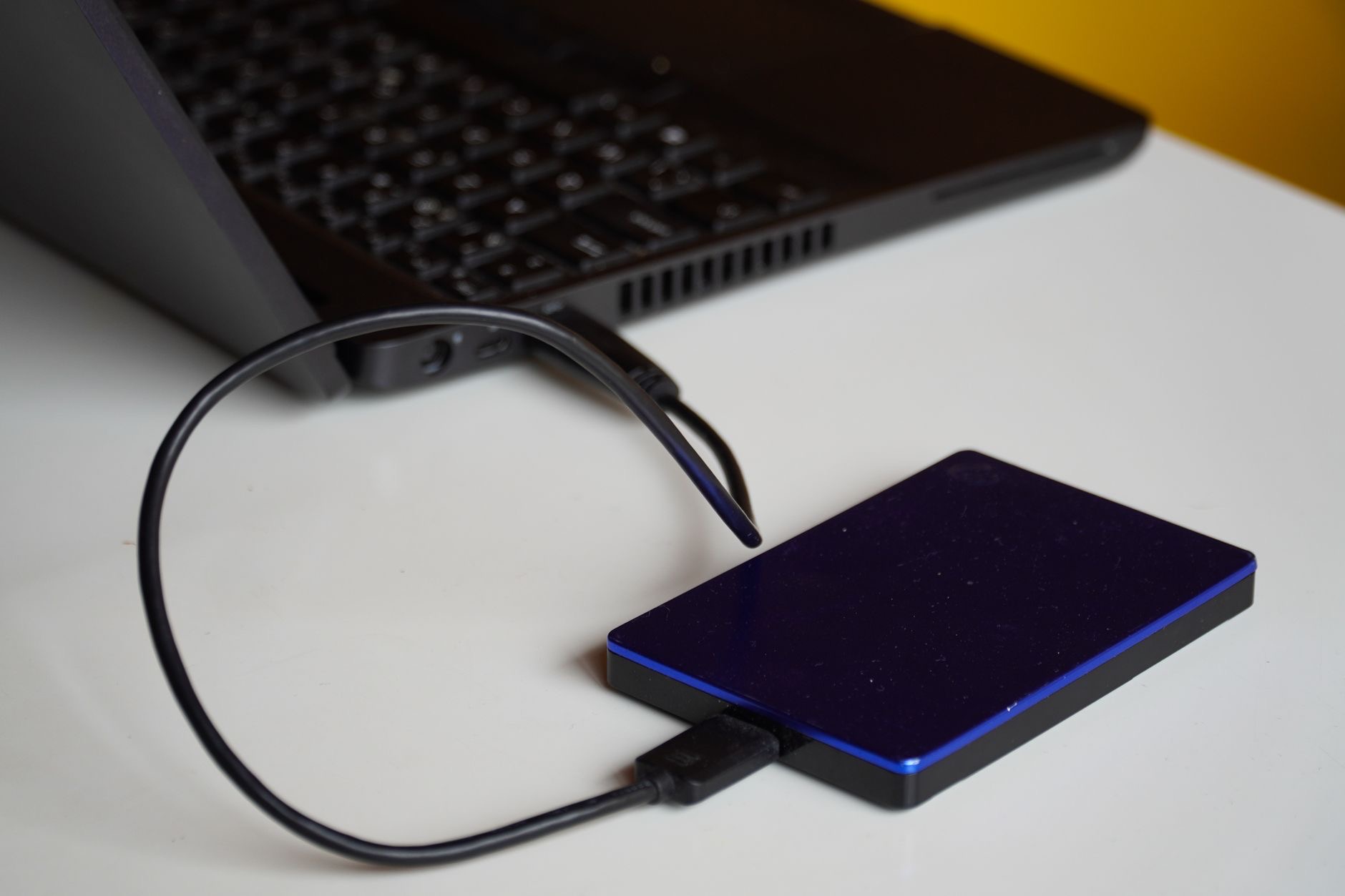
If your drive is always full no matter how much you clear, external storage is a lasting fix. Moving large files, photos, videos, and projects onto a fast external SSD frees up your Mac's internal drive, which directly helps performance while giving your files a safe home. This is especially valuable if you work with big files that fill your storage quickly. An external SSD keeps your Mac's drive comfortably free, so it has the breathing room it needs to stay fast, and you never fight for space again.
★ Editor's Pick · Amazon
Portable External SSD
Move big files off your Mac to keep its drive fast and free
7. Tidy Your Desktop
A desktop cluttered with countless files and icons can actually use resources and contribute to slowdowns. Organizing your desktop, filing things into folders, and clearing the clutter can help your Mac feel a little snappier, as well as being far more pleasant to look at. It is a small, satisfying bit of housekeeping that supports smoother performance. Keeping a clean, organized desktop rather than a chaotic pile of files is a simple habit that helps your Mac and makes finding things easier too.
8. Check What Is Using Resources
Sometimes a single app is quietly hogging your Mac's resources and dragging everything down. Your Mac has a built-in way to see which apps are using the most power, and spotting a demanding program can reveal the culprit behind your slowdown. If one app is consistently consuming a lot, closing it or finding an alternative can restore your Mac's speed. This bit of detective work helps you target the real cause rather than guessing, and it often uncovers a surprising resource hog you did not know was running.
9. Know When to Upgrade
If you have tried these fixes and your Mac is still slow, and it is quite old and no longer keeping up with what you need, it may genuinely be time to consider a newer machine. A current Mac will feel dramatically faster and stay capable for years. But try the free fixes first, since they solve the problem for most people. If an upgrade is truly warranted, choosing a Mac that fits your needs, such as an efficient desktop or a capable laptop, gives you speed that lasts.
★ Editor's Pick · Amazon
A Faster Mac
If yours is truly outdated, a new Mac flies for years
Options: Mac mini · MacBook Air
| If your Mac is slow because... | Do this |
|---|---|
| Drive is nearly full | Free up space or add an external SSD |
| Slow from startup | Disable unneeded startup apps |
| Laggy in daily use | Close apps and tabs, restart |
| Genuinely old hardware | Consider a newer Mac |
Frequently Asked Questions
Why is my Mac so slow?
Common causes include a nearly full drive, too many apps launching at startup and running in the background, rarely restarting, outdated software, and asking an older machine to do too much. Most of these are fixable, often in minutes and for free, by working through them one by one.
How do I make my Mac faster?
Free up storage, disable unneeded startup apps, close apps and browser tabs you are not using, restart regularly, and keep your software updated. Adding an external SSD helps if your drive is always full, and checking which apps use the most resources can reveal a hidden slowdown culprit.
Does free storage really speed up a Mac?
Yes. A nearly full drive is one of the biggest causes of a slow Mac, since it needs free space to run smoothly. Clearing out unused apps, old files, and clutter, or moving big files to an external SSD, often brings a noticeable speed improvement and keeps your Mac responsive.
Why is my Mac slow right from startup?
Usually because too many apps launch automatically at login, each consuming resources and slowing startup and overall performance. Reviewing which apps open at login and disabling the ones you do not need can dramatically speed up both startup and everyday responsiveness.
Can an external drive help a slow Mac?
Yes, if your internal drive is always full. Moving large files, photos, and videos to a fast external SSD frees up your Mac's drive, which directly helps performance and gives your files a safe home. It is a lasting fix for anyone whose storage fills up quickly with big files.
When should I replace my slow Mac?
If you have tried the fixes and it is still slow, and the Mac is quite old and no longer keeping up with your needs, an upgrade may be warranted. A newer Mac feels dramatically faster and lasts years. But try the free fixes first, since they solve the problem for most people.
The Bottom Line
A slow Mac is usually fixable, and usually for free. Free up storage, tame your startup apps, close what you are not using, restart regularly, and stay updated. If your drive is always full, an external SSD is a lasting fix that keeps your Mac fast while safeguarding your files. Tidy your desktop and check for resource-hungry apps too. Work through these, and only consider a new Mac if yours is genuinely old and outmatched. Most of the time, a little maintenance brings your Mac back to life.
Leave a Reply