
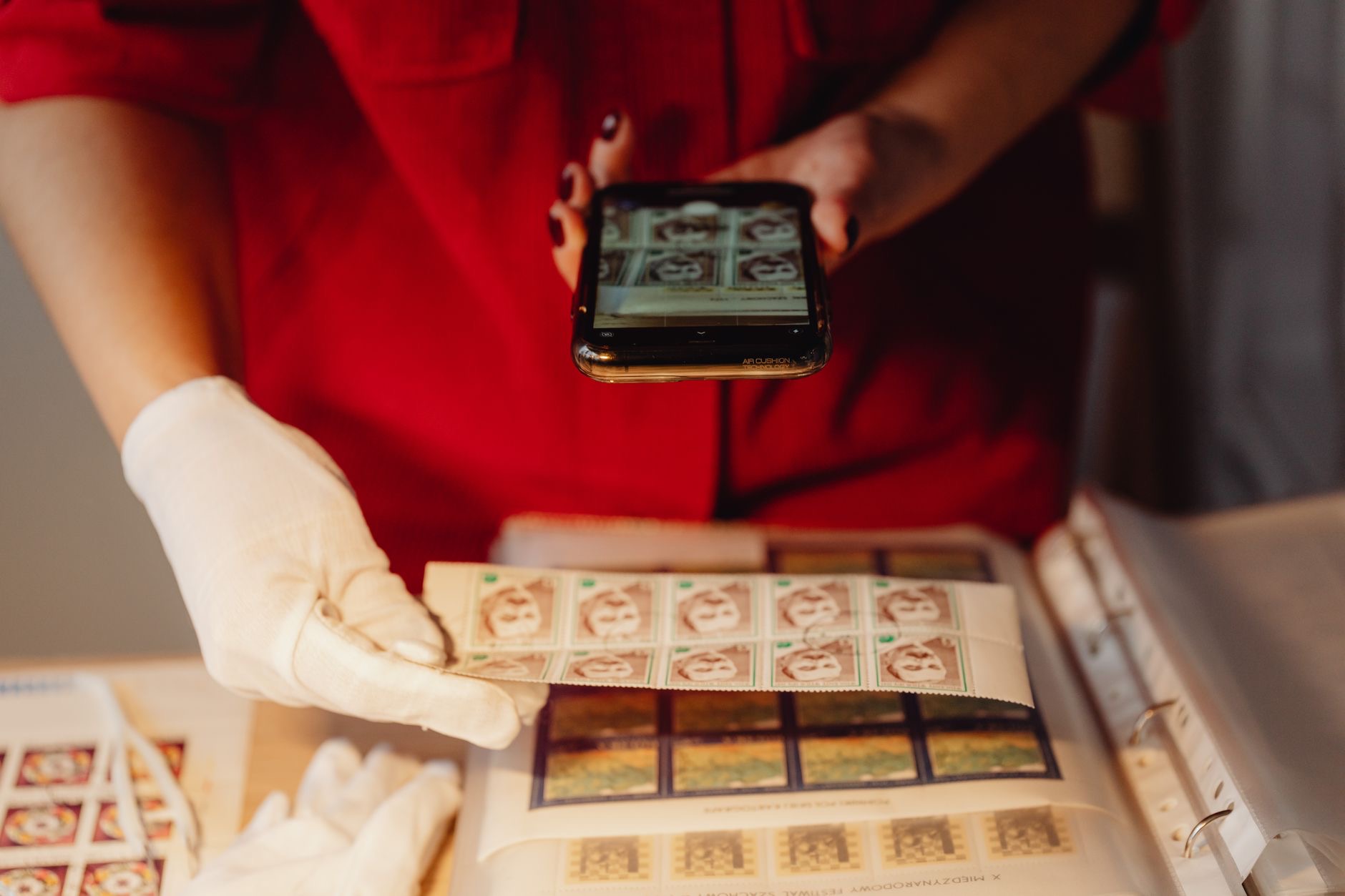
You do not need a bulky scanner or a special app to turn paper into a clean digital file, your iPhone already does it beautifully. Scanning a document with your iPhone takes seconds and produces a crisp, professional result you can save, sign, and share instantly. Whether it is a receipt, a form, or an important letter, here is how to scan documents with your iPhone and go paperless the easy way.
Your iPhone Is a Scanner in Your Pocket
Many people do not realize their iPhone has a built-in document scanning ability that is genuinely excellent. Using the camera, it can capture a page, automatically detect its edges, correct the angle, and produce a clean, flat scan that looks like it came from a real scanner. There is no need to download anything or pay for an app. This built-in capability turns your iPhone into a portable scanner you always have with you, ready to digitize any document quickly wherever you are, which is far more convenient than a traditional scanner.
Where to Find the Scan Feature
The document scanning feature lives in a couple of handy places on your iPhone, including the Notes app and the Files app, where you can start a new scan. From there, you point your camera at the document, and your iPhone does the clever work of detecting the page and capturing it. It is designed to be simple and quick to access, so once you know where to look, scanning becomes an effortless part of your routine. Exploring these apps to find the scan option is the first step to a paperless workflow.
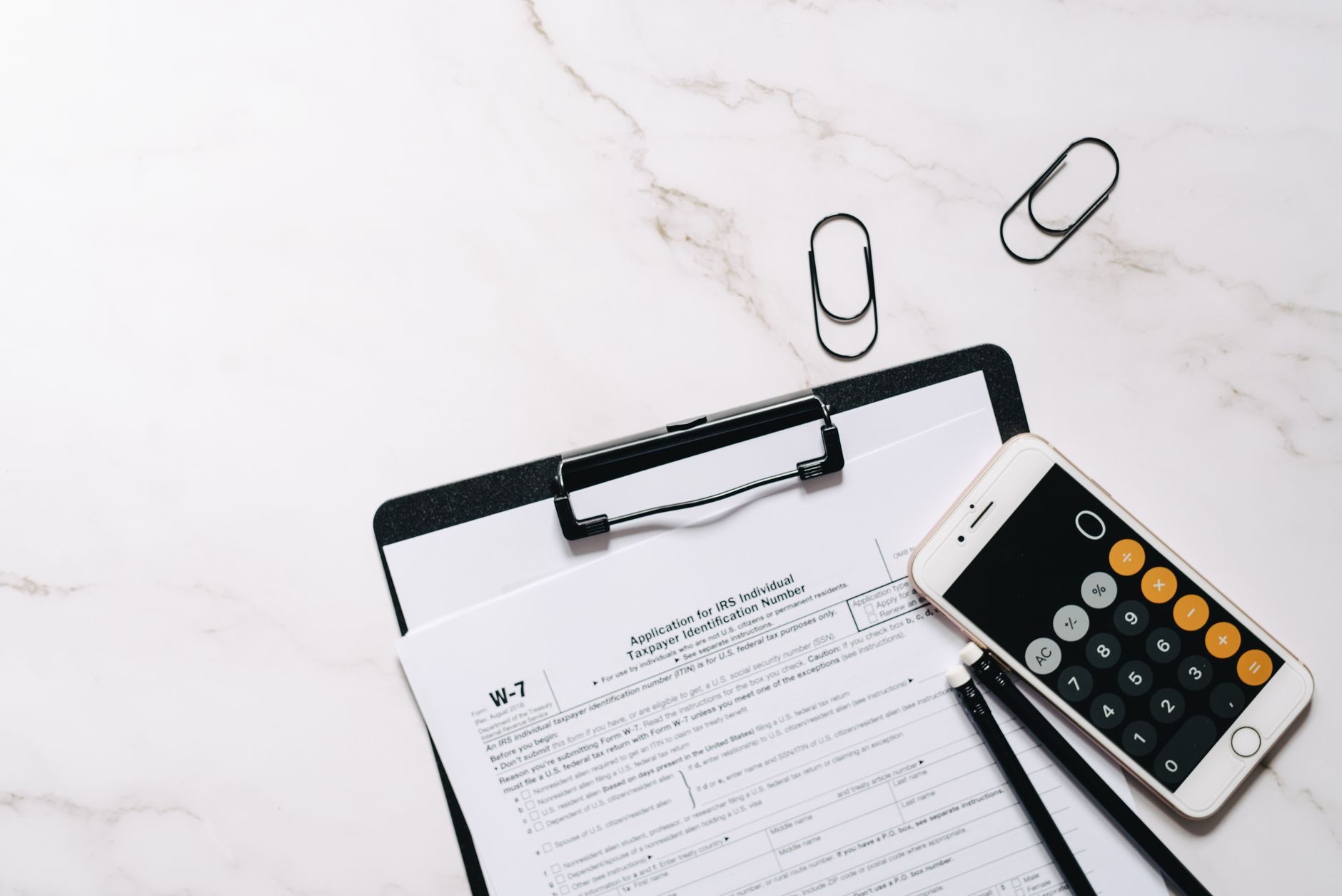
How to Get a Clean Scan
For the best results, place your document on a flat, contrasting surface with good lighting, so your iPhone can clearly detect the edges. Hold the phone steadily above the page, and let it capture automatically or take the shot. Your iPhone will straighten and crop the scan for you, producing a neat, readable page. If a scan is not quite right, you can usually adjust the corners or retake it. With a little good light and a steady hand, you will consistently get crisp, professional-looking scans every time.
Save as a PDF and Organize
Once scanned, your document can be saved as a PDF, the standard format for digital documents, which keeps it looking clean and professional and is easy to open anywhere. You can save multiple pages into a single PDF, name your files clearly, and store them where you can find them again. Building a tidy digital filing system this way means your important documents are organized, searchable, and safe, no more digging through piles of paper. Saving scans as well-named PDFs is the key to a genuinely useful paperless setup.

Sign and Share in Seconds
One of the best things about scanning on your iPhone is what you can do next. You can often sign a scanned document right on your phone, add your signature, and send it back without ever printing anything. And sharing is instant, you can email or message your scan immediately. This makes handling forms, contracts, and paperwork dramatically faster and easier, turning a task that once meant printing, signing, and scanning into a few taps. Your iPhone becomes a complete little document office in your pocket.
Go Paperless for Good
Once you get into the habit of scanning with your iPhone, you will wonder how you managed before. Receipts, letters, forms, warranties, and important papers can all be digitized, organized, and backed up, reducing clutter and making everything easy to find. Keeping digital copies also protects important documents against being lost or damaged. Combined with backing up your files, scanning turns your iPhone into a powerful tool for a tidy, paperless life. It is one of those features that quietly makes everyday tasks simpler and more organized.
| Step | What to do |
|---|---|
| Open the scan feature | Find it in Notes or Files |
| Capture the page | Hold steady over a well-lit document |
| Save as a PDF | Name it clearly and store it tidily |
| Sign and share | Sign on your phone and send instantly |
Frequently Asked Questions
How do I scan a document with my iPhone?
Use the built-in scan feature found in apps like Notes and Files. Point your camera at the document, and your iPhone detects the edges, corrects the angle, and captures a clean scan. You can then save it as a PDF, sign it, and share it, all without downloading any extra app.
Do I need an app to scan documents?
No. Your iPhone has a built-in document scanning ability that is genuinely excellent, available in apps like Notes and Files. It detects the page, straightens it, and produces a clean scan without any download or payment, turning your iPhone into a portable scanner you always have with you.
How do I get a clean, clear scan?
Place the document on a flat, contrasting surface with good lighting so your iPhone can detect the edges clearly. Hold the phone steadily above the page and let it capture. Your iPhone straightens and crops the scan automatically, and you can adjust the corners or retake it if needed for a crisp result.
Can I save my scan as a PDF?
Yes. Scanned documents can be saved as PDFs, the standard format that keeps them looking clean and opens anywhere. You can save multiple pages into a single PDF, name files clearly, and store them where you can find them, building a tidy, searchable digital filing system.
Can I sign a scanned document on my iPhone?
Often, yes. You can sign a scanned document right on your phone by adding your signature, then send it back without printing anything. This makes handling forms and contracts far faster, turning a task that once meant printing and rescanning into just a few taps on your iPhone.
Why should I scan documents with my iPhone?
It digitizes receipts, letters, forms, and important papers so they are organized, searchable, and safe, reducing clutter and protecting against loss or damage. Combined with backing up your files, scanning turns your iPhone into a powerful tool for a tidy, paperless life, making everyday paperwork simpler.
The Bottom Line
Your iPhone is a capable scanner you already carry everywhere, no extra app required. Find the scan feature in Notes or Files, capture your document over a well-lit surface, and your iPhone produces a clean, straightened scan. Save it as a well-named PDF, sign it right on your phone, and share it instantly. Get into the habit, and you will digitize receipts, forms, and important papers with ease, keeping your life tidy, paperless, and organized.
Leave a Reply