
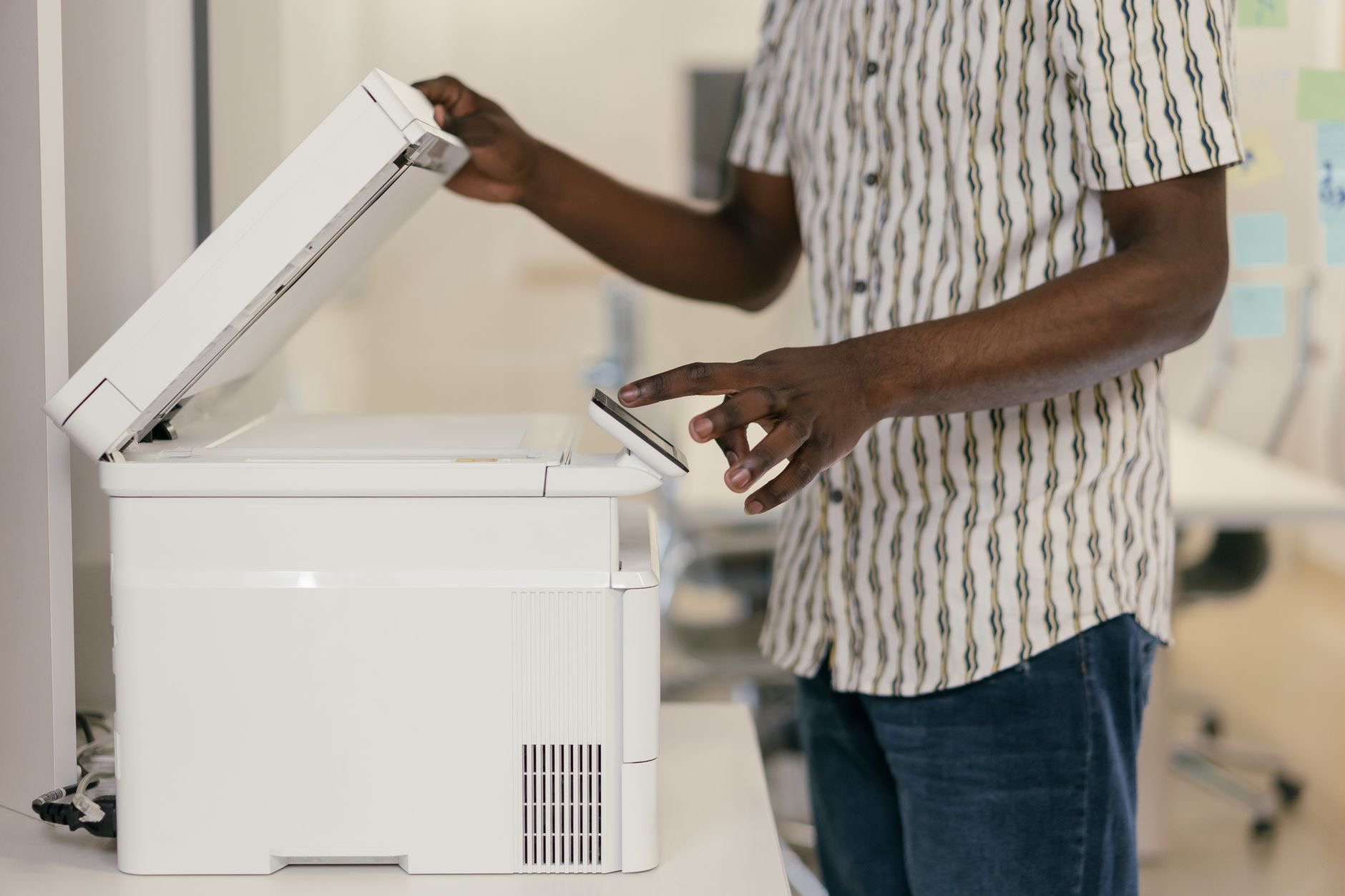
Need to print a document, photo, or email but do not want to transfer it to a computer first? You do not have to. Your iPhone can print wirelessly straight to a printer, quickly and easily. Whether it is a boarding pass, a form, or a favorite photo, printing from your iPhone is simpler than many people realize. Here is how to print from your iPhone wirelessly, so you can get things on paper without any hassle.
Printing Straight From Your iPhone
Your iPhone can send documents, photos, emails, web pages, and more directly to a compatible wireless printer, no computer required. This is wonderfully convenient, letting you print whatever you are looking at on your phone with just a few taps. Instead of emailing files to yourself or transferring them elsewhere first, you print straight from the app you are in. Once you know how, printing from your iPhone becomes a quick, everyday task, saving you time and letting you get things onto paper wherever you have a printer available.
What You Need
To print wirelessly from your iPhone, you need a compatible wireless printer that supports printing from Apple devices, and both your iPhone and the printer connected to the same network. Most modern wireless printers support this kind of printing. With your printer set up on your Wi-Fi and your iPhone on the same network, they can communicate so your phone can send print jobs to the printer. Making sure your printer is wireless-capable and on the same network as your iPhone is the foundation for easy wireless printing.
How to Print
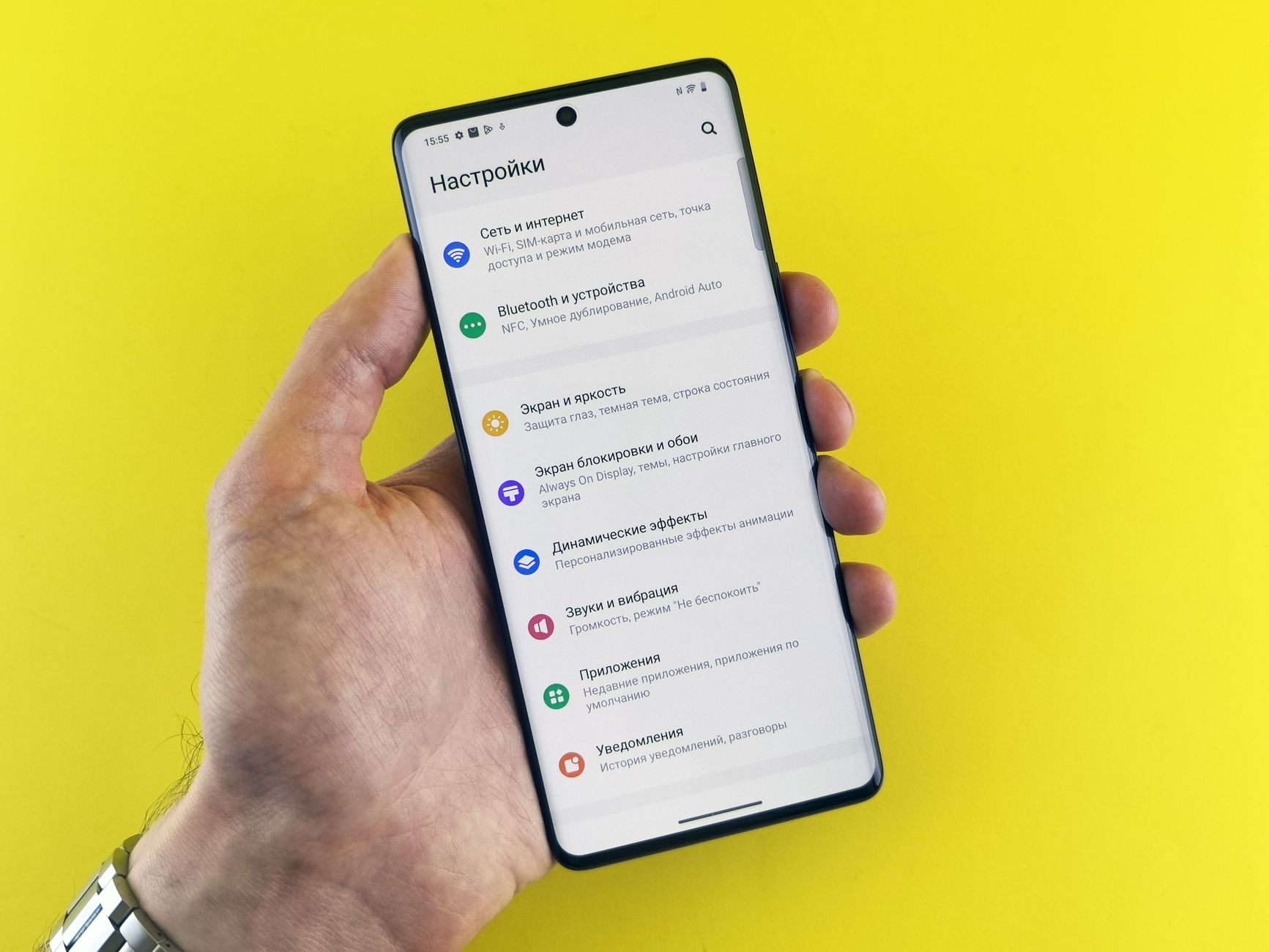
Printing from your iPhone is straightforward. When you are viewing something you want to print, a document, photo, email, or web page, you look for the share or options menu, which includes a print option. Tapping print lets you choose your printer and adjust settings before sending it. The print option is available across many apps, so you can print from wherever you are. Once you select your printer and confirm, your document is sent to print. It is a simple, consistent process that works across the apps you use every day.
Adjust Your Print Settings
Before printing, you can usually adjust settings to get the result you want. Options often include the number of copies, which pages to print, and other choices depending on what you are printing. Taking a moment to check these settings ensures you print exactly what you need, whether that is a single page, multiple copies, or a specific selection. Reviewing your print options before confirming avoids wasted paper and gets you the printout you intended, making the whole process efficient and giving you control over the final result.

If Printing Does Not Work
If your iPhone cannot find your printer or printing fails, a few checks usually help. Make sure your printer is turned on, has paper and ink, and is connected to the same network as your iPhone, since a different network is a common cause of printers not showing up. Restarting your printer and your iPhone can clear glitches, and confirming your printer supports wireless printing from Apple devices is worthwhile. Working through these basics resolves most printing problems, getting your iPhone and printer talking to each other again.
Print Anything, Anytime
Once you are comfortable printing from your iPhone, you will use it for all sorts of things, boarding passes, tickets, forms, documents, photos, and more. It removes the need to involve a computer and lets you print directly from your phone whenever you need a physical copy. With a compatible wireless printer on your network, printing becomes a quick, convenient part of using your iPhone. It is one of those capabilities that, once you start using it, makes handling everyday paperwork and photos noticeably easier and faster.
| Step | What to do |
|---|---|
| Check your setup | Wireless printer on the same network |
| Find the print option | In the share or options menu |
| Choose printer and settings | Copies, pages, and options |
| Confirm to print | Your document is sent to the printer |
Frequently Asked Questions
How do I print from my iPhone?
When viewing something you want to print, open the share or options menu and tap the print option, then choose your printer and adjust settings before confirming. This works across many apps, letting you print documents, photos, emails, and web pages directly from your iPhone wirelessly.
What do I need to print from my iPhone?
A compatible wireless printer that supports printing from Apple devices, with both your iPhone and the printer connected to the same network. Most modern wireless printers support this. With your printer on your Wi-Fi and your iPhone on the same network, they can communicate to print.
Can I print without a computer?
Yes. Your iPhone can print directly to a compatible wireless printer with no computer needed. Instead of transferring files to a computer first, you print straight from the app you are in, which is quick and convenient for documents, photos, boarding passes, and more.
Can I choose print settings?
Yes. Before printing, you can usually adjust options like the number of copies, which pages to print, and other choices depending on what you are printing. Reviewing these settings ensures you print exactly what you need and avoids wasted paper, giving you control over the final result.
Why can't my iPhone find my printer?
Often the printer is on a different network from your iPhone, which is a common cause. Make sure both are on the same network, the printer is on with paper and ink, and it supports wireless printing from Apple devices. Restarting the printer and your iPhone can also clear glitches.
What can I print from my iPhone?
All sorts of things, including documents, photos, emails, web pages, boarding passes, tickets, and forms. The print option is available across many apps, so you can print whatever you are viewing directly from your phone whenever you need a physical copy, without involving a computer.
The Bottom Line
Printing from your iPhone is easy and needs no computer. With a compatible wireless printer on the same network as your phone, you simply open the share or options menu, tap print, choose your printer, adjust the settings, and confirm. It works across the apps you use every day, letting you print documents, photos, boarding passes, and more with a few taps. If a printer does not show up, check it is on the same network, and you will be printing wirelessly in no time.
Leave a Reply