
Disclosure: Some links on this page are affiliate links. Device Review Lab may earn a small commission from qualifying purchases, at no extra cost to you. Learn more.
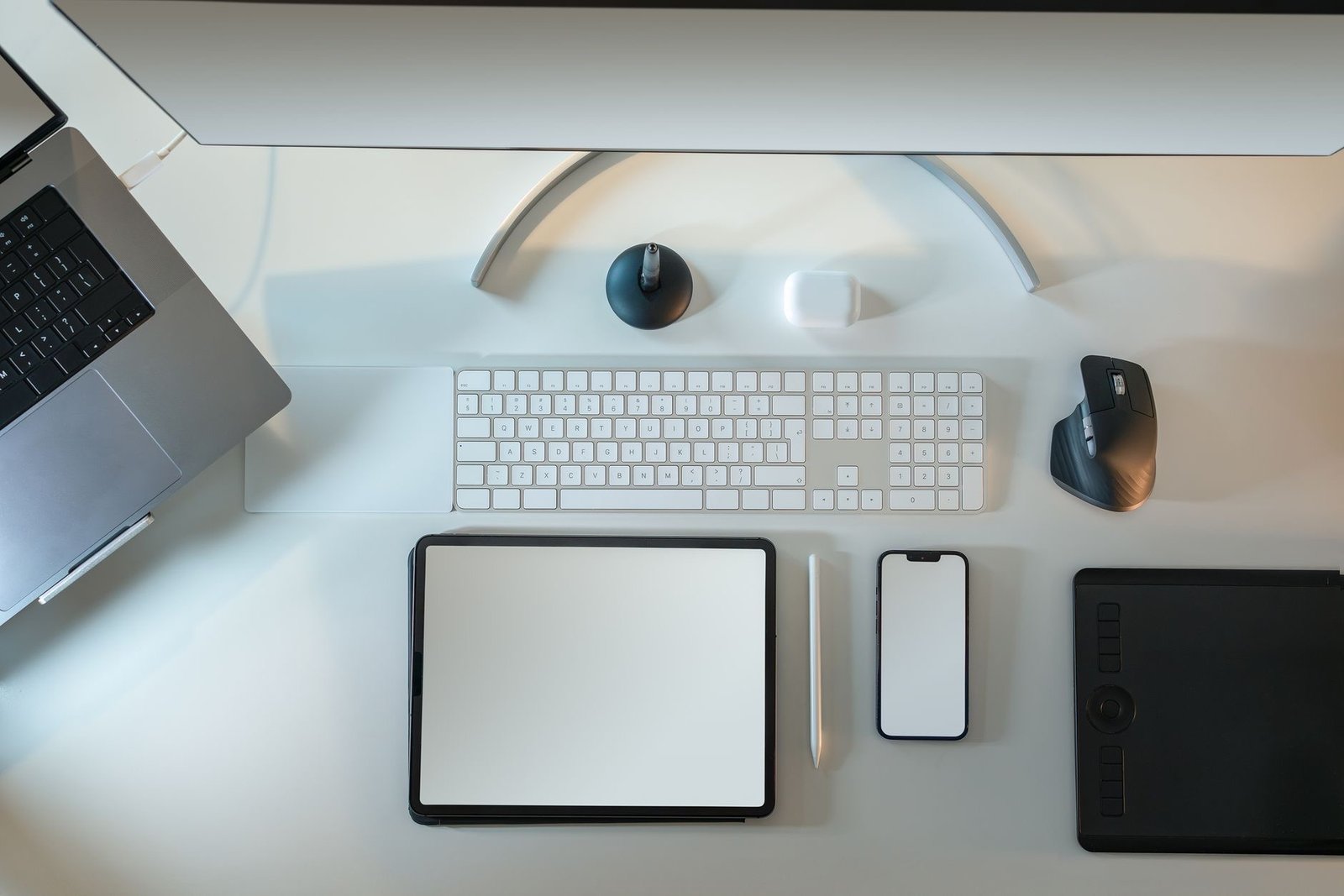
A MacBook out of the box is already excellent. The right accessories around it turn an excellent portable computer into a genuinely great workstation. The wrong accessories, which unfortunately describes a lot of what fills the category, just add clutter and expense. The accessories that actually improve how you work are usually the quiet, unsexy ones that you stop noticing because they just work every day.
Start Here: A USB-C Hub Is Non-Negotiable
Modern MacBooks have Thunderbolt ports and not much else, which is an elegant design philosophy that runs into daily reality quickly. An SD card from a camera, a USB-A drive from a colleague, a display to connect, all while charging: that requires a hub. The features that matter: HDMI output for an external display, USB-A ports for legacy devices, an SD card reader, and a USB-C passthrough so the hub charges the MacBook while occupied. A hub that runs hot, drops connections, or has unreliable HDMI output is worse than no hub because it creates unpredictable behavior at the center of your workflow. Buy from a brand with sustained positive reviews rather than chasing the lowest price here.
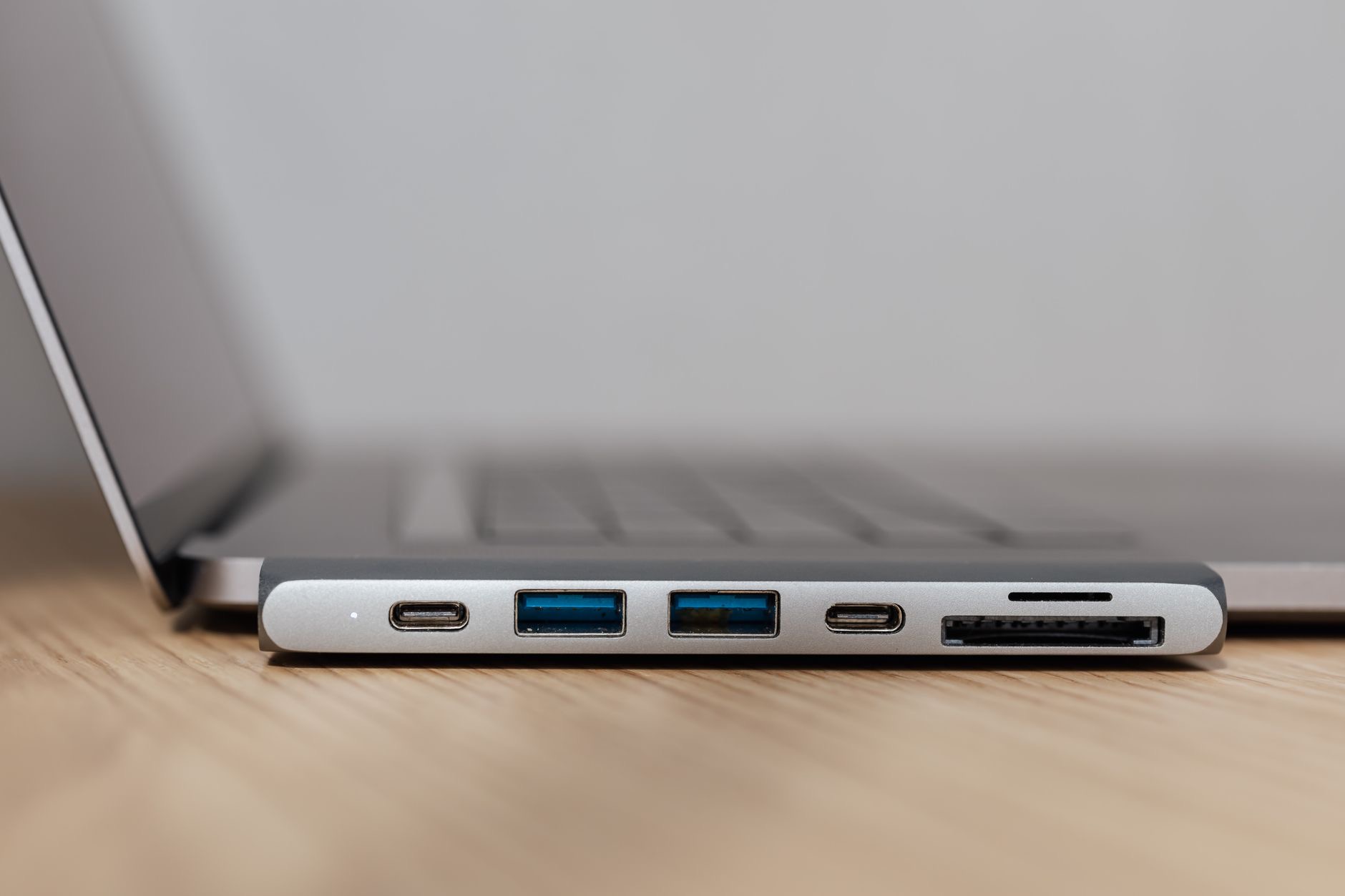
★ Editor's Pick · Amazon
USB-C Hub for MacBook
HDMI, USB-A, SD and passthrough charging
A Laptop Stand Changes Your Posture, Which Changes Your Day
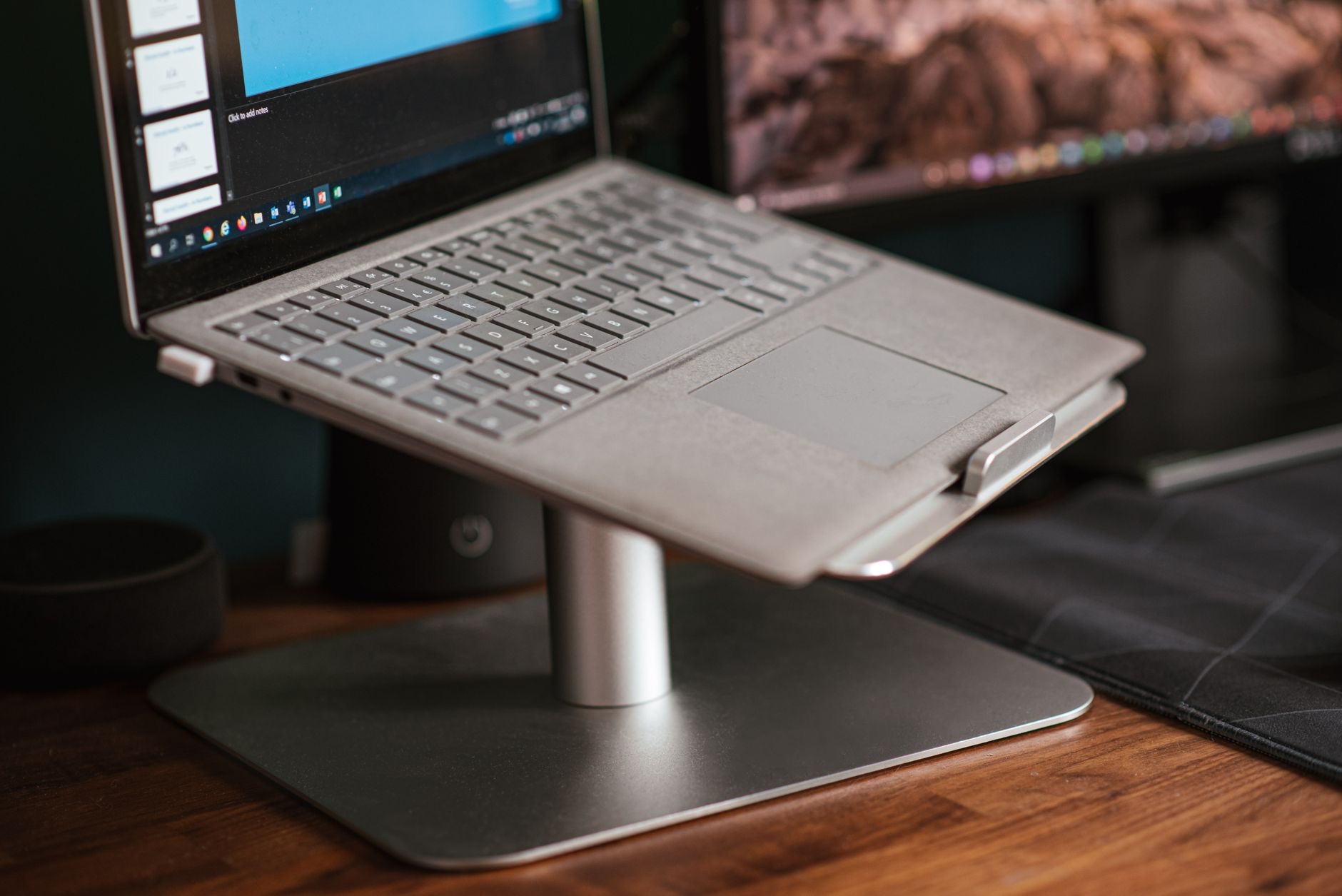
If you use your MacBook at a desk for hours without an external monitor, a laptop stand is the highest-value single purchase available. The built-in physics of a laptop mean the screen sits below eye level, which means your neck angles down all day. Raised to eye level, the difference in comfort over a long day is immediate and significant. Combine the stand with an external keyboard and you have a setup ergonomically equivalent to a desktop. Folding aluminum risers are the most practical: compact, stable, dissipate heat from under the MacBook, and position the screen at a much better angle. Buy the stand before you buy almost any other MacBook accessory.
★ Editor's Pick · Amazon
Aluminum Laptop Stand
The single best posture upgrade
An External Keyboard: The Stand Makes It Necessary
Once the MacBook is on a stand, the built-in keyboard is at chest height. An external keyboard at desk level completes the ergonomic picture. Apple's Magic Keyboard pairs instantly and matches the built-in typing feel. Third-party mechanical keyboards offer more pronounced keystroke feedback that some people strongly prefer for heavy writing. The primary decision is compact versus full-size with a numpad. For most people transitioning from the built-in layout, compact feels immediately familiar and takes up less desk space. Full-size layouts with numpads are better for anyone doing significant spreadsheet or numerical work. Either way, a Bluetooth keyboard means no cables and instant pairing.
A Wireless Mouse for When the Trackpad Is Not Enough
The MacBook trackpad is genuinely excellent and many people never feel the need for a mouse. For precision tasks like detailed photo editing, illustration work, or navigating complex documents, a mouse gives more control and is easier on the hand over long sessions. Apple's Magic Mouse supports gesture scrolling on its touch surface. For people who find Apple's flat design uncomfortable, ergonomic wireless mice that give the hand a more natural resting position are widely available and pair just as easily. Wireless means no cable management issue on the desk, which keeps the setup cleaner and calmer to work at.
★ Editor's Pick · Amazon
Wireless Mouse for Mac
Precision and comfort for long sessions
External Storage for Tight-Storage Models
MacBooks with 256 GB of internal storage benefit enormously from a fast portable SSD. Modern portable drives in the 500 GB to 2 TB range are barely larger than a thumb drive, are fast enough to work directly from for most tasks including photo editing, and cost far less than upgrading the built-in storage would. The key spec is interface: USB-C drives are fast enough for most uses; Thunderbolt drives are considerably faster but cost more. For project files, photo archives, and media libraries, a USB-C SSD at a reasonable price point is the smarter buy for most people.
A Monitor: When MacBook Becomes Desktop
Adding an external monitor to a MacBook-on-stand setup creates a practical desktop workstation that uses the laptop for all computing power. The monitor provides the screen area; the MacBook provides everything else. Almost any modern USB-C or HDMI monitor connects via the hub. For desk use, 27 inches tends to be the sweet spot for screen real estate without being overwhelming. Resolution choice matters based on task: 1080p is entirely comfortable for documents and browsing; 4K becomes meaningful for photo work, design, and anyone who values crisp text at normal scaling. The setup is considerably more affordable than a dedicated desktop and delivers similar productivity gains.
Cable Management: Underrated and Inexpensive
A desk with cables trailing everywhere is subtly stressful to work at, and the stress is more real than it sounds because visual clutter competes for attention. A few inexpensive items make a significant difference: adhesive cable clips routed along the desk edge, a cable management tray under the desk for the power strip, and a single magnetic cable holder on the desk surface for the charger cable. The total cost is minimal and the cumulative effect on desk calm and focus is larger than it looks in a product photo. Cables organized once tend to stay organized with no ongoing effort, which is exactly the kind of low-maintenance improvement that compounds over years of daily use.
A Quality Webcam for Video Calls From a Stand Setup
When the MacBook is on a stand, the built-in camera is at eye level, which is actually a good angle for video calls. If you close the MacBook and run it in clamshell mode with the lid shut, the built-in camera is no longer available and an external webcam becomes necessary. A webcam mounted on top of an external monitor gives a natural eye-level angle and often better image quality in challenging lighting conditions than the built-in camera. For people who are on video calls frequently and present professionally matters, a dedicated webcam is a reasonable investment. For most general use, the built-in camera works fine when the MacBook is not in clamshell mode.
Audio Upgrade: Headphones or a Desktop Speaker
MacBook speakers have improved meaningfully in recent years but they are still constrained by the chassis. For listening to music while working, calls, or watching video at a desk, external audio noticeably improves the experience. AirPods connect instantly via the Apple account and are excellent for both calls and music. A compact Bluetooth speaker on the desk is a good option for people who prefer listening through speakers when working alone. For calls specifically, any earbuds or headset with a microphone produce dramatically better audio for the other person than the MacBook microphone from across a desk, which tends to pick up keyboard and room noise in ways you do not notice but callers do.
What to Skip
Several categories of MacBook accessories sell well but rarely deliver real value. Cooling pads for MacBooks are rarely needed since the thermal management handles normal loads well and fans barely spin under everyday use. Premium cables with minimal real-world performance difference over quality standard cables are a poor value. RGB desk lighting adds aesthetics but distracts from work more than it improves it for most people. The best accessories are invisible: they solve a specific daily friction point and then get out of the way. Spend on a hub, stand, and keyboard before any of the aesthetic upgrades.
| Accessory | Priority | Who Needs It Most |
|---|---|---|
| USB-C Hub | Essential | Anyone with external devices |
| Laptop Stand | High | Anyone at a desk for hours |
| External Keyboard | High (pairs with stand) | Desk users |
| Wireless Mouse | Medium | Precision work, designers |
| External SSD | Medium | Base storage models |
| External Monitor | High for desk-primary use | Office and home workers |
Frequently Asked Questions
Will a USB-C hub slow my MacBook down?
A quality hub does not slow the MacBook itself. Data transfer on the hub's USB-A ports is limited by those ports' rated speeds, not the MacBook. A cheap hub can introduce connection drops or unreliable display output. For day-to-day tasks including charging, peripherals, and display output, any reasonable quality hub works fine.
Do I need Thunderbolt or will USB-C work?
For most people, USB-C is sufficient. You get HDMI, USB-A, SD card, and passthrough charging. Thunderbolt hubs support multiple 4K displays and higher-speed external storage, but cost considerably more. Only go Thunderbolt if your specific workflow genuinely demands that bandwidth.
Can I use a Windows keyboard with a Mac?
Yes. Any USB or Bluetooth keyboard works. The Windows key functions as Command, and Alt functions as Option. Key remapping is available in System Settings if the layout bothers you. Many people use Windows keyboards on Macs daily with no issues.
How much external SSD storage do I need?
It depends on what you store. 500 GB handles most project files and a substantial photo library. 1 TB is comfortable for video work or large archives. Buy more than you think you need since storage fills faster than expected, and drives hold their price well enough that buying capacity now is better than running out later.
Do MacBook accessories need to be Apple branded?
No. Third-party accessories work well and often offer better value. Apple's advantage is seamless pairing and guaranteed compatibility. Quality third-party brands from established names perform comparably for daily use at lower prices.
Is an external monitor worth it over a larger laptop screen?
For desk-based work, yes. A monitor at eye level on a stand gives more screen area, better posture, and a more comfortable long-session experience than even a large laptop screen at desk height. The economics work in your favor too: a mid-range monitor plus a MacBook Air is often cheaper than upgrading to a larger MacBook Pro.
Our Honest Take
A hub and a stand bought together make the largest single improvement to any MacBook desk setup and cost less than most people expect. Everything else builds from there. Start with the one accessory that addresses your biggest daily friction point, use the setup for a month, and add the next piece based on what you actually find yourself wishing for. That approach consistently results in a more genuinely useful setup than buying everything from a checklist at once.
Leave a Reply