
You go to connect your earbuds, your car, or your speaker, and nothing happens. The device will not show up, will not pair, or keeps dropping the moment you start. It is one of the most maddening little tech problems there is, precisely because it feels so random. Here is the good news: Bluetooth trouble on an iPhone is almost always a quick, free fix. Based on the most common causes and widely reported solutions, these steps will have you connected again in minutes. Let us start with the simplest.
First, the Thirty-Second Fix
Before anything else, try the move that solves a startling number of Bluetooth problems on its own: turn Bluetooth off, wait a few seconds, and turn it back on. This clears the most common temporary glitch instantly. While you are there, make sure Bluetooth is actually switched on and that Airplane Mode is off, since that disables it entirely. It sounds almost too simple, but this single toggle fixes so many connection issues that it is always worth doing first.
1. Restart Your iPhone and the Device
If a quick toggle does not do it, restart both your iPhone and whatever you are trying to connect to, your earbuds, speaker, or car system. Turn the iPhone off and on, and reset the other device too. A huge share of Bluetooth problems live on the accessory's side, not the phone's, so restarting both clears glitches at both ends. This pairing of restarts is one of the most reliable fixes for a connection that simply will not cooperate.
2. Make Sure the Device Is in Pairing Mode
An iPhone can only connect to a Bluetooth device that is actively ready to pair, and many accessories drop out of pairing mode after a short while. If your earbuds or speaker are not appearing in your list, put them back into pairing mode, usually by holding a button until a light flashes, then look again. It is easy to assume the iPhone is at fault when the accessory simply was not ready. Getting the device into pairing mode is often the whole solution.
3. Check the Battery on Both Sides
Bluetooth devices behave strangely when their battery is low, refusing to connect or dropping out constantly. Make sure the accessory is properly charged before you blame anything else, since a nearly flat pair of earbuds or speaker is a very common cause of connection trouble. The same goes for your iPhone in extreme cases. Charging both up first rules out one of the simplest explanations and sometimes makes the problem vanish entirely.
4. Forget the Device and Re-Pair It
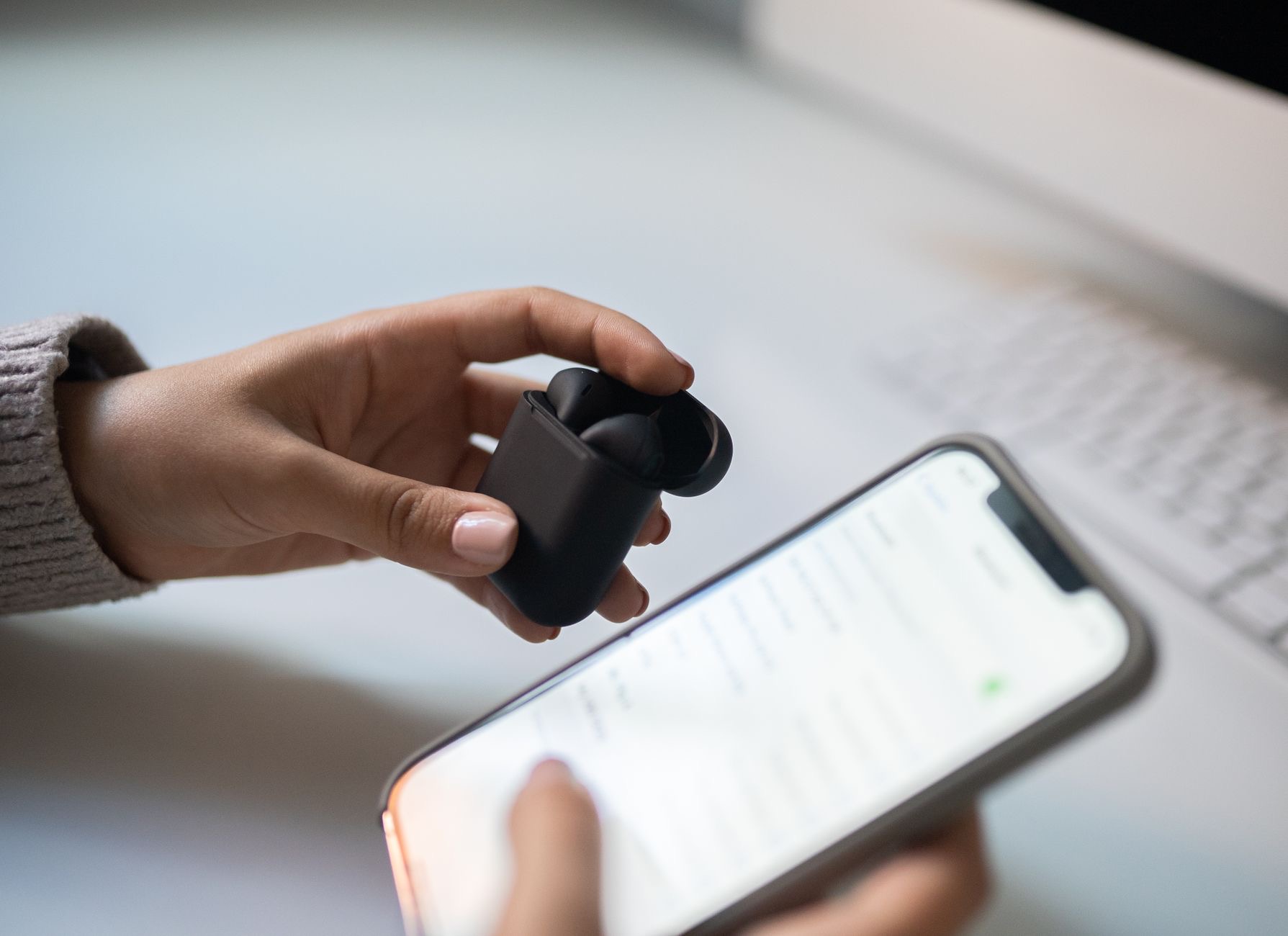
If a device used to connect fine and now will not, a corrupted saved connection is often to blame. The fix is to forget it and start fresh. In your Bluetooth settings, tap the device, choose to forget it, then put the accessory into pairing mode and connect it again from scratch. This wipes the stale, faulty pairing and builds a clean one, which resolves a whole category of "it just stopped working" problems that no amount of toggling would clear.
5. Move Away From Interference
Bluetooth is a short-range signal, and it can be disrupted by distance, walls, and other wireless gadgets crowding the airwaves. If your connection keeps dropping, move the iPhone and the device closer together, and away from things like microwaves, crowded Wi-Fi routers, and lots of other Bluetooth devices. Sometimes a flaky connection is not a fault at all, just a congested or weak signal, and simply closing the gap between the two devices steadies it right up.
6. Reset Network Settings as a Last Resort
For stubborn cases that survive everything else, resetting your iPhone's network settings clears tangled Bluetooth, Wi-Fi, and cellular configurations without deleting your photos or apps. You will need to reconnect your Bluetooth devices and Wi-Fi networks afterward, which is a minor chore for a reliable fix. Save this for when toggles, restarts, and re-pairing have all failed, but know that it often clears the deep glitches that simpler steps cannot reach, restoring Bluetooth to normal.
When the Problem Is the Accessory
Here is something worth remembering: if your iPhone connects fine to other Bluetooth devices but not to one specific accessory, the problem is almost certainly that accessory, not your phone. Test a different device to confirm. If only one gadget refuses to connect, troubleshoot or update that device, since the iPhone is clearly working. For AirPods specifically, our AirPods won't connect guide goes deeper, and if your wider connectivity is acting up, our iPhone Wi-Fi guide may help too.
| Symptom | Most likely fix |
|---|---|
| Device won't appear | Put it in pairing mode, toggle Bluetooth |
| Used to connect, now won't | Forget the device and re-pair it |
| Keeps dropping out | Charge it, move closer, reduce interference |
Quick Answers
Why is Bluetooth not working on my iPhone?Usually a temporary glitch, a device not in pairing mode, a low battery, or a corrupted saved connection. Toggling Bluetooth, restarting both devices, and re-pairing fix most cases.
How do I reset Bluetooth on my iPhone?Turn Bluetooth off and back on for a quick reset. For stubborn problems, reset your iPhone's network settings, which clears Bluetooth, Wi-Fi, and cellular configurations.
Why won't my iPhone find my Bluetooth device?The device is probably not in pairing mode, or its battery is low. Put it into pairing mode by holding the right button until a light flashes, then look again.
Why does my Bluetooth keep disconnecting?Often a low battery on the accessory, distance, or interference from other wireless devices. Charge it, move closer, and reduce nearby interference.
How do I fix a device that used to connect but won't now?Forget it in your Bluetooth settings, then put it in pairing mode and connect fresh. This clears a corrupted saved connection that blocks reconnecting.
Is it my iPhone or the accessory?If your iPhone connects to other Bluetooth devices fine, the problem is the specific accessory. Test another device to confirm, then troubleshoot that gadget.
Why Car Bluetooth Is Especially Finicky
If your Bluetooth woes are specifically with your car, you are in good company, because car systems are among the most temperamental Bluetooth partners out there. Vehicle infotainment systems vary wildly in how well they handle Bluetooth, and many are slow to connect, prone to dropping, or fussy about pairing. If your iPhone connects to everything except your car, the car's system is almost certainly the weak link, not your phone. The usual fixes still apply, delete the pairing on both the phone and the car and start fresh, restart both, and make sure the car is in pairing mode, but you may also need to update the car's software if that is available. Some cars simply pair more reliably than others, and a stubborn vehicle connection is rarely something wrong with your iPhone. So if the car is the only trouble spot, focus your efforts on the car's settings rather than worrying about your phone.
The Honest Bottom Line
Bluetooth problems on an iPhone look random but almost always have a simple cause. Toggle Bluetooth off and on, restart both devices, make sure the accessory is in pairing mode and charged, and forget and re-pair anything that used to work. Move closer to cut interference if it keeps dropping.
And if only one device refuses to connect, the accessory is the culprit, not your phone. Which fix got you reconnected? Tell me in the comments and I will help with anything that lingers.
Leave a Reply