
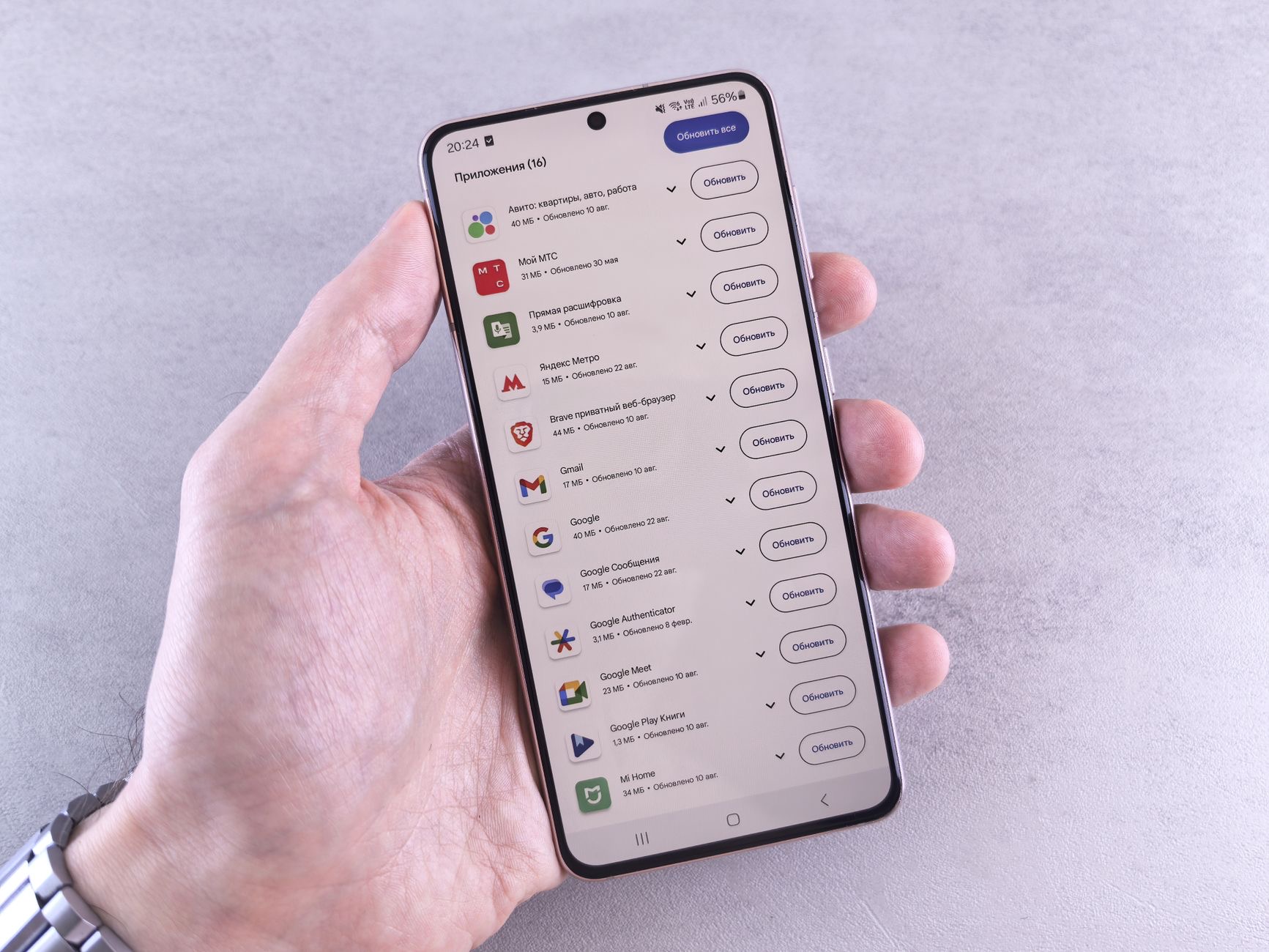
There is a special kind of frustration in tapping that update button and watching your iPhone do absolutely nothing. Maybe it is frozen on "preparing update," maybe it throws an error, maybe the option will not even appear. Take a breath, because here is the reassuring part: an iPhone that refuses to update is almost always an easy fix. Based on the most common causes and Apple's own guidance, a few simple steps usually get things moving again within minutes. Let us walk through them, easiest first.
Why Updates Get Stuck
Before we start fixing, it helps to know what usually goes wrong, because the cause points straight to the cure. An update needs three things: enough free storage, a stable internet connection, and enough battery or a charger. If any one of those is missing, the update stalls. Add the occasional software hiccup, and you have covered the reason behind the vast majority of stuck updates. None of these are serious, and all of them are quick to sort out.
1. Check Your Storage First
This is the number one reason updates fail, and the one people overlook most. Updates need a chunk of free space to download and install, and if your iPhone is nearly full, it simply cannot proceed. Pop into your storage settings and see how much room you have. If it is tight, clear out some large videos, unused apps, or old downloads to make space, then try again. Freeing up storage alone fixes a huge number of stubborn updates, so always start here.
2. Make Sure You Are on Stable Wi-Fi
Updates download over the internet, and a weak or dropping Wi-Fi connection will stall them every time. Confirm you are connected to a reliable network, ideally close to your router, and test it by loading a web page. If your connection is patchy, that is very likely your culprit. Moving closer to the router, or switching to a stronger network, often gets a frozen download flowing again. A solid connection is half the battle with any update.
3. Plug It In and Be Patient
Your iPhone may refuse to update on a low battery to protect itself, so plug it into a charger before you start. And once an update is genuinely underway, give it time, large updates can sit on a progress screen for a while, and interrupting one can cause real problems. If you see a progress bar inching along, leave it be. Patience plus a charger resolves more "stuck" updates than people realize, because the phone was simply working away quietly all along.
4. Restart Your iPhone and Try Again
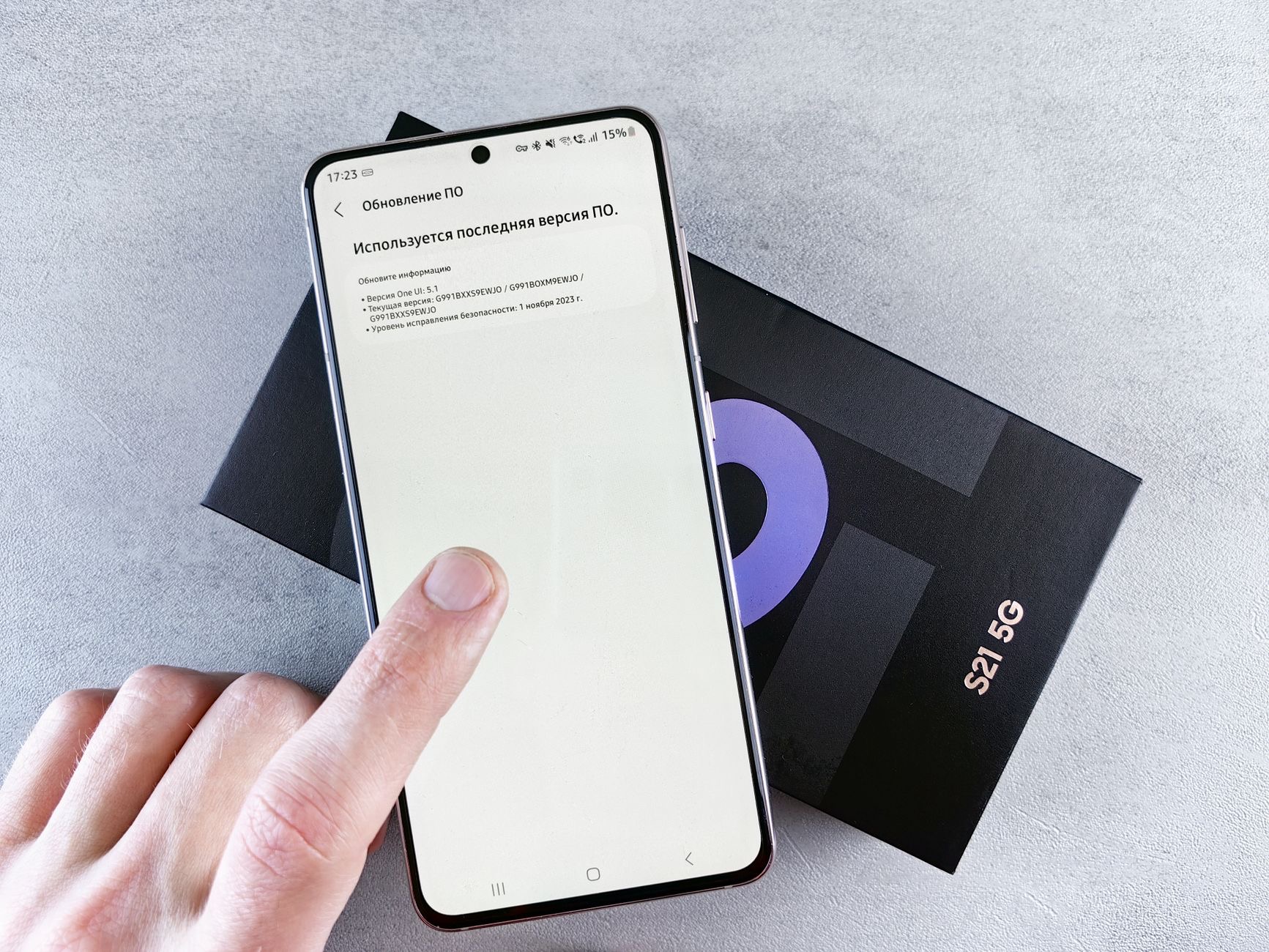
If storage, connection, and power all check out, a simple restart clears the temporary glitches that block updates. Turn your iPhone off, wait a few seconds, turn it back on, and head back to the update screen. This classic reset often shakes loose whatever was jamming the process. It is quick, it is safe, and it succeeds surprisingly often, so it is always worth trying before you reach for anything more involved.
5. Delete the Update and Re-Download It
Sometimes the update file itself downloads incorrectly and gets stuck, no matter how many times you retry. The fix is to delete that corrupted file and start fresh. In your storage settings, find the downloaded update in your list of apps and data, remove it, then go back and download the update again from scratch. A clean re-download frequently succeeds where a damaged file kept failing, and it is a neat trick that solves a whole category of "stuck on preparing" problems.
6. Update Through a Computer
If the over-the-air update simply will not cooperate, you can sidestep it entirely by updating through a computer. Connect your iPhone, open the relevant app, and choose to update from there. This method bypasses many of the on-device problems that block a wireless update, and it is the reliable fallback when nothing else works. It is also handy if your iPhone is too full to download the update directly, since the computer handles the heavy lifting instead.
When It Is Worth Getting Help
If you have freed up space, confirmed your Wi-Fi, charged the phone, restarted it, re-downloaded the update, and tried a computer, and it still will not update, something deeper may be going on, occasionally a software fault or, on much older models, hardware that no longer supports the latest version. At that point, it is worth contacting Apple support. Before you do, make sure you have a recent backup, as we cover in our guide to backing up your iPhone, and if the phone is frozen on the logo, our stuck on Apple logo guide can help.
| Symptom | Most likely fix |
|---|---|
| "Unable to install" or no space | Free up storage |
| Stuck on "preparing update" | Restart, or delete and re-download |
| Download keeps failing | Check Wi-Fi, or update via computer |
Quick Answers
Why won't my iPhone update?Usually not enough free storage, a weak Wi-Fi connection, or a low battery, sometimes paired with a software glitch. Freeing up space, connecting to stable Wi-Fi, charging, and restarting fix most cases.
How much storage do I need to update?Updates need a fair chunk of free space to download and install. If your iPhone is nearly full, clear out large videos, unused apps, and old downloads, then try again.
Why is my update stuck on "preparing update"?Often a glitchy or corrupted download. Restart your iPhone, and if it persists, delete the downloaded update in your storage settings and download it fresh.
Should I wait if the update bar is moving?Yes. Large updates can sit on a progress screen for a while. If the bar is inching along, leave it, since interrupting an update in progress can cause problems.
Can I update my iPhone using a computer?Yes, and it is a reliable fallback. Connect the iPhone to a computer and update from there, which bypasses many on-device problems that block a wireless update.
What if nothing works?Make sure you have a recent backup, then contact Apple support. Very old models may also simply no longer support the latest version, which is normal.
What If the Update Option Won't Even Appear?
Sometimes the problem is not that an update fails, but that the option to update does not show up at all, which is its own kind of puzzling. There are a few innocent explanations. Your iPhone may already be on the latest version available to it, in which case there is simply nothing to install. Or your particular model may have reached the end of its update road, since older iPhones eventually stop receiving the newest versions, which is normal rather than a fault. It is also worth pulling down to refresh the update screen, or restarting the phone, in case it just had not checked recently. If none of that reveals an update, your iPhone is very likely already as current as it can be, and that is perfectly fine. Not seeing an update is far more often good news, you are up to date, than a sign that something is broken.
The Honest Bottom Line
An iPhone that will not update is rarely a real problem. Nine times out of ten it comes down to storage, Wi-Fi, or battery, so free up space, get on a solid connection, plug it in, and restart. If the file is stuck, delete it and re-download, or update through a computer as your reliable fallback.
Work through these in order and you will almost certainly be on the latest version before long. Which step got yours updating? Tell me in the comments and I will help with anything stubborn.
Leave a Reply