
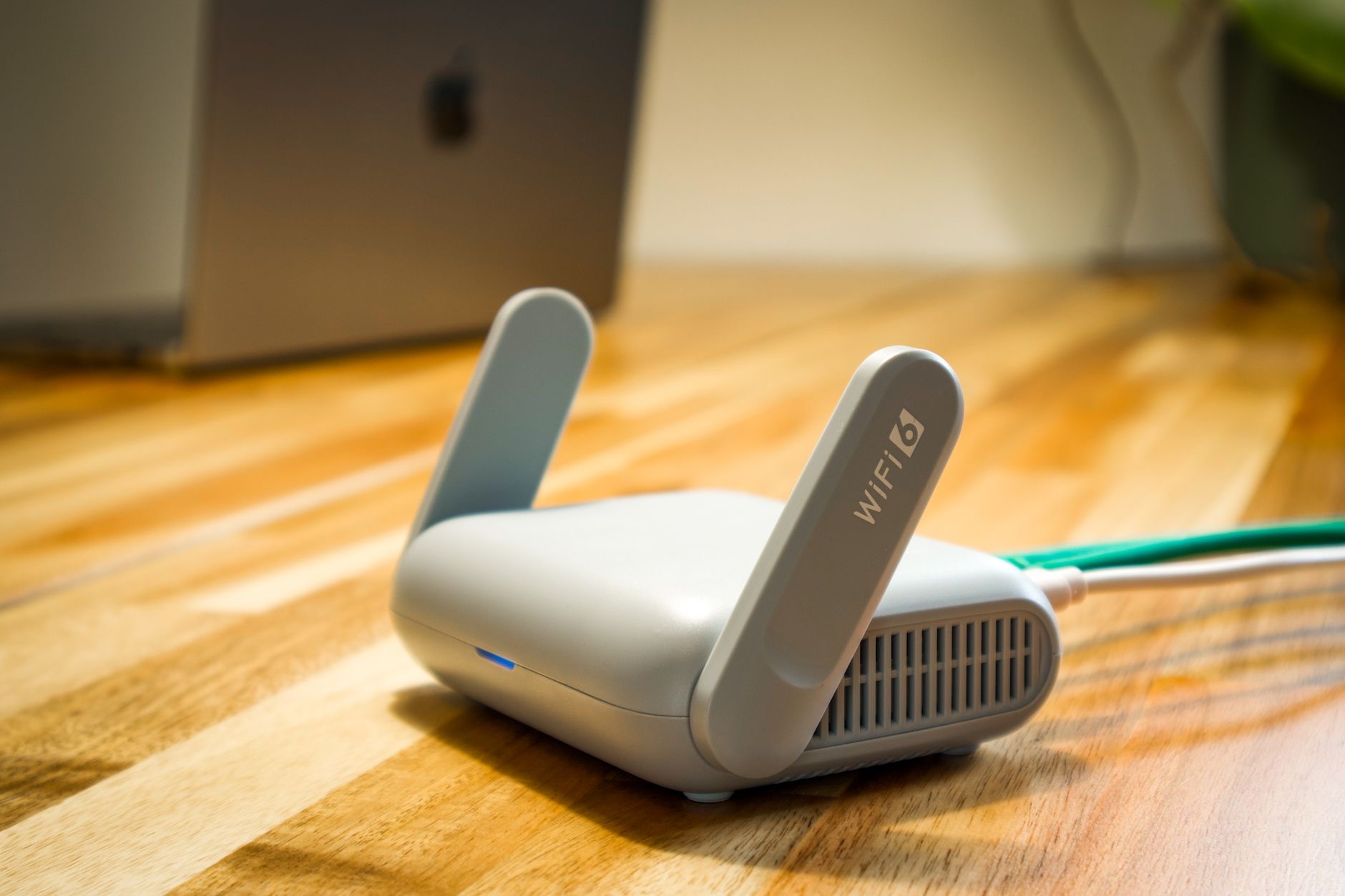
An iPhone that will not connect to Wi-Fi, or that connects but has no internet, is one of the most common and frustrating problems there is. The good news, based on the most frequent causes and widely reported fixes, is that it is almost always a quick settings or connection issue rather than a fault. Work through these fixes in order, from the simplest, and your iPhone will very likely be back online within a few minutes.
First, Pin Down Where the Problem Is
Before fixing your iPhone, work out whether the problem is the phone or the network. Can other devices connect to the same Wi-Fi? If nothing in your home can get online, the issue is your router or internet, not your iPhone. If only your iPhone struggles while other devices are fine, the problem is on the phone. This quick check saves you a lot of time, since the fix is completely different depending on where the fault actually lies.
1. Toggle Wi-Fi Off and On
The simplest fix clears the most common glitch. Turn Wi-Fi off in your settings or control center, wait a few seconds, and turn it back on. This refreshes the connection and resolves a surprising share of cases where the iPhone simply will not join or stay on the network. While you are there, make sure Airplane Mode is off, since it disables Wi-Fi entirely and is an easy thing to leave on by accident after a flight or to save battery.
2. Restart Your iPhone and Router
If toggling Wi-Fi does not help, restart both your iPhone and your router. Turn the phone off and on, and unplug the router for thirty seconds before plugging it back in. A huge number of Wi-Fi problems are solved by restarting the router, which clears glitches on the network side, while restarting the iPhone clears them on the phone. Doing both is one of the most reliable fixes for an iPhone that will not connect or has no internet despite showing a connection.
3. Forget the Network and Reconnect
A corrupted or outdated saved network often causes connection problems. In your Wi-Fi settings, tap the network, choose to forget it, then reconnect by selecting it again and re-entering the password. This wipes the stored, possibly faulty network details and creates a fresh connection, which resolves cases where the iPhone repeatedly fails to join a network it used to connect to fine. It is a quick step that fixes many stubborn, network-specific problems.
4. Check the Wi-Fi Password and Network
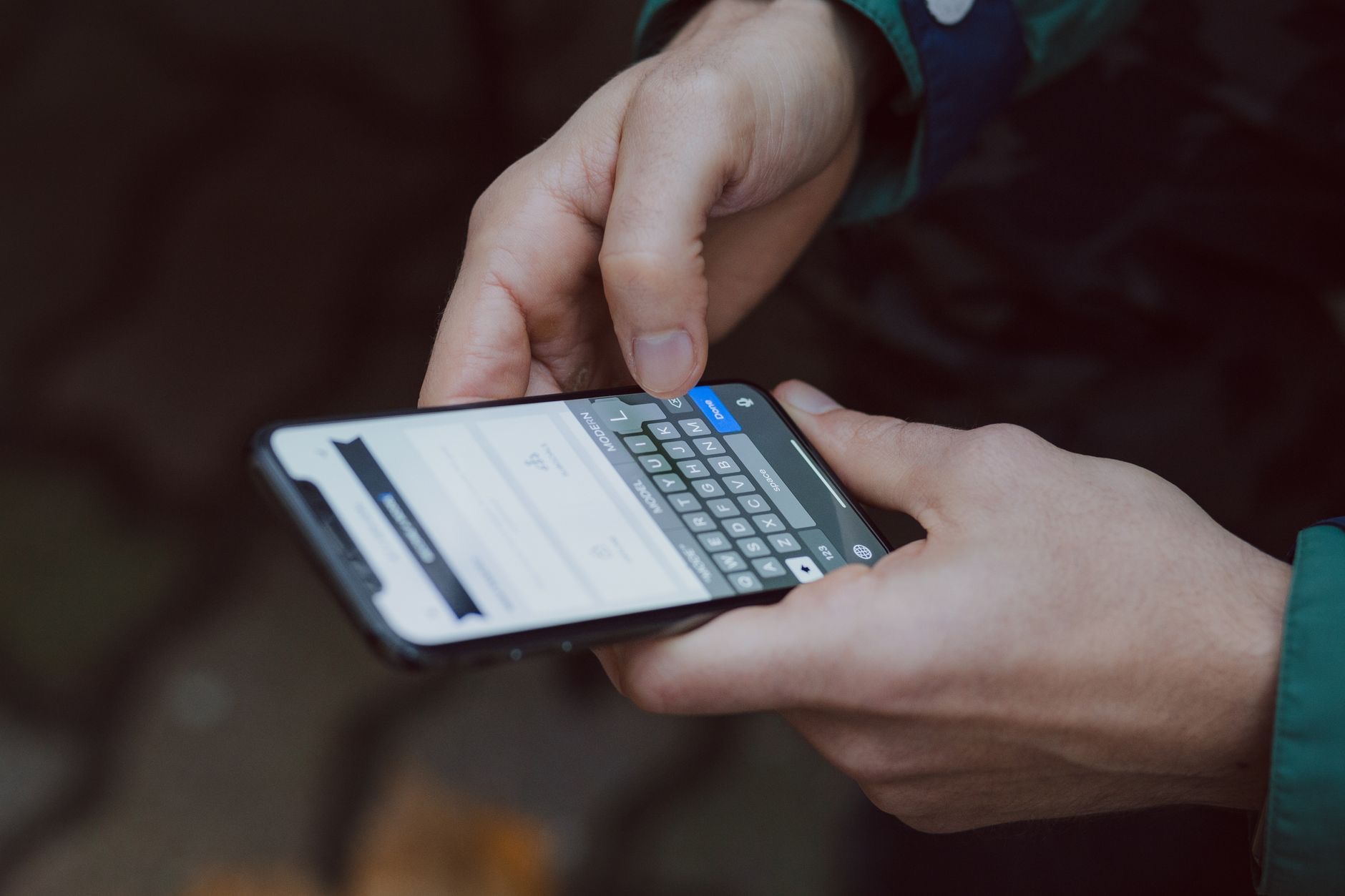
It sounds basic, but make sure you are connecting to the right network and entering the correct password, which is case-sensitive. If the password was recently changed, your iPhone may be trying the old one. Also confirm you are in range of the router, since a weak signal causes drops and failures. Moving closer to the router, or ruling out that you are accidentally trying to join a neighbor's or a public network, resolves more problems than people expect.
5. Turn Off Wi-Fi Assist and VPNs
Certain settings can interfere with a Wi-Fi connection. A VPN or content blocker can sometimes stop pages loading even when Wi-Fi is connected, so try turning these off temporarily to see if the connection works. If you can connect to Wi-Fi but have no internet specifically, a VPN or a misconfigured network setting is a likely culprit. Disabling these temporarily helps you isolate whether the connection itself is fine and something else is blocking your access to the internet.
6. Update Your Software
Outdated software causes bugs, and Wi-Fi problems are a common symptom. Check for and install any available software update, since Apple regularly fixes connectivity glitches. If your Wi-Fi trouble began after you had been delaying updates, an update is often exactly what it needs. Keeping your iPhone current resolves existing problems and prevents future ones, so it is always worth checking when the quicker fixes have not solved a persistent connection issue.
7. Reset Network Settings
For stubborn cases that survive everything else, resetting your iPhone's network settings clears tangled Wi-Fi, Bluetooth, and cellular configurations that can block a connection, without deleting your photos or apps. You will need to reconnect to your Wi-Fi networks and re-enter passwords afterward, a minor inconvenience for a reliable fix. Treat this as a near-last resort, after toggles and restarts have failed, but know it often resolves the deep connection glitches that no simpler step can reach.

When the Problem Is Your Internet, Not the iPhone
If no device in your home can connect, or everything is slow, the issue is your router or internet service, not your iPhone, and no amount of phone fixes will help. Restart your router, check that your internet service is working, and contact your provider if the outage persists. It is worth ruling this out early so you do not waste time troubleshooting a phone that is working perfectly. For broader iPhone slowdowns once you are back online, see our slow iPhone guide, and for messaging trouble our iMessage fix guide.
| Symptom | Likely fix |
|---|---|
| Won't join the network | Toggle Wi-Fi, forget and reconnect |
| Connected but no internet | Restart router, disable VPN |
| No device can connect | It's your router or internet, not the phone |
Quick Answers
Why won't my iPhone connect to Wi-Fi?Usually a temporary glitch, a wrong password, a corrupted saved network, or a router issue. Toggling Wi-Fi, restarting the phone and router, and forgetting the network fix most cases.
My iPhone connects to Wi-Fi but has no internet, why?Often a router glitch, a VPN, or a network setting. Restart your router, disable any VPN, and if no device can get online, the problem is your internet, not the phone.
How do I forget a Wi-Fi network?In Wi-Fi settings, tap the network and choose to forget it, then reconnect by selecting it again and re-entering the password. This clears corrupted saved details.
Will resetting network settings help?Often, for stubborn cases. It clears tangled Wi-Fi, Bluetooth, and cellular configurations without deleting your photos or apps. You will need to re-enter Wi-Fi passwords afterward.
Is the problem my iPhone or my router?Check if other devices can connect. If none can, it is your router or internet. If only your iPhone struggles, the problem is on the phone.
Could a VPN stop my Wi-Fi working?Yes. A VPN or content blocker can prevent pages loading even when Wi-Fi is connected. Turn it off temporarily to test whether it is the cause.
Public Wi-Fi and Sign-In Pages
If your iPhone connects to a public or hotel Wi-Fi network but the internet does not work, the cause is often a sign-in page you have not completed. Many cafés, hotels, airports, and public networks require you to agree to terms or log in through a web page before they let you online, and until you do, the connection looks active but nothing loads. Usually this sign-in page pops up automatically when you join, but if it does not, try opening a web browser and visiting any site, which often triggers it to appear. Completing the sign-in then grants you internet access. This is a very common reason a connection shows as joined but offline on public networks, and it has nothing to do with your iPhone being faulty. So before troubleshooting further on public Wi-Fi, always make sure you have completed any required sign-in or agreement page first.
The Honest Bottom Line
An iPhone that will not connect to Wi-Fi is almost always a quick fix. Toggle Wi-Fi off and on, restart both the phone and the router, and forget and rejoin the network, which solves the vast majority of cases. Update your software or reset network settings for stubborn ones.
And remember to check whether the problem is really your internet, not the phone. Which fix got you back online? Tell me in the comments and I will help with any that persist.
Leave a Reply