
When your iPhone camera stops working, a black screen, a frozen app, or stubbornly blurry photos, it always seems to happen right when you want to capture a moment. The reassuring news, based on the most common causes and widely reported fixes, is that the problem is usually a software glitch or a dirty lens rather than broken hardware. Work through these seven fixes in order and your camera will very likely be snapping clear photos again within minutes.
First, Identify the Problem
Camera trouble comes in a few flavors, and knowing which you have points to the fix. A completely black screen in the camera app, a frozen or unresponsive camera, blurry or out-of-focus photos, or only one camera failing while the other works, each suggests a slightly different cause. Take a moment to test the front and rear cameras, in different apps, and see exactly what happens. A camera that fails only in one app, for instance, is a very different problem from one that fails everywhere.
1. Close and Reopen the Camera App
The simplest fix is often the right one. If the camera shows a black screen or freezes, fully close the camera app, swiping it away from your recent apps, and reopen it. This clears a temporary glitch in the app itself, which is one of the most common causes of a camera that suddenly stops working. It takes seconds, and a surprising share of black-screen and frozen-camera problems vanish the moment you relaunch the app fresh.
2. Restart Your iPhone
If reopening the app does not help, restart the whole phone. Turn your iPhone off, wait a few seconds, and turn it back on, then test the camera. A restart clears the deeper software glitches that a simple app relaunch cannot reach, and it resolves a large share of camera problems. This classic fix resets the camera system and the processes behind it, and if it works, the cause was a passing software issue rather than anything serious.
3. Clean the Camera Lens
Blurry, hazy, or soft photos are very often not a fault at all, just a dirty lens. Fingerprints, pocket lint, dust, and grease build up on the camera glass and ruin your shots without you noticing. Gently wipe the front and rear lenses with a soft, clean, lint-free cloth, and remove any case that might be partially covering a lens or its flash. A clean lens frequently restores crisp, clear photos instantly, so always rule this out before assuming the camera is broken.
4. Check for a Case or Accessory Blocking It
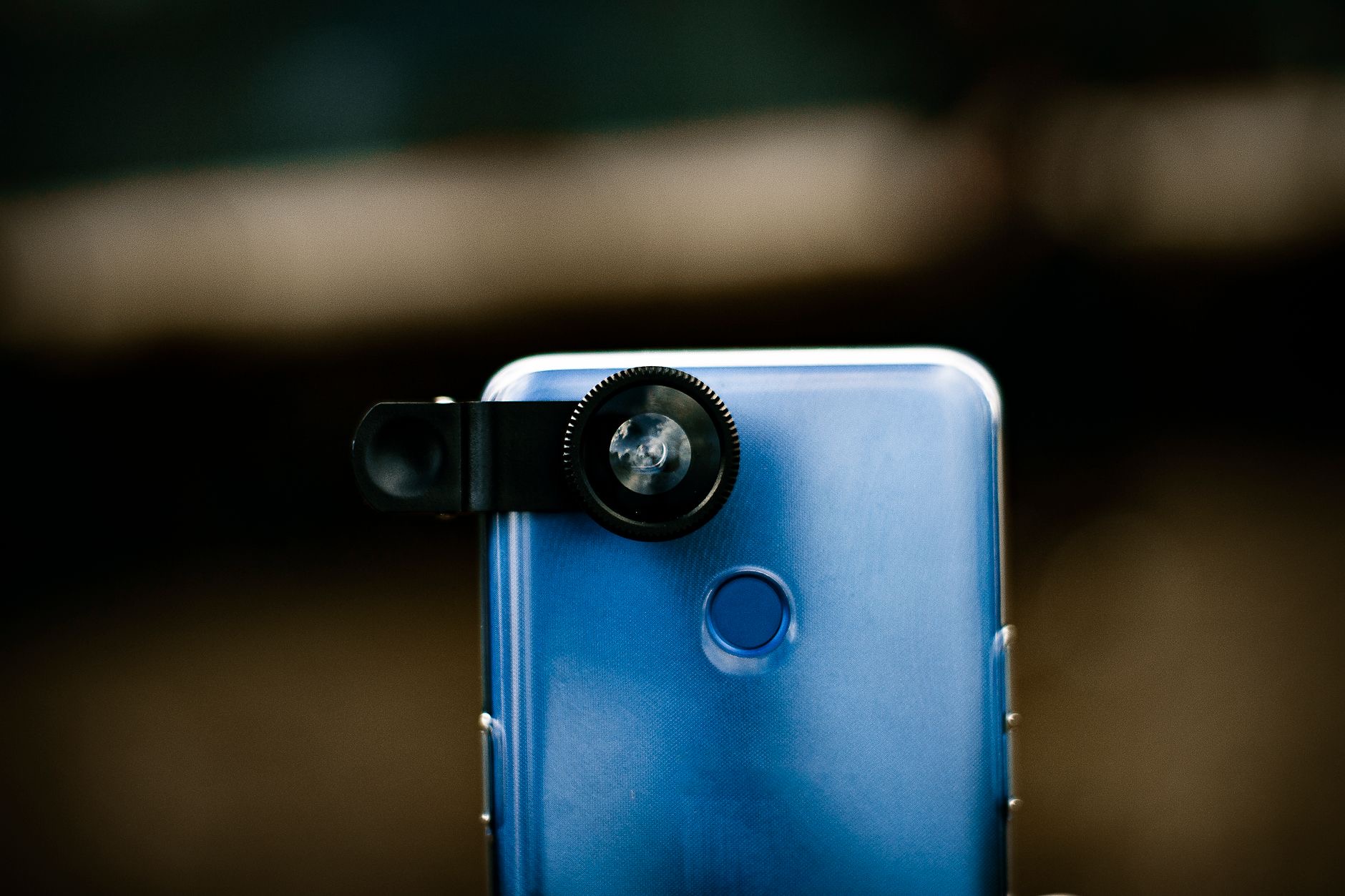
Some cases, especially thick ones or those with magnetic attachments and lens rings, can partially block the camera or interfere with focus, causing blurry shots, dark corners, or odd reflections. Take the case off entirely and test the camera, which immediately tells you whether the case is the culprit. Magnetic accessories and cheap lens attachments are common offenders. If the camera works fine without the case, you have found your answer, and a better-fitting case solves it for good.
5. Switch Between the Front and Rear Cameras
If the camera is frozen or black, tap the button to switch between the front and rear cameras a few times. This simple action often jolts a stuck camera back to life by forcing it to reinitialize. It is a quick trick that resolves cases where one camera hangs, and it also helps you diagnose the problem, since if one camera works and the other does not, the issue is isolated rather than a system-wide failure, which narrows down what to do next.
6. Update Your Software
Outdated software causes bugs, and camera problems are a common symptom. Check for and install any available software update, since Apple regularly fixes glitches that affect the camera. Keeping your iPhone current not only resolves existing problems but prevents future ones. If your camera trouble began after you had been putting off updates, an update is often exactly what it needs to start working properly again, so it is always worth checking when other quick fixes fall short.
7. Reset Settings as a Last Software Step
If nothing else works, resetting your iPhone's settings can clear a stubborn software conflict causing the camera to fail, without deleting your photos or apps. This returns your settings to their defaults, which often resolves glitches that survive a restart and an update. It is a heavier step that means reconfiguring some preferences afterward, so treat it as a last resort before considering hardware. But it frequently revives a camera that no simpler fix could, and it keeps your data intact.
When It Is a Hardware Problem
If you have reopened the app, restarted, cleaned the lens, removed the case, switched cameras, updated, and reset settings, and the camera still will not work, the camera hardware may have failed, possibly from a drop or water exposure. At that point, contact Apple support or a trusted repair service. A camera module replacement is a common, affordable repair, so a faulty camera rarely means the whole phone is finished. If water was involved, our water damage guide is worth reading, as is our iPhone troubleshooting guide.
| Symptom | Likely fix |
|---|---|
| Black screen in camera app | Reopen the app, then restart |
| Blurry or hazy photos | Clean the lens, remove the case |
| One camera not working | Switch cameras, update, reset settings |
Quick Answers
Why is my iPhone camera not working?Usually a software glitch or a dirty lens, not broken hardware. Reopening the camera app, restarting the phone, and cleaning the lens fix the vast majority of cases.
Why is my iPhone camera black?Most often a frozen camera app. Fully close and reopen it, and if that fails, restart your iPhone. Switching between front and rear cameras can also jolt it back.
Why are my iPhone photos blurry?Usually a dirty or smudged lens, or a case partially covering it. Gently wipe the lens with a soft cloth and remove the case, which often restores sharp photos instantly.
Will restarting fix my camera?Often, yes. A restart clears software glitches that freeze or black out the camera, and it is one of the first things to try after reopening the app.
Could my case be the problem?Yes. Thick cases, magnetic accessories, and lens rings can block or interfere with the camera. Remove the case and test to rule this out.
When should I get my camera repaired?If reopening the app, restarting, cleaning, updating, and resetting settings all fail, the camera hardware may be faulty. A module replacement is an affordable repair.
Could Full Storage Be Stopping It?
One cause people rarely connect to a misbehaving camera is a full iPhone. When your storage is completely full, the camera may refuse to take photos or videos, or the app may freeze and fail, simply because there is no room to save what you capture. If you see storage-full warnings alongside your camera trouble, that is very likely the real culprit, not a hardware fault. The fix is to free up space by clearing out large videos, unused apps, and old downloads, after which the camera usually works normally again. It is worth checking your available storage early when the camera plays up, since this is one of the simplest and most overlooked explanations. Our guide to freeing up iPhone storage walks through clearing space quickly. A camera that will not capture is sometimes just a phone with nowhere left to put the photo, and topping up your free space solves it instantly.
The Honest Bottom Line
An iPhone camera that stops working is usually fixable for free. Reopen the camera app, restart the phone, clean the lens, and remove the case, which solves the vast majority of black-screen, frozen, and blurry-photo problems in minutes. Update your software and reset settings if needed.
Only when every fix fails is the camera hardware likely at fault, and even then a repair is affordable. Which fix brought your camera back? Tell me in the comments and I will help with any that linger.
Leave a Reply