

Here is a plot twist hiding in plain sight: the best webcam you own is not clipped to your monitor, it is in your pocket. Your iPhone's camera embarrasses most webcams, and your Mac can use it as one, wirelessly, with a built-in feature many people have never switched on. Ten minutes of setup, and your video calls jump a full quality tier. Here is how.
The Feature: Continuity Camera
The capability is called Continuity Camera, and it lets a Mac use a nearby iPhone as its webcam, no cable required. The requirements are modest: reasonably recent devices, both signed into the same account, Wi-Fi and Bluetooth on. When you join a call, your iPhone appears as a camera option alongside the built-in one, and selecting it swaps your grainy laptop camera for the serious optics in your phone. Most two-device households have owned a premium webcam for years without using it.
Why the Difference Is So Visible
Webcams are an afterthought squeezed into a laptop lid. Your iPhone's camera is the most-engineered component of a device that competes on photography, and on a call the gap is immediate: sharper image, better color, dramatically better handling of dim rooms, the exact conditions where laptop cameras collapse into grain. People on the other end notice within seconds. For anyone whose work happens on video, this is the biggest single upgrade available, and it costs nothing.

Setting It Up
With both devices awake and near each other, open your video call app on the Mac and look in its camera selection, your iPhone should be listed by name. Select it, and the phone takes over as the camera, screen dimmed, working quietly. First-time checklist if it does not appear: same account on both, Bluetooth and Wi-Fi on, both devices reasonably up to date. That covers nearly every case of the phone not showing up. Once it works once, it simply appears from then on.
Mounting: The Part That Makes It Real
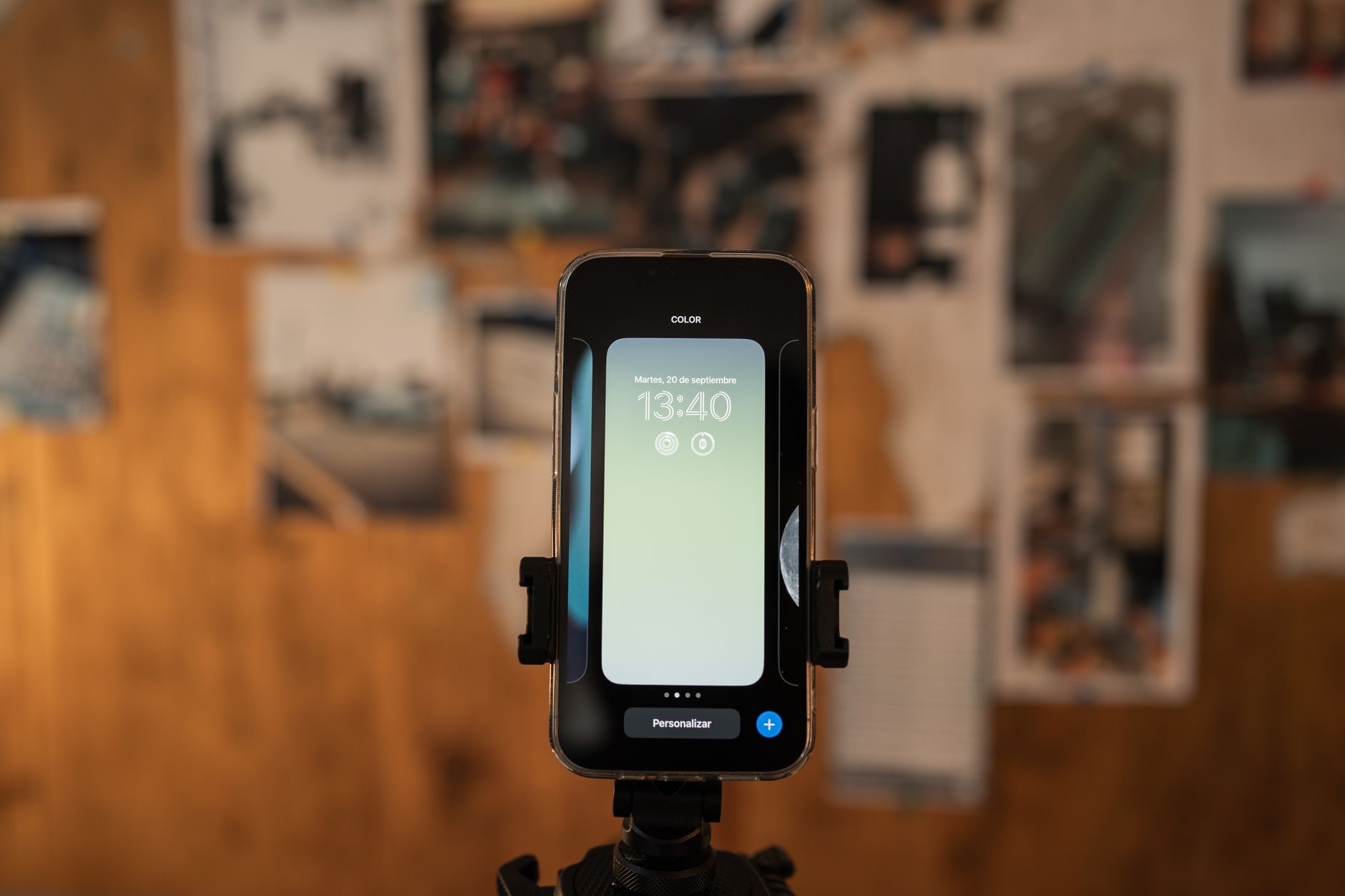
A webcam needs to sit at eye level, steady, pointed at you, and a phone leaned against a coffee mug is not a mount, it is an incident pending. A small tripod behind or beside your screen holds the iPhone at exactly the right height and angle, turning the trick into a permanent setup. Position it so the lens sits near your eye line, just above the top of your monitor is the classic spot, and your calls gain both quality and natural-feeling eye contact.
★ Editor's Pick · Amazon
iPhone Tripod
Eye level, steady, permanent: the mount that makes it real
Light It and Finish the Upgrade
Camera quality raises the ceiling, light decides where you land under it. Even the iPhone's sensor prefers a lit face, and a ring light behind the tripod erases the dim-room problem entirely, no more silhouette against the window, no more cave lighting at 5pm calls. Camera plus mount plus light is the complete kit, and it outperforms dedicated webcam setups costing far more. For remote workers, it is the presence upgrade colleagues comment on unprompted.
★ Editor's Pick · Amazon
Ring Light
The other half of looking good on calls
The Practical Details
Living with it is easier than expected. Keep the phone charged, a long cable or a charger within reach of the tripod means the setup never runs dry mid-meeting. Calls and notifications on the phone hand off politely rather than wrecking your meeting. And when you grab the phone and walk away, the Mac simply falls back to its built-in camera. The setup asks nothing daily: the tripod holds, the phone appears in the camera list, and your calls just look better from now on.
| The piece | What it does |
|---|---|
| Continuity Camera | iPhone becomes the Mac's webcam, wireless |
| Small tripod | Eye level, steady, permanent placement |
| Ring light | Ends dim-room, silhouette calls |
| Nearby charger | The setup never dies mid-meeting |
Frequently Asked Questions
How do I use my iPhone as a webcam?
Use Continuity Camera: with recent devices signed into the same account, Bluetooth and Wi-Fi on, your iPhone appears as a camera option in your Mac's video apps. Select it and the phone takes over, wirelessly. Mount it at eye level on a small tripod and the upgrade is complete.
Is the iPhone really better than a webcam?
Dramatically, and visibly within seconds of a call. Laptop webcams are afterthoughts, while the iPhone camera is the flagship component of a device that competes on photography: sharper, better color, and far better in dim rooms, exactly where webcams collapse into grain.
Why does my iPhone not show up as a camera?
Run the first-time checklist: both devices on the same account, Bluetooth and Wi-Fi enabled, both reasonably up to date, both awake and near each other. That resolves nearly every missing-camera case. Once it appears the first time, it shows up reliably from then on.
Where should I position the iPhone for calls?
At eye level, steady, lens near your eye line, the classic spot is just above the top of your monitor on a small tripod behind the screen. That placement gives natural-feeling eye contact and a stable frame, which is what separates a setup from a phone leaning on a mug.
Do I need a light too?
If your room is dim or your window sits behind you, yes. The camera raises the ceiling but light decides the result, and a ring light behind the tripod ends silhouette calls and 5pm cave lighting. Camera, mount, and light together outperform expensive dedicated webcam rigs.
What happens when I take the phone away?
The Mac falls back to its built-in camera and the call continues. The setup is graceful: notifications hand off politely during use, and nothing breaks when you grab the phone. Keep a charger within reach of the tripod and the arrangement never runs dry mid-meeting.
The Bottom Line
The best webcam you can get is the iPhone you already own: Continuity Camera turns it into your Mac's camera wirelessly, and the quality gap over built-in webcams is visible in seconds. Mount it at eye level on a small tripod, add a ring light for the dim hours, and keep a charger within reach. Ten minutes of setup, zero new habits, and every call from now on looks a full tier more professional. The upgrade was in your pocket all along.
Leave a Reply