
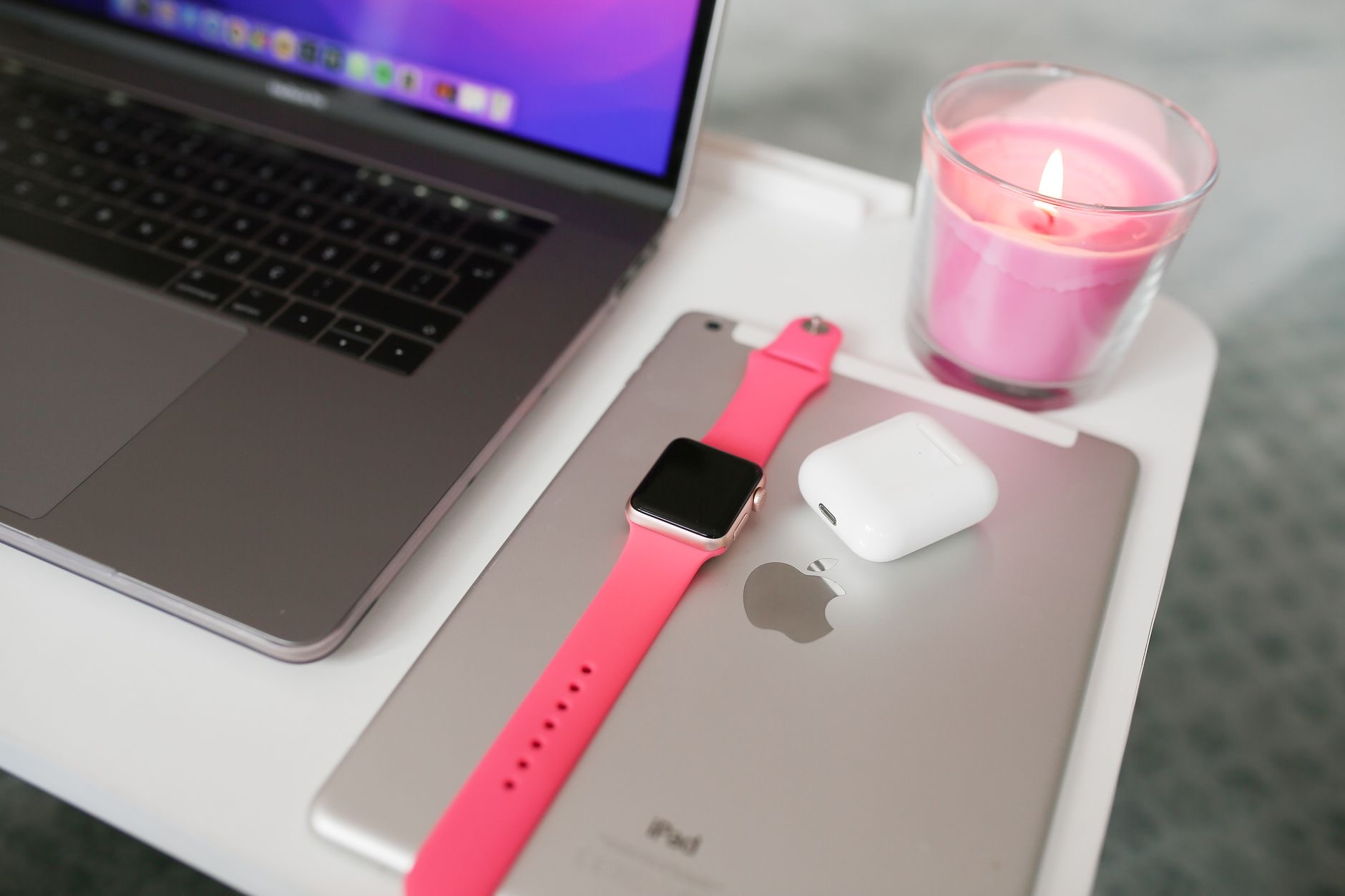
There is a second monitor in your house right now, sitting in a drawer, pretending to be a tablet. Your Mac and iPad can pair into a two-screen setup, no cables required, using a built-in feature most owners of both devices have never switched on. Ten seconds of setup, and the email lives on one screen while the actual work gets the other. Here is how to turn it on and what to do with it.
The Feature Hiding in Plain Sight
The capability is called Sidecar, and it lets a Mac extend or mirror its display onto a nearby iPad, wirelessly or over a cable. Both devices need to be reasonably recent and signed into the same account, and that is essentially the whole entry requirement. From the Mac's display options, choose the iPad, and the desktop simply grows. No app to buy, no drivers, no ceremony. Most two-device households have owned a dual-screen setup for years without knowing.
Switching It On
With both devices awake and near each other, open the display controls on the Mac and select your iPad as a destination. Choose extend, mirroring has its uses for presentations, but extending is where the productivity lives. The iPad becomes more desktop: drag windows onto it, park apps there, treat it as real estate. If the wireless link ever stutters in a crowded signal environment, a cable between the two makes the connection rock solid and charges the iPad while it works.
★ Editor's Pick · Amazon
USB-C Cable
Rock-solid link, and the iPad charges while it works

What the Second Screen Is Actually For
The pattern that changes workdays: reference on the iPad, work on the Mac. The document you are writing from, the call you are half-attending, the inbox that must be visible but not central, the music controls, the timer, all exiled to the side screen, leaving the main display for the one thing that matters. Writers keep research there, designers keep palettes, spreadsheet people keep the other spreadsheet. The productivity is not more space exactly. It is fewer window switches, which is where focus actually leaks.
The Stand That Makes It a Monitor
A second monitor lying flat on the desk is a second monitor you have to hunch over, which defeats it. A stand lifts the iPad beside the Mac's screen at matching height, and suddenly the arrangement reads as one workstation instead of a laptop with a tablet nearby. Eyes travel between screens without the neck getting involved. This one accessory is the difference between a party trick and a setup you use daily.
★ Editor's Pick · Amazon
Tablet Stand
Screen height, beside the Mac, like it belongs
The Travel Superpower
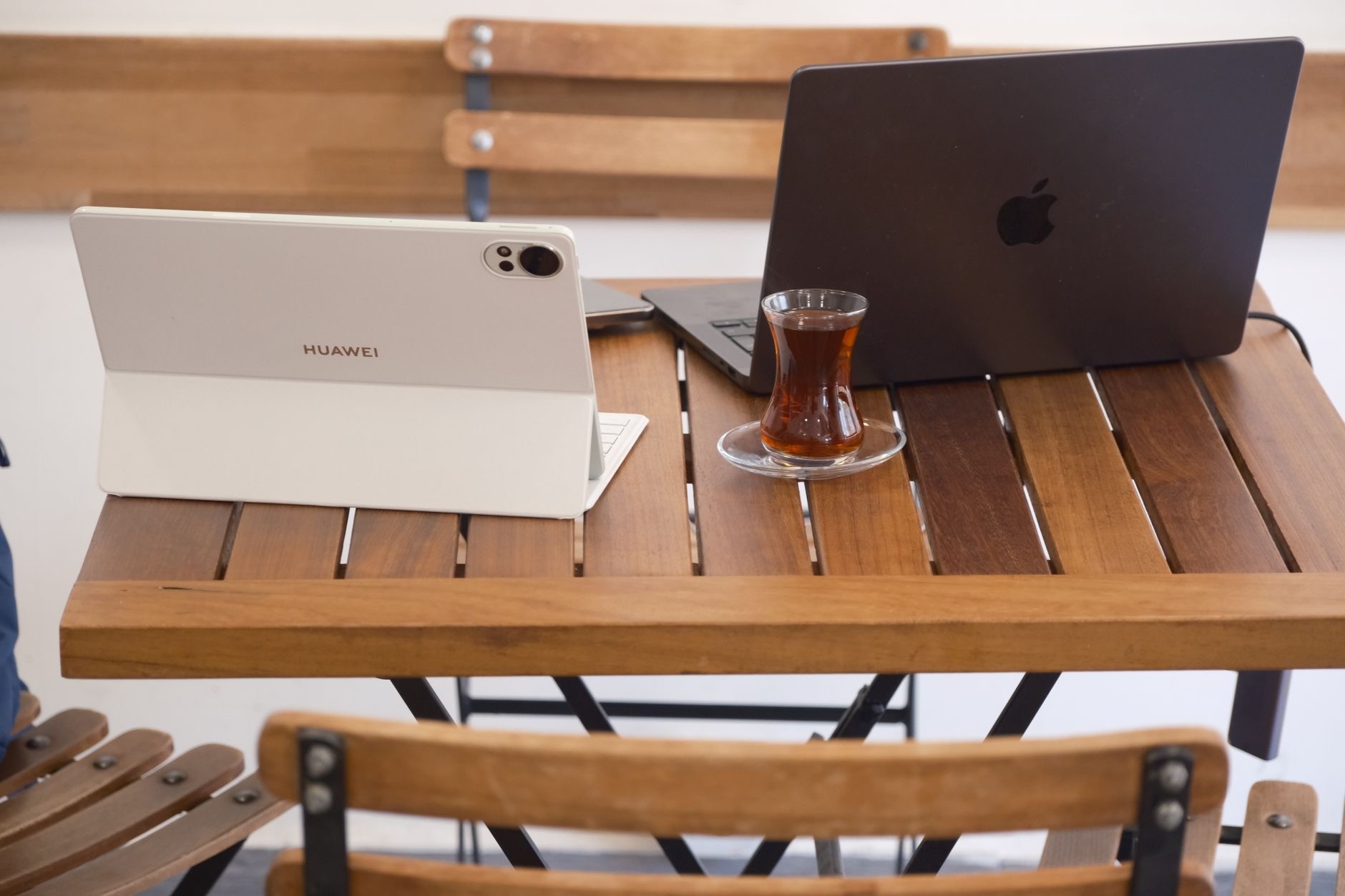
Here is where the feature earns devotion: the dual-screen setup fits in a bag. Hotel desk, cafe table, train tray, anywhere the laptop opens, the iPad props beside it and the two-monitor workflow travels intact. People who work on the road describe this as the single best trick in the Mac-iPad partnership, a full desk-style arrangement from hand luggage. A folio that props the iPad, or a compact stand, keeps the kit light.
And the Pencil Bonus
A side effect worth knowing: while the iPad serves as a display, the Apple Pencil can act on it, which effectively bolts a drawing surface onto your Mac. Marking up a document, signing something, or sketching over a design happens on the iPad half of the desktop with pen-level precision no mouse offers. For anyone whose work occasionally needs a human hand, the second monitor moonlights as a graphics tablet, two accessories for the price of none.
| The use | Why it works |
|---|---|
| Reference beside work | Fewer window switches, less focus leak |
| Calls and inbox exiled | Visible but not central |
| Travel dual-screen | The whole desk fits in a bag |
| Pencil on the side screen | A drawing tablet for free |
Frequently Asked Questions
How do I use my iPad as a second monitor for my Mac?
Use the built-in Sidecar feature: with both devices recent, awake, nearby, and signed into the same account, select the iPad from the Mac's display options and choose to extend the desktop. It works wirelessly, or over a cable for a rock-solid connection that also charges the iPad.
Does using the iPad as a monitor need an app?
No, the capability is built in. There is nothing to buy or install, just a setting to select from the Mac's display controls. Most households that own both devices have had a dual-screen setup available for years without switching it on.
What should I put on the iPad screen?
The reference layer: documents you are working from, the inbox that must stay visible, the call, the music, the timer. Keeping the Mac's main display for the single task at hand is where the productivity comes from, fewer window switches means less focus leaking away.
Is the wireless connection reliable?
Generally yes at close range, and a cable between the devices settles it completely in crowded signal environments, with the bonus that the iPad charges while serving as a display. Travel workers often prefer the cable for exactly that two-birds reason.
Why do I need a stand for this?
Because a flat iPad makes you hunch, which kills the arrangement in a day. A stand lifts it beside the Mac's screen at matching height so eyes travel between displays without the neck. It is the accessory that turns the trick into a workstation.
Can I use the Apple Pencil while the iPad is a monitor?
Yes, and it is the hidden bonus: the Pencil works on the iPad half of the extended desktop, effectively giving your Mac a precision drawing surface. Marking up documents, signing, and sketching happen with pen accuracy no mouse can match.
The Bottom Line
The second monitor was in the house all along: Sidecar extends your Mac's desktop onto the iPad in ten seconds, wirelessly or over a cable that charges it while it works. Exile the reference layer, inbox, documents, calls, to the side screen, lift it to eye height on a stand, and the setup graduates from party trick to daily workstation, one that also folds into a bag for hotel desks and adds Pencil precision as a bonus. The drawer tablet has been underemployed. Promote it.
Leave a Reply