
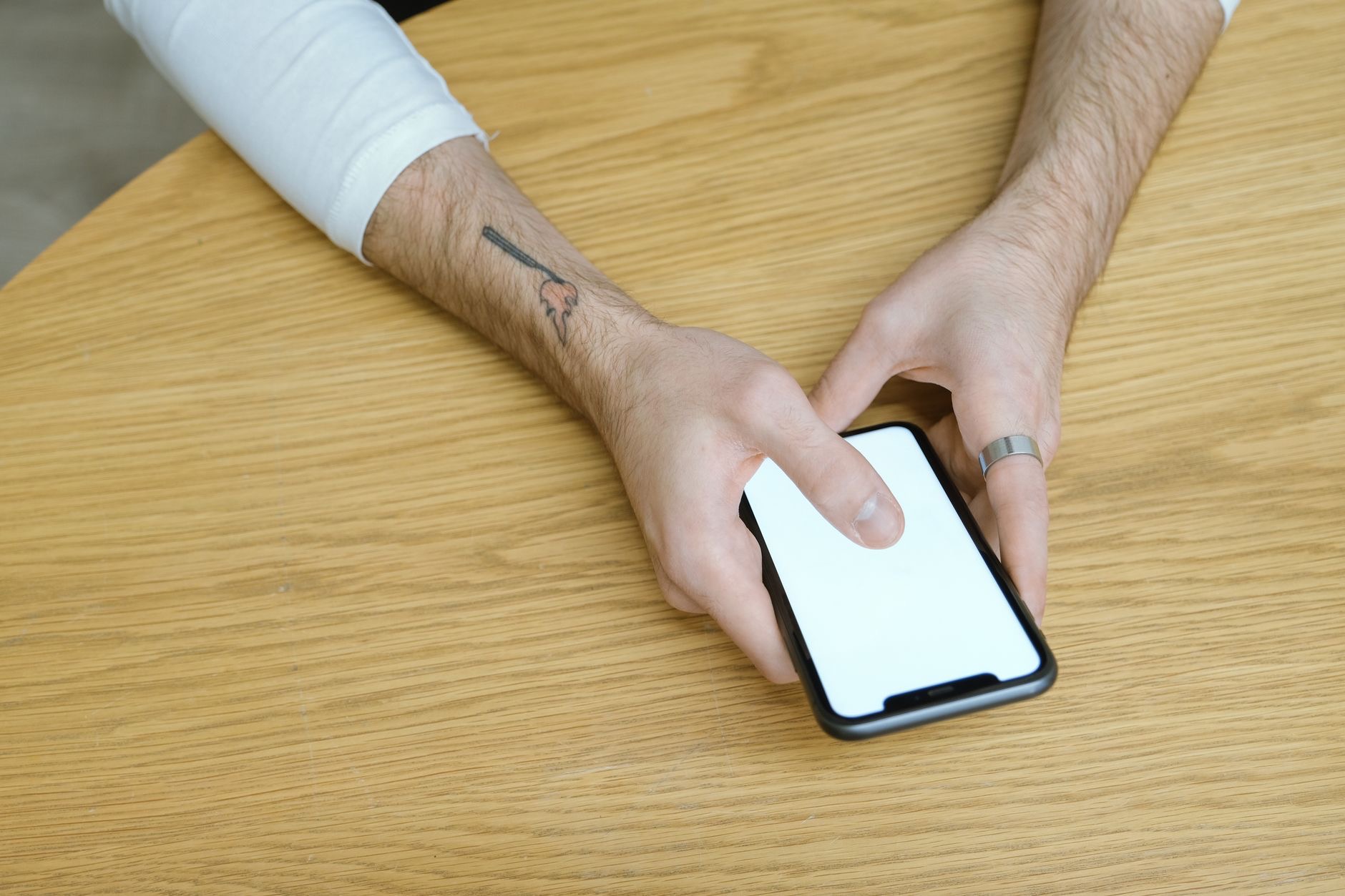
Being asked to print, sign, and scan a document is one of modern life's small annoyances, especially if you do not have a printer. The good news is you can skip all of that. Your iPhone lets you sign documents digitally, right on the screen, and send them straight back, no printer required. Here is how to sign a document on your iPhone quickly and easily, and handle paperwork entirely from your pocket.
No Printer Required
The days of needing a printer and scanner just to sign a form are over. Your iPhone can add your signature directly to a digital document, so you can complete and return paperwork without printing a single page. This is a genuine time-saver, turning a frustrating multi-step chore into a quick task you can do anywhere, on the sofa, at a cafe, or on the move. Once you know how, you will handle contracts, forms, and agreements far more easily, and wonder why you ever bothered with paper.
Use the Markup Tool
The key to signing on your iPhone is the built-in Markup tool, which lets you draw and add a signature onto a document or PDF. When you open a document you need to sign, you can access Markup to add your signature and any other details like the date. It is a simple, built-in feature with no extra app needed. Learning to find and use Markup is the heart of signing documents on your iPhone, and it opens up a whole paperless way of handling anything that needs your signature.
Add and Save Your Signature
Within the signing tools, you can create your signature by drawing it once, and then save it so it is ready to reuse whenever you need to sign something. This means you do not have to draw it perfectly every time, you simply place your saved signature where it belongs. Being able to store your signature makes signing future documents almost instant. Take a moment to create a signature you are happy with, and from then on, adding it to any document is quick, consistent, and effortless.
Place It Where It Belongs
Once you have your signature ready, you position it on the document exactly where the signature line is, and you can resize and move it so it fits neatly. You can also add other details the document needs, such as the date or your initials, using the same tools. This lets you complete a form properly and professionally, all on your screen. Placing everything precisely means your signed document looks clean and correct, ready to send back to whoever requested it, without any printing or scanning involved.

Send It Straight Back
After signing, you can send the document back immediately, by email or message, directly from your iPhone. The whole process, receiving a document, signing it, and returning it, can happen in minutes without leaving your chair. This is especially handy for time-sensitive paperwork, letting you respond quickly and professionally. Combined with your iPhone's ability to scan paper documents into digital files, you have everything you need to handle signatures and paperwork entirely from your phone, making you faster and more flexible wherever you are.
A Complete Paperless Workflow
Signing on your iPhone fits into a wider paperless workflow that saves time and clutter. You can scan a paper document into a digital file, sign it on your phone, and send it back, all without printing. Keeping signed copies stored and backed up means you have a tidy record of important agreements too. For anyone who deals with forms and contracts, mastering digital signing on your iPhone is a genuinely useful skill that makes life simpler, faster, and far less reliant on paper and printers.
| Step | What to do |
|---|---|
| Open the document | Access the Markup tool to sign |
| Create your signature | Draw once and save it to reuse |
| Place it neatly | Position, resize, add the date |
| Send it back | Email or message it instantly |
Frequently Asked Questions
How do I sign a document on my iPhone?
Open the document and use the built-in Markup tool to add your signature. You can create and save a signature, place it where the signature line is, add the date if needed, and then send the document back by email or message, all without printing anything.
Do I need an app to sign documents?
No. Your iPhone has a built-in Markup tool that lets you draw and add a signature onto a document or PDF, with no extra app required. This makes signing quick and easy directly on your phone, so you can complete and return paperwork without a printer or scanner.
Can I save my signature to reuse it?
Yes. You can create your signature by drawing it once and save it so it is ready to reuse whenever you sign something. This means you do not have to redraw it each time, making future signing almost instant. Take a moment to create one you are happy with for consistent results.
Can I add the date and other details?
Yes. Using the same signing and Markup tools, you can add details like the date or your initials alongside your signature. This lets you complete a form properly and professionally on screen, so the signed document looks clean and correct before you send it back.
How do I send a signed document back?
After signing, you can send the document back immediately by email or message directly from your iPhone. The whole process of receiving, signing, and returning a document can happen in minutes without leaving your chair, which is especially handy for time-sensitive paperwork.
Do I need to print anything to sign?
No. That is the whole point of signing on your iPhone. You add your signature digitally right on the screen and return the document without printing a single page. Combined with scanning paper into digital files, it lets you handle signatures and paperwork entirely from your phone.
The Bottom Line
Signing a document on your iPhone means never printing, signing, and scanning again. Use the built-in Markup tool to add your signature, save it so it is ready to reuse, place it neatly with the date, and send the document straight back by email or message. Paired with your iPhone's scanning ability, it gives you a complete paperless workflow for handling forms and contracts in minutes, from anywhere, without a printer in sight.
Leave a Reply