

Imagine every note you have ever taken, searchable, organized, and always with you, never a lost sheet of paper or a notebook left at home. That is the promise of taking notes on an iPad, and when you set it up well, it genuinely delivers. But the difference between a frustrating experience and a joyful one comes down to knowing a few key things. Here is how to take perfect digital notes on your iPad.
The Apple Pencil Is the Heart of It
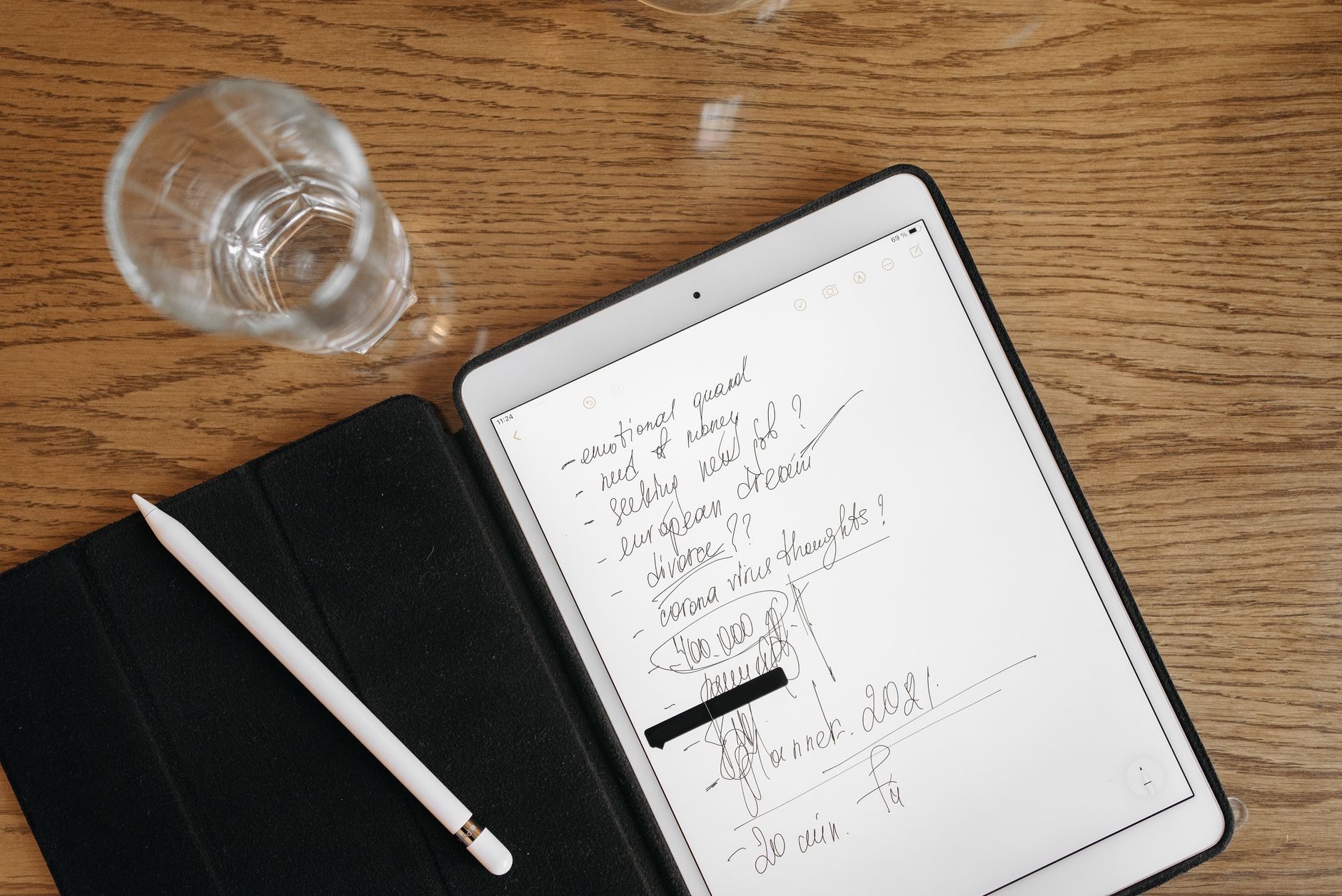
For handwritten notes, the Apple Pencil is what transforms the iPad from a screen into a notebook. It writes with a natural, responsive feel that makes digital handwriting genuinely pleasant, closely mimicking pen on paper. If note-taking is your goal, the Pencil is not optional, it is the core of the experience. Investing in one and getting comfortable with it is the single most important step toward great digital notes, unlocking everything else the iPad can do for you.
Choose How You Like to Take Notes
The iPad supports different note-taking styles, and part of the magic is finding yours. You can handwrite with the Pencil for a natural feel and better memory retention, type with a keyboard for speed, or mix both in the same note. Some people love the freedom of handwriting, while others prefer the tidiness of typed text. There is no single right way, so experiment to discover what suits how you think and work best.
Turn Handwriting Into Typed Text
Here is a feature that feels almost magical: on supported iPads, your handwriting can be converted into typed text. This means you can enjoy the natural feel of writing by hand while still ending up with clean, searchable typed notes. It bridges the gap between the tactile pleasure of handwriting and the practicality of digital text beautifully. For students and professionals alike, this blend of natural writing and digital convenience is a genuine game-changer.
Keep Your Notes Organized
The biggest advantage of digital notes is organization, so use it. Group your notes into folders by subject, class, or project, and keep everything tidy and easy to find. Unlike a stack of paper notebooks, your digital notes can be structured logically and rearranged effortlessly. A little organization means that when you need a specific note weeks later, you can find it in moments rather than flipping through pages. This is where digital truly beats paper.
Search Everything Instantly
One of the most powerful benefits is that your notes become searchable, often including your handwritten ones. Instead of hunting through pages for that one important detail, you can search and jump straight to it. This turns your entire collection of notes into an instantly accessible knowledge base. For anyone who takes a lot of notes, the ability to find anything in seconds is reason enough to go digital, and it only gets more valuable over time.
Mark Up Documents and PDFs
Beyond blank notes, your iPad lets you annotate documents and PDFs directly, highlighting, writing in the margins, and adding your own notes right on the material. This is invaluable for students working through readings and professionals reviewing documents. Being able to interact with your source material directly, rather than taking separate notes, keeps everything together and makes studying and reviewing far more effective and connected.

Add a Paper-Feel Screen Protector
Here is a small upgrade that makes a big difference for handwriting: a paper-texture screen protector. Writing on smooth glass can feel slippery compared to paper, and a textured protector adds a subtle, satisfying friction that makes handwriting feel far more natural. Many heavy note-takers say it is the best upgrade they made. If you plan to handwrite a lot, this inexpensive accessory dramatically improves the feel and is well worth adding from the start.
Use Split View to Reference While You Write
A powerful study trick is to use the iPad's multitasking to have your notes open alongside something else, like a textbook, a web page, or a video. Being able to reference your source material while writing your notes, both on screen at once, makes for a genuinely productive setup. It replicates the best of having a book open next to your notebook, but in a single device, and it is one of the iPad's standout advantages for serious note-taking.
★ Editor's Pick · Amazon
iPad Air (M3) & Apple Pencil
The ideal note-taking setup for students and professionals
Setup: iPad Air 11" · Apple Pencil Pro · Paper-Feel Protector
Frequently Asked Questions
Do I need an Apple Pencil for note-taking on iPad?
For handwritten notes, yes, the Apple Pencil is the core of the experience, transforming the iPad into a notebook with a natural, responsive feel close to pen on paper. If note-taking is your goal, investing in one and getting comfortable with it is the single most important step.
Can the iPad convert my handwriting to text?
Yes, on supported iPads your handwriting can be converted into typed text. This lets you enjoy the natural feel of writing by hand while ending up with clean, searchable typed notes, beautifully bridging tactile handwriting and practical digital text.
Are handwritten notes on iPad searchable?
Often, yes. Your notes become searchable, frequently including handwritten ones, so instead of hunting through pages you can search and jump straight to a detail. This turns your entire collection into an instantly accessible knowledge base, which grows more valuable over time.
What is a paper-feel screen protector?
It is a textured screen protector that adds a subtle, satisfying friction, making handwriting on the smooth glass feel far more like writing on paper. Many heavy note-takers call it their best upgrade. If you handwrite a lot, this inexpensive accessory dramatically improves the feel.
Can I take notes while reading something on my iPad?
Yes. Using the iPad's multitasking, you can have your notes open alongside a textbook, web page, or video, referencing your source material while you write. It replicates having a book open next to your notebook in a single device, a standout advantage for serious note-taking.
Should I handwrite or type notes on my iPad?
There is no single right answer. Handwriting with the Pencil offers a natural feel and can aid memory, while typing is faster and tidier, and you can mix both in one note. Experiment to discover what suits how you think and work best, since the iPad supports all these styles.
The Bottom Line
The iPad is one of the best note-taking tools ever made, turning your notes into an organized, searchable collection that is always with you. Get an Apple Pencil, find your preferred note-taking style, keep everything organized in folders, and add a paper-feel protector for comfortable writing. Use handwriting-to-text and split view to work smarter, and your iPad becomes a genuinely powerful study and work companion that leaves paper notebooks far behind.
Leave a Reply