
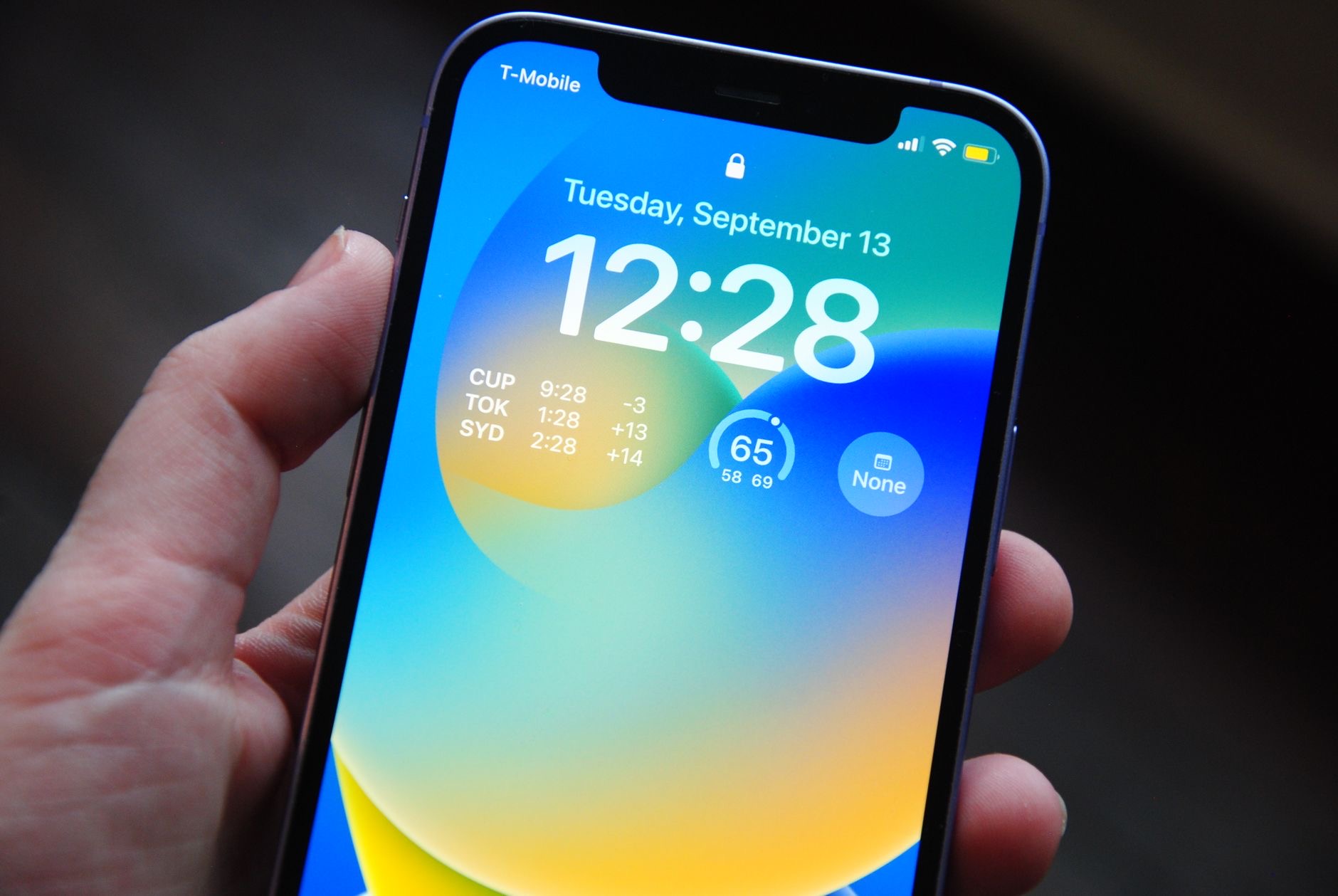
Your lock screen is the very first thing you see every time you pick up your phone, dozens of times a day, and yet most people leave it exactly as it came out of the box. That is a missed opportunity, because your iPhone lets you make the lock screen genuinely personal and useful, showing the information you care about in a style that feels like yours. Here is how to customize your lock screen like a pro.
Choose a Wallpaper That Feels Like You
It starts with the wallpaper, the backdrop you see constantly. You can choose from your own photos, or from a range of built-in options including dynamic and artistic styles. Picking an image you genuinely love, whether a treasured photo or a striking design, instantly makes your phone feel more personal. Since you see it so often, choosing a wallpaper that brings you a little joy every time is a small pleasure worth taking a moment over.
Add Widgets for Information at a Glance
This is where the lock screen becomes truly useful. You can add widgets that show information right on your lock screen, so you see things like the weather, your next event, your activity, or a countdown without unlocking your phone. Choosing the widgets that matter most to you turns your lock screen into a personal dashboard, giving you the details you care about the instant you glance at your phone. It is one of the most practical customizations available.
Style the Clock
You can change the look of the clock on your lock screen, adjusting its font and color to suit your wallpaper and taste. It is a small touch, but it makes a real difference to the overall feel, letting you match the clock to your chosen backdrop for a cohesive, polished look. Playing with the different styles is a quick way to make your lock screen feel considered and uniquely yours rather than generic.
Create Multiple Lock Screens
Here is a feature many people miss entirely: you can create more than one lock screen and switch between them. You might have one for work, one for personal time, and another for the weekend, each with its own wallpaper, widgets, and style. Being able to swap between different looks and setups depending on your mood or situation adds a whole layer of flexibility, letting your phone match the moment rather than staying static all the time.
Link a Focus Mode to Your Lock Screen
You can connect a lock screen to a Focus mode, so switching to a particular lock screen also activates the matching focus. For example, a calm work lock screen could turn on your work focus, filtering your notifications appropriately. This clever link means changing your lock screen can reshape your whole phone experience for the situation, quietly aligning your notifications and look with what you are doing.
Use a Depth Effect With Your Photos
When you use a photo on your lock screen, your iPhone can create a pleasing depth effect where your subject appears in front of the clock, adding a sense of layering that looks genuinely striking. It is one of those touches that makes a well-chosen photo look like a professionally designed lock screen. Experiment with different photos to find one that works beautifully with this effect for an eye-catching result.
Try a Photo Shuffle
If you cannot pick just one image, you can have your lock screen automatically rotate through a selection of your photos, keeping it fresh and giving you a little delight each time a favorite memory appears. It is a lovely way to enjoy your photos throughout the day without any effort. Setting up a shuffle of images you love turns your lock screen into a gently changing gallery of moments that matter to you.
Keep It Practical, Not Cluttered
As you customize, remember that the best lock screen balances personality with usefulness. It is tempting to add everything, but a clean, considered setup with the wallpaper you love and the two or three widgets you actually use will serve you far better than a cluttered one. Aim for a lock screen that feels like yours and shows what genuinely helps you, and you will enjoy that first glance at your phone all the more.
Frequently Asked Questions
Can I put widgets on my iPhone lock screen?
Yes. You can add widgets that show information like the weather, your next event, your activity, or a countdown right on the lock screen without unlocking your phone. Choosing the ones that matter most turns your lock screen into a personal dashboard for a glance.
Can I have more than one lock screen?
Yes. You can create multiple lock screens and switch between them, each with its own wallpaper, widgets, and style, such as one for work, one for personal time, and one for weekends. It adds real flexibility, letting your phone match the moment.
How do I change the clock style?
You can change the clock's font and color on your lock screen to suit your wallpaper and taste. It is a small touch that makes a real difference to the overall feel, letting you match the clock to your backdrop for a cohesive, polished look.
What is the depth effect on the lock screen?
When you use a photo, your iPhone can create a depth effect where your subject appears in front of the clock, adding striking layering that makes a well-chosen photo look professionally designed. Experimenting with different photos helps you find one that works beautifully.
Can my lock screen change a Focus mode?
Yes. You can link a lock screen to a Focus mode, so switching to that lock screen also activates the matching focus and filters your notifications appropriately. Changing your lock screen can then reshape your whole phone experience for the situation.
What is photo shuffle?
Photo shuffle automatically rotates your lock screen through a selection of your photos, keeping it fresh and giving you a little delight when a favorite memory appears. It turns your lock screen into a gently changing gallery of moments without any effort on your part.
The Bottom Line
Your lock screen is the face of your phone and the first thing you see all day, so it is worth making it yours. Choose a wallpaper you love, add the widgets you actually use, style the clock, and explore multiple lock screens linked to focus modes, and your iPhone becomes both more personal and more useful. A few minutes of customizing transforms a generic default into something that feels considered, practical, and genuinely a pleasure to glance at.
Leave a Reply