
The iPad is capable of far more than most people ask of it, often used as little more than a big screen for videos and browsing. With a handful of tips and tricks, it transforms into a genuine productivity machine that can handle real work, creativity, and multitasking. Here are the iPad tips worth learning to get dramatically more from your tablet.
1. Master Multitasking
One of the iPad's most powerful capabilities is running more than one app at once, whether side by side or in a floating window. Learning these multitasking features lets you reference a document while writing, keep a video playing while you browse, or chat while working. It genuinely changes what the iPad can do, turning it from a single-task device into one where you can juggle several things at once like a computer.
2. Use the Dock and Quick App Switching
The Dock at the bottom of the screen gives you quick access to your favorite and recent apps, and you can pull it up even while in an app to switch quickly or start multitasking. Learning to use the Dock and the gestures for switching between apps makes moving around your iPad far faster and more fluid, which adds up to real time saved throughout the day.
3. Get the Most From the Apple Pencil
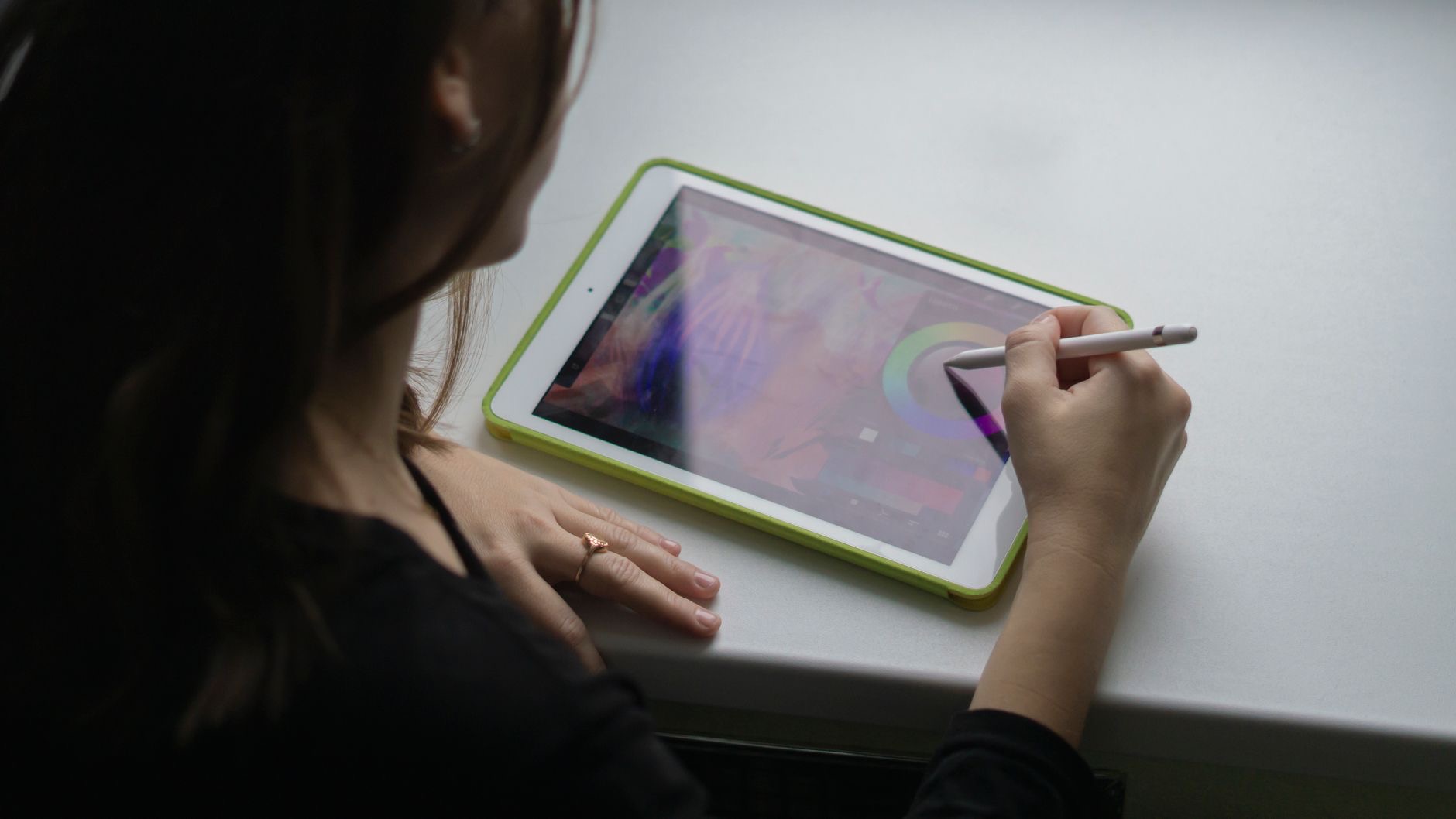
If you have an Apple Pencil, it unlocks a huge amount of the iPad's potential, from handwriting notes and marking up documents to drawing and precise editing. Even beyond art, the Pencil is fantastic for jotting quick notes, signing documents, and navigating with precision. Learning what your Pencil can do, including quick actions like tapping to take a note, dramatically expands how you can use your iPad.
4. Turn Handwriting Into Typed Text
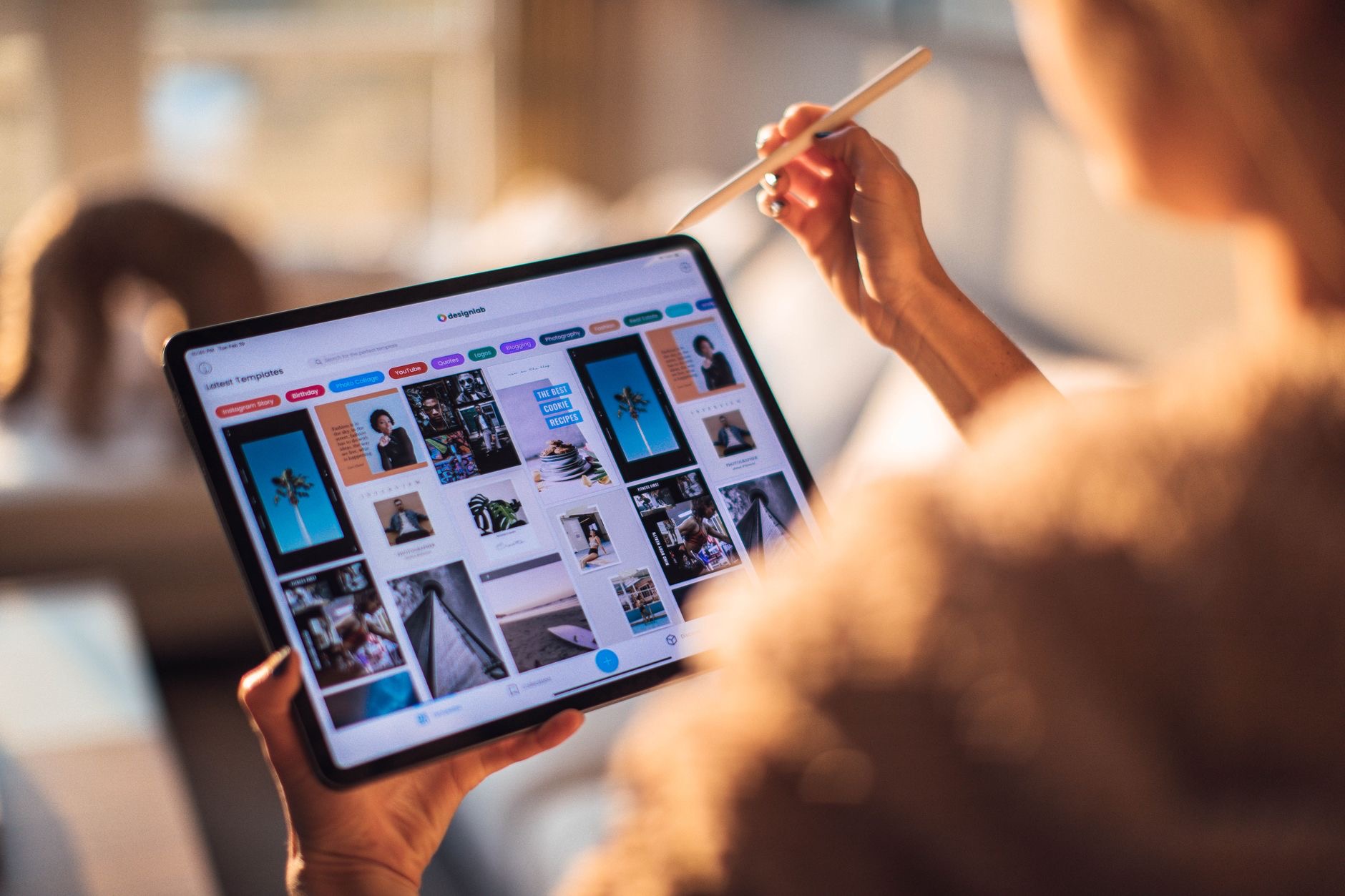
On supported iPads with an Apple Pencil, you can handwrite in text fields and have it converted into typed text, blending the natural feel of writing by hand with the convenience of digital text. It is a genuinely clever feature that lets you fill in forms, search, and jot notes with your Pencil without switching to the keyboard, and many people never realize it is possible.
5. Use Keyboard Shortcuts
If you pair a keyboard with your iPad, a whole world of keyboard shortcuts opens up, letting you perform actions quickly without touching the screen. Holding the command key in many apps reveals the available shortcuts. Learning even a few common ones, like switching apps or copying and pasting, makes working on your iPad feel much more like a computer and speeds everything up.
6. Take and Mark Up Screenshots Instantly
After taking a screenshot, your iPad lets you immediately draw on it, highlight, and annotate before sharing, which is perfect for pointing something out or giving feedback. The Apple Pencil makes this especially natural. This quick capture-and-markup flow is a small feature that proves genuinely useful for work and communication once it becomes part of your routine.
7. Scan and Sign Documents
Your iPad can scan documents using the camera and let you sign them digitally with your finger or Apple Pencil, all without printing anything. For anyone who deals with forms and paperwork, this turns a tedious print-sign-scan process into a few taps. It is one of those practical capabilities that makes the iPad feel like a genuine productivity tool rather than just a media device.
8. Organize With Widgets and Folders
You can arrange your home screen with widgets that show information at a glance and folders that keep your apps tidy. A well-organized home screen means the apps and information you need most are right there, reducing the time spent hunting for things. Taking a few minutes to set up your layout thoughtfully makes your iPad more pleasant and efficient to use every day.
9-14. More Productivity Boosters
Several more tips round things out. Use split keyboard or floating keyboard options for comfortable typing in different positions. Drag and drop text, images, and files between apps for fast transfers. Set up Focus modes to cut distractions while you work. Use the Notes and Files apps to keep your work organized. Connect external displays or accessories to expand what your iPad can do. And explore the accessibility features, which offer helpful tools for everyone. Together, these turn your iPad into a surprisingly powerful and flexible workhorse.
★ Editor's Pick · Amazon
iPad Air (M3)
A powerful, versatile iPad for real productivity
Options: 11-inch · 13-inch · Apple Pencil Pro
Frequently Asked Questions
Can the iPad run two apps at once?
Yes. The iPad supports powerful multitasking, letting you run apps side by side or in a floating window. This lets you reference a document while writing, keep a video playing while browsing, or chat while working, turning the iPad into a device where you can juggle several things at once.
What can the Apple Pencil do besides drawing?
Plenty. Beyond art, the Apple Pencil is great for handwriting notes, marking up and signing documents, precise editing, and navigating. Some iPads even convert your handwriting into typed text. Quick actions, like tapping to start a note, expand how you use your iPad well beyond drawing.
Do keyboard shortcuts work on iPad?
Yes. If you pair a keyboard, many apps support keyboard shortcuts for quick actions without touching the screen. Holding the command key often reveals the available shortcuts. Learning a few common ones makes working on your iPad feel much more like a computer and speeds things up.
Can I sign documents on my iPad?
Yes. Your iPad can scan documents with the camera and let you sign them digitally with your finger or Apple Pencil, without printing anything. It turns the tedious print-sign-scan process into a few taps, making the iPad genuinely useful for forms and paperwork.
How do I turn handwriting into text on iPad?
On supported iPads with an Apple Pencil, you can handwrite directly in text fields and have it converted into typed text. This lets you fill in forms, search, and jot notes with your Pencil without switching to the keyboard, blending natural writing with digital convenience.
How can I make my iPad more productive?
Master multitasking, use the Dock and app-switching gestures, learn keyboard shortcuts with a paired keyboard, use the Apple Pencil for notes and markup, and organize your home screen with widgets and folders. Together these turn the iPad from a media device into a real productivity machine.
The Bottom Line
The iPad is capable of genuine productivity when you know how to use it, and these tips unlock that potential. Master multitasking, put the Apple Pencil to work, learn a few keyboard shortcuts, and organize your setup, and your iPad becomes far more than a screen for videos. Spend a little time learning these tricks, and you will be amazed how much real work, creativity, and everyday tasks your tablet can handle.
Leave a Reply