
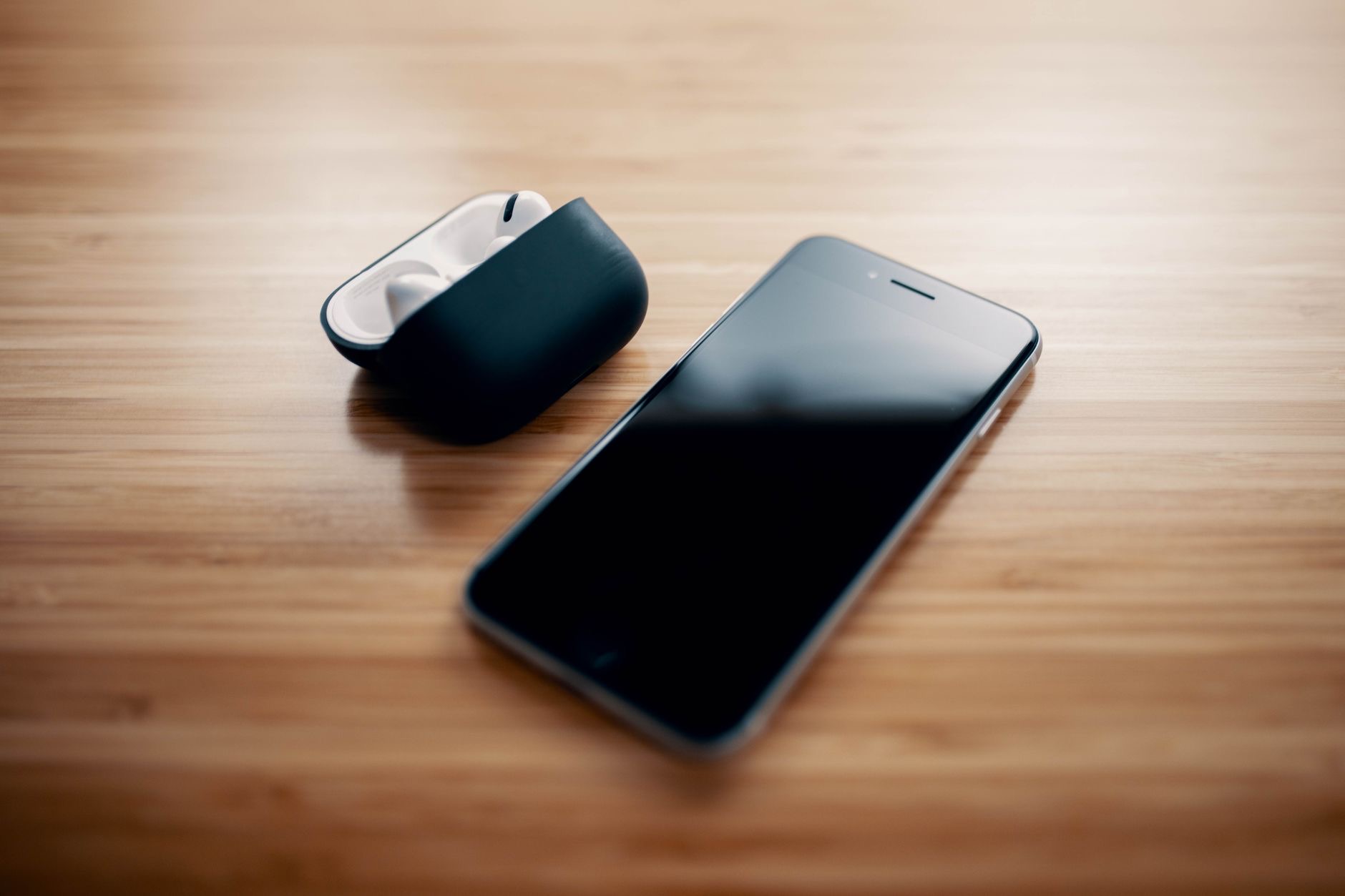
You unbox a shiny new pair of AirPods, and now you just want them connected and playing. The good news is that pairing AirPods is genuinely quick once you know the steps, and they work with far more than just iPhones. Here is how to connect them to anything, plus what to do on the rare occasion pairing gets stubborn.
Pairing With an iPhone or iPad: The Easy Way
On Apple devices, pairing is almost magical. Make sure your iPhone or iPad is unlocked, then simply open the AirPods case, with the AirPods inside, and hold it close to the device. Within a moment, a setup card slides up on the screen showing your AirPods. Tap the connect button, follow the brief on-screen prompts, and that is it, you are paired. Because your AirPods are tied to your account, they also become available on your other Apple devices signed in with the same account automatically. The whole thing takes seconds and requires no digging through settings menus.
If the Setup Card Does Not Appear
Occasionally the automatic card does not pop up, but pairing is still easy. Open your device's Bluetooth settings, make sure Bluetooth is switched on, and look for your AirPods in the list of available devices. With the case open and the AirPods inside, press and hold the small button on the back of the case until the status light blinks white, which signals pairing mode. Your AirPods should then appear in the Bluetooth list, ready to tap and connect. This manual route is your reliable fallback whenever the quick automatic method does not trigger for some reason.
Pairing With a Mac
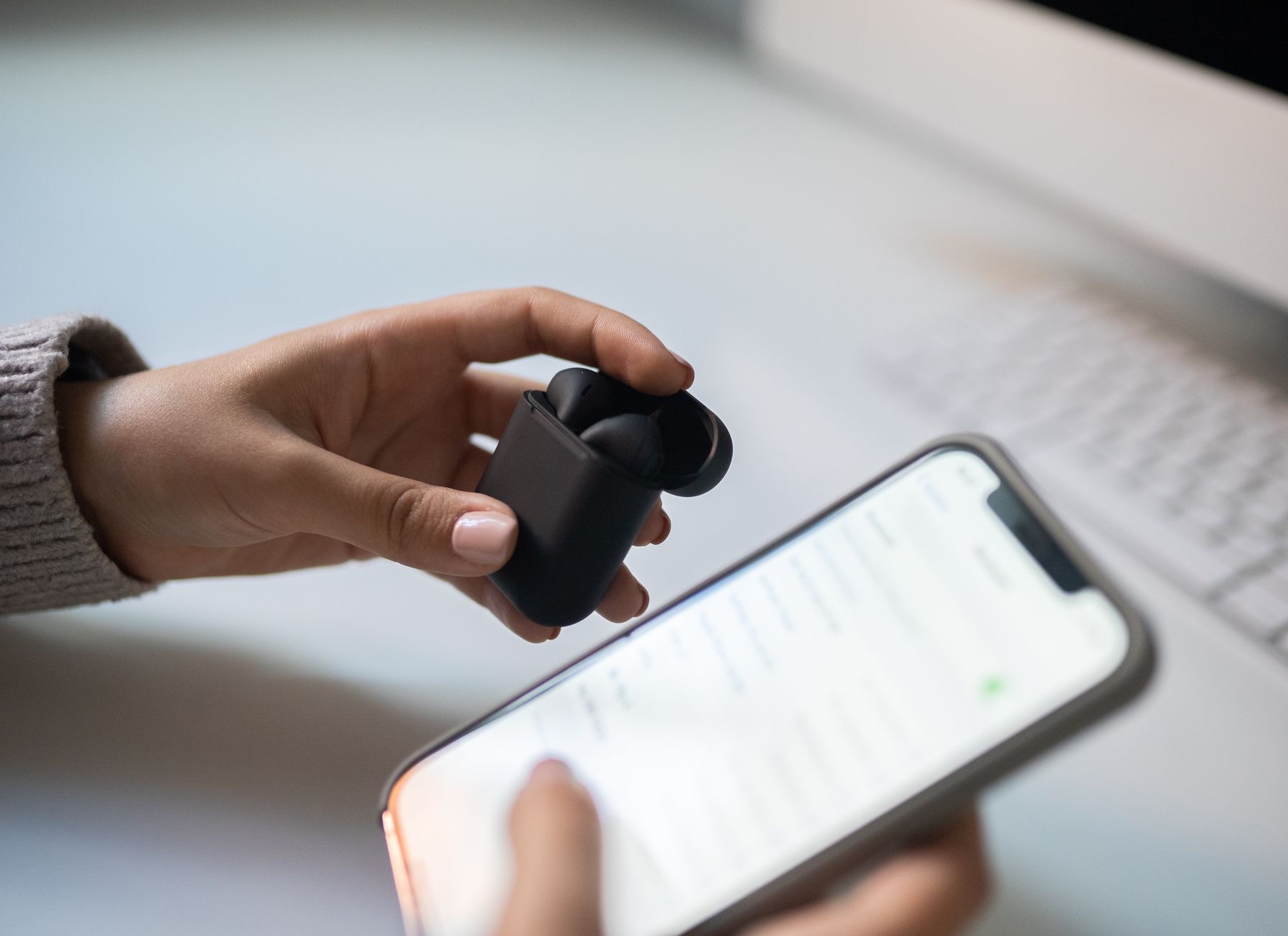
Connecting AirPods to a Mac is straightforward. If the AirPods are already linked to your account, they may simply appear as an option in the sound or Bluetooth menu, ready to select with a click. If not, open the Bluetooth settings on your Mac, then open the AirPods case and hold the button on the back until the light blinks white to enter pairing mode. Your AirPods will show up in the list of nearby devices, and a click connects them. Once paired, switching audio to your AirPods on the Mac is as easy as picking them from the sound menu whenever you want them.
Pairing With Android, Windows, and Other Devices
Here is what many people do not realize: AirPods work with non-Apple devices too, because they use standard Bluetooth. To pair with an Android phone, a Windows PC, or another Bluetooth device, open that device's Bluetooth settings and start a search for new devices. Then open your AirPods case, hold the button on the back until the light blinks white, and select the AirPods when they appear in the list. You lose some of the seamless Apple-only conveniences, but the core function, wireless audio and calls, works perfectly well. Your AirPods are far more versatile than their reputation suggests.
Switching AirPods Between Your Devices
If you use AirPods across several Apple devices on the same account, they can move between them intelligently, often switching automatically to whichever device you start playing audio on. If the automatic switch does not happen or grabs the wrong device, you can manually select your AirPods from the Bluetooth or sound menu on the device you want to use. This flexibility means one pair of AirPods can follow you from phone to tablet to computer throughout the day. Knowing how to nudge the switch manually saves a moment of confusion when the audio lands somewhere you did not intend.
When Pairing Will Not Work: Quick Fixes
If your AirPods stubbornly refuse to pair, a few steps clear up almost every case. First, make sure the AirPods have charge, since a flat case or buds cannot pair. Toggle Bluetooth off and back on, which resolves many temporary glitches. Restart the device you are trying to connect to. If problems persist, you can reset the AirPods themselves by holding the case button for a longer press until the status light cycles, then pair them again as if they were brand new. Working through these in order resolves the overwhelming majority of pairing troubles quickly.
Keeping a Strong Connection
Once paired, a few habits keep the connection rock solid. Keep your AirPods charged, since low battery can cause dropouts and instability. Stay within reasonable range of your device, as Bluetooth weakens with distance and obstacles. Keep your device software up to date, since updates often improve connectivity. And if you ever get persistent audio dropping, returning the AirPods to the case for a moment and taking them out again re-establishes a clean connection. These small practices mean that after the quick initial pairing, your AirPods simply work whenever you reach for them, which is exactly the point.
| Device | How to pair | Note |
|---|---|---|
| iPhone / iPad | Open case nearby, tap the card | Auto-syncs to your other Apple devices |
| Mac | Bluetooth settings or sound menu | May appear automatically if signed in |
| Android / Windows | Bluetooth search, hold case button | Works over standard Bluetooth |
Frequently Asked Questions
How do I pair AirPods with my iPhone?
Unlock your iPhone, open the AirPods case with the buds inside, and hold it close. A setup card appears on screen. Tap connect and follow the prompts. It takes seconds and automatically makes the AirPods available on your other Apple devices signed in with the same account.
Can I use AirPods with an Android phone or Windows PC?
Yes. AirPods use standard Bluetooth, so they pair with Android, Windows, and other devices. Open that device's Bluetooth settings, search for devices, then hold the button on the AirPods case until the light blinks white and select them. Core audio and call functions work fine.
What do I do if the pairing card does not appear?
Open your device's Bluetooth settings, ensure Bluetooth is on, and look for your AirPods in the list. With the case open and buds inside, hold the back button until the light blinks white to enter pairing mode, then tap your AirPods to connect. This manual method is a reliable fallback.
How do I put AirPods into pairing mode?
Open the case with the AirPods inside, then press and hold the small button on the back of the case until the status light blinks white. That white blink means the AirPods are in pairing mode and ready to appear in a device's Bluetooth list to connect.
Why won't my AirPods pair?
Usually a charge, glitch, or connection issue. Make sure the AirPods have charge, toggle Bluetooth off and on, and restart the device. If it still fails, reset the AirPods by holding the case button until the light cycles, then pair again as new. These steps fix most cases.
How do AirPods switch between my devices?
On Apple devices signed in with the same account, AirPods can switch automatically to whichever device you start playing audio on. If it switches to the wrong one or not at all, manually select the AirPods from the Bluetooth or sound menu on the device you want to use.
The Bottom Line
Pairing AirPods is one of the easiest things you will do with them: open the case near an Apple device and tap, or use Bluetooth settings and the case button for everything else, including Android and Windows. If pairing ever resists, a quick charge, a Bluetooth toggle, a restart, or a reset clears it up. Once connected, keep them charged and updated, and your AirPods will simply work every time you pull them out.
Leave a Reply