

When people cannot hear you on calls, your voice memos come out silent, or your video has no sound, a microphone problem is to blame, and it is genuinely disruptive. The good news is that iPhone microphone issues usually come from simple causes like blockages, app permissions, or a glitch, all of which you can fix yourself. Here is how to fix an iPhone microphone that is not working, so you can be heard clearly again.
Why the Microphone Stops Working
Microphone problems usually come from something blocking the mic, an app not having permission to use it, a case or accessory getting in the way, or a temporary glitch. Your iPhone actually has more than one microphone for different purposes, so an issue may affect only certain situations, like calls or videos. Because the common causes are simple, working through a few checks resolves most microphone problems. Rather than assuming a hardware fault, try the easy fixes first, and you will likely have your mic working clearly again quickly.
Clean the Microphone
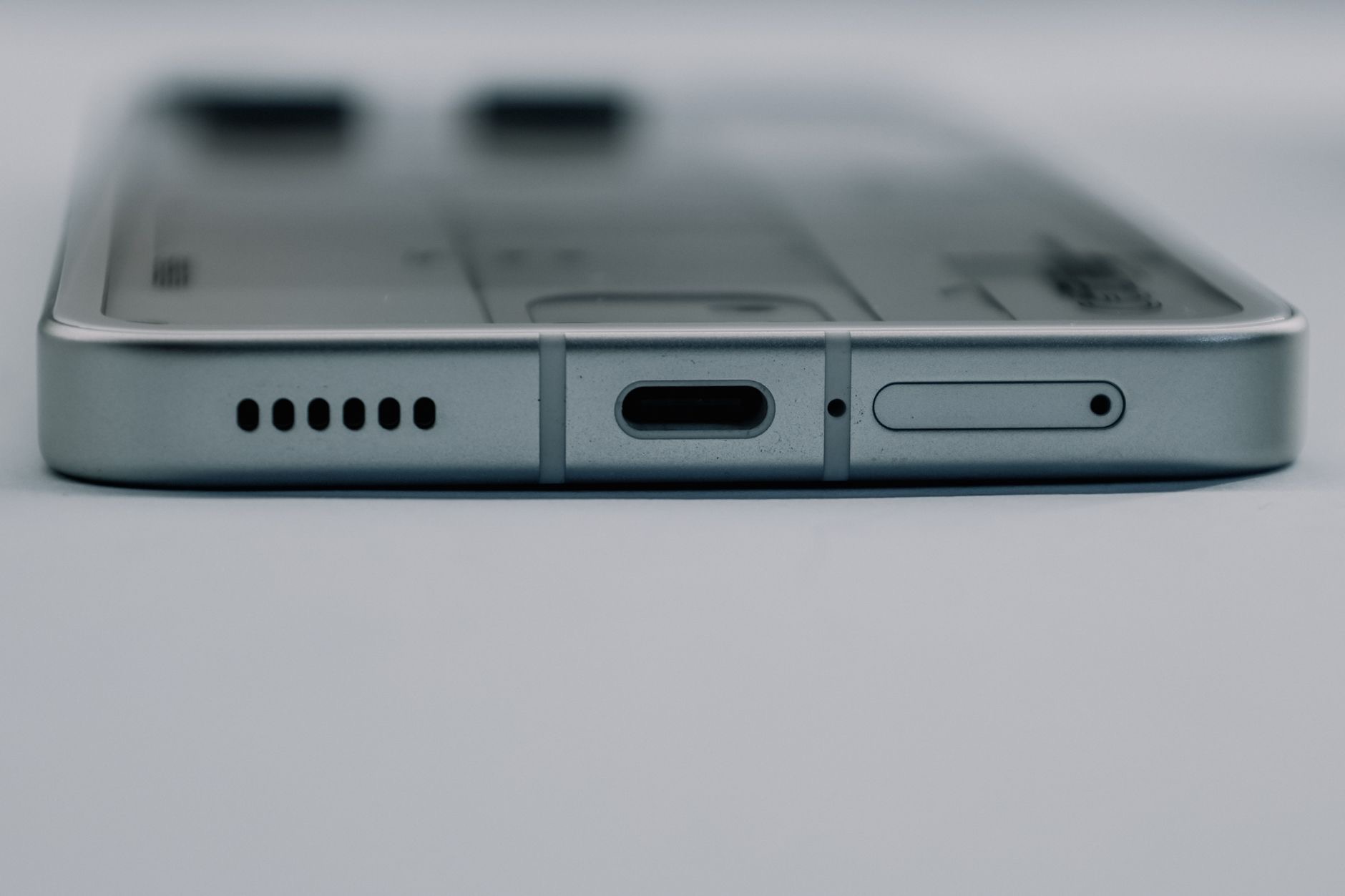
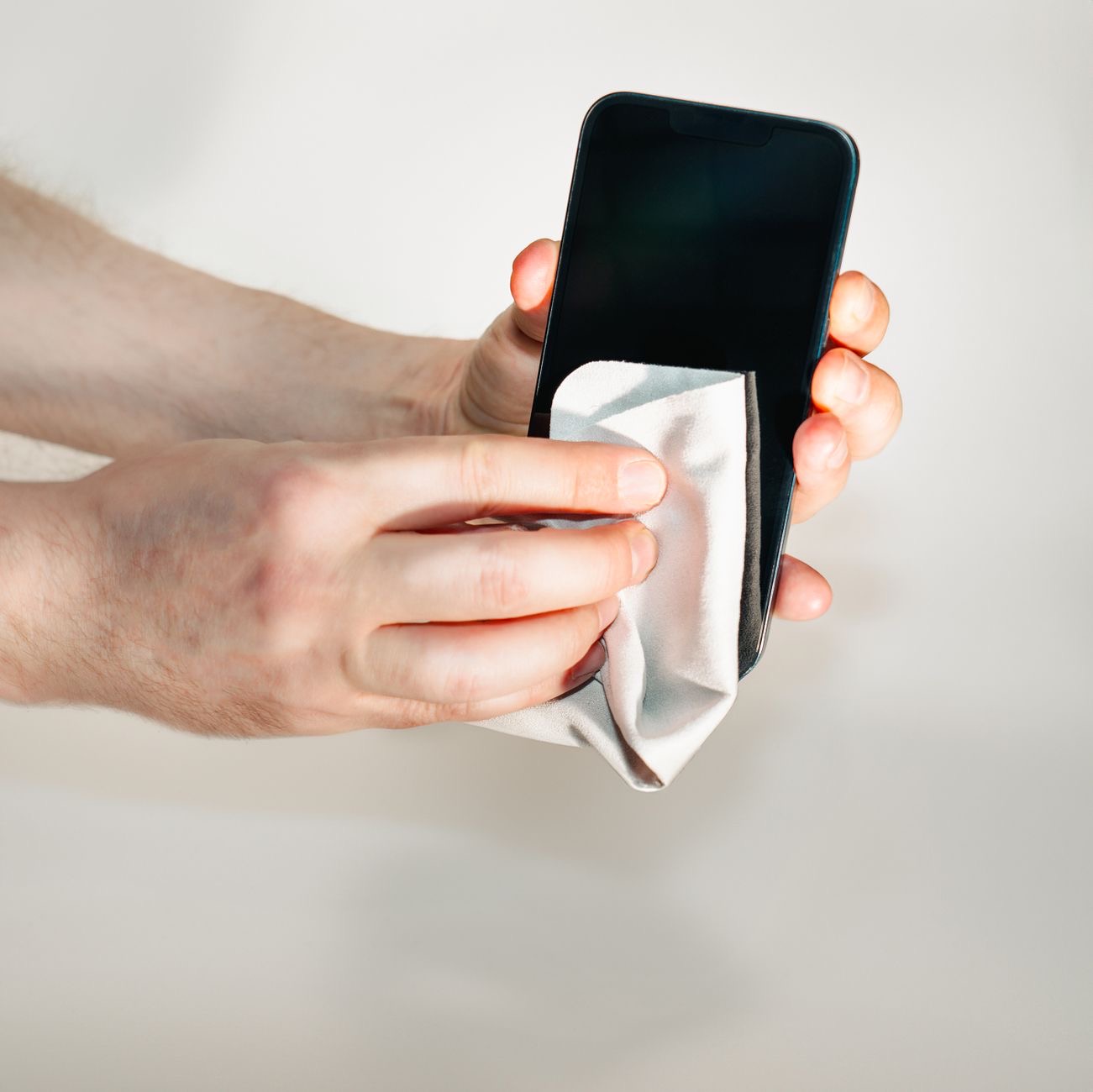
A very common and overlooked cause is a blocked microphone. The small microphone openings on your iPhone can gather dust, lint, and grime over time, which muffles or blocks your voice. Gently and carefully cleaning the microphone areas with something soft and dry can restore clear sound. People are often surprised how much a simple clean helps. Since a blocked mic is such a frequent culprit, cleaning the microphone openings is one of the first and most effective things to try when people cannot hear you clearly.
Remove Your Case or Accessories
Sometimes the problem is something covering the microphone. A case that does not fit well, a screen protector, or an accessory can block a microphone opening, muffling your voice. Try removing your case or any accessories and test whether your microphone works better. A poorly fitting case in particular can cover a mic without you realizing. If removing it solves the problem, you know the case was the cause, and you can look for one that does not block the microphone. This is an easy check that resolves a surprising number of mic issues.
Check App Permissions
If your microphone works in some apps but not others, the issue is likely app permissions. Apps need permission to use your microphone, and if a particular app does not have it, it cannot pick up your voice, even though the mic itself is fine. Check that the apps you want to use have microphone permission enabled in your settings. This is a common reason a mic seems broken in one app while working elsewhere, and granting the right permission usually fixes it instantly for that app.
Restart and Test
If cleaning, removing your case, and checking permissions do not solve it, a restart can clear a temporary glitch affecting your microphone. Turn your iPhone off and on, then test the mic. A good way to test is using a voice recording feature and playing it back, or a quick call, to check whether your voice is picked up clearly. Testing helps you confirm whether the problem is fixed or specific to certain situations. Between cleaning, checking for blockages and permissions, and restarting, most microphone problems get resolved.
When It Might Need Repair
If you have cleaned the microphones, removed your case, checked app permissions, and restarted, but your mic still does not work, it may point to a hardware issue worth having checked by a professional. This is less common than the simple causes, so always try the easy fixes first. For most people, cleaning a blocked mic, removing a covering case, or granting an app permission resolves the problem. Only a persistent mic issue that survives all these checks suggests something that needs professional attention.
| Cause | Fix |
|---|---|
| Blocked microphone | Gently clean the mic openings |
| Case covering the mic | Remove the case and test |
| Missing app permission | Enable mic permission for the app |
| Temporary glitch | Restart and test the microphone |
Frequently Asked Questions
Why is my iPhone microphone not working?
Usually something is blocking the mic, an app lacks permission to use it, a case or accessory is covering it, or there is a temporary glitch. Since your iPhone has more than one microphone, an issue may affect only certain situations. These simple causes are easy to fix with a few checks.
How do I fix my iPhone microphone?
Gently clean the microphone openings to clear blockages, remove your case or accessories in case they are covering the mic, check that apps have microphone permission, and restart your iPhone to clear glitches. Then test the mic. These steps resolve most microphone problems.
Why can people not hear me on calls?
Often a blocked microphone, a case covering it, or a glitch is muffling your voice. Clean the mic openings, remove your case to test, and restart your iPhone. If it happens only in certain apps, check that those apps have microphone permission, since that can stop them picking up your voice.
Can a case block my microphone?
Yes. A poorly fitting case, screen protector, or accessory can cover a microphone opening and muffle your voice, sometimes without you realizing. Try removing your case and accessories and test the mic. If that solves it, look for a case that does not block the microphone openings.
Why does my mic work in some apps but not others?
That points to app permissions. Apps need permission to use your microphone, and if a particular app does not have it, it cannot pick up your voice even though the mic is fine. Check that the app has microphone permission enabled in your settings, which usually fixes it for that app.
When should I get my microphone repaired?
If cleaning, removing your case, checking permissions, and restarting all fail to fix it, it may be a hardware issue worth having checked professionally. This is less common than the simple causes, so try the easy fixes first, as they resolve most microphone problems for people.
The Bottom Line
An iPhone microphone that is not working is usually an easy fix. Start by gently cleaning the microphone openings, since a blockage is a top cause, then remove your case or accessories in case they are covering the mic. Check that apps have microphone permission if the problem is app-specific, and restart your iPhone to clear glitches. Test it afterward to confirm. These steps get your mic working clearly for most people, so you can be heard again without hassle.
Leave a Reply