

A MacBook trackpad that stops working, or behaves erratically with a jumpy cursor and missed clicks, makes your laptop hard to use. It is frustrating, but rarely serious. Most trackpad problems come from simple, fixable causes, and you can usually solve them yourself in a few minutes. Here is how to fix a MacBook trackpad that is not working or acting up, so your cursor responds smoothly and reliably again.
Why a Trackpad Misbehaves
Trackpad problems usually come from a temporary glitch, dirt or moisture on the surface or your fingers, a settings issue, or interference from a connected accessory. Hardware faults are less common. Because most causes are simple, working through a few checks resolves the great majority of trackpad issues. Whether your trackpad is completely unresponsive, clicking erratically, or the cursor is jumping around, treating it as something to troubleshoot rather than a broken part means you will likely have it working smoothly again quickly and for free.
Restart Your Mac
The simplest and often most effective first step is to restart your Mac. A restart clears temporary software glitches that can cause a trackpad to stop responding or behave strangely, giving the system a fresh start. If your trackpad suddenly started misbehaving, turning your Mac off and back on is quick and frequently resolves the problem straight away. It is always worth trying before anything more involved, since a surprising number of trackpad quirks are simply temporary glitches that a good restart clears completely.
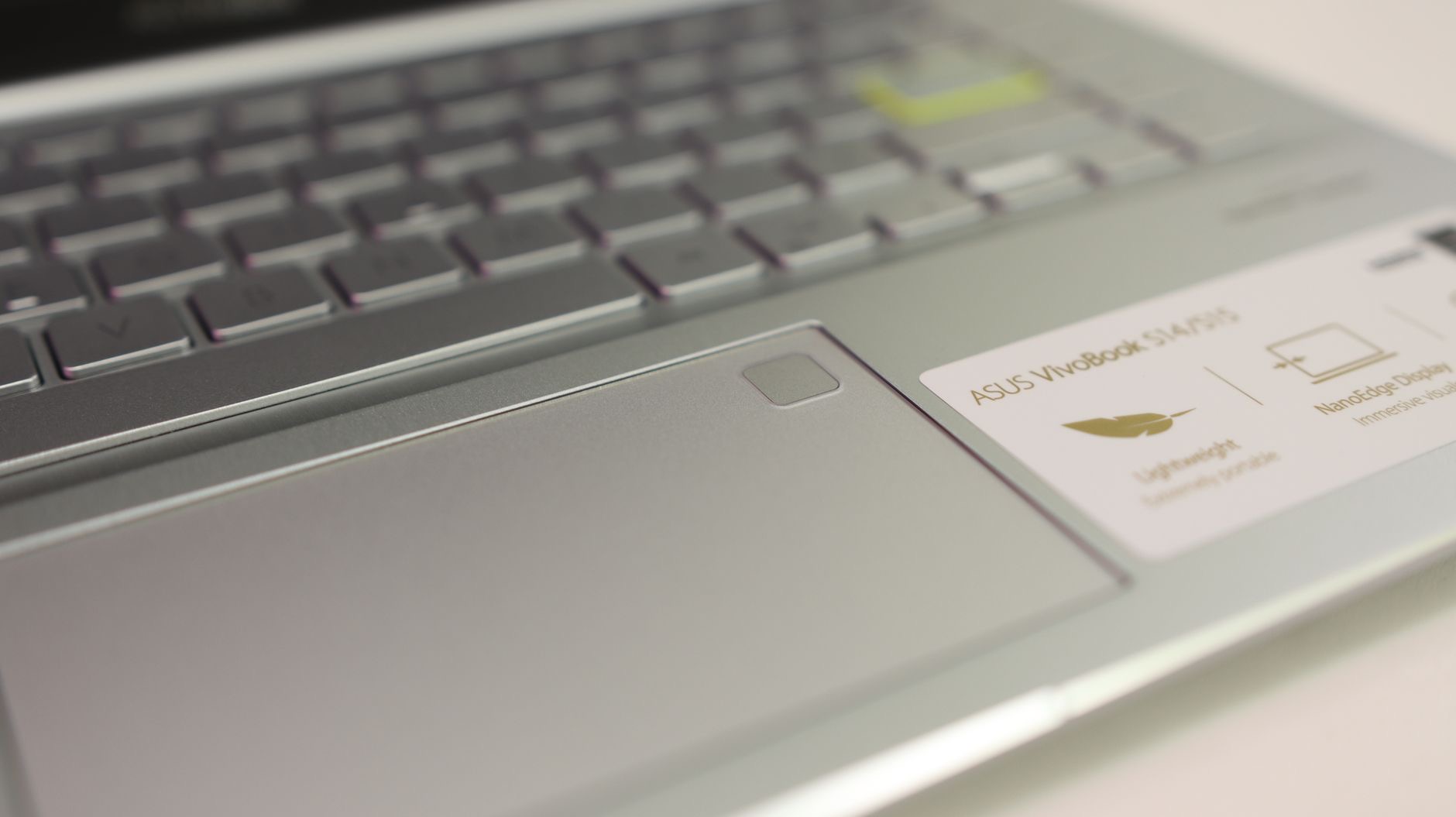
Clean the Trackpad and Your Hands
A trackpad relies on clean, dry contact to work properly, so dirt, grease, or moisture on the surface or your fingers can make it unresponsive or erratic. Wipe the trackpad with a soft, clean, dry cloth, and make sure your hands are clean and dry too. Sweat, lotion, or crumbs can genuinely interfere with tracking and clicking. This simple cleaning step resolves more trackpad problems than people expect, so before assuming something is broken, give the trackpad and your fingers a clean and test whether normal, smooth control returns.
Check Your Settings
Sometimes the trackpad is working but behaving in a way you did not expect because of its settings. Your Mac has trackpad settings that control clicking, tracking speed, gestures, and more, and a setting in an unexpected place can make the trackpad feel wrong. Reviewing these settings ensures the trackpad is configured the way you want, with clicking and gestures set up properly. If your trackpad works but feels off, checking the settings often reveals the cause, letting you adjust it back to behaving the way you expect.
Disconnect Other Devices
If you use a wireless mouse or other pointing device with your Mac, it can sometimes interfere with the trackpad, or a setting may disable the trackpad when an external mouse is connected. Try disconnecting any wireless mouse or accessory and see if the trackpad starts working normally. There is also a setting that can ignore the trackpad when a mouse is present, so checking that is worthwhile. Ruling out interference from other devices is a smart step, since an external accessory is a common and easily overlooked cause of trackpad trouble.
Update and Seek Help if Needed
Keeping your Mac's software up to date helps, since updates fix bugs that can affect the trackpad and other hardware. Make sure you are on the latest version. If you have restarted, cleaned the trackpad, checked settings, disconnected other devices, and updated, but the trackpad still will not work, it may point to a hardware issue worth having checked by a professional. This is less common than the simple causes, so try the easy fixes first, as they resolve trackpad problems for most people and get their cursor responding smoothly again.
| Cause | Fix |
|---|---|
| Temporary glitch | Restart your Mac |
| Dirt or moisture | Clean the trackpad and your hands |
| Settings issue | Review your trackpad settings |
| Device interference | Disconnect a wireless mouse |
Frequently Asked Questions
Why is my MacBook trackpad not working?
Usually a temporary glitch, dirt or moisture on the surface or your fingers, a settings issue, or interference from a connected accessory like a wireless mouse. Hardware faults are less common. These simple causes are easy to fix by restarting, cleaning, checking settings, and disconnecting other devices.
How do I fix a MacBook trackpad?
Restart your Mac to clear glitches, clean the trackpad and your hands so contact is dry and clean, review your trackpad settings, and disconnect any wireless mouse that might interfere. Keep your software updated too. These steps resolve the great majority of trackpad problems quickly.
Why is my trackpad cursor jumping around?
Often dirt, grease, or moisture on the trackpad or your fingers interferes with tracking, causing an erratic or jumpy cursor. Wiping the trackpad and your hands clean and dry usually restores smooth control. A restart and checking your settings can help too if cleaning alone does not resolve it.
Can a wireless mouse affect the trackpad?
Yes. A connected wireless mouse can sometimes interfere, and there is even a setting that can disable the trackpad when an external mouse is present. Try disconnecting any wireless mouse or accessory to see if the trackpad works normally, and check that setting, since this is a commonly overlooked cause.
Does cleaning really help a trackpad?
Yes, more than people expect. A trackpad relies on clean, dry contact, so sweat, grease, lotion, or crumbs on the surface or your fingers can make it unresponsive or erratic. Wiping the trackpad with a soft dry cloth and cleaning your hands often restores normal, smooth control immediately.
When does a trackpad need repair?
If restarting, cleaning, checking settings, disconnecting devices, and updating all fail to fix it, it may be a hardware issue worth having checked professionally. This is less common than the simple causes, so work through the easy fixes first, as they resolve trackpad problems for most people.
The Bottom Line
A MacBook trackpad that will not work or is acting erratic is usually an easy fix. Restart your Mac to clear glitches, clean the trackpad and your hands so contact is dry and clean, and review your trackpad settings. Disconnect any wireless mouse that might interfere, and keep your software updated. These steps get the cursor responding smoothly for most people, and only a problem that survives them all suggests a hardware issue worth having checked.
Leave a Reply