
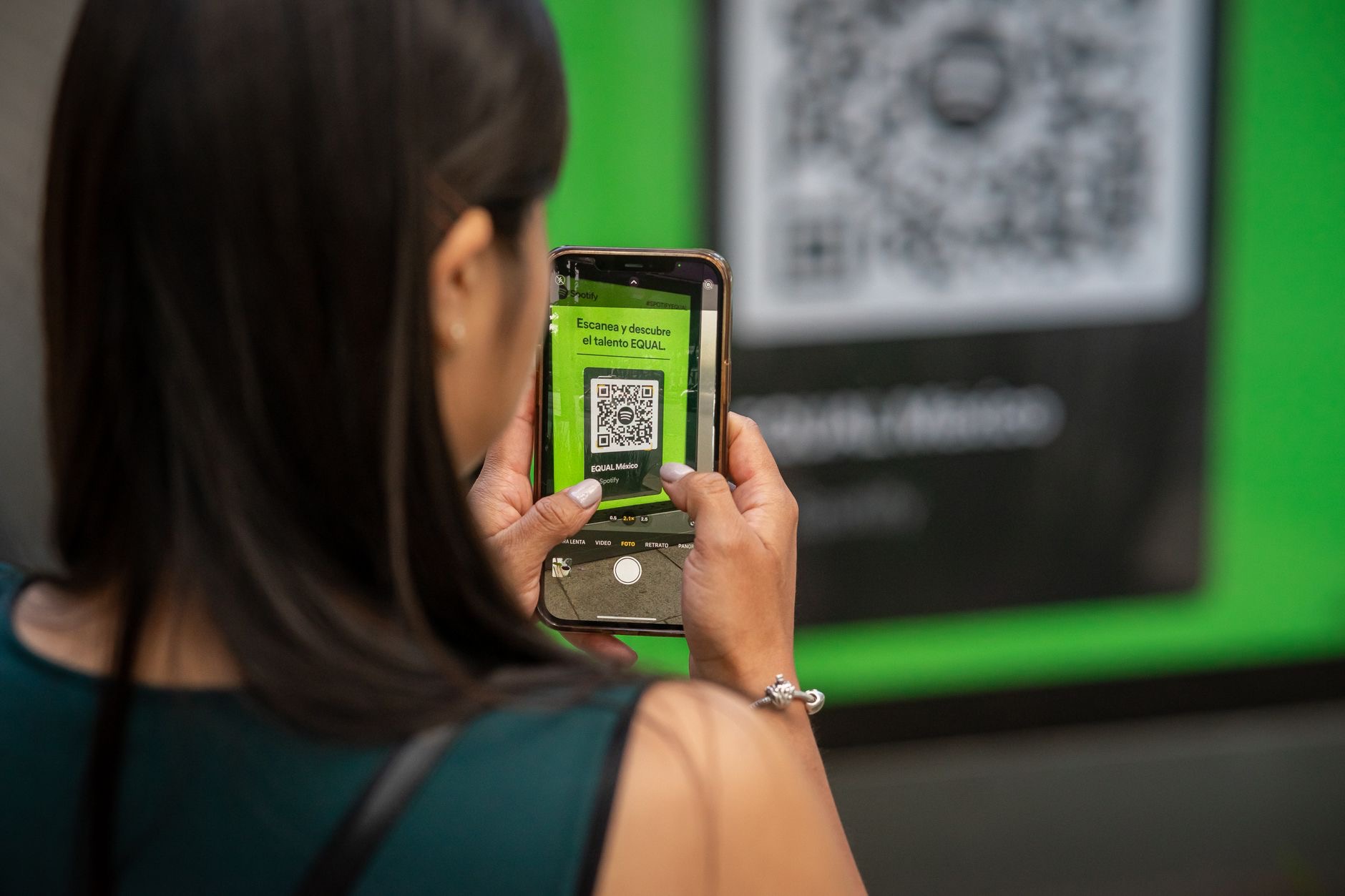
QR codes are everywhere now, on menus, posters, packaging, and tickets, and your iPhone can scan them instantly without any special app. If you have ever fumbled trying to open one, the good news is it takes just seconds once you know how. Here is how to scan a QR code with your iPhone quickly and easily, plus a few tips to make sure you do it safely every time.
Your Camera Is All You Need
The best-kept secret about QR codes is that you do not need to download any app to scan them, your iPhone's built-in Camera app does it. Simply point your camera at the code, and your iPhone recognizes it and offers to open whatever it links to. This built-in ability means scanning a QR code is as easy as taking a photo, and it works instantly in most situations. Once you know your Camera app handles this, those little squares become quick gateways to menus, links, and information wherever you encounter them.
How to Scan a Code
To scan a QR code, open your Camera app and point it at the code so the whole square is visible in the frame. Hold steady for a moment, and your iPhone recognizes it and shows a notification or link you can tap to open. That is all there is to it, no button to press, no app to launch. If nothing appears at first, make sure the code is well lit, in focus, and fully within the frame. In good conditions, scanning happens almost instantly, taking you straight to whatever the code points to.
What QR Codes Can Do
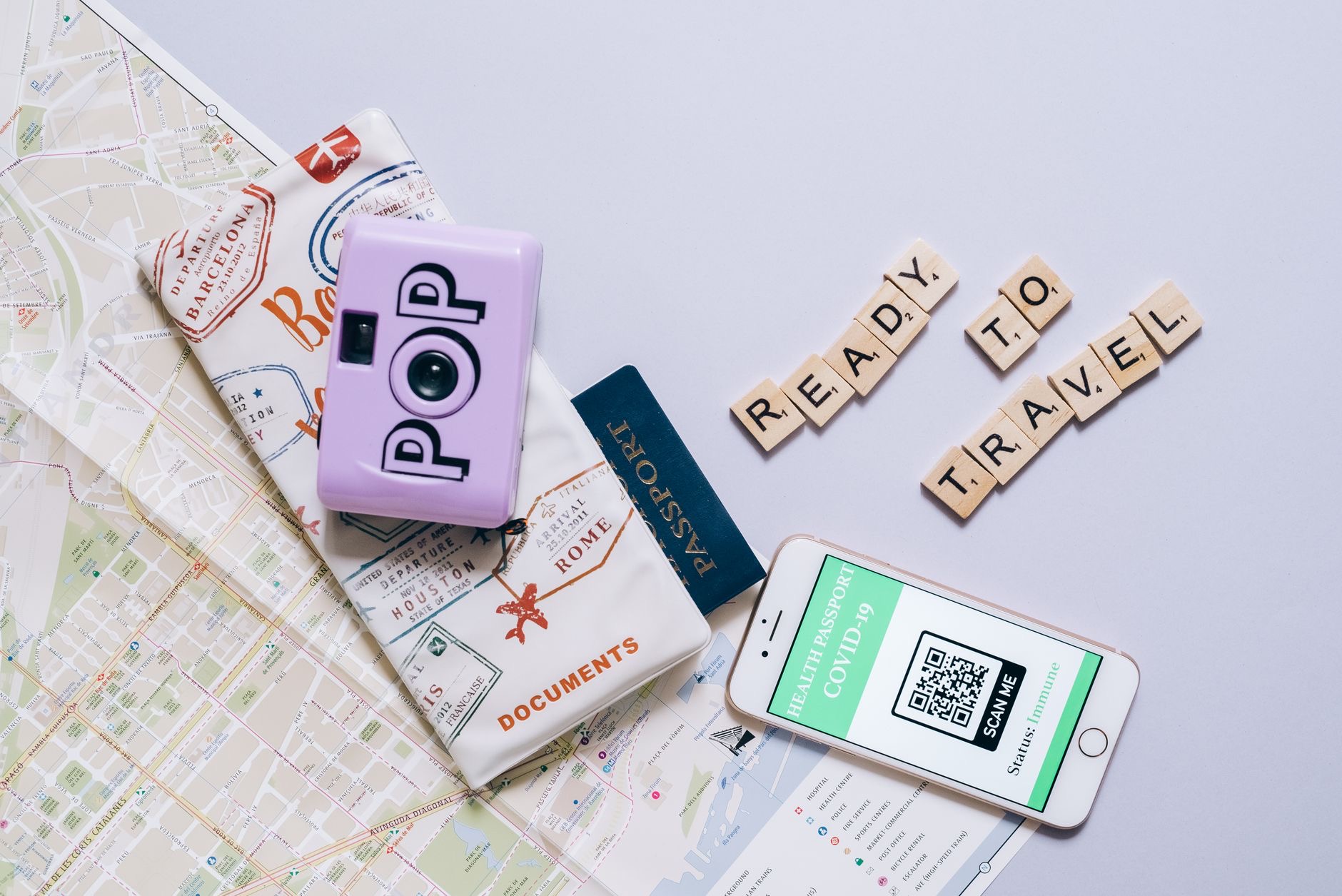
QR codes link to all sorts of useful things. Scanning one might open a restaurant menu, take you to a website, connect you to a Wi-Fi network, show event details, add a contact, or reveal information about a product. They are a quick bridge from the physical world to digital content, saving you from typing out long web addresses or details. Understanding that a QR code can lead almost anywhere helps you appreciate how handy they are, and how much time your iPhone saves you by opening them with a simple point of the camera.
Troubleshooting a Scan
If a code will not scan, a few simple checks usually fix it. Make sure the entire code is within your camera's view and in focus, and that there is enough light, since a dim or blurry code is hard to read. Hold your phone steady and at a sensible distance, not too close or too far. A dirty camera lens can also get in the way, so wipe it if needed. With good lighting, a steady hand, and the full code in frame, almost any QR code scans quickly and reliably.

Stay Safe When Scanning
QR codes are convenient, but it is wise to scan with a little caution, since a code can lead anywhere, including places you would not want to go. Before opening a link a code points to, glance at the preview your iPhone shows to check it looks legitimate and expected. Be wary of codes in suspicious places or that seem out of context, just as you would with any link. This simple awareness lets you enjoy the convenience of QR codes while avoiding the small risk of being sent somewhere untrustworthy.
A Handy Everyday Skill
Once you are comfortable scanning QR codes, you will use the skill constantly, ordering from a menu, connecting to Wi-Fi, opening a link on a poster, or checking product details. It is one of those small, practical abilities that makes navigating the modern world smoother. Since your iPhone handles it with just the Camera app, there is nothing to set up and nothing to remember beyond pointing and tapping. Add a little safety awareness, and QR codes become a fast, convenient part of your everyday life.
| Step | What to do |
|---|---|
| Open the Camera app | No special app is needed |
| Point at the code | Fit the whole square in frame |
| Tap the link | Open what the code points to |
| Check before opening | Glance at the preview to stay safe |
Frequently Asked Questions
How do I scan a QR code with my iPhone?
Open the built-in Camera app and point it at the code so the whole square is in the frame. Hold steady, and your iPhone recognizes it and shows a link you can tap to open. No special app is needed, and in good light scanning happens almost instantly.
Do I need an app to scan QR codes?
No. Your iPhone's built-in Camera app scans QR codes without any download. Just point the camera at the code and tap the link that appears. This built-in ability makes scanning as easy as taking a photo, so those little squares become quick gateways to menus, links, and information.
Why won't my iPhone scan a QR code?
Usually the code is not fully in frame, out of focus, or poorly lit. Make sure the entire code is within your camera's view and in focus with enough light, hold steady at a sensible distance, and wipe a dirty lens if needed. Good conditions let almost any code scan quickly.
What can QR codes do?
They can open a menu or website, connect you to Wi-Fi, show event details, add a contact, or reveal product information. They are a quick bridge from the physical world to digital content, saving you from typing long web addresses, and your iPhone opens them with a simple point of the camera.
Are QR codes safe to scan?
Generally yes, but scan with a little caution since a code can lead anywhere. Before opening a link, glance at the preview your iPhone shows to check it looks legitimate and expected, and be wary of codes in suspicious or out-of-context places, just as you would with any link.
How do I know where a QR code leads?
When you scan a code, your iPhone shows a preview or notification of the link before you open it. Glancing at this lets you see where it will take you and decide whether it looks trustworthy, which is a simple, effective way to stay safe while enjoying the convenience of QR codes.
The Bottom Line
Scanning a QR code with your iPhone takes seconds and needs no special app, just open the Camera, point it at the code, and tap the link that appears. Make sure the whole code is in frame and well lit for a quick scan, and glance at the preview before opening to stay safe. From menus to Wi-Fi to links, QR codes are a handy bridge to digital content, and your iPhone makes using them effortless once you know how.
Leave a Reply