
We all have photos we would rather keep private, personal moments, financial documents, or images we simply do not want popping up when we hand our phone to someone or show them a picture. Your iPhone makes it easy to keep these out of sight. With a built-in hidden album, you can tuck private photos away and even lock them. Here is how to hide photos on your iPhone and keep your private moments genuinely private.
Why Hiding Photos Is Useful
There are plenty of good reasons to hide photos. Maybe you are showing someone a picture and do not want them swiping into personal ones. Perhaps you have photos of sensitive documents, or images that are simply private. Whatever the reason, keeping certain photos out of your main library gives you control and peace of mind. It is not about hiding anything wrong, it is about privacy, which everyone deserves. Your iPhone's built-in tools make this simple, letting you decide exactly which photos are visible and which stay tucked safely away.
Use the Hidden Album
Your iPhone has a built-in Hidden album designed for exactly this. When you choose to hide a photo, it moves out of your main library and into this separate album, so it no longer appears when you scroll through your photos or when the images are on display. This keeps private photos from showing up unexpectedly while still keeping them safe on your phone. The Hidden album is the simple, official way to tuck photos out of sight, and it is easy to move photos in and out whenever you want.
How to Hide a Photo
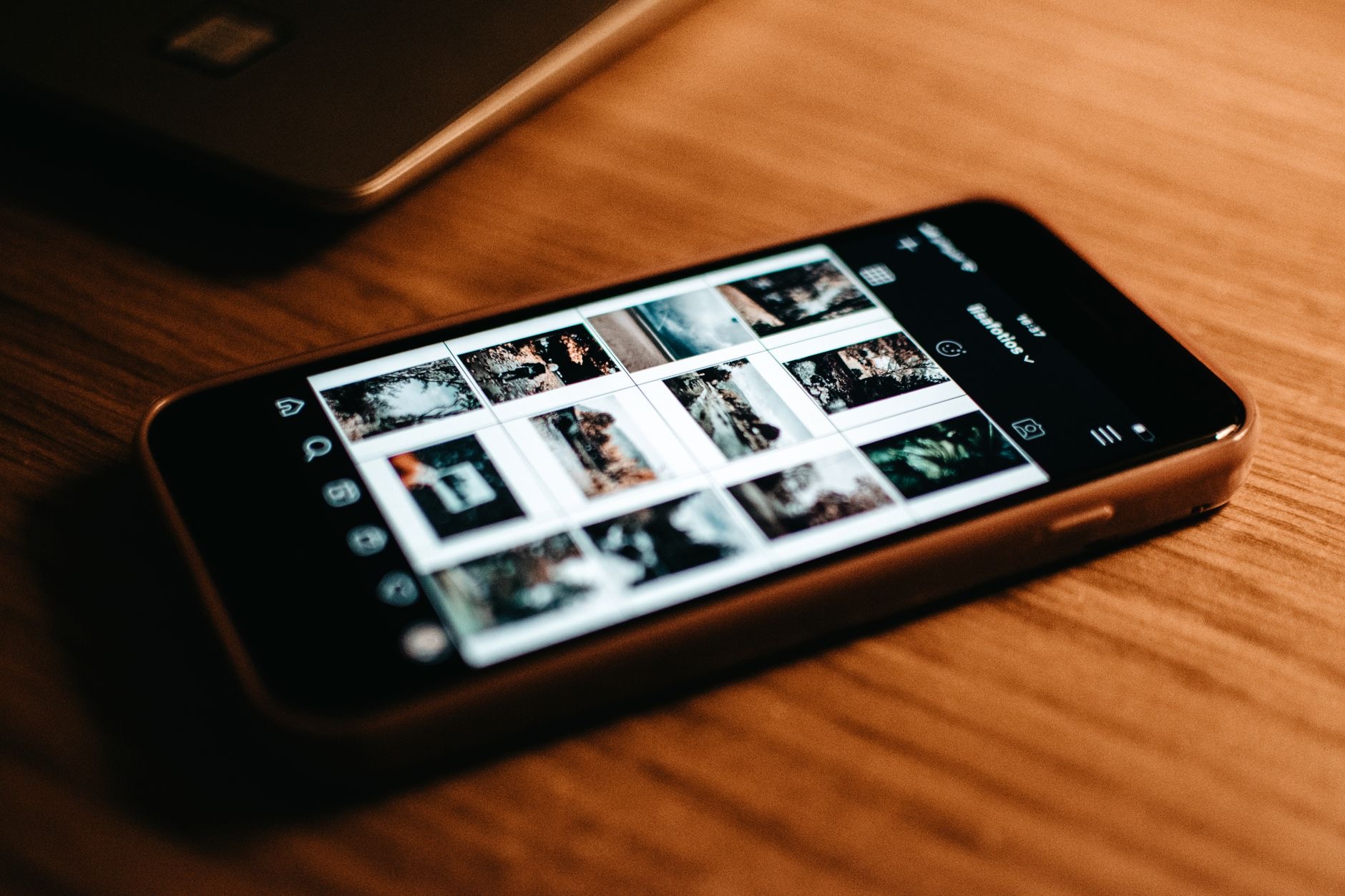
Hiding a photo is quick. When viewing a photo, you can choose the option to hide it, and it moves to the Hidden album, disappearing from your main view. You can hide individual photos or several at once, making it easy to tidy away anything private. The photo is not deleted, just relocated to the hidden area, so you can still find and view it whenever you like. This straightforward process means you can quickly keep any personal image out of sight in just a few taps.
Lock Your Hidden Album
Here is what makes hiding photos genuinely secure: your Hidden album can be locked, so it requires your Face ID, Touch ID, or passcode to open. This means even if someone is scrolling through your phone, they cannot casually open your hidden photos without your authentication. Making sure your Hidden album is locked is the key step for real privacy, since it turns a simple out-of-sight feature into a properly protected one. With it locked, your private photos are not just hidden, but secured behind your personal authentication.
Unhide Photos Anytime
Hiding is not permanent, you can move photos back to your main library whenever you want. Simply open your Hidden album, select the photos, and choose to unhide them, and they return to your normal view. This flexibility means you can hide photos temporarily, perhaps just while showing someone your phone, and bring them back later. The whole system is designed to give you easy, reversible control over what is visible, so you are never locked into a decision and can manage your privacy exactly as your situation requires.
Extra Privacy Tips
Hiding photos works best alongside good overall privacy habits. Keep your iPhone locked with a strong passcode and biometric protection, so your whole phone is secure. Be thoughtful about what is visible when you hand your phone to someone. And remember that for truly sensitive documents, keeping them properly secured and backed up matters too. Combining a locked Hidden album with a well-secured iPhone gives you strong, practical privacy for your photos, ensuring your personal moments stay yours and only appear when you choose to show them.
| Step | What it does |
|---|---|
| Hide a photo | Moves it to the Hidden album |
| Lock the Hidden album | Requires your authentication to open |
| Unhide anytime | Returns photos to your main library |
| Secure your iPhone | Protects everything with a passcode |
Frequently Asked Questions
How do I hide photos on my iPhone?
When viewing a photo, choose the option to hide it, and it moves to the built-in Hidden album, disappearing from your main library. You can hide individual photos or several at once. The photo is not deleted, just relocated, so you can view or unhide it whenever you want.
Where do hidden photos go?
They move to a separate, built-in Hidden album, so they no longer appear when you scroll through your main photo library or when images are on display. They stay safe on your phone in this dedicated area, and you can move them in and out whenever you like.
Can I lock my hidden photos?
Yes, and you should for real privacy. Your Hidden album can be locked so it requires your Face ID, Touch ID, or passcode to open. This means someone scrolling through your phone cannot casually open your hidden photos, turning a simple out-of-sight feature into a properly secured one.
Are hidden photos deleted?
No. Hiding a photo simply relocates it to the Hidden album rather than deleting it, so it stays safe on your phone. You can still find and view it in the Hidden album, and you can unhide it to return it to your main library at any time, making the feature fully reversible.
How do I unhide photos?
Open your Hidden album, select the photos you want, and choose to unhide them, and they return to your normal library view. This lets you hide photos temporarily, perhaps while showing someone your phone, and bring them back later, giving you easy, reversible control over what is visible.
Is hiding photos enough for privacy?
It helps a lot, especially with the Hidden album locked. For strong privacy, also keep your whole iPhone locked with a strong passcode and biometric protection, be mindful of what is visible when you hand your phone over, and keep truly sensitive documents secured and backed up.
The Bottom Line
Keeping certain photos private is easy on your iPhone. Move personal images into the built-in Hidden album so they stay out of your main library and out of sight, then lock that album so it requires your Face ID, Touch ID, or passcode to open. You can unhide photos anytime, making it fully reversible. Combined with a well-secured iPhone, a locked Hidden album gives you strong, practical privacy, so your personal moments only appear when you choose to show them.
Leave a Reply