

If you finish your workday with a stiff neck, aching shoulders, or a sore back, your setup is quietly hurting you. Hunching over a laptop for hours takes a real toll, and no amount of willpower fixes bad posture, only a better setup does. The wonderful news is that a comfortable, ergonomic Mac workspace is easy and affordable to build. Here is exactly how to set one up that protects your body and makes long days at your Mac feel effortless.
Why Laptop Posture Hurts
The problem with working on a laptop is built in: when the screen is at a comfortable height, the keyboard is too high, and when the keyboard is comfortable, the screen is too low, so you hunch. Hours of looking down at a laptop strain your neck, shoulders, and back, and over time that discomfort can become a real, persistent problem. This is not about being fragile, it is simple physics. The fix is to separate the screen and the keyboard so each sits where your body actually wants it. That single change transforms everything.
The Foundation: A Laptop Stand
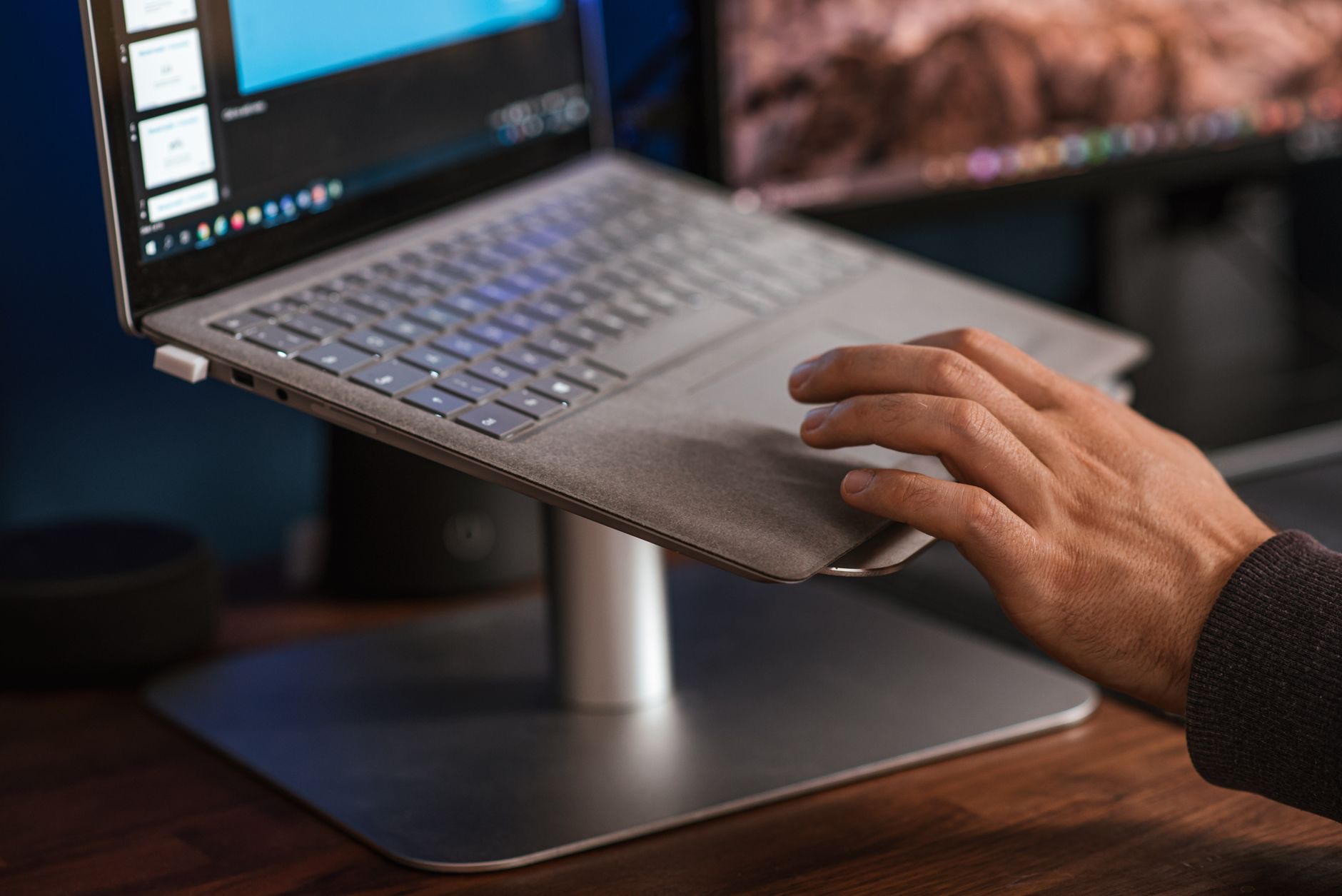
The most impactful upgrade you can make is a laptop stand. Raising your MacBook so the top of the screen is around eye level instantly stops you looking down, straightening your neck and back. It is genuinely the difference between hunching and sitting tall. A stand is inexpensive, and the moment you use one, you feel your posture improve. This one accessory is the cornerstone of an ergonomic setup, and pairing it with a separate keyboard and mouse completes the transformation. If you buy just one thing, make it a stand.
★ Editor's Pick · Amazon
Laptop Stand
Raise your screen to eye level and stop hunching, the key upgrade
Add a Keyboard and Mouse
Once your MacBook is raised on a stand, you need a separate keyboard and mouse, because the laptop's own are now too high to use comfortably. An external keyboard lets your hands rest at the right height with relaxed shoulders, and a proper mouse is far kinder to your wrist than a trackpad for long sessions. Together with the stand, they let you position everything ergonomically: screen at eye level, hands low and relaxed. This trio is the heart of a comfortable workspace and the reason your body stops aching at the end of the day.
★ Editor's Pick · Amazon
Wireless Keyboard & Mouse
Let your hands rest low while the screen stays high
Options: Wireless Keyboard · Wireless Mouse · Trackpad
Consider an External Monitor
For even better ergonomics and more space, an external monitor is a fantastic addition. A larger screen at the right height is easier on your eyes and lets you work without squinting or hunching toward a small display. You can use your MacBook on a stand alongside it for extra screen space, or as your main display. Connecting one is simple with the right cable or hub. If you spend long hours working, a bigger screen at eye level is a comfort and productivity upgrade your neck and your workflow will both thank you for.
Keep It Tidy and Connected
A cluttered, tangled desk adds stress and gets in the way. A USB-C hub tidies everything by letting you connect your monitor, drives, keyboard, and other accessories through a single connection to your MacBook, which you can unplug in a second when you want to grab your laptop and go. A clean, well-connected desk is not just nicer to look at, it makes working smoother and more pleasant. Sorting out your cables and connections is the finishing touch that turns a pile of gear into a proper, functional workspace.
★ Editor's Pick · Amazon
USB-C Hub
Connect monitor, drives, and accessories through one tidy plug
Small Habits That Complete the Setup
Great gear works best with a few good habits. Sit back in your chair with your feet flat and shoulders relaxed. Keep the top of your screen around eye level and your hands low. Take short breaks to stand, stretch, and rest your eyes, since even the best setup benefits from movement. Position your screen to avoid glare. These small habits, combined with a stand, keyboard, mouse, and tidy connections, create a workspace that supports your body all day. Comfort is a system, and these habits are the free part that ties it together.

Build It Step by Step
You do not have to buy everything at once. Start with the stand, the single biggest improvement, then add a keyboard and mouse to complete the core ergonomic setup. From there, a monitor and a hub take it further whenever you are ready. Each piece makes a real difference on its own, and together they build a workspace that protects your back, neck, and wrists through the longest days. Investing a little in your setup is investing in your comfort and health, and it pays off every single day you sit down to work.
| Upgrade | What it fixes |
|---|---|
| Laptop stand | Neck and back strain from looking down |
| Keyboard and mouse | High, hunched hands and wrist strain |
| External monitor | Eye strain and squinting at a small screen |
| USB-C hub | Cable clutter and messy connections |
Frequently Asked Questions
How do I make my Mac workspace ergonomic?
Raise your MacBook on a stand so the top of the screen is around eye level, then add a separate keyboard and mouse so your hands rest low and relaxed. Add an external monitor and a tidy hub if you like. This separates screen and keyboard heights, fixing the hunching that causes strain.
What is the most important ergonomic accessory?
A laptop stand. Raising your screen to eye level instantly stops you looking down, straightening your neck and back. It is inexpensive and the single most impactful upgrade. Pairing it with a separate keyboard and mouse completes the core setup, but if you buy one thing, make it the stand.
Why does working on a laptop hurt my neck?
Because a laptop forces a compromise: when the screen is at a good height, the keyboard is too high, and when the keyboard is comfortable, the screen is too low, so you hunch and look down for hours. That strains your neck, shoulders, and back. Separating the screen and keyboard fixes it.
Do I need an external monitor?
Not essential, but it helps. A larger screen at the right height is easier on your eyes and reduces hunching toward a small display. You can use it alongside your MacBook on a stand for more space, or as your main screen. For long hours, it is a real comfort and productivity boost.
Can I build an ergonomic setup gradually?
Yes. Start with a stand, the biggest single improvement, then add a keyboard and mouse for the core setup. A monitor and hub can come later. Each piece helps on its own, so you can build up over time and still feel the benefit at every step without buying everything at once.
Do habits matter as much as gear?
They work together. Even the best gear benefits from sitting back with feet flat and shoulders relaxed, keeping the screen at eye level, avoiding glare, and taking short breaks to stand and stretch. These free habits combined with good accessories create a workspace that truly supports your body.
The Bottom Line
If long days at your Mac leave you aching, the fix is not toughing it out, it is a better setup. A laptop stand raises your screen to eye level and ends the hunching, a separate keyboard and mouse let your hands rest low, and a monitor and hub take comfort and tidiness further. Add a few good posture habits, and your workspace starts protecting your body instead of straining it. Build it step by step, starting with the stand, and every workday gets more comfortable.
Leave a Reply