

An iPad that has become slow and sluggish is frustrating, but before you assume it is time for a new one, there is a lot you can do to bring it back to life. Often, a few simple fixes make a slow iPad feel responsive again, and none of them require any technical skill. Here are practical steps to speed up a slow iPad, so you can enjoy a snappy tablet once more.
1. Restart Your iPad
It sounds obvious, but restarting your iPad is genuinely one of the most effective first fixes for sluggishness. Turning it off and back on clears out temporary issues and refreshes the system, often resolving slowdowns instantly. If you rarely restart your iPad, it may have been running for a long time without a break. A simple restart is quick, easy, and frequently the single most effective thing you can do to make a slow iPad feel responsive again.
2. Free Up Storage Space
An iPad with almost no free storage can slow down noticeably, since it needs some breathing room to run smoothly. Check your storage and clear out what you do not need, delete apps you no longer use, remove old files and downloads, and manage your photos. Freeing up space is one of the most impactful fixes for a sluggish iPad. Keeping some storage free ensures your iPad has room to operate comfortably, which directly improves how fast and responsive it feels.
3. Close Apps and Manage Tabs
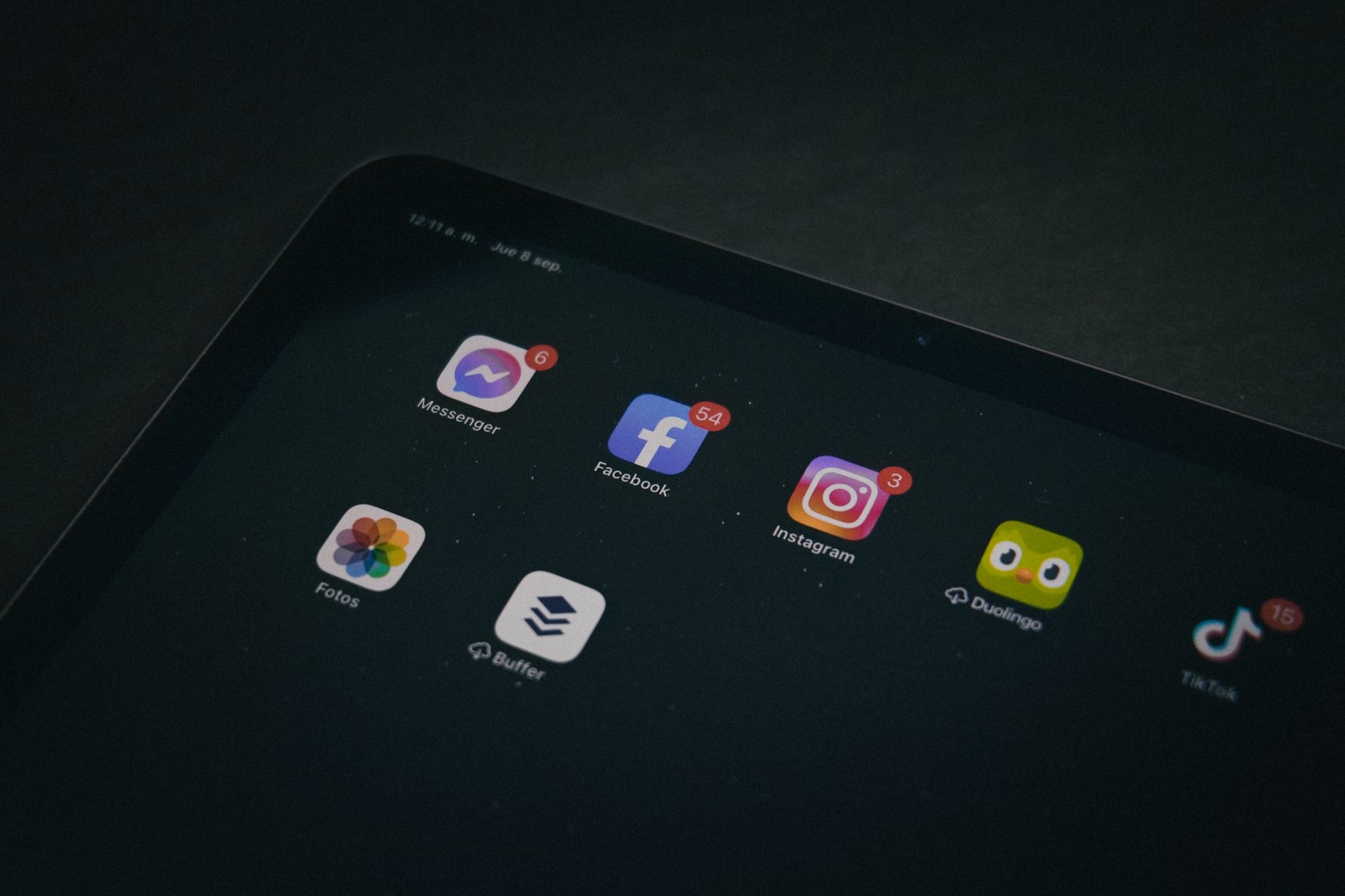
Having many apps and browser tabs open can consume resources and contribute to slowdowns. Closing apps you are not using and keeping your open browser tabs under control frees up resources and helps your iPad run more smoothly. It is a simple habit that makes a real difference, especially if you tend to leave lots of things open. Tidying up what is running gives your iPad more room to focus on what you are actually doing.
4. Update Your Software
Keeping your iPad software up to date matters for performance as well as security. Updates often include improvements and fixes that can help your iPad run better, so make sure you are on the latest version. An out-of-date iPad may be missing optimizations that improve speed and stability. Checking for and installing available updates is an easy step that can genuinely help with sluggishness, alongside its important security benefits. Keep your iPad current to keep it running its best.
5. Turn Off Unnecessary Background Activity
Various background processes and features can use resources, and reducing unnecessary background activity can help a slow iPad. Reviewing which apps refresh in the background and limiting those that do not need to can free up resources for what you are actively doing. You do not need to disable everything useful, but trimming background activity you do not need is a sensible way to give your iPad more room to run smoothly and feel more responsive.
6. Reduce Visual Effects
Your iPad has settings that can reduce motion and visual effects, which can make the interface feel snappier, especially on an older device. If your iPad feels sluggish moving between screens and apps, reducing these effects can give it a more immediate, responsive feel. It is a simple settings change that some people find genuinely helps, and it can also be easier on the eyes. It is worth trying if your iPad feels laggy in everyday navigation.

7. Check Your Battery and Charging Habits
An older battery or certain conditions can affect performance, so it is worth being mindful of your battery health and keeping your iPad away from extreme temperatures, since heat can affect how a device performs. While battery is more directly about how long your iPad lasts, keeping it healthy and avoiding extreme conditions supports overall smooth operation. If your iPad is older, a worn battery may be part of the picture, and servicing it can help both endurance and reliability.
8. When to Consider an Upgrade
If you have tried these fixes and your iPad is still slow, and it is quite old and no longer keeping up with what you need, it may genuinely be time to consider an upgrade. A newer iPad will feel dramatically faster and stay capable for years. But try the simple fixes first, since they often solve the problem for free. If an upgrade is truly warranted, choosing a current model that fits your needs gives you a snappy, long-lasting tablet once more.
★ Editor's Pick · Amazon
iPad Air (M3)
If your iPad is truly outdated, a newer one flies
Options: iPad Air · iPad (value)
Frequently Asked Questions
Why is my iPad so slow?
Common causes include running for a long time without a restart, almost no free storage, too many apps and tabs open, out-of-date software, and heavy background activity. On older iPads, a worn battery can play a part too. Fortunately, simple fixes often resolve sluggishness.
How do I make my iPad faster?
Restart it, free up storage by removing unused apps and files, close apps and manage browser tabs, update your software, and trim unnecessary background activity. Reducing visual effects can also help. These simple steps often make a slow iPad feel responsive again for free.
Does free storage affect iPad speed?
Yes. An iPad with almost no free storage can slow down, since it needs some breathing room to run smoothly. Clearing out unused apps, old files, and managing photos to keep some space free is one of the most impactful fixes for a sluggish iPad.
Does restarting really help a slow iPad?
Often, yes. Restarting clears temporary issues and refreshes the system, frequently resolving slowdowns instantly, especially if you rarely restart your iPad. It is quick, easy, and one of the most effective first things to try when your iPad feels sluggish.
Will updating my iPad make it faster?
It can help. Updates often include performance improvements and fixes alongside security benefits, and an out-of-date iPad may be missing optimizations. Installing available updates is an easy step that can genuinely help with sluggishness and keep your iPad running its best.
When should I replace my slow iPad?
If you have tried the simple fixes and it is still slow, and the iPad is quite old and no longer keeping up with your needs, an upgrade may be warranted. A newer iPad feels dramatically faster and lasts years. But try the free fixes first, since they often solve the problem.
The Bottom Line
A slow iPad is often fixable without spending anything. Restart it, free up storage, close apps and tabs, update your software, and trim background activity, and it will usually feel responsive again. Reducing visual effects and minding battery health help too. Try these simple fixes first, and only consider an upgrade if your iPad is genuinely old and no longer keeping up. Most of the time, a little maintenance brings your iPad back to life.
Leave a Reply