
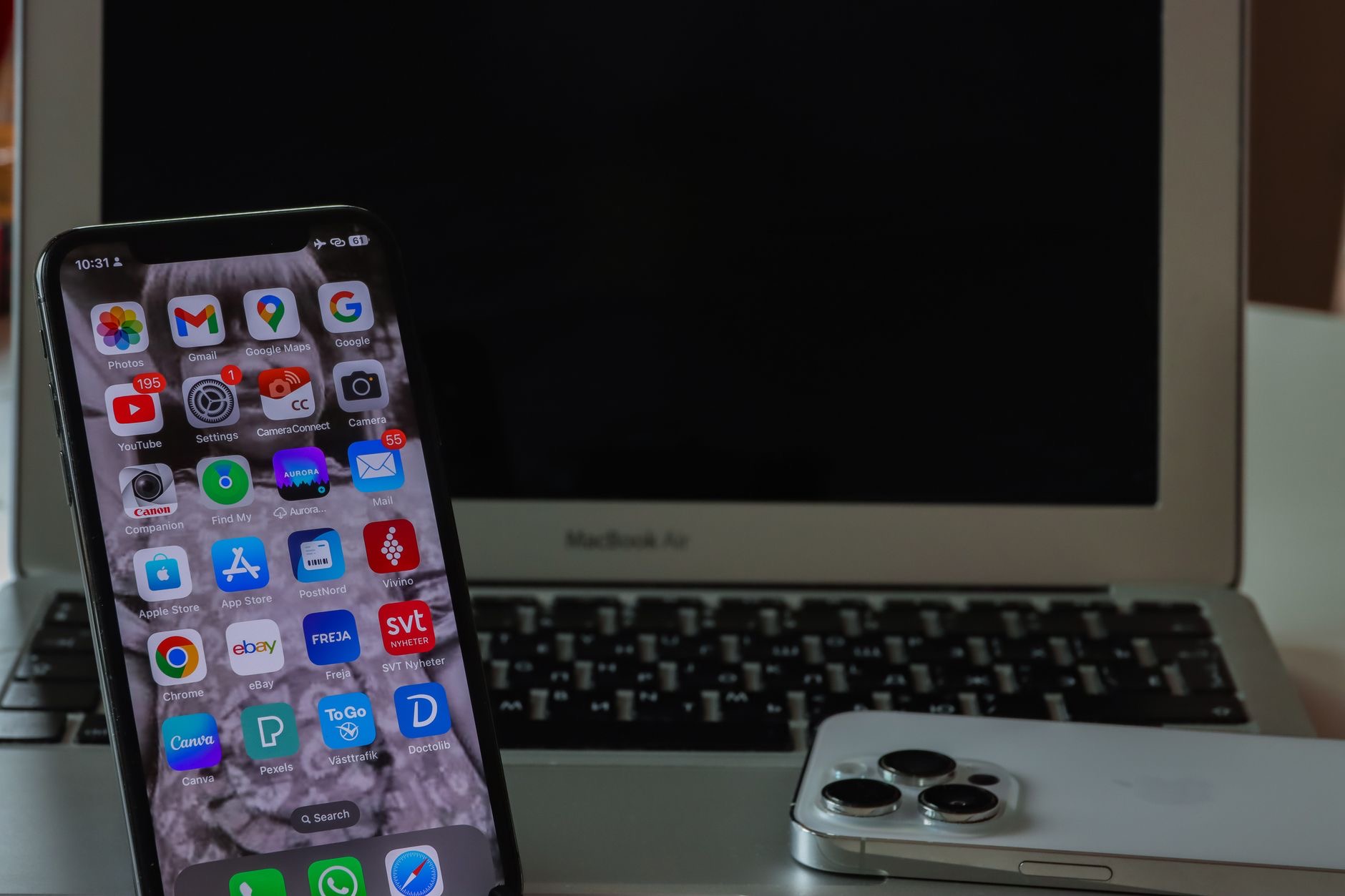
One of the best things about a MacBook is its all-day battery, but if yours is not lasting as long as you would like, or you simply want to squeeze out more, there is plenty you can do. With a few simple habits, you can stretch your battery through the day and keep it healthy for years. Here are real, practical tips to extend your MacBook battery life, no gimmicks required.
1. Lower Your Screen Brightness
The screen is one of the biggest consumers of battery, so lowering your brightness to a comfortable but not maximum level is one of the quickest ways to extend your battery life. You often do not need full brightness, especially indoors, and dropping it a few notches makes a real difference over a day. It is the single easiest habit to adopt, and you will barely notice the change in the screen while noticeably gaining battery time.
2. Use Low Power Mode When You Need It
Your MacBook has a low power mode that reduces certain background activity to extend your battery when you are running low or want to stretch a charge. Switching it on when you are away from an outlet and need your battery to last is a simple, effective way to buy extra time. It is perfect for those moments when you know you have hours to go before you can charge, quietly conserving power without getting in your way.
3. Close Apps and Tabs You Are Not Using
Apps and browser tabs running in the background quietly consume power and resources, even when you are not actively using them. Closing the ones you do not need, and keeping your open browser tabs under control, reduces the drain and helps your battery last longer. It also keeps your Mac running smoothly. Getting into the habit of closing what you are finished with is a simple way to stop unnecessary battery use throughout your day.

4. Check What Is Using Your Battery
Your Mac can show you which apps are using significant energy, which is genuinely useful for spotting the culprits behind unexpected battery drain. If an app is consuming a lot of power in the background, you can decide whether you really need it running. Checking this occasionally helps you identify and manage the heavy energy users, giving you back control over your battery. Sometimes a single demanding app is the reason your battery is draining faster than expected.
5. Unplug Unused Accessories
Accessories connected to your MacBook, like external drives and some peripherals, can draw power from it. Unplugging the ones you are not actively using helps conserve your battery, especially when you are away from an outlet and want to maximize your time. It is a small habit that adds up, particularly if you tend to leave things connected out of convenience. When battery matters, disconnecting what you do not need is a quick and easy win.
6. Manage Background Activity
Various background processes, automatic updates, syncing, and apps checking for activity, can use battery. While much of this is useful, being mindful of it, and pausing heavy background tasks when you need to conserve power, helps your battery last. You do not need to disable everything, but timing demanding background tasks for when you are plugged in, rather than when you are running on battery, is a smart way to protect your remaining charge.

7. Keep Your Software Updated
Software updates often include improvements to efficiency and battery management, so keeping your MacBook up to date can genuinely help your battery performance. Beyond the security and stability benefits, staying current ensures you have the latest optimizations. It is one of the easiest things you can do, since updates work quietly in the background of your good habits. Make sure your Mac is running the latest software to benefit from any battery-related improvements it brings.
8. Mind Battery Health Over the Long Term
Beyond daily battery life, your battery health matters over the long term. Your Mac includes features to help manage charging in a way that is gentler on the battery over time, so make sure any battery health optimization is enabled. Avoiding extreme heat is also important, since heat is hard on batteries. These habits help your battery age more slowly, keeping it holding a good charge for longer, which matters just as much as stretching a single day.
9-10. Adjust Settings and Consider a Battery Service
A couple more steps round things out. Reviewing your energy and display settings, like how quickly the screen dims when idle, helps conserve power automatically. And if your MacBook is older and its battery no longer lasts the way it used to even with good habits, a battery service can restore its endurance far more affordably than a new machine. If your battery is genuinely worn out, servicing it can give your MacBook a real second life. When that time comes, a newer model is also an option worth weighing.
★ Editor's Pick · Amazon
MacBook Air (M4)
If your battery is truly worn, a newer Mac lasts all day
Colors: Midnight · Starlight · Sky Blue · Space Gray
Frequently Asked Questions
How can I make my MacBook battery last longer?
Lower your screen brightness, use low power mode when running low, close apps and tabs you are not using, unplug unused accessories, and check which apps are draining power. Keeping your software updated and managing background activity also help stretch your battery through the day.
Does screen brightness really affect battery?
Yes, significantly. The screen is one of the biggest consumers of battery, so lowering brightness to a comfortable but not maximum level is one of the quickest ways to extend your battery life. You often do not need full brightness indoors, and dropping it a few notches makes a real difference.
What is low power mode on a Mac?
Low power mode reduces certain background activity to extend your battery when you are running low or want to stretch a charge. Switching it on when you are away from an outlet is a simple, effective way to buy extra time without it getting in your way.
How do I see what is draining my MacBook battery?
Your Mac can show which apps are using significant energy, helping you spot the culprits behind unexpected drain. If an app is consuming a lot of power in the background, you can decide whether you need it running. Checking occasionally gives you back control over your battery.
How do I keep my MacBook battery healthy long-term?
Enable any battery health optimization your Mac offers, which manages charging in a gentler way over time, and avoid exposing your MacBook to extreme heat, since heat is hard on batteries. These habits help your battery age more slowly and hold a good charge for longer.
What if my MacBook battery is worn out?
If it no longer lasts the way it used to even with good habits, a battery service can restore its endurance far more affordably than a new machine, giving your MacBook a second life. When the time comes, upgrading to a newer model that lasts all day is also an option worth weighing.
The Bottom Line
You can genuinely extend your MacBook battery life with simple habits: lower your brightness, use low power mode, close what you are not using, unplug unneeded accessories, and keep your software updated. For the long term, enable battery health features and avoid heat. These real, no-gimmick tips help you get more from every charge and keep your battery healthy for years, and if it is truly worn out, a service or a newer Mac restores all-day endurance.
Leave a Reply