

Every time you reach for the mouse to do something a keyboard shortcut could handle, you lose a second or two. It does not sound like much, but across a day, a week, a year, those seconds pile into hours. The good news is that learning even a handful of Mac keyboard shortcuts dramatically speeds up how you work and makes your Mac feel effortless. Here are the essential ones genuinely worth committing to memory.
The Absolute Essentials
Start with the shortcuts you will use constantly. Copy, cut, and paste are the trio you cannot live without, letting you move text and files with a keystroke. Undo reverses your last action, a genuine lifesaver, and redo brings it back. Select all grabs everything at once. Save keeps your work safe. These are the foundation, and if they are not already second nature, making them so is the single biggest speed boost you can give yourself on a Mac.
Managing Apps and Windows
A set of shortcuts handles your apps and windows with ease. You can switch quickly between open apps, close the current window, quit an app entirely, and minimize windows out of the way, all without touching the mouse. There are also shortcuts to cycle between windows of the same app. Learning these makes moving around a busy screen fast and fluid, so you spend less time hunting for windows and more time actually working.
Finding Things Fast
Searching is where the Mac really shines with shortcuts. You can instantly open Spotlight to search your whole Mac and launch apps, which is often faster than clicking through folders. Within apps and documents, a find shortcut lets you search the current page or file quickly. Getting into the habit of searching by keyboard rather than clicking around is one of the biggest time-savers of all, letting you jump straight to what you need.
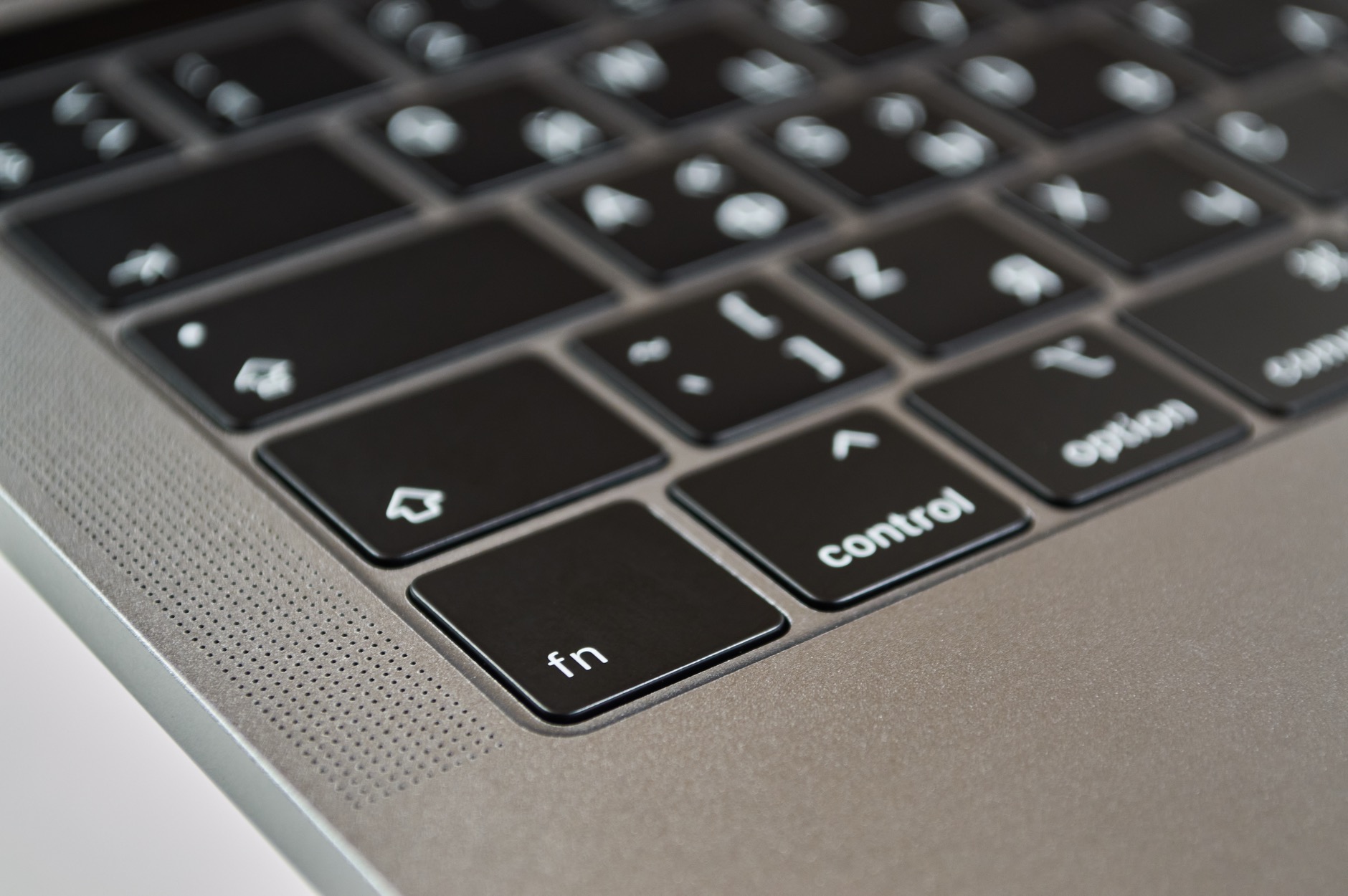
Taking Screenshots
The Mac has excellent, flexible screenshot shortcuts. You can capture the entire screen, or choose to capture just a selected area, giving you precise control over what you grab. There are also options to capture a specific window. Once you learn the screenshot shortcuts, saving and sharing exactly what is on your screen becomes second nature, which is invaluable for work, sharing information, and keeping records.
Text Editing Like a Pro
Beyond copy and paste, several shortcuts speed up working with text. You can jump to the beginning or end of a line, move word by word, and select text as you go, all from the keyboard. This lets you edit and navigate documents far faster than clicking and dragging with the mouse. For anyone who writes or works with text regularly, these editing shortcuts are transformative, keeping your hands on the keys and your flow unbroken.
Browser and Tab Shortcuts
If you spend time in a web browser, a few shortcuts are gold. You can open a new tab, close a tab, and reopen a tab you accidentally closed, which is a wonderful recovery when you shut the wrong one. You can also switch between tabs quickly. These make browsing far more efficient, especially if you tend to have many tabs open, letting you manage them without ever reaching for the mouse.
System and Everyday Shortcuts
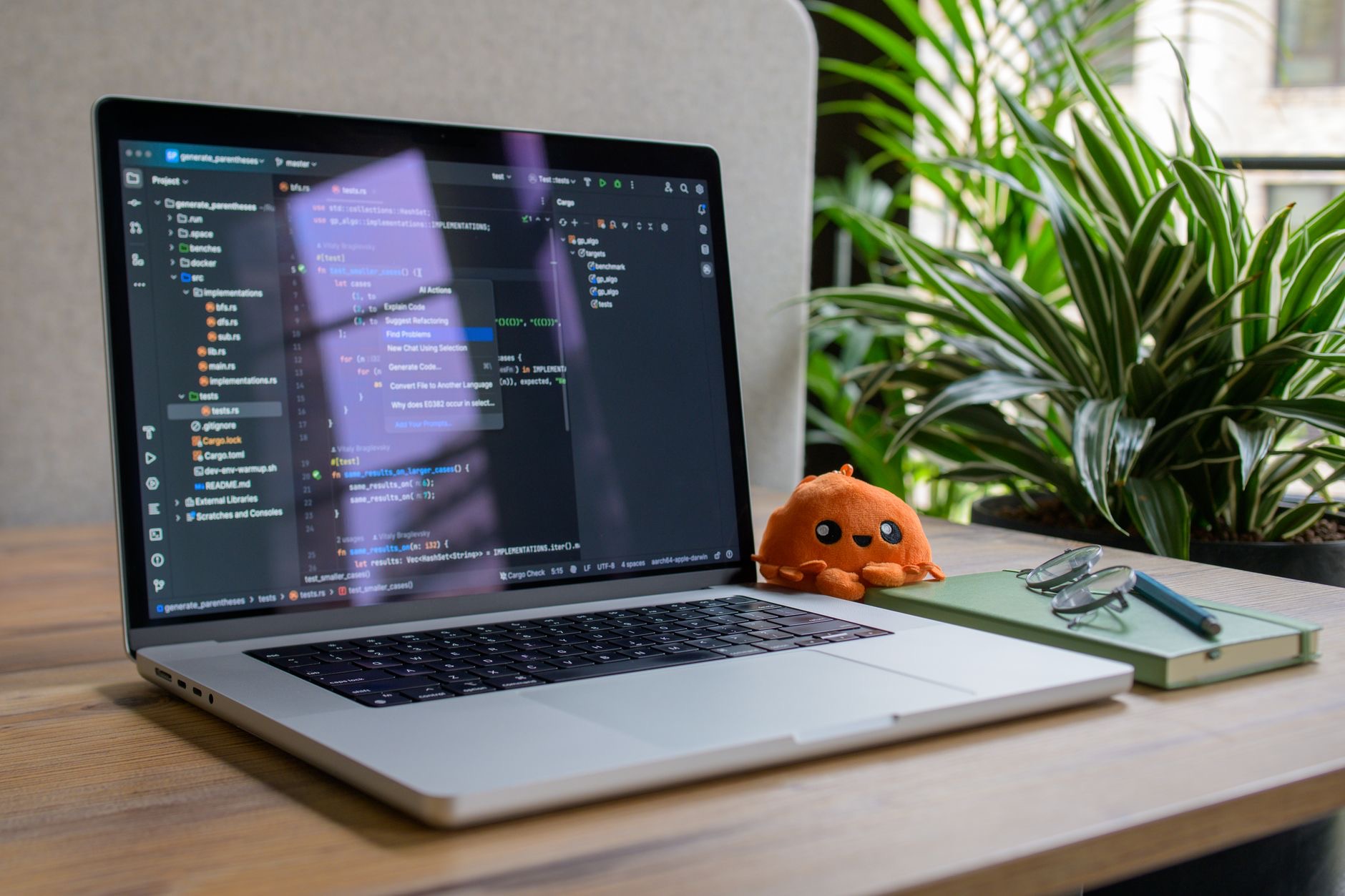
A final set handles everyday system tasks. You can open an app's preferences quickly, force an unresponsive app to quit when something freezes, lock your screen when you step away, and access special characters and emoji. There are also shortcuts to control media and volume. Knowing these means you can handle common situations smoothly without digging through menus, keeping you in control of your Mac at all times.
How to Actually Learn Them
The trick to learning shortcuts is not to memorize a huge list at once, which rarely sticks. Instead, pick two or three that would help your daily work most, and consciously use them until they become automatic. Then add a few more. Within a few weeks of this gradual approach, you will have built up a genuinely useful toolkit without ever feeling like you were studying. Little by little, your hands learn to fly, and reaching for the mouse starts to feel slow.
★ Editor's Pick · Amazon
MacBook Air (M4)
A fast Mac where these shortcuts feel effortless
Colors: Midnight · Starlight · Sky Blue · Space Gray
Frequently Asked Questions
What are the most important Mac keyboard shortcuts?
The essentials are copy, cut, and paste, plus undo and redo, select all, and save. These are the ones you use constantly, and making them second nature is the single biggest speed boost on a Mac, letting you move text and files and recover from mistakes with a keystroke.
How do I search my Mac with the keyboard?
You can instantly open Spotlight to search your whole Mac and launch apps, which is often faster than clicking through folders. Within apps and documents, a find shortcut searches the current page or file quickly. Searching by keyboard is one of the biggest time-savers available.
Can I reopen a browser tab I closed by accident?
Yes. There is a shortcut to reopen a tab you accidentally closed, which is a wonderful recovery when you shut the wrong one. Combined with shortcuts to open new tabs, close tabs, and switch between them, it makes browsing far more efficient, especially with many tabs open.
How do I force quit a frozen app on Mac?
There is a shortcut to force an unresponsive app to quit when something freezes, so you can recover smoothly without digging through menus. It is part of a set of everyday system shortcuts, alongside locking your screen and opening app preferences quickly.
What is the best way to learn keyboard shortcuts?
Do not try to memorize a huge list at once. Pick two or three that would help your daily work most and use them consciously until they become automatic, then add more. Within a few weeks this gradual approach builds a genuinely useful toolkit without feeling like study.
Do keyboard shortcuts really save time?
Yes. Each time you use a shortcut instead of reaching for the mouse, you save a second or two, and across a day, week, and year those seconds pile into hours. Beyond time, they keep your hands on the keyboard and your flow unbroken, which makes your Mac feel effortless.
The Bottom Line
Mac keyboard shortcuts are one of the easiest ways to work faster, and the time they save genuinely adds up to hours. Master the essentials first, then gradually add shortcuts for managing windows, searching, editing text, and browsing, picking a few at a time until they stick. You do not need to learn them all at once, just start with the ones that help you most, and enjoy a Mac that feels quicker and more effortless every day.
Leave a Reply