
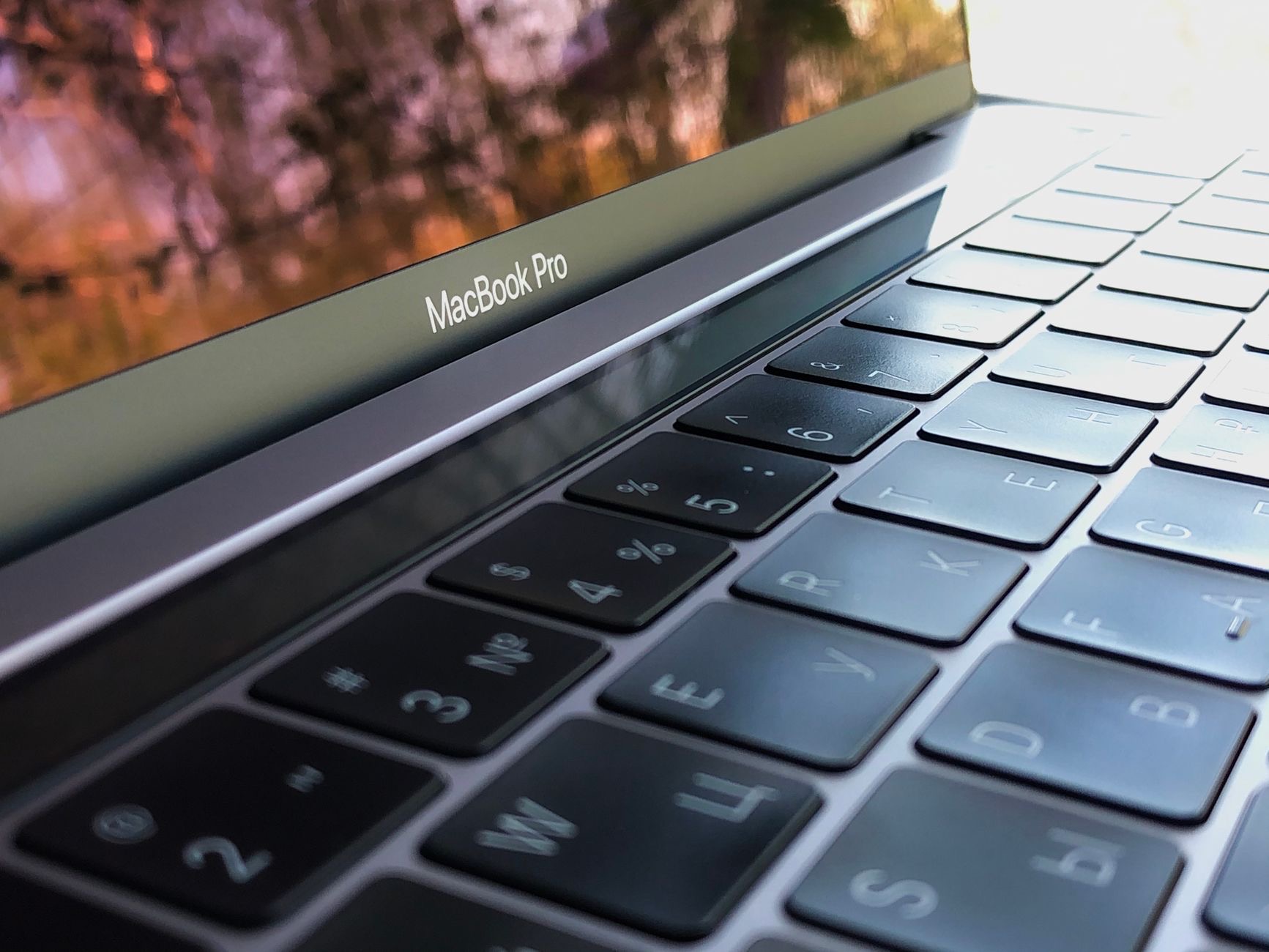
Few things derail your day like a MacBook keyboard that suddenly refuses to cooperate. Maybe one key is dead, maybe a whole section stopped responding, or maybe the entire keyboard went silent. Before you panic about an expensive repair, know this: a surprising number of keyboard problems are software or simple physical issues you can fix yourself in a few minutes. Let us work through them in order.
Start by Ruling Out a Temporary Glitch
The first step is almost embarrassingly simple, and it works often enough that skipping it is a mistake: restart your Mac. Software hiccups can cause the keyboard to stop responding, and a clean restart clears them out. Save any open work if you can, restart properly through the menu rather than forcing a shutdown, and test the keyboard again once everything has reloaded. People are routinely surprised that a keyboard which seemed completely dead springs back to life after a restart. It costs you a minute and rules out a whole category of temporary software faults before you start chasing more complicated explanations.
Check for Stuck or Dirty Keys
If specific keys are the problem rather than the whole keyboard, physical debris is a leading suspect. Crumbs, dust, and grime work their way under keys and block them from registering presses. Turn the MacBook off, hold it at an angle, and gently clean around the affected keys. A can of compressed air, used in short bursts while tilting the laptop, dislodges debris hiding beneath the keycaps. Be gentle and avoid liquids. This is one of the most common causes of a single unresponsive or sticky key, and a careful cleaning resolves it far more often than people expect, saving an unnecessary trip to a repair shop.

Make Sure It Is Not a Settings Problem
Sometimes the keyboard works fine, but a setting makes it behave strangely, which is easy to mistake for a fault. Features that change how keys respond can be switched on accidentally. If keys repeat oddly, do nothing, or produce unexpected results, the culprit may be an accessibility or input setting rather than the hardware. Look through the keyboard and accessibility settings for options like slow keys or sticky keys, which alter normal typing behavior. Also check that the correct input language is selected, since the wrong keyboard layout makes keys produce the wrong characters. These settings cause genuine confusion, and toggling them back resolves problems that feel like hardware failures but are not.
Disconnect Accessories and Test
Connected devices can occasionally interfere with the keyboard in ways that are hard to guess. If you have a hub, an external keyboard, a docking station, or other peripherals plugged in, disconnect everything and test the built-in keyboard on its own. A misbehaving accessory or a software conflict from a connected device sometimes disrupts input. If the keyboard works once everything is unplugged, reconnect items one at a time to find the troublemaker. This simple isolation test rules out external causes that have nothing to do with the MacBook's own keyboard, and it is quick enough to be worth doing early.
Update Your Software
Keyboard issues are sometimes caused by software bugs that have already been fixed in a newer system update. Check whether your Mac has pending updates and install them. Updates frequently include fixes for exactly these kinds of input glitches, and running an outdated system version can leave you wrestling with a problem that a simple update would resolve. While you are at it, make sure the system fully restarts after updating, since some fixes only take effect after a reboot. Keeping your software current is one of those quiet habits that prevents a whole range of odd behavior, the keyboard included.
Try Booting in Safe Mode
If the keyboard still misbehaves, booting into safe mode helps you figure out whether software is to blame. Safe mode starts the Mac with only the essentials, bypassing third-party software that loads at startup. If the keyboard works normally in safe mode but fails during a normal startup, something you have installed is likely interfering, and you can investigate recently added software. If it fails even in safe mode, that points more toward a hardware issue. This diagnostic step does not fix the problem directly, but it tells you which direction to look, which saves a lot of guessing.
Reset Relevant System Settings
Macs store certain low-level settings that, when corrupted, can cause hardware oddities including keyboard trouble. Depending on your Mac model, there are established reset procedures that restore these settings to their defaults without touching your files. These resets address a range of peripheral and input glitches that ordinary restarts do not. The exact steps differ between older and newer Mac models, so it is worth looking up the correct procedure for your specific machine. It is a safe step that has revived many unresponsive keyboards, and it sits in that useful middle ground between simple restarts and accepting that you need a repair.
Use an External Keyboard as a Test and a Stopgap
Connecting an external keyboard serves two purposes. First, it is a diagnostic: if an external keyboard works perfectly while the built-in one does not, that strongly suggests the built-in keyboard has a hardware problem rather than a system-wide software fault. Second, it is a practical stopgap. If you have urgent work and the built-in keyboard is dead, an external keyboard, whether wired or wireless, lets you keep working while you arrange a proper fix. Many people end up using an external keyboard with their MacBook permanently at a desk anyway, so it is a worthwhile thing to have on hand regardless.
When It Is Genuinely a Hardware Problem
If you have worked through restarts, cleaning, settings, updates, safe mode, and resets, and the keyboard still fails while an external keyboard works fine, you are most likely looking at a hardware fault. This can stem from physical damage, liquid exposure, or a failed component. At this point, the sensible move is professional repair rather than continued tinkering, especially since opening up a MacBook yourself risks more harm than good. If your machine is under warranty or a support plan, the repair may be covered. Liquid damage in particular needs prompt professional attention, since delays let corrosion spread and worsen the damage.
Preventing Future Keyboard Trouble
Once your keyboard is working again, a few habits reduce the odds of a repeat. Keep food and drink away from the MacBook, since liquid spills and crumbs are leading causes of keyboard failure. Clean the keyboard gently and periodically to stop debris building up beneath the keys. Use a keyboard cover only if it is well-fitted, since a poor one can trap heat. Carry and store the laptop carefully to avoid pressure and impacts. None of this is demanding, but small everyday care meaningfully extends the life of a keyboard that, on a MacBook, is not the easiest or cheapest thing to repair.
| Symptom | Likely Cause | First Fix to Try |
|---|---|---|
| Whole keyboard dead | Software glitch | Restart the Mac |
| One sticky or dead key | Debris under key | Clean with compressed air |
| Wrong characters appear | Input language or settings | Check keyboard layout |
| Keys repeat or lag oddly | Accessibility settings | Check slow/sticky keys |
| Fails even in safe mode | Possible hardware fault | Test external keyboard |
Frequently Asked Questions
Why did my MacBook keyboard suddenly stop working?
The most common causes are a temporary software glitch, debris under the keys, an accidental settings change, or a connected accessory interfering. Start with a restart, then cleaning, then checking settings. These resolve the majority of sudden keyboard failures without any repair.
Can I fix a sticky key myself?
Often yes. A sticky or dead single key is usually caused by debris underneath. Turn off the MacBook, tilt it, and use short bursts of compressed air around the key. Avoid liquids. This careful cleaning resolves most sticky-key problems at no cost.
How do I know if it is software or hardware?
Boot into safe mode and connect an external keyboard. If the keyboard works in safe mode or the external keyboard works fine, the issue is likely software. If the built-in keyboard fails everywhere including safe mode, it points to a hardware fault needing professional repair.
What should I do if I spilled liquid on the keyboard?
Turn the MacBook off immediately, unplug it, and do not try to power it on. Liquid damage needs prompt professional attention, since corrosion spreads over time. Delaying makes the damage worse, so seek a repair service quickly rather than waiting to see if it dries out.
Will resetting system settings delete my files?
No. The low-level setting resets used for hardware glitches restore defaults without touching your documents or data. They are safe to perform. Always look up the correct procedure for your specific Mac model, since steps differ between older and newer machines.
Can I keep using my MacBook with a broken keyboard?
Yes, with an external keyboard. Connecting a wired or wireless keyboard lets you keep working while you arrange a repair. Many people use an external keyboard at their desk permanently, so it doubles as both a stopgap and a long-term comfort upgrade.
Our Honest Take
Resist the urge to assume the worst when a MacBook keyboard acts up. Work through the simple fixes first: restart, clean, check settings, update, and test in safe mode. The overwhelming majority of keyboard complaints are resolved before you ever reach the hardware stage. If you do land on a genuine hardware fault, an external keyboard keeps you productive while you arrange a proper repair, and going forward, keeping drinks at arm's length is the single best thing you can do to avoid a repeat.
Leave a Reply